
Finding the Plug-Ins Menu in Adobe Acrobat
Installed a Mapsoft plug-in but can’t see it in Adobe Acrobat? In the interface Adobe released in late 2023, the classic Plug-Ins menu moved. This page shows exactly where to look — and how to switch back to the old menu bar if you prefer it.
Why you might not see the menu
In the second half of 2023, Adobe released a redesigned Acrobat interface that replaced the traditional menu bar (File, Edit, View, Plug-Ins, …) with a simplified left-hand tool rail and a single Menu icon. All plug-in features are still available — they have simply moved behind that icon.
Mapsoft plug-ins (Bookmarker, TOCBuilder, Impress Pro, MaskIt, FDA Checker, and the rest) all register their commands under the Plug-Ins menu. Once you know where that menu lives in the new UI, every plug-in you install works the same way.
Finding the Plug-Ins Menu in the New UI
Step 1. Open any PDF
Most plug-in commands are grayed out until a PDF is open, because they act on the current document. Open any PDF first — a blank test file is fine.
Step 2. Click the Menu icon (top-left)
In the new interface, look at the top-left corner of the Acrobat window for a hamburger icon (three horizontal lines). Clicking it reveals the classic menu entries: File, Edit, View, E-Sign, Plug-Ins, Window, Help.
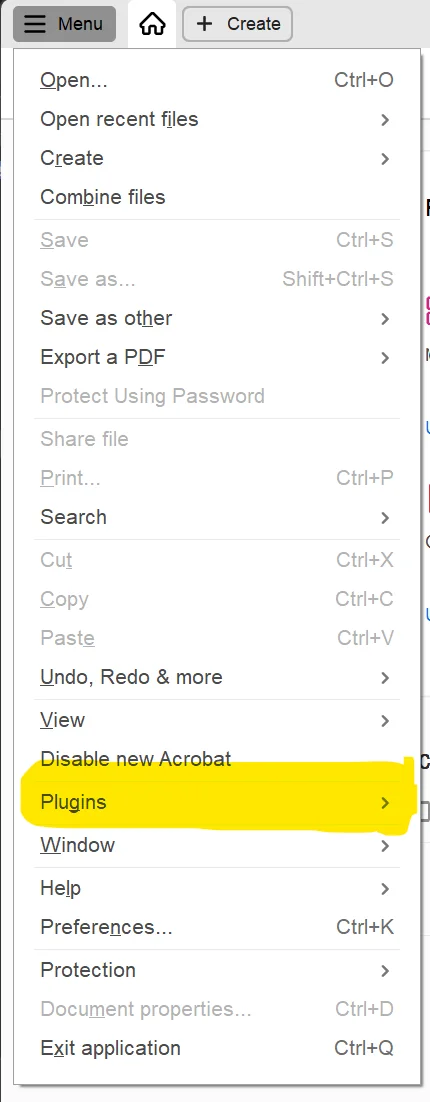
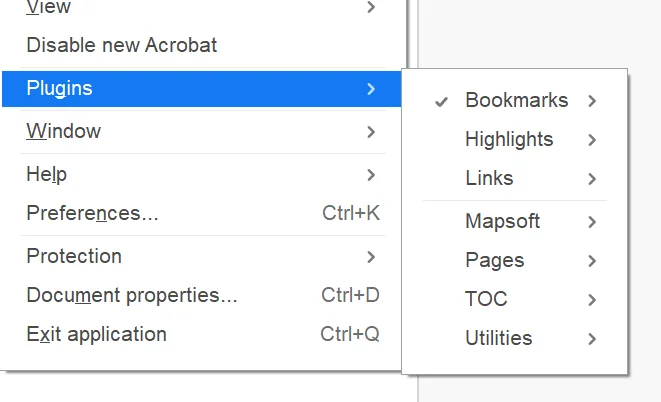
Step 3. Choose Plug-Ins
Select Plug-Ins from the menu. A submenu appears listing every installed plug-in — for example, Bookmarker, TOCBuilder, Impress Pro, and so on. Choose a plug-in to access its commands.
Tip. Each plug-in’s own help and documentation is available from inside that plug-in once you can open it. If you never reach this menu, you never reach the docs — so keep this page bookmarked until you’ve got the plug-in running.
Prefer the Classic Menu? Switch Back
If the new Acrobat interface doesn’t suit how you work, Adobe still lets you revert to the classic menu bar where Plug-Ins appears as a permanent top-level menu alongside File, Edit, and View.
- Click the Menu icon in the top-left corner.
- Scroll to the bottom of the menu.
- Choose Disable new Acrobat (sometimes labeled Disable new experience or Switch to classic menu, depending on your Acrobat version).
- Acrobat restarts with the classic menu bar. The Plug-Ins menu is now always visible at the top of the window.
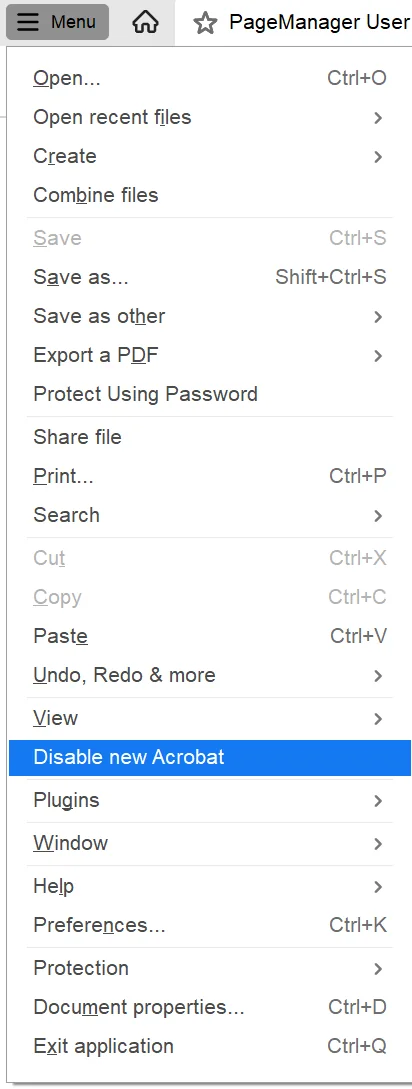
Adobe may remove this option in a future release. If you don’t see it, use the steps above to access the Plug-Ins menu via the hamburger icon.
Menu Still Missing? Troubleshooting Checklist
1. Close and reopen Acrobat
If Acrobat was running during installation, the plug-in won’t register until Acrobat has been fully closed (including any background instance in the Windows system tray) and reopened.
2. Turn off “Use only certified plug-ins”
In Acrobat, press Ctrl+K (or choose Menu → Preferences), open the Security (Enhanced) category, and make sure Use only certified plug-ins is not checked. Restart Acrobat.
3. Confirm Acrobat is licensed and signed in
Adobe Acrobat will not load third-party plug-ins if it isn’t properly licensed. Open Menu → Help → Sign In and make sure you’re signed in with your Adobe ID and that your subscription is active. Adobe Reader does not support plug-ins at all — you need Acrobat Standard or Pro.
4. Check you installed the matching 32/64-bit build
Acrobat DC is available as both a 32-bit and a 64-bit build. Our installer auto-detects which you have, but if you installed the wrong build manually, the plug-in won’t load. You can check Acrobat’s bitness in its title bar, then reinstall the matching plug-in build from the downloads page.
5. Reinstall after an Acrobat update
Adobe Acrobat updates occasionally clear or relocate the plug_ins folder. If your plug-in disappeared after an Acrobat update, simply run the Mapsoft installer again.
Still not working?
Send us the exact Acrobat version (Menu → Help → About Adobe Acrobat) and which Mapsoft product you installed, and we’ll help you get it running.
Got the Menu? You’re Ready to Go
Every Mapsoft plug-in’s full user guide and help is available from inside Acrobat once you’ve opened the plug-in. Browse all products or jump to the one you’re trying.