
PDF Open Options: Why How a PDF Opens Matters
Every PDF carries instructions for how it should appear when it opens — the page, the zoom, the panels, the window. Almost no one sets them. Here's what each option does and when the default is the wrong call.
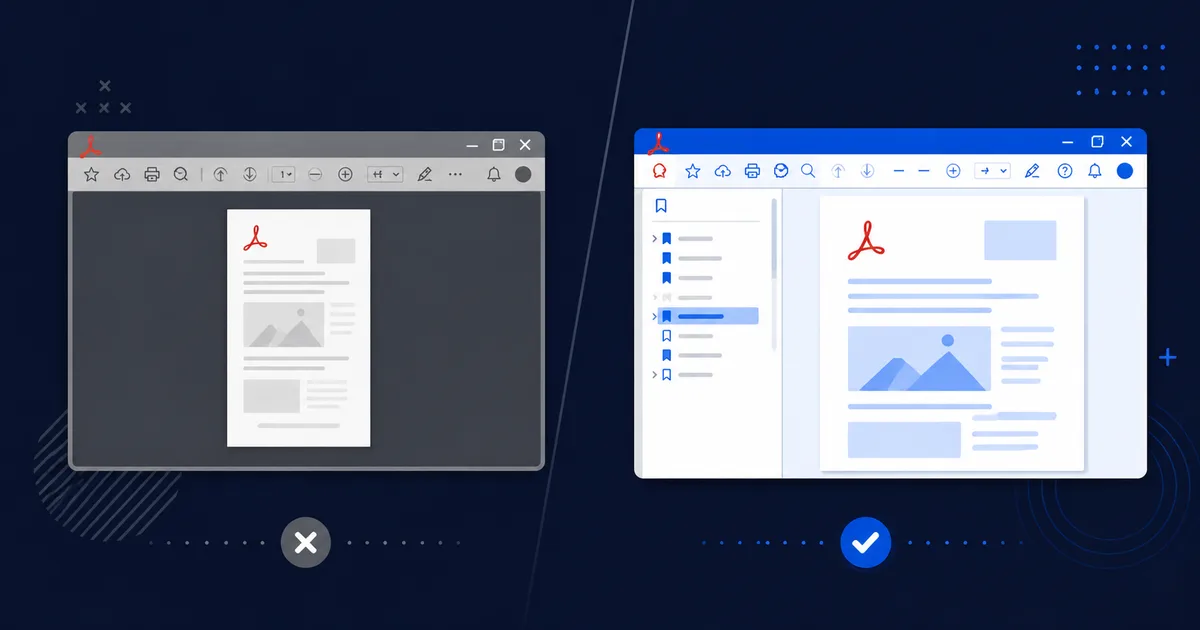
You can also set PDF open options online for free using Mapsoft's PDF Hub — no installation required.
Quick summary
Quick answer: Adobe Acrobat reads a small set of preferences from inside a PDF the moment it opens it — which page to land on, how to zoom, whether to show the bookmarks panel, whether to center the window, whether to go full-screen, whether to hide the toolbar. The defaults are fine for casual reading and wrong for almost everything else. Setting them deliberately is a five-minute job per document and a permanent improvement to how every recipient experiences the file. Mapsoft's free OpenOptions plug-in adds named configurations and batch processing on top of Acrobat's built-in dialog so you only configure each document type once.
The shortest version: a 200-page service manual that opens at page 1, fitted to a width that makes the type microscopic, with no bookmarks panel showing, is a small but real failure. The reader who needs page 47 ("Replacing the alternator") has to scroll, search, or guess. Multiply by every recipient. The same file, set to open at the table of contents with the bookmarks panel visible, is a different document — not in content, but in usability. PDF open options are the difference, and almost no one sets them.
What “open options” actually are
A PDF is more than its pages. The file format defined in ISO 32000 reserves space for document-level metadata that a reader consults the moment it loads the file: a starting page number, a default zoom level, a default page layout, instructions for whether to display the bookmarks panel, whether to open in full-screen mode, whether to hide the application chrome. These instructions are stored as part of the document catalog and live alongside the title, author, and other DocInfo metadata. Every reader that respects the standard — Adobe Acrobat, Acrobat Reader, most browser viewers — will honor them.
You can edit them per file in Acrobat under File › Properties › Initial View, but only one document at a time. Mapsoft's OpenOptions plug-in adds two things on top: named configurations you can save and re-apply with one click, and batch processing across whole folders of files. The configurations are the real payoff — once an organization defines what an "invoice" PDF or a "manual" PDF or a "kiosk" PDF should look like, the work of applying that style stops being work.
Beyond page 1: when the document shouldn't start where it ends
The single most under-used setting in the entire stack is the starting page. PDFs default to opening at page 1 because that's the first page they wrote. That's almost never where the reader needs to land.
- Annual reports and books have a cover, often a frontispiece, copyright information, sometimes a dedication — three to five pages of front matter before the chairman's letter or the first chapter. Open the file at page 5 and the reader skips straight to what they came for.
- Reference works open more usefully at the table of contents than at the title page. The TOC is where the reader is going to look anyway.
- Forms with prefatory legal text — tax forms, EULAs, regulatory filings, mortgage applications — routinely bury the actual form fields three or four pages in. Set the file to open where the user starts filling things in.
- Service manuals and field documentation are read in fragments. If you're shipping a 200-page manual to technicians and you know they'll always need section 4.3, open the file at section 4.3. They'll find the cover later if they want it.
- Revised contracts often only change one clause. A redline that opens at the changed clause — with a comment marker visible — is a faster review than one that drops the recipient at page 1 and asks them to find the difference.
- Compliance disclosures. Some regulators require that a document open at the disclosure or risk-factors page rather than the marketing front. Setting the open page is the difference between compliant and not.
- Restored archive scans often have a blank page 1 from the scanner bed. Setting the file to open at page 2 stops every recipient asking "is the document blank?"
The PDF spec also lets you point at a named destination rather than a numbered page, which is more durable when pages get added or removed in revisions. OpenOptions exposes the page number directly; named destinations are accessible through related Mapsoft tooling for documents under active editorial control.
Initial view: bookmarks panel, pages panel, or just the page
The view setting controls which navigation panel appears beside the document when it opens. Three values matter:
- Bookmarks panel and page — the right default for any document with internal structure that benefits from named navigation. Long reference works, technical manuals, contracts with named clauses, parts catalogs, e-learning curricula, government filings, regulatory documents. The bookmarks become the reader's first signpost, and the document starts feeling like a navigable application rather than a wall of text. If you've already invested the effort to build a good bookmark hierarchy, opening the panel by default is the small last step that lets readers actually use it.
- Pages panel and page — thumbnails are shown alongside the page. The right call for visual catalogs, architecture portfolios, comics, magazines, design books, photography portfolios — documents where readers are scanning for an image, not following a heading. The pages panel turns the document into a contact sheet.
- Page only — nothing beside the page. The right call for focused reading: essays, white papers, short brochures, marketing one-pagers, kiosk material. Anywhere chrome would be a distraction or where the document is short enough that no navigation is needed, page-only is correct.
Acrobat also exposes attachments-panel and layers-panel options for documents that use those features — portfolios with embedded files, drawings with optional content groups. They're niche but worth knowing about if you're producing a document that revolves around them.
Magnification: Fit Page, Fit Width, Actual Size, or a fixed percentage
The zoom level the document opens at is one of the most visible parts of the user's first impression and one of the easiest to get wrong.
- Fit Width sizes the page so the document fills the window horizontally. The right default for long-form reading: white papers, articles, reports, long manuals, anything where a reader is going to scroll downward through paragraphs of text. The text is rendered at the largest size that still fits the column, and the reader doesn't have to zoom.
- Fit Page sizes the page so the entire page fits inside the window. The right default for slide decks, presentations, infographics, brochures, and any document where the page as a unit is the message. A slide deck opened at fit-width often clips the bottom; the reader is missing a quarter of the slide and may not realize it.
- Actual Size displays at 100 % — one PDF point per screen pixel. Right for engineering drawings, plate-mark layouts, or any document where 1:1 scale is meaningful. A wiring diagram that opens at fit-page is unreadable; the same drawing at actual size is exactly what a designer needs.
- A specific percentage — e.g. 125 %, 150 % — is useful when reviewers all need to see the same view. QA workflows, compliance reviews, and design reviews often standardize on a fixed zoom so two reviewers comparing the same page see the same thing.
The cost of getting magnification wrong is low per recipient and high in aggregate. A fitted-page open on a long manual makes the type uncomfortable; a fitted-width open on a slide deck quietly hides the bottom of every slide. Picking deliberately, once, fixes it forever.
Page layout: single, continuous, two-up, or two-up continuous
The page layout setting governs how multiple pages are arranged in the viewport — whether the reader sees one page at a time or two, whether scrolling is paginated or continuous.
- Single page shows one page, with the next page hidden until the reader advances. Use it when page boundaries matter to comprehension: forms (a half-visible next page is confusing), slide decks (you don't want adjacent slides peeking into the viewport), test papers, and any document where each page is a discrete unit.
- Continuous stacks pages vertically and lets the reader scroll smoothly across page breaks. Right for long-form reading: reports, articles, books, anything where the text wants to flow past page boundaries. Continuous mode mirrors how readers actually consume text on screen and is the better default for almost all prose-heavy documents.
- Two-up shows pages in pairs — left and right, like a book. Right for documents that were designed as spreads: novels, music scores, magazine layouts, art books. A spread that was composed as a unit should be displayed as a unit.
- Two-up continuous combines the spread experience with continuous scrolling. The natural choice for long-form fiction, architecture portfolios, design books, and anything else that's both spread-oriented and long. Recent versions of Acrobat make this the most pleasant way to read a novel on a wide monitor.
Window options: resize, center, full-screen
Beyond the document itself, the PDF can ask the reader's window to behave a certain way the moment the file opens.
- Resize window to initial page tells Acrobat to size its window to match the page. Useful when the page isn't standard letter or A4. Marketing PDFs at A5, posters at A2, certificates at half-A4, square Instagram-ratio brochures — all of these benefit from a window that snaps to fit the document rather than leaving the user with a wall of gray margin.
- Center window on screen places the Acrobat window in the middle of the user's display when the document opens. This is more important than it sounds. On a multi-monitor setup, Acrobat re-opens wherever it last was, which is often on the wrong screen. For trade-show kiosks, customer demos, and presentations, a document that always centers is a document that always behaves the same way regardless of how the host machine is configured.
- Open in full-screen mode hands the document over to the reader as a presentation: no chrome, no menu, the page filling the screen. Right for sales pitch decks, trade-show kiosks, self-running tutorials, photo slideshows, and e-learning material designed to be experienced rather than scanned. The PDF stops feeling like a file and starts feeling like a slide deck. Esc or Ctrl+L exits full-screen — document this for your readers if you're shipping a full-screen file to non-technical recipients, because not everyone discovers it on their own.
Hiding the menubar, toolbar, and window bar
Three checkboxes — hide menubar, hide toolbar, hide windowbar — together strip Acrobat down to its bare essentials. They're usually used together, and they have a small set of legitimate use cases:
- Touch-screen kiosks at trade shows, museums, retail kiosks, and information stations. The reader touches the page; they don't need (and shouldn't have access to) Acrobat's menus.
- Distraction-free reading copies of long-form material for clients. The chrome disappears and only the document is visible.
- Sales presentations where Acrobat's toolbar would break the illusion that the deck is bespoke software.
- Embedded PDFs in B2B portals where the host application provides its own navigation and Acrobat's chrome would conflict.
- Self-running training material intended to be opened, walked through, and closed without the reader navigating menus.
Warning. Don't combine Hide menubar with Open in full-screen mode unless you've documented an exit path for the reader. With both set, a less-experienced user has no obvious way to leave the document — the menu is gone, the toolbar is gone, the window controls are gone. Esc exits full-screen, Ctrl+L toggles it, but a reader who doesn't know either of those is stranded. If your audience isn't technical, leave the menubar visible.
Saved configurations: one drop-down, every document type
This is where the OpenOptions plug-in stops being a nicer dialog and starts being a productivity tool. The dialog has roughly ten settings; configuring each one for every PDF you produce is exactly the kind of repetitive work that gets skipped, which is why so few PDFs have open options set in the first place. Saving named configurations turns ten checkboxes into a single drop-down pick.
The realisation that flips the equation is that different PDFs serve different purposes and want different opens. A team that produces invoices, manuals, brochures, and slide decks doesn't want one set of open options — they want one set per document type. With saved configurations, that's free. Define the styles once, give them sensible names, and the dialog becomes a chooser. The same approach scales to any team or organization: each category of outgoing PDF earns its own configuration, and the configuration becomes the contract for what that document type looks like.
A realistic set of named configurations one team might keep on tap:
- “Invoice” — bookmarks panel visible, fit width, single page, page 1, center on screen. Recipients see line-item bookmarks immediately and can jump to a specific item without scrolling.
- “Manual” — bookmarks panel visible, fit width, continuous scroll, opens at the table of contents (page 3, say), center on screen. Reader lands on the contents and scrolls through chapters as needed.
- “Brochure” — page only, fit page, single page, center on screen. The marketing piece presents itself like a poster, no chrome competing for attention.
- “Slide deck” — page only, fit page, single page, full-screen, hide menubar and toolbar. The PDF behaves like a presentation the moment it opens.
- “Kiosk” — page only, fit page, full-screen, hide everything. For unattended trade-show and museum displays.
- “Engineering drawing” — page only, actual size, single page, center on screen. Reader sees the drawing at 1:1 the moment it opens.
- “Annual report” — bookmarks panel, fit width, continuous scroll, opens at page 5 (skip cover and inside-cover legalese), center on screen.
Once the configurations exist, applying them is a single drop-down pick — no re-checking ten boxes per document, no team-member-by-team-member drift in what the "house style" actually is. New starters inherit the configurations rather than reinventing them. And because the same named configurations are available to batch runs and scripted automation, the configuration that defines your house style for invoices is the same configuration that powers a run across 500 invoice PDFs at month-end. The configuration is the contract; the dialog and the batch runner are just two ways to apply it.
What about Acrobat's built-in dialog?
Acrobat exposes most of these settings already, under File › Properties › Initial View. If you only have one PDF a year to set, that dialog is fine. The OpenOptions advantage is named configurations and batch processing — reuse across many documents and many document types. If you produce ten invoices a month or fifty manuals a year, the dialog approach quickly gets tiring; the configuration approach doesn't.
Setting open options: where to start
For a single document, open it in Acrobat and either use File › Properties › Initial View for a one-off, or install the free OpenOptions plug-in for the named-configuration workflow. For a quick test without installing anything, Mapsoft's PDF Hub includes a free online OpenOptions tool that runs in the browser. The full user guide walks through every setting in detail.
If you take one thing from this article: pick a single PDF you've produced recently — ideally one you'll send again — and set its open options deliberately. The work takes five minutes. Every recipient from now until the document is replaced will benefit. Then do it for every category of document you produce, save each as a named configuration, and the next time someone asks how to make your team's PDFs feel professional, the answer takes one drop-down pick.
Related Articles
PDF Bookmarks: A Complete Guide
How PDF bookmarks work in the spec, why they matter for navigation, and how to build a hierarchy worth opening the bookmarks panel for.
PDF Page Labels: Setting Page Labels in Acrobat
Roman numerals, prefixes, and section-based numbering — useful when "open at page 5" and "page 5" don't mean the same thing.
PDF Structure: How PDF Files Are Built
How PDF files are organized internally — including where in the document catalog open options live.
Try it yourself
Install the free desktop plug-in or use the online tool — no sign-up, no installation required for the web version.