
Flattener
User Guide — Mapsoft Flattener Plugin for Adobe Acrobat — version 1.8.4
Overview
Flattener is an Adobe Acrobat plug-in that removes or flattens interactive PDF elements — annotations, form fields, markup, stamps, multimedia, and other non-static content — into the page’s static content stream. This converts a dynamic, interactive PDF into a clean, flat document where all visual elements are permanently embedded as part of the page content.
Flattening is essential in many workflows: preparing documents for archival where interactive elements must be preserved as static visuals, removing sensitive comments and markup before distribution, locking down form fields so they cannot be edited, or stripping multimedia content for compliance with regulatory submission requirements. Flattener gives you granular control over exactly which element types to flatten or remove, and optionally places flattened content onto named PDF layers (Optional Content Groups) for organizational clarity.
The plug-in is available in three variants: an Acrobat plug-in (MAPSFLATTENER.api), a COM automation DLL for scripted workflows, and a workflow server library (.lpi) for the Mapsoft Workflow Server.
Getting Started
After installation, Flattener adds a menu item to Adobe Acrobat. To open the dialog:
- Open a PDF document in Adobe Acrobat.
- Go to Extensions › Mapsoft › Flattener.
- The Flattener dialog opens, with three groups: Remove (the annotation and markup types to delete), Options (flattening, layer and header/footer settings) and Saved Configurations.
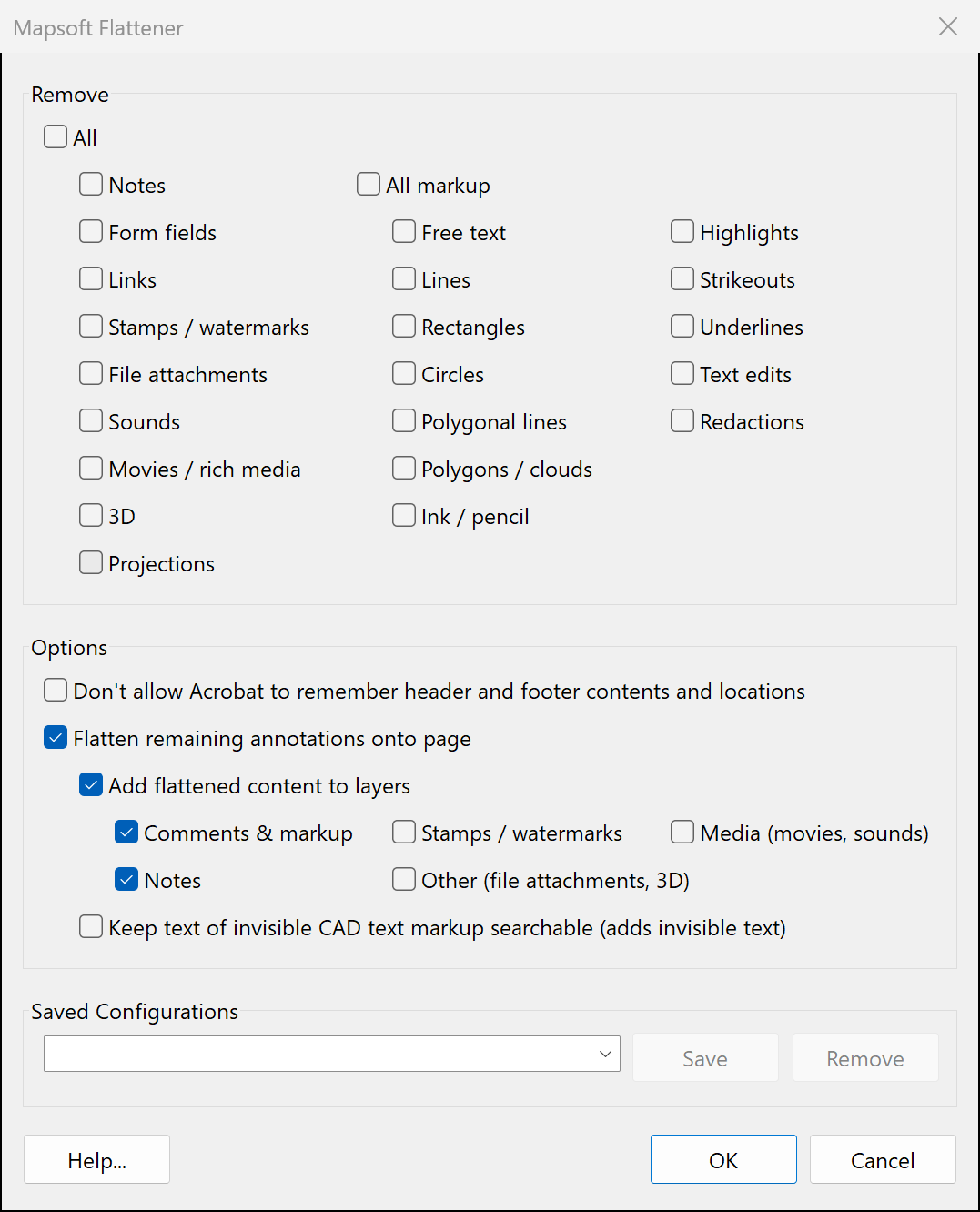
Every annotation in the document is handled in one of three ways:
- Removed — types ticked in the Remove group are deleted outright, leaving no trace on the page.
- Flattened — when Flatten remaining annotations onto page is on (the default), every type that is not ticked has its appearance drawn permanently into the page content, and the annotation itself is removed.
- Left unchanged — when that option is off, unticked annotations stay exactly as they are.
Choose your settings and click OK to process every page of the document. Remember to save the document afterwards to keep the changes.
While the document is processed, a progress window shows the current page and annotation count. Heavily annotated documents — CAD drawings can carry thousands of markup annotations on a single sheet — may take a little while, and the progress window keeps you informed throughout. Click Cancel to stop early; you can then use File › Revert to discard the partial changes if required.
When processing finishes, or is cancelled, Flattener shows a summary: the number of pages processed and how many annotations were removed, flattened onto the page and left unchanged. When the header and footer option is on, it also shows how many pages had header/footer data removed. If nothing matched your settings, the summary says that nothing was changed.
Annotation Types
The left-hand column of the Remove group lists the non-markup annotation types. Tick a type to remove it; leave it unticked to have it flattened (or left unchanged when Flatten remaining annotations onto page is off):
| Annotation Type | Description |
|---|---|
| Notes | Sticky note comments and their pop-up windows. When flattened, the note icon is drawn into the page and the note’s text is discarded. |
| Form fields | Interactive form fields (text boxes, check boxes, radio buttons, lists, buttons, signature fields). When flattened, each field’s current appearance — the value it shows — is drawn into the page and the field can no longer be filled in or edited. |
| Links | Link areas and their actions (web addresses, page jumps, JavaScript). Links have nothing visible to flatten, so they are only ever removed; unticked links are left in place. |
| Stamps / watermarks | Rubber stamps (Approved, Draft, Confidential, custom stamps) and watermark annotations. When flattened, the stamp’s appearance becomes a permanent part of the page. |
| File attachments | File attachment comments (the paperclip or pushpin icon and the embedded file). When flattened, the icon stays on the page but the attached file is discarded. |
| Sounds | Sound comments. When flattened, only the sound icon remains on the page. |
| Movies / rich media | Movie, screen (video) and rich media annotations. When flattened, only their still appearance, such as a poster frame, remains on the page. |
| 3D | Interactive 3D models. When flattened, only the model’s static preview image remains on the page. |
| Projections | Projection annotations, a PDF 2.0 markup type used with 3D and geospatial content. When flattened, their appearance is drawn into the page. |
Markup Flattening
The right-hand columns of the Remove group list the comment and drawing markup that reviewers add during document review. All markup ticks or clears every one of them at once:
| Markup Type | Description |
|---|---|
| Free text | Text box, typewriter and callout comments placed directly on the page. |
| Lines | Lines, including arrows. |
| Rectangles | Rectangle and square shapes. |
| Circles | Ellipse and circle shapes. |
| Polygonal lines | Open multi-segment lines (polylines). |
| Polygons / clouds | Closed polygon shapes, including clouds. |
| Ink / pencil | Freehand drawing made with the pencil (ink) tool. |
| Highlights | Text highlighting. |
| Strikeouts | Strikethrough text markup. |
| Underlines | Underline and squiggly-underline text markup. |
| Text edits | The insertion marks (carets) left by Acrobat’s insert-text and replace-text tools. |
| Redactions | Redaction marks that have not yet been applied. Flattening draws the mark onto the page but, unlike Acrobat’s Apply Redactions, does not delete the text or images underneath it. |
When markup annotations are flattened, their visual appearance (lines, shapes, highlights) is rendered into the page content stream as static vector graphics. The annotation object itself is then removed — together with its associated pop-up note window — so the markup can no longer be selected, edited, or deleted by users viewing the document.
Flattener renders markup faithfully even in PDFs produced by CAD packages and other non-Adobe tools. Annotations written without an appearance stream (common for rectangles, circles, lines, polylines, polygons and ink created by CAD exporters) are reconstructed from their geometry, border and colour settings, and rotated or scaled appearances are placed exactly as the originating application displayed them. Annotations whose appearance cannot be reproduced are left untouched rather than being removed, so no visible content is ever lost.
Options
The Options group controls what happens to the annotation types you have not ticked in the Remove group, and to the data Acrobat keeps about headers and footers.
Don’t Allow Acrobat to Remember Header and Footer Contents and Locations
Headers, footers, watermarks and backgrounds added with Acrobat’s own tools carry private data that lets Acrobat update or remove them later. This option deletes that data from every page. The headers and footers stay on the page as ordinary content, but Acrobat’s Header & Footer › Update and Remove commands no longer recognise them. Acrobat stores the watermarks and backgrounds it adds the same way, so these become ordinary page content too.
Flatten Remaining Annotations onto Page
When this option is on (the default), every annotation type that is not ticked in the Remove group is flattened: its appearance becomes a permanent part of the page content and the annotation itself is removed. Links are the exception — they have nothing visible to flatten and are left in place. When the option is off, unticked annotations are left exactly as they are.
The layer options and the CAD searchable-text option, described below, are available only while this option is on.
Layer Options
Flattener can optionally place flattened annotation content onto named PDF layers (Optional Content Groups, or OCGs) rather than merging it directly into the main page content. This provides a way to organize flattened content while still rendering it as static graphics.
Add Flattened Content to Layers
When the Add flattened content to layers option is enabled, flattened annotations in the categories you tick are placed onto dedicated layers. You can then control layer visibility in Acrobat’s Layers panel. If a layer with the target name already exists in the document, the flattened content is added to it; otherwise, a new layer is created automatically.
Layer Categories
Flattened content is organized into five layer categories, each with its own checkbox and its own separately named layer in Acrobat’s Layers panel. By default, only Comments & markup and Notes are ticked:
- Comments & markup — Free text, lines, shapes, polygons, ink, highlights, strikeouts, underlines, text edits, redactions and projections, on a layer named Markup and Comments.
- Notes — Sticky note annotations, on a layer named Notes.
- Stamps / watermarks — Rubber stamp and watermark annotations, on a layer named Stamps and Watermarks.
- Media (movies, sounds) — Movie, screen, rich media, and sound annotations, on a layer named Media.
- Other (file attachments, 3D) — File attachments and 3D content, on a layer named Other.
Each category can be independently assigned to its layer, so you can, for example, switch the display of flattened stamps on and off separately from flattened markup. If a category’s layer checkbox is unchecked, that type of flattened content is placed directly into the page content stream without layer assignment. Flattened form fields always go directly into the page content.
CAD Drawings & Searchable Text
PDFs exported from CAD packages such as AutoCAD often contain invisible rectangle annotations that carry the drawing’s SHX text as comment text. These annotations draw nothing on the page — their only purpose is to make the drawing’s lettering searchable in Acrobat. Because they have no visible appearance, flattening removes them, and without further action the drawing text would no longer be searchable in the flattened document.
Keep Text of Invisible CAD Text Markup Searchable
Enable Keep text of invisible CAD text markup searchable (at the bottom of the Options group, beneath the layer options) to preserve that text. When an invisible text-carrier annotation is flattened away, the text it carries is written into the page as invisible text placed over the annotation’s original location. The page looks exactly the same, but search, text selection, copying and indexing continue to find the drawing text in any PDF viewer — the same technique used by OCR “searchable image” tools.
Saved Configurations
Flattener supports named configuration presets so you can save and recall complex flattening setups. Each preset stores every checkbox in the Remove and Options groups, including the layer options.
Saving a Configuration
Type a name in the box in the Saved Configurations group and click Save. Configurations are saved for your Windows user account, in the registry under HKEY_CURRENT_USER\Software\Mapsoft\Flattener. If a configuration with the same name already exists, you will be prompted to confirm the overwrite.
Loading a Configuration
Select a saved configuration from the drop-down list. All checkboxes and options are restored to the dialog. This is particularly useful when you have different flattening profiles for different document types — for example, a “Remove All Markup” preset that checks all markup types, or a “Forms Only” preset that only flattens form fields.
Removing a Configuration
Select a configuration and click Remove to permanently delete it.
COM Automation
Flattener exposes a COM automation interface (IFlattenerAuto) that allows external applications to invoke flattening programmatically. This is available in the Automation build variant, installed as MAPSFLATTENER.dll.
The COM interface mirrors the dialog options with properties for each annotation and markup type, plus a Flatten() method that executes the operation on a specified PDF document handle. This allows VBScript, PowerShell, C#, and other COM-aware languages to automate flattening as part of larger document processing workflows.
Key COM interface members include:
- Boolean properties for each annotation type (notes, form fields, stamps, movies, sounds, file attachments, links, 3D, redactions).
- Boolean properties for each markup type (free text, lines, squares, circles, highlights, strikeouts, underlines, ink, pencil, polygonal lines, polygons, text edits).
- Layer control properties for enabling layer placement and selecting which categories go to layers.
- The
Flatten()method to execute the operation.
MAPS_Flattener) when driving Flattener from other Acrobat plug-ins, and use the COM interface when driving it from external applications.
System Requirements
- Adobe Acrobat: Acrobat Pro or Standard DC (2017 or later). Not compatible with Acrobat Reader.
- Operating System: Windows 10 or Windows 11 (32-bit and 64-bit Acrobat installations both supported).
- Protected Mode: supported. Flattener runs with Acrobat’s Protected Mode switched on and does not require it to be disabled.
- Layers: Flattened content placed on layers can be shown and hidden in any viewer that supports PDF 1.5 optional content.
- COM Automation: The automation variant requires registration via
regsvr32and is typically installed by the Mapsoft Workflow Server installer.
Support
If you encounter a problem or have a question not covered here, please get in touch:
© 2026 Mapsoft Computer Services Limited · Privacy