
PDF Page Boxes
MediaBox, CropBox, BleedBox, TrimBox, and ArtBox explained
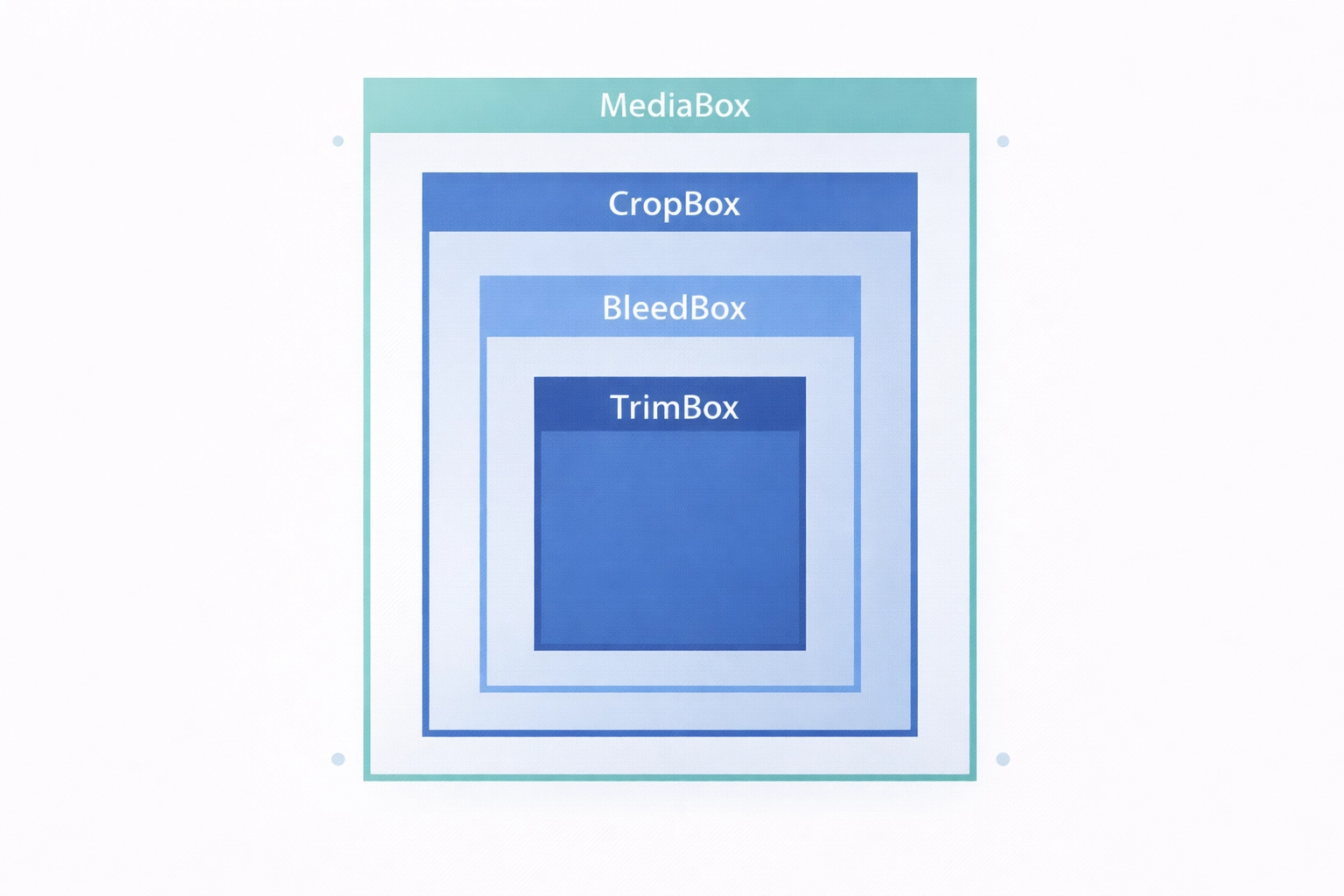
You can also crop PDF pages and resize PDF pages online for free using Mapsoft's PDF Hub — no installation required.
What Are PDF Page Boxes?
PDF page boxes are coordinate-based rectangles embedded in a PDF's page dictionary. Each box defines a different boundary relevant to how the page is displayed, printed, or processed. A single PDF page can carry up to five of these boxes simultaneously, and understanding what each one means is essential for professional print production and prepress workflows.
Coordinates are expressed as four values in the form (llx, lly, urx, ury) — representing the x and y positions of the lower-left corner and the upper-right corner of the rectangle, measured in PDF points (1 point = 1/72 inch).
The Five Page Boxes
MediaBox
The MediaBox is the only mandatory page box in the PDF specification (ISO 32000). It defines the full extent of the page canvas — the largest possible area on which content can exist. Think of it as the physical size of the sheet of paper or digital canvas before any trimming or cropping.
All other page boxes must fall within the bounds of the MediaBox (or at least not exceed it in meaningful ways). If no other boxes are specified, the MediaBox governs what is displayed and printed.
CropBox
The CropBox defines the region of the page that should be displayed on screen or printed. When a viewer renders a PDF, it clips the visible area to the CropBox. If no CropBox is specified, it defaults to the MediaBox.
The CropBox is commonly used to hide content that exists outside the visible area — for example, registration marks, colour bars, or bleed area — while retaining that content in the file for production purposes.
BleedBox
The BleedBox accommodates ink spread (bleed) in professional offset printing. When printing to the edge of a sheet, the artwork must extend slightly beyond the intended trim edge to account for minor variations in cutting. This extension is the bleed.
A typical bleed is 3–5 mm (approximately 9–14 points) beyond the TrimBox on all sides. The BleedBox defines how far this bleed extends. It is larger than the TrimBox but typically smaller than the MediaBox.
TrimBox
The TrimBox defines the final intended dimensions of the printed page after the press sheet is cut. This is the finished size of the document — for example, A4, A5, or US Letter — as it will appear in the hands of the reader.
The TrimBox is arguably the most important box for print production: it tells the bindery and finishing equipment exactly where to cut. Getting the TrimBox right is critical; an incorrect TrimBox can result in improperly trimmed printed materials.
ArtBox
The ArtBox defines the extent of meaningful content on the page. It is intended to represent the area of the page that is of interest for placement purposes — for example, when an advertisement is being placed into a publication layout. The ArtBox tells the receiving application: "this is the region that contains the actual artwork; ignore the rest."
The ArtBox is less commonly used than the other boxes, but it is valuable in advertising and placement workflows where precise content boundaries matter.
Not All PDFs Carry All Boxes
Only the MediaBox is required. The remaining four boxes are optional. A simple PDF created for screen reading or basic office printing may carry only a MediaBox and possibly a CropBox. A professionally prepared prepress PDF will typically carry all five — and each will be carefully set to reflect the production intent.
An Example in PDF Structure
In a PDF file, page box definitions appear in the page dictionary and look like this:
/MediaBox [0 0 612 792]
/CropBox [0 0 612 792]
/BleedBox [-9 -9 621 801]
/TrimBox [0 0 612 792]
/ArtBox [18 18 594 774]
In this example, the page is US Letter size (612 × 792 points, which is 8.5 × 11 inches at 72 points per inch). The BleedBox extends 9 points (approximately 3.175 mm) beyond the page on all four sides. The ArtBox is inset 18 points (approximately 6.35 mm, or a quarter inch) from all edges, defining the safe content area.
Viewing Page Boxes in Acrobat Pro
Acrobat Pro provides visual tools for inspecting page boxes as part of its Print Production toolset:
- Open the PDF in Acrobat Pro.
- Navigate to Tools > Print Production > Output Preview.
- Enable the page box overlays. Acrobat renders each box as a coloured border:
- Cyan — BleedBox
- Magenta — TrimBox
- Yellow — ArtBox
These visualisation tools are available in Acrobat Pro only. Users of Acrobat Standard can inspect the MediaBox dimensions via File > Properties > Description, but the full page box overlay is a Pro feature.
You can also set or modify page boxes in Acrobat Pro via Tools > Print Production > Set Page Boxes, which allows you to define precise values for each box type across individual pages or the entire document.
Importance for Prepress Workflows
For anyone involved in preparing files for commercial printing, understanding PDF page boxes is not optional — it is fundamental. Prepress operators, print buyers, and designers all need to ensure that:
- The TrimBox accurately reflects the finished page size.
- The BleedBox provides sufficient bleed (typically 3–5 mm) beyond the TrimBox.
- The CropBox is set to hide non-printing elements from on-screen display if required.
- The MediaBox is large enough to contain the BleedBox.
Many print-on-demand services, commercial printers, and PDF/X compliance workflows validate page boxes as part of their preflight checks. Incorrectly set page boxes are a common source of prepress errors and reprints. Mapsoft's MediaSizer plugin for Adobe Acrobat can batch-adjust page boxes across entire document sets.
Resize a PDF page online
For one-off page-size changes — e.g. converting a US Letter document to A4, or reducing an A0 engineering drawing for display — Mapsoft's Resize Page tool handles it in the browser for free. For the full picture on when to resize vs crop vs scale, see our dedicated How to Resize PDF Pages guide.
Related Articles
What is PDF? The Portable Document Format Explained
A clear explanation of what PDF is, why it was created, how it works, and why it remains the world's most widely used document format.
Evolution of the PDF Format: A Historical Perspective
Explore the birth and impact of the PDF format. Learn how Adobe Acrobat shaped its growth, discover features and advantages of PDF, including document integrity and security.
Summary of the Structure of PDF Files
Explore the structure of PDF files: discover how text, art, images, and more are combined in a single container format.
Professional PDF Tools from Mapsoft
Mapsoft produces professional tools for Adobe Acrobat and PDF workflows. Whether you need plug-ins, custom development, or expert consultancy, our team has the depth of technical knowledge to help.