
How to Number Pages in PDF Documents
A guide to PDF page labels — how to set up numbering schemes with Roman numerals, custom prefixes, and mixed formats in Adobe Acrobat.
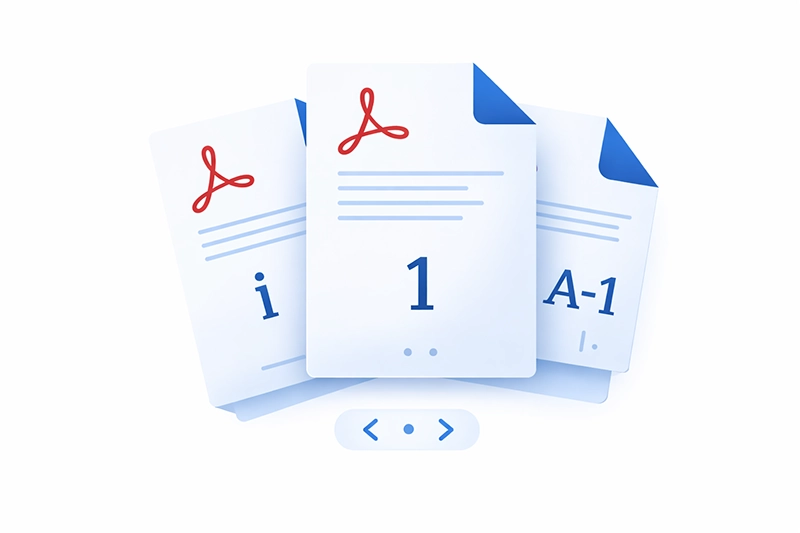
What Are PDF Page Labels?
Every PDF document has two kinds of page numbers: the physical page index (the actual position of the page in the file, always starting from 1) and the logical page label (a human-readable label that can use any numbering format). Page labels are what appear in Acrobat's page navigation toolbar and in the Page Thumbnails panel.
Page labels allow you to create numbering schemes that match the printed page numbers of the original document. For example, a book might use lowercase Roman numerals (i, ii, iii) for the preface, Arabic numerals (1, 2, 3) for the main body, and uppercase Roman numerals (I, II, III) for the appendices — all within a single PDF.
For a deeper look at the technical side, see our article on PDF Page Labels in Acrobat.
You can also add page numbers or add headers and footers to PDFs online for free using Mapsoft's PDF Hub — no installation required.
Available Numbering Styles
Adobe Acrobat supports the following page label formats:
- Arabic numerals: 1, 2, 3, 4, 5 …
- Lowercase Roman numerals: i, ii, iii, iv, v …
- Uppercase Roman numerals: I, II, III, IV, V …
- Lowercase letters: a, b, c, d, e …
- Uppercase letters: A, B, C, D, E …
- No numbering: A prefix only, with no incrementing number.
Each style can also include a prefix — a text string prepended to every label in that range. For example, a prefix of "A-" with Arabic numbering produces labels like A-1, A-2, A-3.
Setting Page Labels in Adobe Acrobat
Step 1: Open the Page Thumbnails Panel
Open your PDF in Adobe Acrobat. Click the Page Thumbnails icon in the left sidebar (or go to View > Show/Hide > Navigation Panes > Page Thumbnails) to display thumbnail views of all pages.
Step 2: Select the Page Range
Click the first page thumbnail in the range you want to number, then hold Shift and click the last page thumbnail to select a continuous range. For non-contiguous pages, hold Ctrl (Windows) or Cmd (Mac) and click individual thumbnails.
Step 3: Open the Page Labels Dialog
Right-click on any selected thumbnail and choose Page Labels from the context menu. The Page Numbering dialog appears.
Step 4: Configure the Numbering
In the dialog, set:
- Pages: Choose whether to apply to the selected pages or all pages in the document.
- Numbering style: Select the format (Arabic, Roman, letters, or none).
- Prefix: Optionally add a text prefix to all labels in this range.
- Start: Set the starting number for this range (e.g., start at 1 for a new section).
Step 5: Save the Document
Click OK to apply the labels, then save the document. The new page labels will immediately appear in the Page Thumbnails panel and the page navigation toolbar at the bottom of the window.
Common Numbering Scenarios
Book with Front Matter
A typical book PDF might use:
- Pages 1–4 (cover, title page, copyright): No numbering or prefix-only labels
- Pages 5–12 (preface, contents): Lowercase Roman numerals (i–viii)
- Pages 13–250 (main body): Arabic numerals starting at 1
- Pages 251–260 (index): Arabic numerals continuing or restarting
Multi-Volume Document Set
Use prefixes to distinguish volumes within a merged document:
- Volume 1 pages: Prefix "Vol1-" with Arabic numerals (Vol1-1, Vol1-2, Vol1-3)
- Volume 2 pages: Prefix "Vol2-" with Arabic numerals (Vol2-1, Vol2-2, Vol2-3)
Legal Documents with Exhibit Numbering
Legal filings often use Bates-style numbering with a prefix:
- Prefix "EXHIBIT-" with Arabic numerals starting at 0001
Navigating by Page Label
Once page labels are set, users can navigate directly by typing a label into the page number field in Acrobat's toolbar. Typing "iii" will jump to the page labelled "iii" rather than physical page 3. This makes labelled PDFs much easier to navigate, especially for documents with complex numbering.
Page Labels vs. Printed Page Numbers
Page labels are PDF metadata — they appear in Acrobat's navigation UI but are not printed on the page content itself. If you need visible page numbers printed on the pages, you must add them separately using:
- Headers & Footers: In Acrobat, use Tools > Edit PDF > Header & Footer > Add to stamp page numbers onto the page content.
- Source application: Add page numbers in Word, InDesign, or whatever application you used to create the original document before exporting to PDF.
- Acrobat plugins: Mapsoft's Impress Pro plugin can stamp page numbers, dates, Bates numbers, and other text onto PDF pages with full control over font, position, and formatting — ideal for adding visible page numbers that match your page label scheme.
Setting Page Labels Programmatically
For batch processing or automation, page labels can be set using:
- Acrobat JavaScript: Use
this.setPageLabels()to define label ranges programmatically. - The Acrobat SDK: The PDPageLabel API provides full control over page label creation and modification in C++ plugins.
- Acrobat plugins: Tools like Mapsoft's TOCBuilder can assign page labels based on text content, bookmarks, or Bates numbers across multiple files. The batch processing capabilities in Acrobat also allow applying page labels across many files at once.
Related Articles
PDF Bookmarks: A Complete Guide
A complete guide to PDF bookmarks: what they are, how they work in the PDF specification, how Acrobat generates them, and how to automate their creation.
PDF Annotations: Types and Usage
A comprehensive guide to PDF annotations: the different types, how they are stored in the PDF format, review workflows, flattening, and scripting with Acrobat JavaScript.
PDF Layers (Optional Content Groups)
Everything about PDF layers (Optional Content Groups): how OCGs work in ISO 32000, use cases in CAD and maps, creating layers in InDesign and Acrobat, scripting visibility, and printing.
Need PDF Page Management Tools?
Mapsoft's Acrobat plugins automate page labelling, bookmarking, and document organisation at scale. Use Impress Pro to stamp visible page numbers onto your documents.