
Photoshop Actions, Scripts & Automation
A comprehensive guide to eliminating repetitive work in Photoshop — from recording simple Actions to writing JavaScript scripts and building UXP plugins.
Why Automate Photoshop?
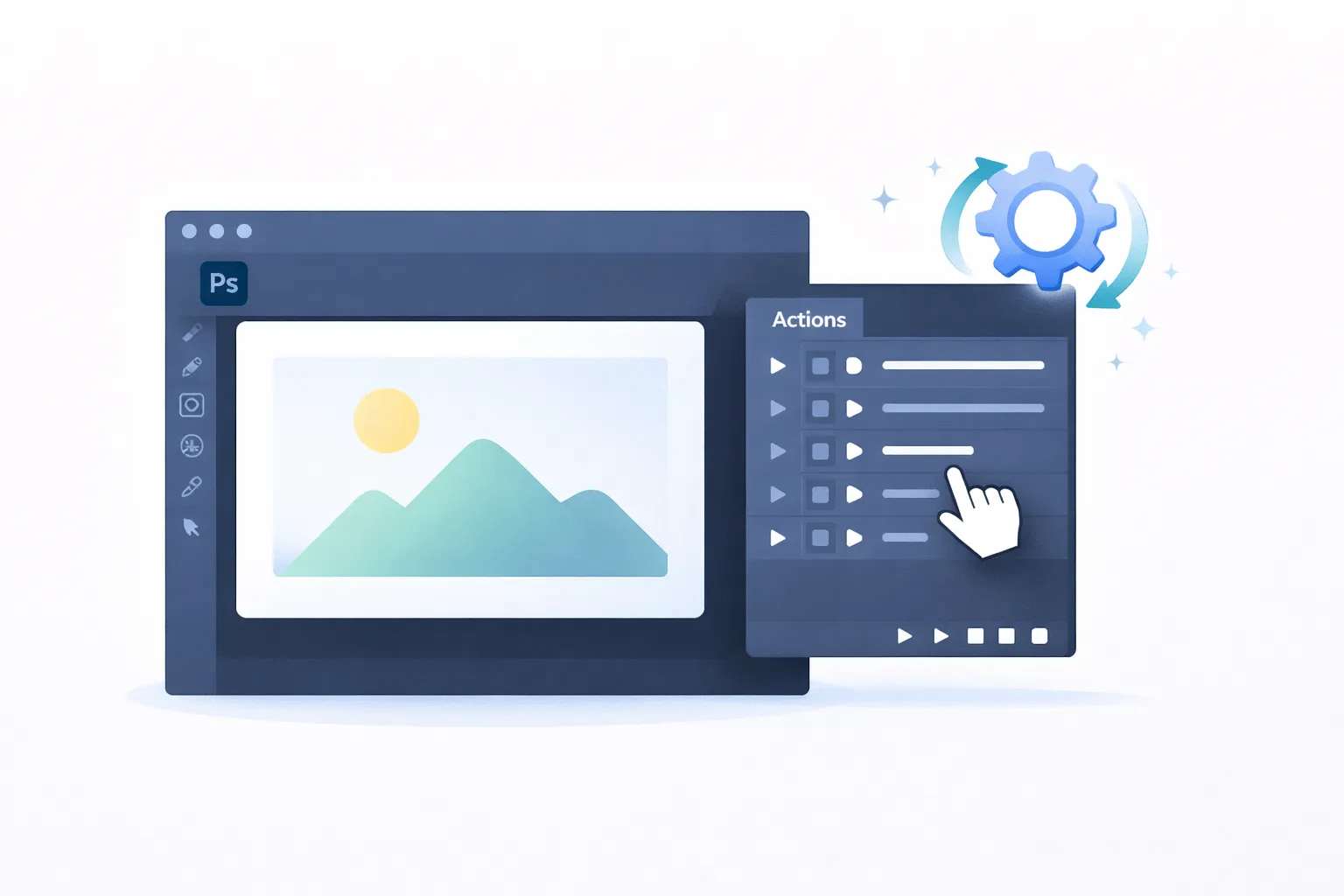
Quick answer: Photoshop offers three levels of automation: Actions (recorded macro sequences you play back with one click), Scripts (JavaScript/ExtendScript programs that can include logic, loops, and user dialogs), and Plugins (UXP-based extensions with full UI panels). Actions are the simplest starting point — open the Actions panel (Alt+F9), click Record, perform your steps, and click Stop. Then use File > Automate > Batch to run the Action across an entire folder of images.
If you work with images at any scale, you have encountered the problem: the same sequence of resize, crop, adjust, export steps repeated across dozens, hundreds, or thousands of files. Manual repetition is slow, error-prone, and soul-destroying. Photoshop has offered automation tools since the mid-1990s, and today the ecosystem spans from no-code Actions to full plugin development with modern JavaScript.
This guide covers every automation approach available in Photoshop, from the simplest to the most powerful, with practical examples and recommendations for when to use each one.
Photoshop Actions: The Foundation
An Action is a recorded sequence of Photoshop commands that can be replayed with a single click or keyboard shortcut. Actions are stored in .atn files and can be shared between users and machines. They are the gateway to Photoshop automation and require no programming knowledge.
Recording an Action: Step by Step
- Open the Actions panel — Go to Window > Actions or press Alt+F9. The panel displays all loaded Action sets and their individual Actions.
- Create an Action set — Click the folder icon at the bottom of the panel to create a new set. Name it something descriptive (e.g. “Web Export Workflow”). Sets are organisational containers — think of them as folders for related Actions.
- Create a new Action — Click the New Action button (the page icon). Give the Action a clear name (e.g. “Resize to 1200px and Save as JPEG”). Optionally assign a Function Key shortcut (e.g. F2) and a colour label for visual identification. Click Record.
- Perform your steps — Everything you do from this point is recorded. For example:
- Image > Image Size — Set the width to 1200 pixels.
- Filter > Sharpen > Unsharp Mask — Apply with Amount 50%, Radius 0.5px.
- File > Export > Save for Web — Choose JPEG, Quality 80.
- File > Close — Close the document without saving the original.
- Stop recording — Click the Stop button (square icon) at the bottom of the Actions panel.
Your Action now appears in the panel with each step listed as a sub-item. You can expand any step to see its recorded parameters.
Playing an Action
To run the Action on another image, open the image, select the Action in the panel, and click the Play button (triangle icon). Photoshop executes every recorded step in sequence. If you assigned a keyboard shortcut, simply press it.
Editing Actions
Actions are fully editable after recording:
- Delete a step — Select the step and click the trash icon, or drag it to the trash.
- Re-record a step — Double-click a step to re-record it with different settings. Photoshop opens the relevant dialog so you can change the parameters.
- Insert a new step — Position the selection marker where you want the new step, click Record, perform the operation, and click Stop.
- Reorder steps — Drag steps up or down within the Action to change their execution order.
- Toggle dialog mode — Click the dialog icon (small box) next to a step to force Photoshop to pause and show the dialog when that step executes. This is useful when you want most steps automated but need manual input for one (e.g. choosing a crop area).
- Enable/disable steps — Click the checkbox next to a step to skip it during playback without deleting it.
Insert Menu Item and Insert Stop
Some Photoshop commands are not recordable by default (certain filters, some third-party plugin calls). To work around this, use Insert Menu Item from the Actions panel fly-out menu: it lets you specify any menu command by name, and Photoshop will execute it during playback even if it was not captured during recording.
Insert Stop adds a pause with a custom message. This is useful for instructional Actions where you want to tell the user what to do manually before continuing (e.g. “Select the area you want to crop, then click Play to continue”).
Conditional Actions
Photoshop supports conditional logic within Actions via Insert Conditional (from the Actions panel menu). You can branch the Action based on conditions such as:
- Document is landscape / portrait / square
- Document is RGB / CMYK / Greyscale
- Document has layers / is flattened
- Document bit depth is 8 / 16 / 32
If the condition is true, Photoshop plays a specified Action; if false, it plays a different one (or continues). This allows a single Action to handle different types of input images intelligently — for example, converting CMYK images to RGB before applying a web export workflow, while leaving RGB images unchanged.
Batch Processing with Actions
The real power of Actions emerges when you apply them to multiple files at once. Photoshop provides two mechanisms for this: Batch and Image Processor.
File > Automate > Batch
The Batch dialog lets you run any Action against an entire folder of files (and optionally subfolders). Key settings:
- Set and Action — Select the Action set and the specific Action to run.
- Source — Choose Folder and browse to the input directory. Tick Include All Subfolders if needed. Tick Override Action "Open" Commands if the Action contains an Open step — this tells Batch to substitute the current file from the folder rather than opening the file hardcoded in the Action.
- Destination — Choose Folder and browse to the output directory. Tick Override Action "Save As" Commands to redirect saves to the output folder rather than the location recorded in the Action.
- File Naming — Configure output filename patterns using tokens (document name, serial number, date, extension).
- Errors — Choose whether to stop on errors or log them to a text file and continue processing. For large batches, logging to a file is strongly recommended.
File > Scripts > Image Processor
Image Processor is a simpler alternative to Batch that is specifically designed for the most common workflow: converting images to JPEG, PSD, or TIFF with optional resizing. It does not require a pre-recorded Action (though you can optionally run one as part of the process). Key features:
- Process all open images or a folder of files.
- Save as JPEG (with quality setting), PSD, and/or TIFF — all three simultaneously if needed.
- Resize to fit within specified pixel dimensions.
- Optionally run an Action after opening each file.
- Include an ICC profile in the output.
Image Processor is ideal for quick bulk exports where you do not need complex processing steps.
Droplets
A Droplet is a standalone executable created from an Action. Go to File > Automate > Create Droplet, select an Action, configure the same settings as Batch, and save. The result is an .exe file (Windows) or application (macOS) that you can place on your desktop. Drag and drop files or folders onto the Droplet icon, and Photoshop launches (if not already running), opens each file, runs the Action, and saves the result. Droplets are excellent for non-technical users who need to run a specific workflow without navigating Photoshop’s menus.
JavaScript and ExtendScript Automation
When Actions reach their limits — you need loops, conditional logic beyond what Insert Conditional offers, user input dialogs, file system operations, or integration with external data — scripting takes over.
ExtendScript (Legacy)
Photoshop has supported ExtendScript (Adobe’s extended implementation of ECMAScript 3) since CS2. ExtendScript runs in the ExtendScript Toolkit (ESTK) or from File > Scripts > Browse in Photoshop. It provides access to Photoshop’s entire Document Object Model (DOM): documents, layers, channels, selections, history states, and more.
A typical ExtendScript automation script might:
- Iterate over all files in a folder.
- Open each file.
- Check image dimensions and orientation.
- Apply different processing based on conditions.
- Read data from a CSV or text file (e.g. watermark text, output filenames).
- Save the result in a specific format with specific settings.
- Close the file and move to the next.
Here is a minimal ExtendScript example that resizes all JPEG files in a folder to a maximum width of 1200 pixels:
var inputFolder = Folder.selectDialog("Select input folder");
var outputFolder = Folder.selectDialog("Select output folder");
var files = inputFolder.getFiles("*.jpg");

for (var i = 0; i < files.length; i++) {
    var doc = app.open(files[i]);
    if (doc.width.as("px") > 1200) {
        doc.resizeImage(UnitValue(1200, "px"), null, null, ResampleMethod.BICUBIC);
    }
    var opts = new JPEGSaveOptions();
    opts.quality = 10;
    doc.saveAs(new File(outputFolder + "/" + doc.name), opts, true);
    doc.close(SaveOptions.DONOTSAVECHANGES);
}
ExtendScript remains widely used but is considered legacy technology. Adobe has frozen its development and recommends UXP for new projects. However, ExtendScript will continue to be supported in Photoshop for the foreseeable future. See our practical ExtendScript usage guide for real-world scripting patterns across Adobe applications.
UXP Scripting (Modern)
Since Photoshop 2021 (v22), Adobe’s Unified Extensibility Platform (UXP) provides a modern JavaScript environment for automation. UXP scripts use modern ES6+ syntax, async/await, and the batchPlay API to execute Photoshop commands. UXP scripts can be run from File > Scripts > Browse (using .psjs files) or as part of a UXP plugin.
Key advantages of UXP over ExtendScript:
- Modern JavaScript (ES6+, async/await, Promises).
- Better performance for batch operations.
- Access to modern web APIs (Fetch, Web Crypto, etc.).
- Actively maintained and extended by Adobe.
- Shared platform with InDesign, Illustrator, and XD.
Building UXP Plugins
For automation that needs a persistent user interface — a panel with controls, settings, and visual feedback — UXP plugins are the current standard. A UXP plugin consists of:
- A
manifest.jsonfile describing the plugin’s metadata, entry points, and permissions. - JavaScript files containing the plugin logic.
- HTML and CSS files defining the panel UI.
UXP plugins are developed using the Adobe UXP Developer Tool (UDT), which provides hot-reloading during development. Plugins can be distributed via the Adobe Marketplace (formerly Adobe Exchange) or deployed internally within an organisation.
Common automation use cases for UXP plugins:
- Asset pipeline tools — Export game assets, web assets, or print-ready files with consistent naming, sizing, and format settings controlled via a panel.
- Brand compliance — Enforce colour palettes, typography, and layout rules by validating documents against brand guidelines.
- Batch retouching — Apply skin smoothing, colour grading, or other adjustments to portrait sessions with one-click processing.
- Integration with DAM systems — Upload processed images directly to a Digital Asset Management system via its API.
For a detailed comparison of UXP and the older CEP (Common Extensibility Platform) for plugin development, see our guide to UXP vs CEP in Photoshop.
Common Automation Workflows
Here are practical workflows that cover the most frequently automated tasks in Photoshop, with recommendations for which automation approach to use.
Bulk Resize and Export
Best approach: Image Processor or a simple Action + Batch.
Use Image Processor (File > Scripts > Image Processor) for straightforward resize-and-save operations. If you need additional steps (sharpening, colour space conversion, metadata stripping), record an Action and use Batch.
Adding a Watermark to Multiple Images
Best approach: Action with a placed image or text layer.
- Record an Action that creates a new text layer (or places a watermark PNG), positions it, sets the opacity, and flattens.
- For text watermarks, the Action records the exact text you type. If you need dynamic text (e.g. the filename as the watermark), use a script instead.
- Run the Action via Batch against your image folder.
For dynamic watermarks that include variable text (date, photographer name, file number), use an ExtendScript or UXP script that reads the metadata and generates the watermark programmatically.
Contact Sheets and Image Galleries
Best approach: File > Automate > Contact Sheet II.
Photoshop’s built-in Contact Sheet command arranges thumbnails of all images in a folder onto pages of a specified size. Configure columns, rows, spacing, and caption options. For more control over layout, use a script.
Consistent Colour Grading Across a Photo Set
Best approach: Action with adjustment layers.
Record an Action that adds the desired adjustment layers (Curves, Hue/Saturation, Color Balance, etc.) with your settings. Apply via Batch. Because adjustment layers are non-destructive, the original pixel data is preserved if you save as PSD or TIFF.
Generating Multiple Output Sizes from a Single Source
Best approach: Script.
A script can open a high-resolution source file and export it at multiple sizes (thumbnail, web, social media, print) in a single pass, applying appropriate sharpening for each output size. This is a common requirement for e-commerce product photography and editorial workflows.
Tips for Reliable Photoshop Actions
Actions can be fragile if you do not design them carefully. Follow these guidelines to create Actions that work reliably across different images:
- Use relative measurements — When resizing, use percentages or “Fit Image” (File > Automate > Fit Image) rather than absolute pixel values, unless all input images are the same size.
- Avoid layer-name dependencies — If your Action references a layer by name (e.g. “Background”), it will fail if the layer has a different name in another document. Use “Select All Layers” or work with layer indices where possible.
- Flatten before saving — If your Action saves as JPEG, flatten the image first. Photoshop will do this automatically, but an explicit flatten step makes the Action’s behaviour clearer.
- Test with diverse inputs — Run the Action against images of different sizes, orientations, colour modes, and bit depths to ensure it handles all cases. Use conditional Actions to branch for different input types.
- Use “Override” options in Batch — Always tick “Override Action Open Commands” and “Override Action Save As Commands” when running Batch. Otherwise, the Action will try to open and save to the hardcoded paths recorded during the original session.
- Save Actions as .atn files — Back up your Actions by saving the Action set to a file. Go to the Actions panel menu and choose Save Actions. This creates an
.atnfile you can share or restore. - Convert complex Actions to scripts — If you find yourself fighting with Action limitations (needing loops, string manipulation, or conditional logic beyond what Insert Conditional offers), it is time to convert the workflow to a script. The “ScriptListener” plugin (included with Photoshop) records every operation you perform as JavaScript code, which you can then clean up and extend.
The ScriptListener Plugin
ScriptListener is a diagnostic plugin bundled with Photoshop (found in the Scripting folder of the Photoshop application directory). When enabled, it logs every Photoshop operation to a JavaScript file on your desktop. This is invaluable for discovering the exact batchPlay descriptors or ExtendScript DOM calls needed to replicate a specific operation in a script.
To use it:
- Copy the ScriptListener plugin file to Photoshop’s Plug-ins folder (if not already there).
- Restart Photoshop.
- Perform the operations you want to script.
- Open the generated log file (
ScriptingListenerJS.logon your desktop). - Extract the relevant code and incorporate it into your script.
Remember to remove or disable ScriptListener when you are finished, as it generates large log files during normal use.
Action Sets: Organising Your Automation Library
As you build up a collection of Actions, organisation becomes important. Action sets group related Actions together and are saved as a single .atn file. Recommended practice:
- Create one set per workflow category (e.g. “Web Export”, “Print Prep”, “Retouching”, “Social Media”).
- Name Actions descriptively, including key parameters (e.g. “Resize 1200px JPEG 80”).
- Use colour labels to visually distinguish Actions within a set.
- Document Actions with an Insert Stop message at the beginning that describes what the Action does and any prerequisites (e.g. “This Action expects an RGB image with at least one layer”).
- Store
.atnfiles in a shared network location or version control system so your team always has the latest versions.
Choosing the Right Automation Approach
The table below summarises when to use each approach:
- Actions — Best for: Simple, repeatable sequences with fixed parameters. No programming required. Limitations: No loops, limited conditional logic, no external data access.
- Image Processor — Best for: Bulk format conversion and resizing. Simplest batch tool. Limitations: Limited to resize + save in JPEG/PSD/TIFF.
- Batch + Action — Best for: Running an Action across a folder with file naming control and error logging. Limitations: Still bound by Action limitations.
- Droplet — Best for: Giving non-technical users a drag-and-drop automation tool. Limitations: Same as Batch + Action, plus no UI customisation.
- ExtendScript — Best for: Complex automation with logic, loops, external data, and user dialogs. Mature ecosystem. Limitations: Legacy ES3 syntax, no async, deprecated tooling.
- UXP Script — Best for: Modern scripting with ES6+, async/await, and better performance. Limitations: Newer API, some DOM gaps compared to ExtendScript.
- UXP Plugin — Best for: Persistent panel UI, marketplace distribution, integration with external services. Limitations: Most development effort required.
Start with the simplest tool that meets your requirements and escalate to more powerful options only when needed. Most Photoshop users will find that a well-designed Action run through Batch solves 80% of their automation needs.
Photoshop Automation and Generative AI
Adobe’s Generative Fill and other AI features in Photoshop can be incorporated into automation workflows, but with caveats. Generative Fill requires a round-trip to Adobe’s cloud servers, which means it is significantly slower than local operations and requires an internet connection. It can be triggered from Actions and scripts, but batch workflows that rely on it will be much slower than traditional processing. For production automation, use AI features selectively — for example, as a final enhancement step rather than as part of a high-volume pipeline.
Conclusion
Photoshop’s automation ecosystem is deep and mature. Actions provide instant value with no learning curve. Batch processing and Image Processor scale that value to hundreds or thousands of files. ExtendScript and UXP scripting unlock unlimited flexibility when Actions reach their limits. And UXP plugins deliver polished, distributable tools with custom user interfaces. The key is to start simple, automate the workflows that consume the most time, and graduate to more powerful tools as your needs evolve.
Mapsoft has over 30 years of experience developing Photoshop plugins and automation solutions. If you need a custom automation workflow, a UXP plugin, or consultancy on migrating from ExtendScript to UXP, get in touch.
Related Articles
Generative Fill in Photoshop
How Adobe’s Generative Fill uses AI to create, extend, and modify image content directly in Photoshop — capabilities, limitations, and practical workflows.
UXP vs CEP: Photoshop Plugin Development
A comparison of Adobe’s UXP and CEP extensibility platforms for Photoshop plugin development — architecture, migration path, and when to switch.
ExtendScript: Adobe’s Scripting Language
A comprehensive guide to ExtendScript — Adobe’s JavaScript dialect for automating Creative Cloud applications, including Photoshop, InDesign, and Illustrator.
Need a Custom Photoshop Plugin?
Mapsoft builds Photoshop plugins, automation scripts, and workflow tools for creative teams and enterprises. From simple Actions to full UXP plugins — we can help.