
ContentScaler
User Guide — Mapsoft ContentScaler Plugin for Adobe Acrobat
Overview
ContentScaler is an Adobe Acrobat plug-in that scales the content of PDF pages while leaving the page size unchanged. All text, images, vector graphics and other page elements are scaled together, so you can shrink content to make room for a binding margin or a header, enlarge it for readability, or fit content designed for one paper size onto another.
You choose how much to scale (the same amount both ways, or separately across and down the page), the point of the page that stays fixed while everything else scales towards or away from it, and an optional offset to move the result. A live preview in the dialog shows exactly where the content will land before anything is changed, and the change can be undone from Acrobat’s Edit menu.
ContentScaler works by wrapping each selected page’s existing content in a transformation. Nothing on the page is re-rendered or rasterised, so text stays searchable and selectable, and vector graphics stay sharp.
ContentScaler is available in three variants: an Acrobat plug-in (MAPSContentScaler.api), a COM automation DLL for scripted workflows, and a workflow server library (.lpi) for use with the Mapsoft Workflow Server.
Getting Started
After installation, ContentScaler adds a menu item to Adobe Acrobat. To open the ContentScaler dialog:
- Open a PDF document in Adobe Acrobat.
- Go to Plug-ins › Mapsoft › ContentScaler.
- The ContentScaler dialog opens. On the left are the scaling settings (Scale to, Scale from, Offset), the page selection and your saved configurations; on the right is a preview of the page.
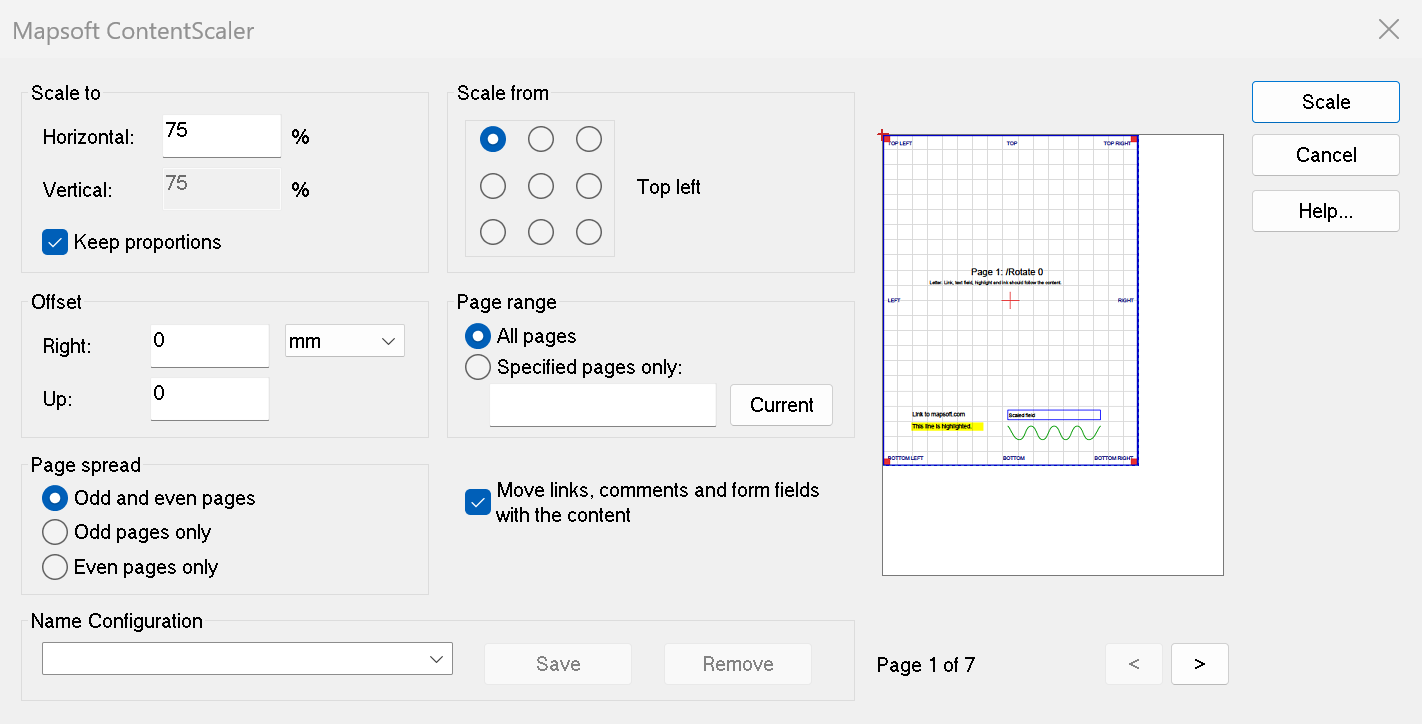
Choose your settings, check the preview, and click Scale. A progress bar is shown while the pages are processed; press Esc to stop part way through. Remember to save the PDF afterwards to keep the changes.
100 leaves the content unchanged. Values below 100 shrink it (90 reduces it to 90% of its original size) and values above 100 enlarge it.
Scaling
The Scale to group sets how much the content is scaled, as a percentage of its original size.
| Setting | Description |
|---|---|
| Horizontal | The percentage across the page. With Keep proportions on, this is the only percentage and applies both ways. |
| Vertical | The percentage down the page. Available when Keep proportions is off; otherwise it simply shows the horizontal value. |
| Keep proportions | On by default. Scales the content by the same amount both ways, so nothing is stretched or squashed. Turn it off to scale across and down the page separately — for example to stretch content to fill a page of a different shape. |
Percentages must be greater than 0 and no more than 1000. Decimal values are accepted for fine adjustments — 99.5 applies a very slight reduction.
“Horizontal” and “vertical” always mean across and down the page as you see it on screen, including on pages that are displayed rotated.
Scale From
The Scale from grid chooses the point of the page that stays fixed: everything else moves towards it when the content shrinks, or away from it when the content grows. The caption beside the grid names the point you have picked.
| Point | Typical use |
|---|---|
| Centre (the default) | Shrinks content evenly towards the middle, leaving an equal margin all round. This is how ContentScaler worked before version 1.7. |
| A corner | Keeps that corner where it is. Scaling from the top left, for example, keeps a letterhead or logo in the top-left corner in place and opens up space along the right and bottom edges. |
| An edge | Keeps the middle of that edge in place — for example, scaling from the top keeps the content hanging from the top of the page and centred across it. |
The points are the corners and edges of the page as you see it. On a page that Acrobat displays rotated, “top left” is still the top-left corner on your screen. On a cropped page, they are the corners of the visible, cropped area rather than of the full page underneath.
Offset
The Offset group moves the scaled content after it has been scaled. Enter how far to move it Right and Up, and choose the units: millimetres (mm), points (pt) or inches (in). Negative values move the content left or down; leave a box empty or at 0 for no movement.
95 from the Centre and set Right to 5 mm. To open a margin on one side only, scale from the opposite edge instead — scaling from the right edge keeps the right-hand side in place and opens the margin on the left.
Links, Comments and Form Fields
Links, comments, highlights, drawing markup and form fields are stored separately from the page content. With Move links, comments and form fields with the content ticked (the default), ContentScaler scales and moves them by exactly the same amount, so a link still covers its text, a highlight still sits on its line, and a form field stays over the box printed for it.
Untick the option to leave them exactly where they are.
Preview
The pane on the right of the dialog shows the current page as it will look after scaling, and updates as you type or change a setting:
- The page is drawn with the content scaled and moved exactly as it will be. Content pushed past the edge of the page is hidden, just as it will be in the document (it is not deleted, only moved out of view).
- A dotted blue outline shows where the edges of the original page now fall. When you enlarge the content, the part of the outline beyond the page shows how much will be pushed out of view.
- A red cross marks the Scale from point.
Use the < and > buttons, or the mouse wheel over the preview, to step through the pages. Only the pages your Page range and Page spread settings select are shown, and the caption says which page you are looking at, or No pages selected if the settings match none.
When you edit a configuration from a batch sequence there is no document to show, so the preview draws a sample page instead.
Page Selection
ContentScaler can scale the whole document or just some of its pages. The Page range and Page spread groups work together: a page is scaled when it is in the range and matches the spread.
| Option | Description |
|---|---|
| All pages | Scales every page in the document. This is the default. |
| Specified pages only | Scales only the pages you list. Enter ranges like 1-3,5,7-10, or open-ended ranges such as -3 (the first three pages) or 20- (page 20 to the end). Current fills in the page you are viewing in Acrobat. |
| Odd and even pages | Scales every page in the range. This is the default. |
| Odd pages only | Scales only odd-numbered pages (1, 3, 5, …). Useful for duplex printing adjustments. |
| Even pages only | Scales only even-numbered pages (2, 4, 6, …). |
The range is checked when you click Scale, and ContentScaler tells you if it is not valid.
Undoing a Scale
Each time you click Scale, Acrobat records one step on its undo list. Choose Edit › Undo Scale Content to put every page back exactly as it was, and Edit › Redo Scale Content to apply the change again. If you stopped part way through, the undo puts back the pages that had already been scaled.
If another tool has changed a scaled page’s content since, Acrobat does not offer the undo, rather than risk discarding that later work.
Saved Configurations
ContentScaler supports named configurations, so you can save and recall the settings you use most. A configuration stores every setting in the dialog: the percentages, Keep proportions, the Scale from point, the offset and its units, the links and form fields option, and the page range and spread.
Saving a Configuration
Type a name in the box in the Name Configuration group and click Save. Configurations are saved for your Windows user account, in the registry under HKEY_CURRENT_USER\Software\Mapsoft\ContentScaler. If a configuration with the same name already exists, you are asked before it is overwritten.
Loading a Configuration
Select a saved configuration from the drop-down list. All of its settings are restored to the dialog and the preview updates to match.
Configurations saved by versions before 1.7 still load. They scale from the centre, proportionally and with no offset, exactly as they did before; links and form fields now move with the content unless you untick the option and save the configuration again.
Removing a Configuration
Select a configuration from the drop-down list and click Remove to delete it permanently.
COM Automation
ContentScaler exposes a COM automation interface (IContentScaleAuto) that allows external applications and scripts to drive the scaling operation programmatically. This is available in the Automation build variant, installed as MAPSContentScaler.dll.
The COM interface provides the following properties and methods:
| Member | Type | Description |
|---|---|---|
fScaleByPercentage |
Property | Get/set the scaling percentage (e.g. 75.0). Applies both ways unless fVerticalScaleByPercentage is set. |
fVerticalScaleByPercentage |
Property | Get/set a separate percentage down the page. 0 (the default) means the same as fScaleByPercentage. New in 1.7. |
nAnchor |
Property | Get/set the point to scale from, 0–8 in reading order: 0 = top left, 1 = top, 2 = top right, 3 = left, 4 = centre (the default), 5 = right, 6 = bottom left, 7 = bottom, 8 = bottom right. New in 1.7. |
fOffsetX, fOffsetY |
Property | Get/set the offset in points; positive values move the content right and up. Default 0. New in 1.7. |
bMoveAnnotations |
Property | Get/set whether links, comments and form fields move with the content (True by default). New in 1.7. |
bAllPages |
Property | Get/set whether all pages should be scaled (True/False). |
nOddAndOrEvenPages |
Property | Get/set odd/even page filtering (0 = both, 1 = odd only, 2 = even only). |
strPageRange |
Property | Get/set the page range string (e.g. "1-5,10"). |
ScaleContent(PDFHandle) |
Method | Scales the specified PDF document and returns the number of pages scaled. |
System Requirements
- Adobe Acrobat: Acrobat Pro or Standard DC (2017 or later). Not compatible with Acrobat Reader.
- Operating System: Windows 10 or Windows 11 (32-bit and 64-bit Acrobat installations both supported).
- Protected Mode: supported. ContentScaler runs with Acrobat’s Protected Mode switched on and does not require it to be disabled.
- COM Automation: The automation variant requires registration via
regsvr32and is typically installed by the Mapsoft Workflow Server installer.
Support
If you encounter a problem or have a question not covered here, please get in touch:
© 2026 Mapsoft Computer Services Limited · Privacy