
Download OpenOptions
Get started with Mapsoft OpenOptions — the free Adobe Acrobat plugin for setting how a PDF opens: initial view, zoom, page layout, full-screen, and toolbar visibility.
Latest version 1.6.4 · September 2026 · runs with Acrobat’s Protected Mode switched on
Using Acrobat 2023 or newer? The Plug-Ins menu moved.
Adobe redesigned the Acrobat interface in late 2023 and the classic menu bar is no longer visible by default. After you install this plug-in, you’ll find its commands under the new Menu icon (top-left of the Acrobat window) → Plug-Ins.
Important Notes
Acrobat Required
This plugin requires the full version of Adobe Acrobat (Standard or Pro). It will not run under the free Adobe Reader.
Get Adobe Acrobat →Acrobat DC (32-bit & 64-bit)
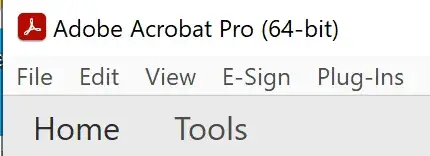
There are now two versions of Acrobat DC: 32-bit and 64-bit, identified on the Acrobat title bar. The installer will detect and install the correct version automatically.
No Licence Required
OpenOptions is completely free for everyone. The installer does not require a serial number or activation — just install and run.
Digitally Signed
All Mapsoft installers are digitally signed by Mapsoft Computer Services Limited for your security. Learn more →
System Requirements
Requires Adobe Acrobat DC, 2020, or 2017 (Standard or Pro) on Windows 10 or 11. See full requirements on the product page.
Getting Started
Please read the following instructions to help you get started using OpenOptions.
Installation
Please make sure that you have the full version of Acrobat installed (Standard or Pro). This plug-in will not run under the free Adobe Reader. The plug-in becomes part of Adobe Acrobat, so once the software is installed you will need to open Adobe Acrobat to use it.
To install the software:
- Step 1: Run the
Mapsoft_OpenOptions_Install.exefile by double clicking on it. On some systems that are more restricted you may need to run the installer as Administrator (right-click and select "Run as administrator" from the context menu). Do not change the user to an Administrator account to complete the installation. - Step 2: Run through the screens, agreeing to the licence agreement. OpenOptions is free for everyone — no serial number or activation is required.
Silent Installation
The installer supports silent mode for automated or scripted deployments using the /VERYSILENT flag:
Mapsoft_OpenOptions_Install.exe /VERYSILENT
Using the Software
Once the plug-in is installed and you load Acrobat, you will find OpenOptions on the Plug-ins > Mapsoft menu.
For further information please see the User Guide.
Running OpenOptions Under Acrobat’s Protected Mode
OpenOptions now runs with Acrobat’s Protected Mode switched on. Earlier builds could not save configurations under Protected Mode, and the advice then was to turn the setting off in Edit > Preferences > Security (Enhanced). That is no longer necessary: install the current version and leave Protected Mode enabled.
This matters beyond convenience. Adobe is removing the option to disable Protected Mode altogether — December 2026 on Windows — after which every plug-in must run inside it. See what this means for your plug-ins.
Resources
Everything you need to get the most out of OpenOptions.
User Guide
Complete documentation covering all OpenOptions features and configuration options.
Questions or Feedback?
OpenOptions is free for everyone. Get in touch if you need help, want to suggest a feature, or are looking for custom development.
Using it across your organisation? Support plans from £500/yr add priority email support, deployment help and compatibility updates.
After Download
Explore More Plugins
Browse the rest of our Adobe Acrobat plug-ins for more PDF productivity tools.
View Products →