
Automating PDF Workflows with Acrobat Action Wizard
How to build multi-step automated document processing sequences in Adobe Acrobat Pro — OCR, redaction, watermarking, custom JavaScript, and when to move beyond Action Wizard to a dedicated solution.
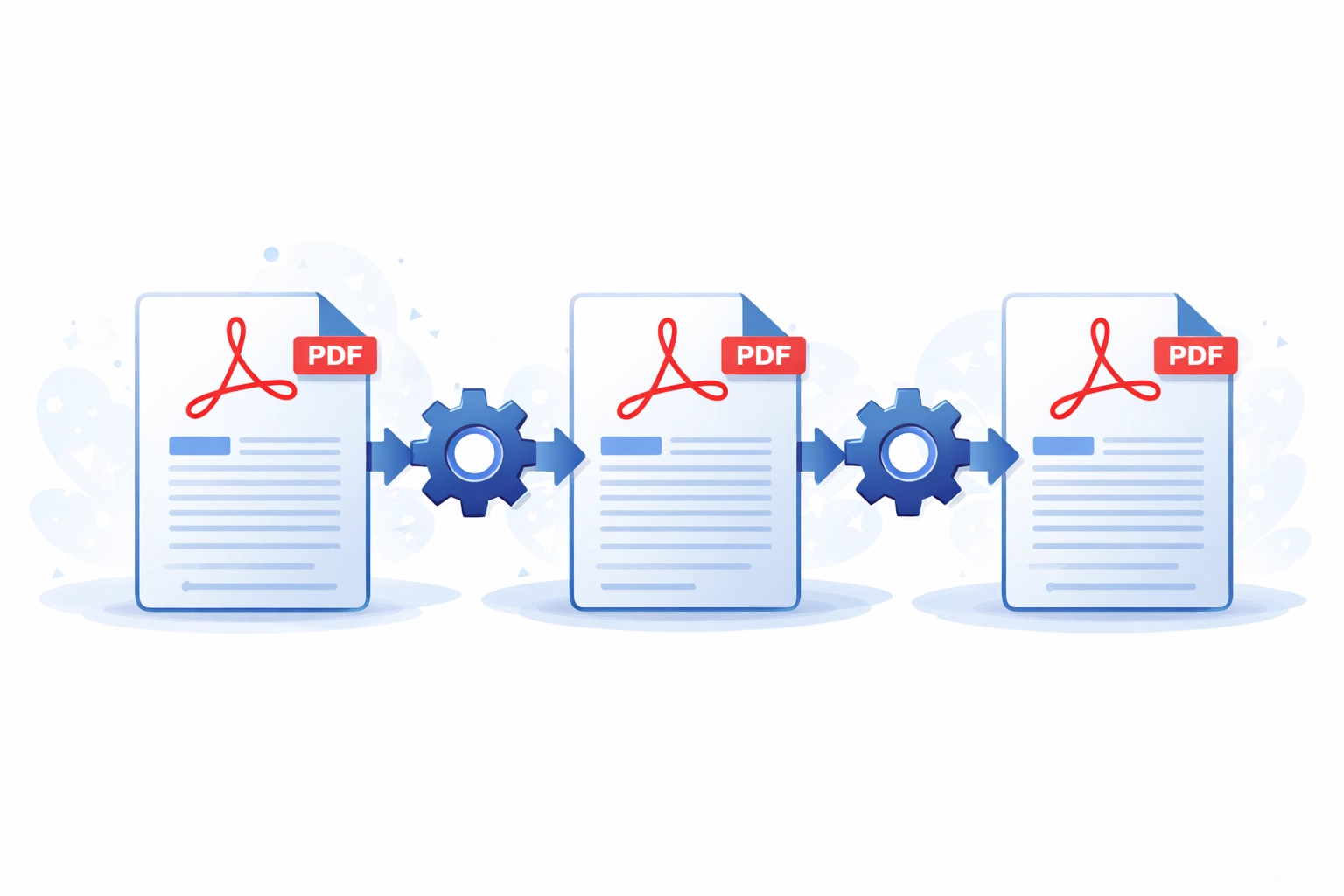
What Is Action Wizard?
Action Wizard is a feature of Adobe Acrobat Pro (not available in Acrobat Standard or the free Reader) that lets you record a sequence of document processing steps and replay them against one or more files. It is the modern successor to the Batch Processing feature that appeared in earlier versions of Acrobat, rebranded and significantly expanded from Acrobat X onwards.
An action is essentially a named, ordered list of processing tasks. Each task is configured with its own settings — for example, an OCR task specifies the language and output style, while a watermark task specifies the text, font, position, and opacity. Once built, an action can be run against a single open document, a folder of files, or a manually selected set of files. The output can be saved back to the original location, to a specified output folder, or prompted for on each run.
Building an Action
To create an action, open the Action Wizard panel from the Tools pane and choose "New Action". The Action Wizard editor presents two panes: a list of available step categories on the left, and the action's step sequence on the right. You build the action by expanding categories, selecting steps, and adding them to the sequence. Each step can be configured immediately or left to prompt the user at runtime — giving you a choice between fully silent batch processing and interactive guided workflows.
The step categories cover almost every Acrobat Pro capability. Commonly used categories include:
- Recognise Text (OCR): Run optical character recognition on scanned pages to produce searchable and selectable text. You can specify the recognition language and choose between searchable image output (original scan preserved) and editable text output (text layer reconstructed).
- Redact: Search for and apply redaction marks to text, images, or areas. Useful for automating the removal of personally identifiable information from document sets.
- Add Watermark: Stamp text or image watermarks at a defined position, rotation, and opacity. You can use fixed text or include Acrobat date/time macros.
- Add Headers and Footers: Insert running headers and footers with page numbers, dates, or custom text.
- Optimise PDF: Apply PDF Optimiser settings to reduce file size by downsampling images, removing embedded metadata, and discarding unused resources.
- Protect: Apply password security or certificate-based encryption with predefined settings.
- Convert: Save the document to a different format such as Word, Excel, or image formats.
- Run JavaScript: Execute an arbitrary Acrobat JavaScript snippet, enabling custom logic beyond what the built-in steps offer.
Running Actions on a Folder of Files
One of the most practical uses of Action Wizard is batch processing an entire folder of PDFs. When starting an action, you select "Add Files" or "Add Folder" as the input source. Acrobat will process each file in sequence, applying every step in the action and saving the results according to the output settings you configured. For large batches, this can replace hours of manual per-file work. Progress is shown in the Action Wizard panel, and a summary report is generated at the end listing any files that encountered errors.
Output naming is flexible: you can save files in place (overwriting the original), save to a different folder (preserving originals), or append a suffix to the filename to distinguish processed copies from source files.
Sharing Actions with Team Members
Actions are stored as .sequ files, which can be exported from the Action Wizard panel and shared. A colleague with Acrobat Pro can import the file and immediately run the same action with identical settings. This is useful for standardising processing workflows across a team — for example, ensuring every staff member applies the same OCR settings and watermark to incoming scanned documents. Shared actions appear in the Action Wizard panel alongside locally created ones.
Combining Action Wizard with Acrobat JavaScript
The "Run JavaScript" step is the escape hatch that makes Action Wizard genuinely powerful for custom workflows. Acrobat's JavaScript API gives access to the document object model: you can read and write field values, manipulate pages, add or remove annotations, query document properties, and call built-in Acrobat methods. A JavaScript step within an action can implement conditional logic (skip processing if a certain field is already filled), dynamic watermarking (insert the current username from the environment), or any manipulation that the fixed built-in steps do not support.
JavaScript in an action runs in the Acrobat JavaScript sandbox, meaning it has access to the document model but not to the local filesystem directly (beyond what Acrobat's privileged APIs permit). For more complex scripting needs, folder-level scripts and application-level scripts offer alternatives, though they require deeper knowledge of the Acrobat JavaScript environment.
Limitations of Action Wizard
Action Wizard is well suited to straightforward, sequential batch tasks but has clear limitations. Actions run interactively within the Acrobat application — they are not a background service and cannot be triggered by external events or scheduled via the operating system. Processing speed is constrained by the Acrobat UI rendering pipeline rather than raw processing throughput. Actions cannot easily handle complex branching logic, database lookups, or integration with external systems.
For workflows that need to run unattended on a server, process thousands of documents daily, integrate with other business systems, or apply logic too complex for a JavaScript snippet, Action Wizard is the wrong tool. In those cases, a server-side PDF processing library — or a custom Acrobat plugin or COM automation solution — is the appropriate approach. See our guide to batch processing in Acrobat for a broader comparison of available techniques.
When to Move Beyond Action Wizard
The key indicators that you have outgrown Action Wizard include: needing to trigger processing from an external system rather than launching Acrobat manually; requiring processing to run on a server without a licensed desktop Acrobat installation; needing throughput above what a single Acrobat instance can deliver; or requiring tight integration with a database, document management system, or API. In these scenarios, a custom solution using a server-side PDF library or an Acrobat SDK plugin will deliver far greater reliability, scalability, and maintainability than a collection of shared action files.
Related Articles
The Acrobat Software Developer's Kit
Unlock the full potential of PDF manipulation with the Acrobat SDK and C++. Learn how to customize and enhance PDFs using Visual Studio and the Adobe Acrobat SDK.
How to Create a Plug-in for Adobe Acrobat Using the SDK
Learn how to develop an Adobe Acrobat plug-in that adds a custom menu item using the Acrobat SDK, C++, and Visual Studio. Step-by-step guide with code examples.
What is an Acrobat Plug-in?
Discover how Acrobat plugins can enhance the functionality of the Adobe Acrobat application. Learn about the features that can be added, from interactive forms to advanced document processing tasks.
Beyond Action Wizard: Custom PDF Automation
When your document processing requirements outgrow what Action Wizard can deliver, Mapsoft builds bespoke PDF automation solutions — server-side processing, Acrobat plugins, and workflow integrations tailored to your business.