
OCR in Adobe Acrobat: Converting Scanned PDFs to Searchable Text
Understand how Acrobat's Optical Character Recognition works, which output mode to choose, how to process documents in bulk, and how to review and correct recognition errors.
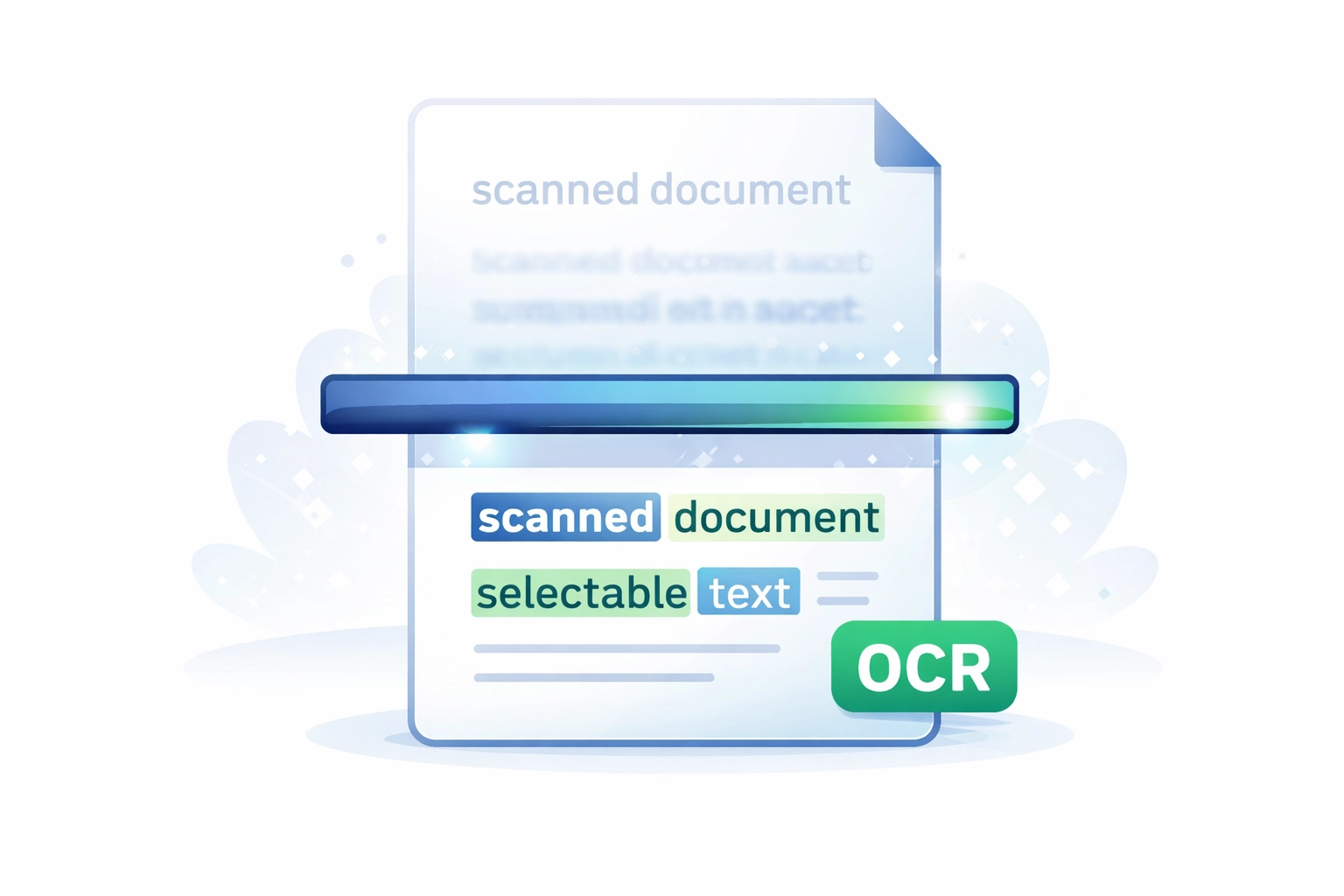
What Is OCR and Why Does It Matter for PDFs?
Quick answer: OCR (Optical Character Recognition) in Adobe Acrobat converts scanned documents and images into searchable, selectable text. Acrobat places an invisible text layer behind the scanned image, preserving the original appearance while making the content searchable.
Optical Character Recognition (OCR) is the process of analysing a raster image — such as a scanned page — and identifying the characters, words, and layout it contains, converting them into machine-readable text. Without OCR, a scanned document exists as nothing more than a photograph. You cannot search it, copy text from it, or use screen readers to make it accessible. For many document-intensive organisations, OCR is the essential step that transforms a paper archive into a searchable, usable digital resource.
Adobe Acrobat Pro includes a capable built-in OCR engine. Earlier versions of Acrobat called this feature Paper Capture; in modern versions it is found under Scan & OCR > Recognize Text. This guide explains how to use it effectively.
You can also try OCR on PDFs online for free using Mapsoft's PDF Hub — no installation required. After OCR, use our AI tools to summarize, chat with, or translate your document.
Running OCR on a Scanned PDF
Single Document
- Open the scanned PDF in Acrobat Pro.
- Go to Tools > Scan & OCR.
- Click Recognize Text and select In This File.
- In the Recognize Text dialog, configure the language, output type, and resolution settings (described below).
- Click Recognize Text to begin processing. Acrobat processes each page in turn; progress is shown in the status bar.
- Save the document after OCR completes.
Multiple Files (Batch OCR)
To run OCR on multiple scanned PDFs at once:
- Go to Tools > Scan & OCR and click Recognize Text, then select In Multiple Files.
- Add the files or folder you want to process.
- Configure output options — you can save the processed files in place or to a nominated output folder.
- Click OK to begin batch processing.
Alternatively, build an Action Wizard action with an OCR Text Recognition step. This approach integrates OCR into a larger workflow — for example, scan to Acrobat, OCR, add bookmarks, save to archive folder, all in a single automated sequence.
OCR Output Modes: Searchable Image, Editable, and ClearScan
Acrobat offers three distinct output modes when running OCR. Choosing the right one depends on your priorities: visual fidelity, file size, or editability.
Searchable Image
This is the recommended mode for most archival and document-management use cases. Acrobat places an invisible layer of recognised text over the original scanned image. The page continues to look exactly as it did when scanned — the original image is preserved — but the text is now fully searchable and selectable. Copy-and-paste from the document copies the OCR'd text rather than an image region.
Use this mode when visual accuracy is paramount and you need the document to look identical to the original paper source.
Searchable Image (Exact)
A variation of Searchable Image that makes no adjustments to the image during OCR — deskewing and cleaning are not applied. Use this when you need to preserve the exact pixel content of the scan without any image processing.
Editable Text and Images (formerly ClearScan)
In this mode, Acrobat attempts to replace the scanned image content with actual live text and vector representations of the original content. Rather than keeping the scan image as a background, Acrobat renders the page using recognised text with synthesised fonts that approximate the original letterforms. The result is a fully editable PDF with much smaller file size than the scanned original.
The trade-off is that subtle differences between the synthesised fonts and the originals can be visible, particularly on decorative typefaces or in documents where visual accuracy is critical. This mode works well for typed business documents in standard fonts where post-OCR editing is likely.
Language Settings and OCR Accuracy
Acrobat's OCR engine uses language models to improve recognition accuracy — it can distinguish plausible words in the target language from random character sequences. Always set the document language correctly before running OCR.
- In the Recognize Text settings, open the Edit dialog next to the recognition settings to access language options.
- Multiple languages can be selected for documents that contain mixed-language content, though accuracy may be lower than single-language processing.
- For documents with unusual terminology — such as scientific notation, legal Latin, or product codes — OCR accuracy may be reduced because the character sequences fall outside typical language patterns.
OCR Quality and Scan Resolution
The quality of the OCR output is fundamentally constrained by the quality of the input scan. Acrobat's OCR engine can compensate for minor imperfections, but it cannot recover information that is not present in the image.
- Resolution: 300 dpi is the standard minimum for reliable OCR. Scans at 150 dpi will produce noticeably more errors on normal body text and may fail significantly on smaller fonts. 600 dpi is preferable for documents with small print or fine detail.
- Colour mode: Black-and-white (bitonal) scans at 300 dpi typically give good OCR results and produce smaller files. Greyscale scans can be processed with slightly more retained context about letterform quality. Colour scans add little OCR benefit over greyscale.
- Skew and alignment: Pages scanned at an angle reduce OCR accuracy. Acrobat automatically applies deskewing in Searchable Image mode, but severely skewed pages (more than about 10 degrees) should ideally be rescanned.
- Contrast: Faded or lightly printed text, yellowed paper, or show-through from the reverse side of thin paper all reduce accuracy. Higher contrast scanning settings can mitigate this.
Reviewing and Correcting OCR Errors
After OCR, Acrobat can identify characters or words that it was uncertain about — these are called OCR suspects. Reviewing suspects allows you to correct errors before the document goes into an archive or is distributed.
- After running OCR, go to Tools > Scan & OCR > Correct Recognized Text.
- Acrobat highlights the first suspect on the page. The suspect word is shown alongside the original image for comparison.
- You can correct the text by typing the right value, or confirm it as correct by clicking Accept.
- Use Find Next Suspect to move through all suspects in the document.
In large batch-processed document libraries it is rarely practical to review suspects manually for every file. Prioritise suspect review for documents that will be used as legal records, for accessibility compliance, or for content that will be full-text searched frequently.
Making PDFs Accessible After OCR
Running OCR makes a document searchable, but it does not automatically make it accessible. A properly accessible PDF also requires a logical reading order, tagged content structure (headings, paragraphs, lists, tables), and alternative text for images.
- After OCR, use Tools > Accessibility > Autotag Document as a starting point. Acrobat analyses the recognised content and applies a tag structure.
- Use the Reading Order tool to review and adjust the sequence in which a screen reader will present the content.
- Run Tools > Accessibility > Full Check to identify remaining accessibility issues.
- For documents intended to meet PDF/UA (ISO 14289) requirements, a full manual review of the tag structure is recommended, as automatic tagging after OCR often requires correction, particularly for complex layouts.
OCR Limitations to Be Aware Of
- Handwriting: Acrobat's OCR is designed for printed type. Handwritten content is not reliably recognised and will typically produce garbled output or no output at all.
- Unusual or decorative fonts: Highly stylised typefaces, scripts, or condensed display fonts may not be recognised accurately, particularly at smaller sizes.
- Low-resolution scans: Input below 150 dpi will generally produce poor results regardless of settings. Re-scanning is the only remedy.
- Tables and complex layouts: OCR text recognition handles reading order in complex multi-column layouts or table cells imperfectly. Post-OCR review of table content is advisable.
- Mathematical and scientific notation: Formulae, subscripts, superscripts, and special symbols are error-prone in OCR output and should be verified carefully.
Related Articles
The Acrobat Software Developer's Kit
Unlock the full potential of PDF manipulation with the Acrobat SDK and C++. Learn how to customize and enhance PDFs using Visual Studio and the Adobe Acrobat SDK.
How to Create a Plug-in for Adobe Acrobat Using the SDK
Learn how to develop an Adobe Acrobat plug-in that adds a custom menu item using the Acrobat SDK, C++, and Visual Studio. Step-by-step guide with code examples.
What is an Acrobat Plug-in?
Discover how Acrobat plugins can enhance the functionality of the Adobe Acrobat application. Learn about the features that can be added, from interactive forms to advanced document processing tasks.
Need Help with PDF Document Processing?
Mapsoft's PDF plugins and consultancy services help organisations automate and improve their document workflows. Explore our products or talk to us about your requirements.