
Will Your Acrobat Plug-ins Work in December? A Checklist
In December 2026 Adobe Acrobat on Windows stops letting anyone switch Protected Mode off. Here is how to find out, in an afternoon, whether the plug-ins your organisation depends on will survive it.
Adobe has made its security sandbox mandatory: on macOS from October 2026 and on Windows from December 2026. After that, every plug-in loaded into Acrobat has to work inside the sandbox, which Windows calls Protected Mode, because the option to turn it off is gone.
For off-the-shelf plug-ins from an active vendor, the answer is usually an update. The organisations at risk are the ones running something older: a plug-in an in-house team wrote, one a contractor built a decade ago, or one from a vendor that no longer exists. Those tend to be the plug-ins nobody has looked at in years, and they are often the ones a workflow depends on.
This checklist is for the IT or operations person who has to answer one question before December: will our Acrobat plug-ins still work?
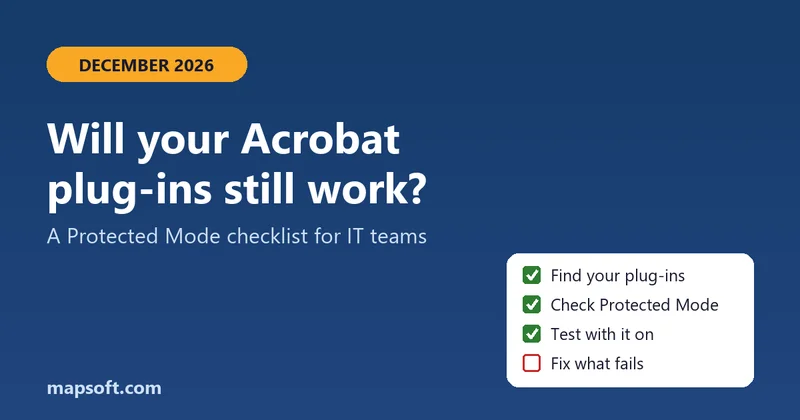
1. Find out which plug-ins you actually run
Start with an inventory, because plug-ins are easy to forget. On a typical Windows machine, third-party plug-ins live in the plug_ins folder of the Acrobat installation, for example C:\Program Files\Adobe\Acrobat DC\Acrobat\plug_ins. Anything there that did not come from Adobe is a candidate. Inside Acrobat, plug-ins usually add a menu, a toolbar button or an entry under the Plug-ins menu; our guide to finding a plug-in's menu shows where to look.
For each one, note who made it, who supports it today, and which business process stops if it does.
2. Check whether Protected Mode is switched off today
In Acrobat on Windows, open Edit > Preferences > Security (Enhanced) and look at Enable Protected Mode at startup. If it is unticked, ask why. In many organisations it was switched off years ago precisely because a plug-in did not work with it on, and that is the plug-in to worry about.
It is also worth checking how the setting is managed. Deployment scripts and group policy often disable it centrally through the bProtectedMode value under Acrobat's FeatureLockDown policy key. That setting stops having any effect in December, so any build image or script that relies on it needs to change too.
3. Test every plug-in with Protected Mode on
On a test machine, switch Protected Mode on, restart Acrobat, and run each plug-in through the real work it does: the same documents, the same exports, the same batch jobs. Failures under the sandbox are often quiet, so look for:
- A menu item or toolbar button that is missing, greyed out or does nothing.
- An export, report or saved file that never appears.
- Settings that are not remembered between sessions.
- A helper application, database connection or network call that silently fails.
Anything that works is fine. Anything that fails is now on a deadline.
4. Decide what to do about each one that fails
- Supported by an active vendor: ask for their Protected Mode release and install it. (All of Mapsoft's own Windows plug-ins are already updated.)
- Built in-house or by a contractor, and you have the source code: it can usually be fixed. The operations the sandbox blocks are moved into a separate broker process that Acrobat lets run with full rights, using the Acrobat SDK's sandbox broker extensibility. The rest of the plug-in normally stays as it is.
- No source code and no vendor: the choice is between a replacement product and a rewrite. Knowing exactly what the plug-in does, and what fails, is what lets you choose sensibly.
Whichever route applies, leave time for testing and for rolling the update out to every machine before Adobe's change reaches them.
Not sure where you stand? We offer a fixed-price $650 Protected Mode assessment for one plug-in: we test it with Protected Mode on, review the code if you have it, and give you written findings and a fixed quote for the fix. We have just done the same work on our own range of Acrobat plug-ins.
Frequently asked questions
How do I check whether Protected Mode is switched on in Acrobat?
In Acrobat on Windows, open Edit > Preferences > Security (Enhanced) and look at "Enable Protected Mode at startup". Your IT team may also control it centrally through the bProtectedMode setting under the FeatureLockDown policy key, in which case the checkbox can be locked.
What happens to a plug-in that is not ready for Protected Mode?
It runs inside the same restricted process as Acrobat, so anything it does that the sandbox blocks, such as writing files outside permitted locations, reading the registry or launching a helper application, fails. Often there is no clear error: a menu item does nothing or an export never appears. From December 2026 on Windows, switching Protected Mode off to work around this is no longer possible.
Can an old Acrobat plug-in be fixed without rewriting it?
Usually, if the source code is available. The operations the sandbox blocks are moved into a broker process that Acrobat allows to run with full rights, using the sandbox broker extensibility mechanism in the Acrobat SDK. The rest of the plug-in normally stays as it is. Without source code the options are a vendor update, a replacement product or a rewrite.
Related links
Related Articles
Acrobat Protected Mode Becomes Mandatory in 2026
What Adobe is changing, what Protected Mode does, and how a plug-in works inside the sandbox.
What Is an Acrobat Plug-in?
How Acrobat plug-ins work, what they can do that scripting cannot, and how they are built against the Acrobat SDK.
Acrobat SDK Plug-in Tutorial
A walkthrough of building an Acrobat plug-in with the SDK — the project setup, the build, and getting it loaded by Acrobat.
Have a Plug-in That Might Not Make It?
A fixed-price $650 assessment tells you what breaks under Protected Mode and what the fix costs.