
How to Convert PDF to Word: 5 Methods That Preserve Formatting
A practical guide to converting PDF documents into editable Microsoft Word files — from quick online tools to programmatic batch conversion — with advice on what converts well and what to watch out for.
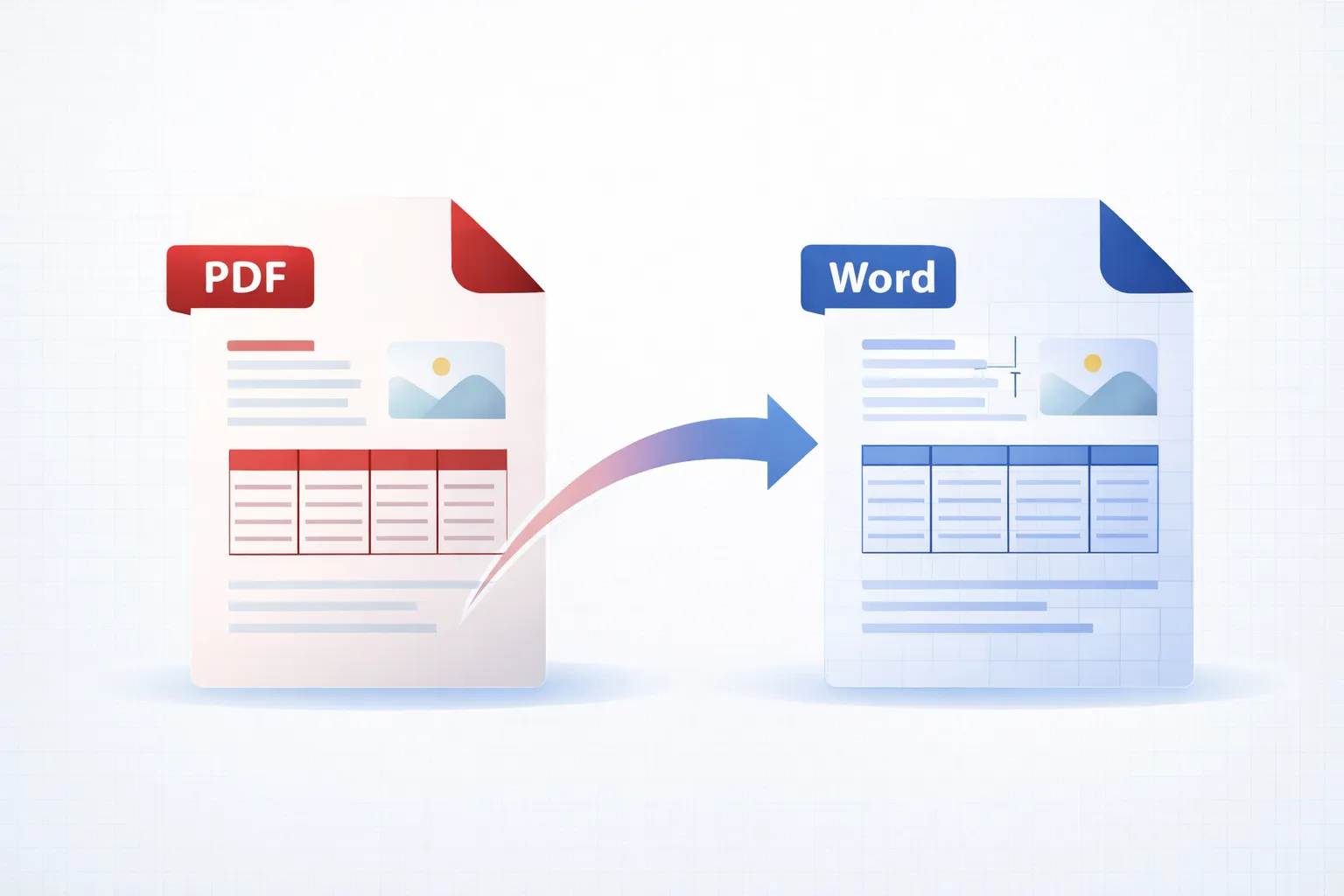
Why Convert PDF to Word?
PDF is designed as a final-form document format — it preserves layout, fonts, and images identically across every device and operating system. That stability is its strength, but it also means that editing a PDF directly is limited. When you need to make substantial changes to a document — rewriting paragraphs, updating tables, changing the structure — converting the PDF to a Word document gives you full editing capability in a familiar word processor.
Common scenarios include updating contracts or proposals originally supplied as PDF, extracting tables and data from PDF reports into an editable format, repurposing content from a PDF brochure or whitepaper, and making accessibility improvements to documents where the original source file has been lost.
What Converts Well — and What Doesn't
Before choosing a conversion method, it helps to understand the limitations. PDF stores text as positioned character runs on a page, not as flowing paragraphs with styles. A converter must reconstruct the document structure — paragraphs, headings, columns, tables, lists — from the low-level page content. Simple, single-column documents with standard fonts convert very well. Complex layouts are harder.
Converts well: single-column text documents, simple tables, standard fonts, headings and lists, embedded images (preserved as inline images in Word).
May need manual cleanup: multi-column layouts (columns may merge or split incorrectly), complex tables with merged cells or nested tables, headers and footers (often converted as body text), text over background images, and mathematical equations.
Cannot be converted to editable text: scanned documents where the "text" is actually a page image. These require OCR (optical character recognition) as a first step before conversion to Word. Adobe Acrobat Pro includes built-in OCR, and Mapsoft's online PDF Hub offers OCR processing with a free try.
Method 1 — Adobe Acrobat Pro (Export PDF)
Adobe Acrobat Pro provides the highest-fidelity PDF-to-Word conversion available. Open the PDF in Acrobat, then choose File > Export a PDF > Microsoft Word > Word Document (.docx). Acrobat analyses the page structure and reconstructs paragraphs, tables, headers, and images as native Word elements.
Acrobat offers two export options: Word Document (.docx) for modern Word, and Word 97–2003 Document (.doc) for legacy compatibility. The .docx option produces better results as it supports more formatting features. In the export settings, you can choose between "Retain Flowing Text" (prioritises editability) and "Retain Page Layout" (uses text boxes to match the original positioning more closely). For most editing tasks, "Retain Flowing Text" is the better choice.
For scanned PDFs, Acrobat will automatically run OCR before exporting if the PDF contains only image content. You can adjust the OCR language and quality settings under Edit > Preferences > Document.
Method 2 — Microsoft Word (Open Directly)
Microsoft Word 2013 and later can open PDF files directly. Use File > Open and select the PDF file. Word displays a notice that it will convert the PDF to an editable Word document, and the conversion may take a moment for larger files.
Word's built-in converter works well for text-heavy documents with simple formatting. It handles paragraphs, basic tables, and inline images competently. However, it struggles more than Acrobat with complex layouts, multi-column text, and precise table reconstruction. For straightforward documents, it is a convenient option that requires no additional software.
Method 3 — Free Online PDF to Word Converters
Several online services convert PDF to Word for free, including Mapsoft's PDF Hub, which converts the file on Mapsoft's own UK servers and deletes it automatically within 24 hours. Online converters are convenient for quick, one-off conversions where installing software is not practical.
When using any online converter, consider the privacy implications: your file is uploaded to the service's servers for processing, so check how long it is retained and where it is processed. For sensitive or confidential documents, use a local tool (Acrobat, Word, or a desktop application such as Mapsoft's PdfHub Local, which never uploads files).
Method 4 — Google Docs
Google Drive can convert PDFs to an editable format. Upload the PDF to Google Drive, then right-click and choose Open with > Google Docs. Google Docs will extract the text and basic formatting from the PDF into a new Google document, which can then be downloaded as a .docx file via File > Download > Microsoft Word (.docx).
This method is best for text-only PDFs. Google Docs strips most visual formatting, images, and complex layouts during conversion. It is useful when you need to extract the text content quickly and are willing to reformat the document in Word afterwards.
Method 5 — Programmatic Conversion
For batch conversion of many PDFs to Word — for example, migrating a document archive or processing incoming PDFs in an automated workflow — a programmatic approach is necessary.
Adobe PDF Services API. Adobe offers a cloud-based PDF Services API that includes a PDF-to-Word conversion endpoint. You send the PDF via a REST API call and receive a .docx file in response. The API uses the same conversion engine as Acrobat Pro and produces high-quality results. SDKs are available for Node.js, Java, .NET, and Python.
.NET and Java libraries. Libraries such as Aspose.PDF, iText, and Syncfusion provide PDF-to-Word conversion as part of their PDF processing toolkits. These run locally without requiring a cloud service and are suitable for high-volume batch processing or integration into existing document management systems.
Python. The pdf2docx Python library provides an open-source option for converting PDF pages to Word documents. It uses PyMuPDF for PDF parsing and python-docx for Word generation. While it handles simple documents well, it may require post-processing for complex layouts.
Tips for Better Conversion Results
Start with the best source. If you have the original Word document, use that rather than converting from PDF. If you only have the PDF, check whether it is a digitally created PDF (text is selectable) or a scanned image. Digitally created PDFs convert far better.
Check fonts. If the PDF uses fonts that are not installed on your system, the converter will substitute similar fonts. This can cause text reflow and layout differences. Installing the original fonts before conversion, if available, improves fidelity.
Review tables carefully. Tables are the most common source of conversion errors. After conversion, check that table cells are correctly aligned, merged cells are preserved, and no data has shifted between cells.
Use styles after conversion. Converters often produce Word documents with direct formatting rather than Word styles. After conversion, applying Word’s built-in heading and body text styles makes the document easier to edit and maintain.
Tables: Why They Break and How to Fix Them
Tables are the single biggest source of frustration in PDF-to-Word conversion. The problem is structural: a PDF stores a table as a set of positioned text fragments and ruled lines, with no metadata identifying the cells, rows, or column relationships. The converter has to infer the table structure from the visual layout, and inference is fragile.
Five recurring failure modes:
- Merged cells split into separate cells. A merged cell spanning two columns may convert into two cells with the content split between them, or with the content in one cell and the other empty. Re-merge cells manually after conversion.
- Multi-line cells become separate rows. If a cell’s content wraps across two visual lines, the converter sometimes treats each line as its own row. Symptom: tables that were 5 rows in the PDF become 12 rows in Word.
- Borderless tables disappear entirely. If the source PDF doesn’t draw cell borders, the converter has no visual cue that the content is tabular and may flow it as plain paragraphs. The fix is manual: select the resulting paragraphs and apply Word’s table tools to re-create the structure.
- Headers detached from data. The first row of a table that should be a header (TH) can become a separate paragraph above an unstructured table. Manual fix: cut the header row, paste it back, mark it as a header.
- Numeric alignment lost. Right-aligned numeric columns that depend on PDF text positioning may convert as left-aligned text in Word. Reapply numeric alignment after conversion.
The honest production advice: for tables that matter (financial statements, regulatory submissions, structured data tables), don’t convert from PDF if you can avoid it. Get the source Word, Excel, or CSV file. Conversion-from-PDF is the right tool for narrative documents with occasional simple tables, not for tables that are themselves the document.
Forms: Read-Only PDF Forms and What Survives
PDF forms (AcroForm or XFA) carry interactive form fields with validation, calculation, and submission logic. None of that survives a conversion to Word. What you get instead is the rendered appearance of the form — text labels and lines where the fields used to be, but no live fields. Three common scenarios:
- Filled forms. The user-entered values appear in the converted Word document as plain text on top of the form layout. Useful for archiving completed forms as Word documents, where the form is no longer interactive but the data is preserved.
- Blank forms. The form fields appear as blank rectangles or underscores. To make the converted document fillable in Word, manually replace the field placeholders with Word’s own form controls (Developer tab > Controls). For anything beyond a small form, this is more work than rebuilding the form from scratch in Word.
- XFA dynamic forms. XFA forms generated by LiveCycle Designer don’t survive conversion at all in most tools — the dynamic content is gone. Acrobat Pro’s exporter handles them better than most third-party tools, but the Word output is still essentially a static visual approximation.
Tool Comparison: Online vs Desktop vs Programmatic
The choice of PDF-to-Word tool depends on volume, sensitivity, and integration requirements.
| Tool | Best for | Pricing | Privacy / data residency |
|---|---|---|---|
| Acrobat Pro Export PDF | Best fidelity, day-to-day desktop work | Acrobat Pro subscription (~£15/month) | Local processing only; data stays on your machine |
| Word’s "Open PDF" feature | Simple text-heavy documents when Acrobat Pro isn’t available | Free with Microsoft 365 | Local processing |
| Adobe PDF Services API | Server-side conversion at scale | Per-document pricing; free tier 500/month | Cloud processing in Adobe data centres; check residency for EU/UK compliance |
| Smallpdf, iLovePDF, ILovePDF | Occasional one-off conversions for non-sensitive documents | Free tier with daily limits; paid subscription for unlimited | Cloud processing; do not use for confidential or regulated documents |
| Aspose.PDF (Java/.NET) | Self-hosted programmatic batch conversion | Per-developer or per-deployment licensing | Local; runs on your infrastructure |
| pdf2docx (Python, open-source) | Free programmatic conversion for simple documents | Free | Local; runs on your infrastructure |
The privacy column matters more than most users realise. Free online converters typically state in their terms that uploaded files may be retained, processed by third parties, or used for service improvement. For confidential business documents, regulated content (HIPAA, GDPR, financial), or anything covered by an NDA, online converters are the wrong choice regardless of how convenient they are. Acrobat Pro processes locally and keeps the data on your machine, which is the right default for any sensitive document.
Related Articles
PDF Structure: How PDF Files Are Built
How PDF files are structured internally — the four major sections, PDF objects, content streams, and incremental updates.
How to Edit PDFs in Adobe Acrobat
Step-by-step guide to editing PDF files in Adobe Acrobat — edit text, replace images, add or delete pages, and use the Edit PDF toolbar.
How to Merge PDFs in Adobe Acrobat
Learn how to merge PDF files in Adobe Acrobat using the Combine Files tool, Insert Pages, and JavaScript.
Convert PDFs Online for Free
Use Mapsoft's PDF Hub to convert PDF to Word, merge, split, compress, and process PDFs directly in your browser — no installation or signup required.