
How to Merge PDF Files: Acrobat, Free Online, and Automation
A practical guide to combining PDF files — free in your browser, in Adobe Acrobat, or scripted for batches — and keeping bookmarks, links, and form fields intact along the way.
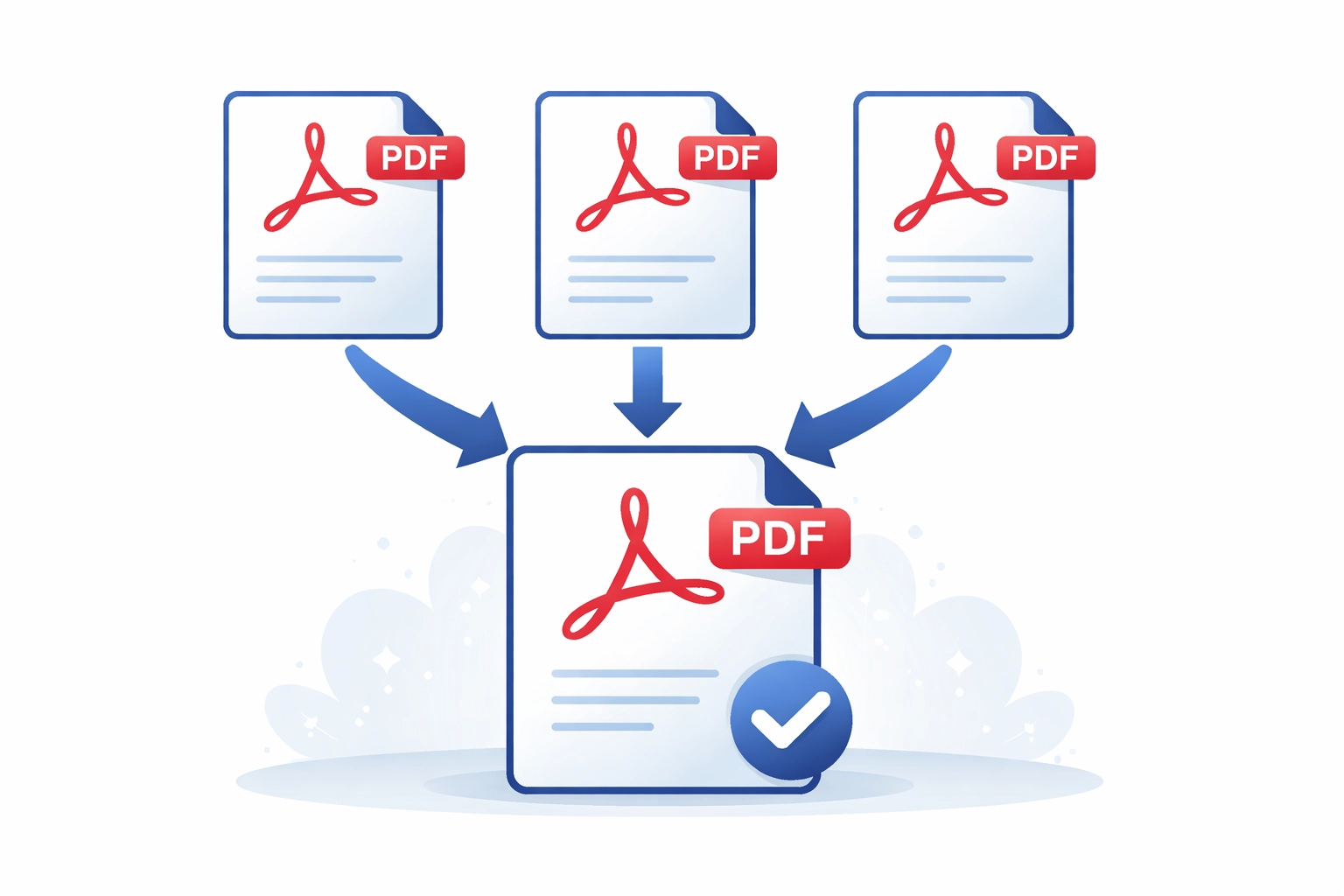
Why You Need to Merge PDFs
Quick answer: To merge PDFs in Adobe Acrobat, open the Combine Files tool from the Tools menu, add the files you want to combine, arrange them in the desired order, and click Combine. You can also merge PDFs for free online using Mapsoft's PDF Hub.
Combining multiple PDF files into a single document is one of the most common tasks performed in Adobe Acrobat. Whether you are assembling a board report from separate department contributions, combining signed contracts with their supporting schedules, collating a product catalogue from individual chapter files, or packaging a tender submission from multiple source documents, the ability to merge PDFs quickly and reliably is essential to any document-heavy workflow.
Adobe Acrobat Pro offers several methods for merging PDFs, each suited to different scenarios. This guide covers all the main approaches — from the visual drag-and-drop interface to JavaScript automation for batch merging — as well as what to expect when bookmarks, links, form fields, and PDF/A compliance are involved. If you need the reverse operation, see our guide on how to split PDF files.
The No-Install Route: Merge PDFs Free Online
Not everyone has Acrobat Pro on the machine in front of them — and for a one-off merge, you don't need it. The free Merge PDFs tool on the Mapsoft PDF Hub does the whole job in the browser:
- Open mapsoft.com/tools/Pdf/MergePdfs and upload the PDFs (drag-and-drop, file picker, or straight from cloud storage).
- Drag the files into the order you want them to appear in the combined document.
- Click Merge and download the single combined PDF.
Files are processed on our UK servers and deleted automatically afterwards, and the merge runs on the Adobe PDF Library — the same engine behind commercial prepress systems. Two neighbouring Hub tools round the job out: Page Manager gives you visual drag-and-drop page assembly when the merge also involves reordering or dropping individual pages, and for merges that happen on a schedule the Workflow Builder and REST API make the same operation repeatable or programmatic.
When the job needs Acrobat's control — page-level picking from each source, bookmark structure, PDF/A preservation — the methods below are the full treatment.
Method 1: Combine Files Tool
The Combine Files tool is the most straightforward way to merge PDFs in Acrobat and is the best choice for most users.
Opening the Combine Files Tool
- Open Adobe Acrobat Pro and go to Tools > Combine Files.
- Alternatively, from the Home screen, select Combine Files from the tool shortcuts panel.
Adding Files
- Click Add Files to browse for PDFs, or drag and drop files directly into the Combine Files window.
- You can add entire folders — Acrobat will include all supported files from the folder.
- Non-PDF files such as Word documents, Excel spreadsheets, images, and PowerPoint presentations can also be added; Acrobat will convert them during the merge process.
Reordering and Previewing Pages
- Files are displayed as thumbnail cards. Drag them into the desired order before combining.
- Click the expand arrow on any file card to view individual page thumbnails, allowing you to include only specific pages from each file.
- To remove a file or individual page from the selection, click the X on its thumbnail.
Combining
Once the files and pages are arranged, click Combine. Acrobat merges all selected content into a new untitled PDF. Save this file to your chosen location using File > Save As.
Method 2: Insert Pages from the Organize Pages Panel
If you already have the target document open and want to insert additional pages from another PDF, the Organize Pages panel offers a more precise approach.
- Open the PDF you want to add pages to.
- Go to Tools > Organize Pages (or open the Organize Pages panel from the right-hand tools pane).
- Right-click on the page thumbnail where you want to insert content. Choose Insert Pages and then From File.
- Browse to the source PDF and click Open.
- In the Insert Pages dialog, specify whether to insert the new pages Before or After the selected page, and which pages from the source document to include.
- Click OK to complete the insertion.
This method is ideal when you need to insert pages at a precise location within an existing document rather than appending files end-to-end.
Method 3: Combine Files via Windows Explorer
If Adobe Acrobat is installed on your Windows machine, the shell integration provides a quick right-click option for combining PDFs without opening Acrobat first.
- In Windows Explorer, select the PDF files you want to combine (hold Ctrl to select multiple files).
- Right-click the selection and look for Combine files in Acrobat or Combine supported files in Acrobat in the context menu.
- Acrobat will open and launch the Combine Files dialog with your selected files already loaded.
- Reorder if needed and click Combine.
Note that this option may not be present on all Windows configurations — it depends on whether the Acrobat shell extension was installed and is enabled.
What Happens to Bookmarks, Links, and Form Fields
Understanding how existing document structure is handled during a merge is important, particularly for technical or compliance-driven workflows.
Bookmarks
When you use the Combine Files tool, Acrobat creates a top-level bookmark for each source document in the merged result. Existing bookmarks within each source file are preserved and nested beneath that top-level entry. This means that a well-bookmarked source document retains its outline structure in the merged file, though you may want to review and reorganise the resulting bookmark tree — particularly if the source files had inconsistent or redundant bookmark names.
Hyperlinks and Cross-References
Internal links (page-number-based actions) within each source document are generally preserved, though links that reference specific named destinations may need to be checked after merging, as destination names can sometimes conflict when documents from different sources are combined. External hyperlinks (URL links) are preserved without issue.
Form Fields
Form fields from all source documents are carried into the merged file. However, if two source PDFs contain form fields with the same name, Acrobat will treat them as linked — changing the value of one will change all fields sharing that name. If your source documents contain forms, inspect the merged result carefully and use the Prepare Form tool to rename any conflicting field names.
Merging PDFs with Acrobat JavaScript
For automated or programmatic workflows, Acrobat JavaScript provides the insertPages() method on the Doc object, which inserts pages from one document into another.
// Insert all pages from a source document into the active document
// The source document must already be open in Acrobat
var targetDoc = app.activeDocs[0];  // The document to merge into
var sourceDoc = app.activeDocs[1];  // The document to merge from

targetDoc.insertPages({
  nPage: targetDoc.numPages - 1,  // Insert after the last page (0-based index)
  cPath: sourceDoc.path,
  nStart: 0,                      // First page of source (0-based)
  nEnd: sourceDoc.numPages - 1    // Last page of source
});
To merge a list of files into a single document programmatically, you can iterate over an array of file paths:
// Batch merge multiple files into the active document
var filesToMerge = [
  "/c/reports/section-1.pdf",
  "/c/reports/section-2.pdf",
  "/c/reports/section-3.pdf"
];

var targetDoc = this;
var insertAt = targetDoc.numPages - 1;

for (var i = 0; i < filesToMerge.length; i++) {
  targetDoc.insertPages({
    nPage: insertAt,
    cPath: filesToMerge[i]
  });
  insertAt = targetDoc.numPages - 1;
}
Note that insertPages() requires a trusted execution context when called from within an Action Wizard step or a document-level script in Acrobat's standard security model.
Batch Merging Multiple Files
For workflows requiring frequent merging of the same set of files or folder contents, Acrobat's Action Wizard provides a repeatable, automated solution. Create an action that includes a Combine Files step and configure it to source from a nominated folder. The action can then be run on demand or scheduled.
For more sophisticated batch merging — for example, merging files grouped by filename prefix or metadata value — Acrobat JavaScript within an Action Wizard step gives you full control over which files are combined in which order.
Preserving PDF/A Compliance When Merging
PDF/A is the ISO standard for long-term archival of PDF documents. If your source files are PDF/A-compliant, you need to take care when merging to preserve that compliance in the output.
- Use the Preflight tool (under Tools > Print Production > Preflight) to verify the compliance level of your source files before merging.
- When combining PDF/A files, the merged output must also meet all PDF/A requirements: embedded fonts, no encryption, no external references, and appropriate colour profiles.
- If any source file is not PDF/A-compliant, the merged document will not be compliant either. Convert non-compliant sources first using the Preflight fixup for your target PDF/A level (e.g., PDF/A-2b).
- After merging, run a Preflight check on the combined document to confirm compliance before archiving.
Real-World Merge Scenarios
The methods above all map onto recognisable production patterns. The right tool depends on the shape of the work, not just the number of files.
Multi-Department Board Reports
The classic case: a quarterly board pack where each department contributes a separate PDF (Finance, Operations, HR, Legal), the company secretary has to assemble the lot into one document with a clean bookmark structure, and the deadline is tight. The Combine Files tool handles this well: drag every department’s PDF in, set the order, click Combine. The output has one top-level bookmark per department and the original sub-bookmarks nested below. Renaming the top-level entries to the actual section titles (rather than the source filenames) is a quick post-merge tidy that improves the reader experience considerably. We’ve seen this exact pattern at hundreds of mid-sized organisations — it’s the single most common Acrobat workflow in the corporate world.
Contract Bundles and Schedules
Legal teams routinely need to combine a signed contract with its supporting schedules, exhibits, and side letters. Here the order matters legally: schedules must appear after the main contract body, not before, and the bookmark hierarchy needs to reflect the document structure precisely (for instance, “Schedule 1 — Pricing”, “Schedule 2 — Service Levels”). The Insert Pages method (Method 2 above) gives more precise control than Combine Files for this shape of work because you can see exactly where each schedule lands in the assembled document.
Tender and Bid Submissions
Tender responses are unusually demanding because they often have strict structural requirements imposed by the buyer (specific page-numbering across the whole submission, mandatory section ordering, signed forms in fixed positions). For these, build the merged document once with Combine Files, then use Acrobat’s Header and Footer tool to renumber the entire document continuously, and verify the structural requirements with a checklist before submitting. Keep the source files separately so you can re-merge if a single section needs revising late in the process.
Catalogue and Manual Assembly
Product catalogues, technical manuals, and training materials often start life as separate chapter PDFs that each get edited independently before the final pack is assembled. The pattern that works in production is to keep chapter PDFs at full PDF/A-2b compliance individually, merge with Combine Files, then run Preflight on the result to confirm compliance survived the merge. For documents that need a navigable table of contents drawn from the merged bookmark tree, Mapsoft TOCBuilder generates the TOC pages automatically.
Common Problems and How to Fix Them
The merge process is reliable, but a handful of issues recur often enough to be worth flagging.
Form Field Name Conflicts
If two source documents have form fields with the same name (very common when source PDFs were generated from the same template), Acrobat treats them as a single linked field after merging. Type into one and the value appears in all of them. The fix is to use the Prepare Form tool after merging, identify any duplicate field names, and rename them with section prefixes (e.g. section1.applicant_name, section2.applicant_name) so each is independently fillable.
Broken Named Destinations
PDFs sometimes contain links that target named destinations rather than page numbers. When two source PDFs share named destination identifiers, the merge can silently break links because the second document’s destinations override the first. After merging documents that contain hyperlinks or cross-references, click through a sample of internal links to confirm they still land in the right place, and rebuild any that don’t.
Mixed Page Sizes
Combining files with different page sizes (A4 portrait reports with A3 landscape drawings, for example) produces a merged document where each page retains its original dimensions. This is usually correct behaviour, but it can cause printing problems if the receiving printer is configured for a single paper size. If the merged document needs uniform page size for printing, use Tools > Print Production > Set Page Boxes (Acrobat Pro) or rasterise the oddly-sized pages onto a standard page first.
Embedded Font Conflicts
If two source PDFs contain different subsets of the same font, the merged result includes both subsets — technically correct, but it inflates the file size unnecessarily. The Save As Optimised PDF dialog can consolidate font subsets across the merged document. This matters most for PDF/A archival where file-size hygiene is part of the deliverable.
Permission and Encryption Conflicts
Acrobat refuses to merge PDFs that have password protection or content-extraction restrictions until the security is removed. If you need to merge protected source files, remove the security first (using the owner password), perform the merge, then reapply the appropriate security to the combined output. The Combine Files tool will simply skip a protected file rather than fail the entire merge, which is a less obvious failure mode — check your file count after merging.
Performance and Large-File Considerations
For most merges — tens of files totalling a few hundred megabytes — performance is not a concern; Acrobat handles them in a few seconds. For larger or more complex jobs, three things matter.
Memory pressure scales with image content, not page count. A 500-page text-heavy PDF merges quickly; a 50-page document containing high-resolution embedded images can take significantly longer and consume substantially more memory. If Acrobat slows or stops responding during a merge, the source files are likely image-heavy — consider compressing images in the source files before merging, or merging in batches.
Save once, save flat. When merging dozens of files, save the result as a fresh PDF (File > Save As) rather than incremental saves. Incremental saves carry forward all the intermediate revision data and can produce a merged output two to three times the size of the actual content. The Optimise PDF tool (Tools > Optimise PDF) cleans this up after the fact, but starting clean with Save As is simpler.
For very large batches, prefer JavaScript or Action Wizard automation. Manual drag-and-drop is fine up to twenty or thirty files; beyond that the UI becomes unwieldy and error-prone. The JavaScript pattern shown earlier scales to hundreds of files cleanly, with the additional benefit of being repeatable from a script file rather than dependent on the operator clicking the right buttons in the right order. For organisations that run merge jobs on a schedule, the Action Wizard with a folder-watching trigger removes the manual step entirely.
Managing Bookmarks After Merging
After combining files, the resulting bookmark structure often needs attention — especially in complex documents where the bookmark hierarchy needs to reflect the logical structure of the merged content rather than simply listing source file names.
Mapsoft Bookmarker is an Adobe Acrobat plugin specifically designed to help you create, edit, and manage bookmarks in PDF documents. After merging, Bookmarker lets you batch-rename bookmark entries, restructure the hierarchy, add new bookmarks based on text patterns or heading styles, and export or import bookmark trees — making it an ideal companion tool for any workflow that involves assembling multi-part PDFs from separate source documents. For merged documents that need a navigable table of contents, Mapsoft's TOCBuilder can generate a formatted, hyperlinked TOC directly from the bookmark tree.
Related Articles
How to Split PDF Files in Acrobat
Learn how to split PDF files in Adobe Acrobat — extract pages, split by page count or file size, split by bookmarks, and automate splits with JavaScript.
How to Compare PDF Documents in Adobe Acrobat
Learn how to use Adobe Acrobat Pro's Compare Documents feature to identify differences between two versions of a PDF, understand the comparison report, and work with results.
How to Add Watermarks to PDF Files
Learn how to add text and image watermarks to PDF files in Adobe Acrobat — covering appearance, page ranges, saving configurations, removal, and programmatic watermarking with JavaScript.
Manage Bookmarks After Merging PDFs
Mapsoft Bookmarker helps you restructure and perfect the bookmark tree in combined documents. Explore the plugin or get in touch to discuss your workflow.