
How to Edit PDF Metadata and Document Properties
A practical guide to viewing, editing, and batch-processing PDF metadata — covering the Document Properties dialog, XMP, custom fields, and why metadata matters for search, accessibility, and compliance.
What Is PDF Metadata?
Quick answer: PDF metadata is the document information stored inside a PDF file — title, author, subject, keywords, creation date, and more. To edit it in Adobe Acrobat, go to File > Properties (Ctrl+D) and modify the fields on the Description tab. For batch editing across many files, use Mapsoft InfoSetter or edit PDF metadata online using Mapsoft's PDF Hub.
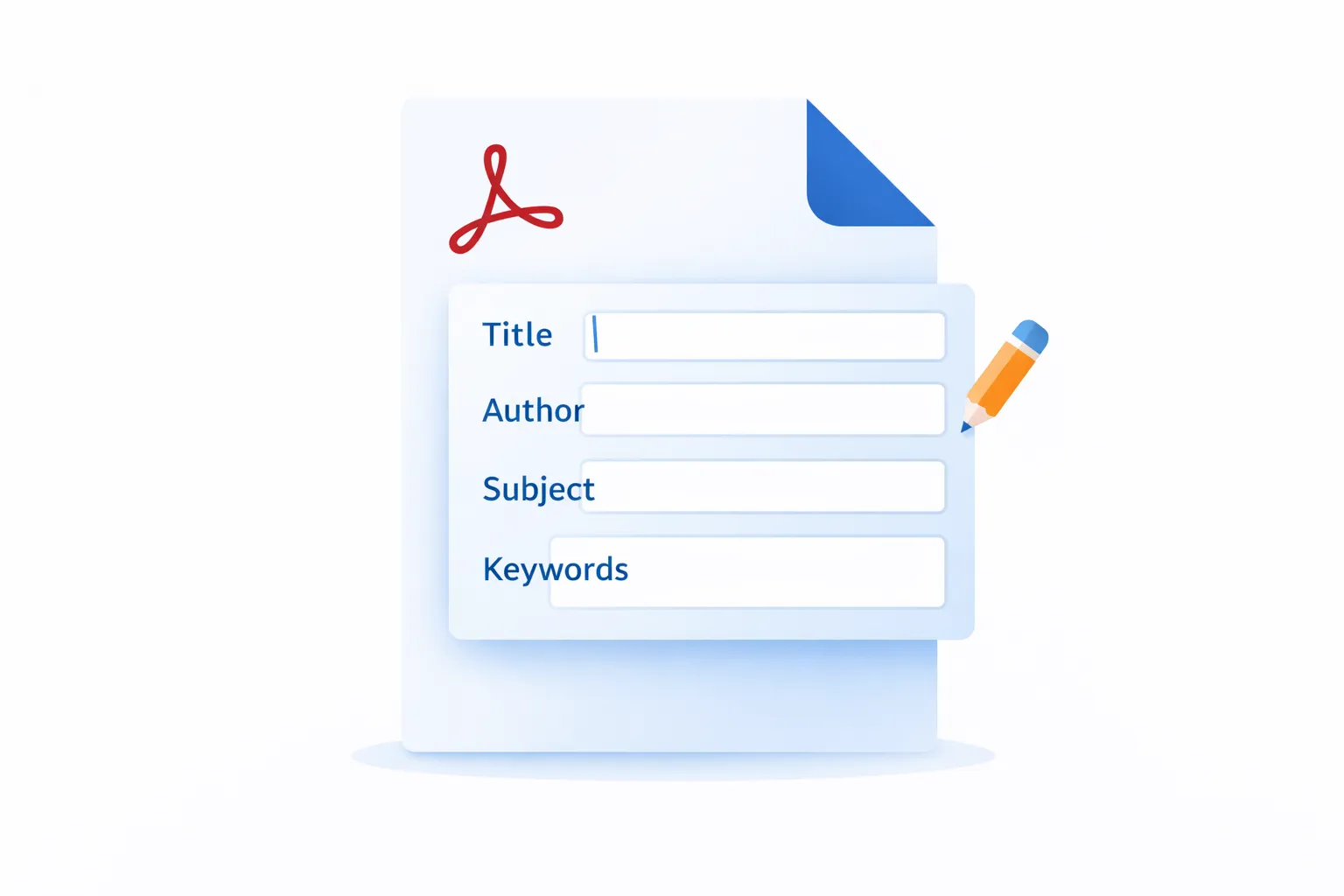
Every PDF file contains metadata — structured information about the document itself, as distinct from the visible content on its pages. This metadata includes fields such as title, author, subject, keywords, creation date, modification date, and the application that created the file.
Metadata serves multiple purposes. Search engines and document management systems use it to index and categorise files. Accessibility tools use the title field to identify the document to screen reader users. Compliance standards such as PDF/A require specific metadata to be present and correctly formatted. And in any professional workflow, accurate metadata ensures that documents can be found, identified, and attributed correctly.
Despite its importance, metadata is frequently overlooked. Documents are shared with default titles like "Microsoft Word - Document1.docx" or with the author field set to a previous employee's name. For a closer look at what each property is actually for and how to fix it across thousands of files in one pass, see our companion piece on PDF document properties at scale. This guide explains how to view, edit, and manage PDF metadata properly.
The Two Metadata Systems in PDF
PDF files can contain metadata in two locations, and it is important to understand both:
1. The Document Information Dictionary
This is the original metadata system, present since the earliest versions of the PDF specification. It stores a fixed set of key-value pairs:
- Title — The document's title (not the filename).
- Author — The person or organisation that created the document.
- Subject — A brief description of the document's subject matter.
- Keywords — A comma-separated list of keywords for search indexing.
- Creator — The application that created the original document (e.g. "Microsoft Word", "Adobe InDesign").
- Producer — The application that converted the document to PDF (e.g. "Adobe PDF Library", "Acrobat Distiller").
- CreationDate — When the PDF was originally created.
- ModDate — When the PDF was last modified.
These fields are simple text strings with no schema validation, no namespacing, and limited extensibility.
2. XMP Metadata (Extensible Metadata Platform)
XMP is Adobe's XML-based metadata framework, introduced in PDF 1.4 and required by PDF 2.0. XMP metadata is stored as an XML stream within the PDF file and supports:
- Standard schemas — Dublin Core (dc:title, dc:creator, dc:description), XMP Basic (xmp:CreateDate, xmp:ModifyDate), PDF-specific (pdf:Keywords, pdf:Producer), and others.
- Custom schemas — Organisations can define their own metadata namespaces and properties (e.g. a company-specific document classification system).
- Rich data types — XMP supports arrays (ordered and unordered lists), language alternatives (the same title in multiple languages), and structured values.
- External synchronisation — XMP metadata can be read and written by tools outside the PDF ecosystem, including Adobe Bridge, Photoshop, Lightroom, and any XMP-aware content management system.
In a well-formed PDF, both metadata systems should be present and synchronised — the Document Information Dictionary and the XMP stream should contain the same values. Adobe Acrobat keeps them in sync when you edit metadata through the Document Properties dialog.
How to View PDF Metadata in Adobe Acrobat
- Open the PDF in Adobe Acrobat (Pro or Standard).
- Go to File > Properties, or press Ctrl+D (Windows) / Cmd+D (Mac).
- The Description tab shows the basic metadata fields: Title, Author, Subject, Keywords, and read-only fields for Creator, Producer, PDF Version, and file size.
- Click Additional Metadata to open the XMP metadata editor, which shows the full set of metadata schemas and their values.
How to Edit PDF Metadata in Adobe Acrobat
Editing the basic fields is straightforward:
- Open File > Properties (Ctrl+D).
- On the Description tab, click into the Title, Author, Subject, or Keywords fields and type your changes.
- Click OK to close the dialog.
- Save the PDF. The metadata is updated in both the Document Information Dictionary and the XMP stream.
Note that the Creator, Producer, CreationDate, and ModDate fields cannot be edited through this dialog. Creator and Producer are set by the application that generated the PDF. The modification date is updated automatically each time the file is saved.
Editing XMP Metadata
To edit extended metadata fields:
- In the Document Properties dialog, click Additional Metadata.
- The dialog shows several tabs: Description, IPTC, Camera Data, and Advanced.
- The Advanced tab lists all XMP properties grouped by namespace. You can view and edit individual properties here.
- To add a custom property, you can either edit the raw XMP XML (not recommended for most users) or use a tool that supports custom schema editing.
Adding Custom Metadata Properties
Organisations often need to store document-specific information beyond the standard fields — a document number, classification level, project code, approval status, or version identifier.
In Acrobat, custom properties can be added via the Custom tab in the Document Properties dialog:
- Open File > Properties and select the Custom tab.
- Enter a property name (e.g. "DocumentNumber") and value (e.g. "RPT-2026-0042").
- Click Add. The property is stored in the PDF's metadata.
Custom properties added via the Custom tab are stored in the Document Information Dictionary. To add custom XMP properties with proper namespace URIs, you need either the XMP metadata editor or a dedicated tool like InfoSetter.
Batch Editing Metadata with InfoSetter
Editing metadata one file at a time is impractical when you have hundreds or thousands of PDFs to process. Mapsoft InfoSetter is an Adobe Acrobat plugin designed specifically for batch metadata editing.
What InfoSetter Does
- Batch processing — Apply metadata changes to entire folders of PDFs in a single operation. Set the title, author, subject, keywords, and custom properties for all files at once, or use filename-derived values (e.g. set the title to the filename without the extension).
- Template-based editing — Define metadata templates that map field values to variables. For example, set the author to a fixed value while deriving the title from the filename.
- CSV/spreadsheet import — Import metadata from a CSV file or spreadsheet where each row corresponds to a PDF file and columns map to metadata fields. This is invaluable for organisations migrating documents into a management system.
- Find and replace — Search for specific text in metadata fields across multiple files and replace it. Useful for updating author names after organisational changes or correcting company names after a rebrand.
- Custom properties — Add, edit, or remove custom metadata properties across multiple files, including XMP properties with custom namespaces.
- Metadata reports — Export the metadata from a set of PDFs to a CSV file for review or auditing.
Edit PDF Metadata Online
For quick, one-off metadata edits without installing software, you can edit PDF metadata online using Mapsoft's PDF Hub. Upload your file, modify the title, author, subject, and keywords, and download the updated PDF. The tool is free and requires no registration.
Why PDF Metadata Matters
Search Engine Optimisation (SEO)
When a PDF is published on the web, search engines index its metadata. The title field is particularly important — Google often uses it as the link text in search results. A PDF with a descriptive title like "Annual Financial Report 2025 — Acme Corporation" will perform significantly better in search than one titled "Document1" or with no title at all. Combined with web optimisation, good metadata significantly improves the discoverability of PDFs you publish online.
Keywords in the metadata contribute to relevance signals. The subject field provides additional context. For organisations that publish PDFs as part of their web content strategy, getting metadata right is a straightforward SEO improvement.
Accessibility
The PDF/UA (Universal Accessibility) standard and WCAG 2.1 guidelines require that PDF documents have a meaningful title set in the metadata and that the document's initial view is configured to display the title (rather than the filename) in the title bar. Screen readers announce the document title when the user opens the file, so a descriptive title is essential for accessibility compliance.
To configure Acrobat to display the title in the title bar:
- Open File > Properties.
- Select the Initial View tab.
- Under Window Options, set Show to Document Title.
- Click OK and save.
Document Management Systems
Enterprise document management systems (DMS) and content management systems (CMS) typically extract metadata from uploaded PDFs to populate their index fields. Correct metadata enables automatic classification, search, and retrieval without manual data entry. SharePoint, Documentum, OpenText, and similar systems all read PDF metadata during ingestion.
PDF/A Compliance
The PDF/A archival standard requires that XMP metadata be present and correctly structured. Specifically:
- The XMP metadata stream must be present and well-formed.
- The Document Information Dictionary and XMP metadata must be synchronised.
- The
pdfaid:partandpdfaid:conformanceXMP properties must correctly identify the PDF/A conformance level. - For PDF/A-3, file attachments must have their relationship metadata (
AFRelationship) correctly set.
Tools that strip or corrupt XMP metadata can inadvertently break PDF/A compliance. Always verify compliance after metadata editing using Acrobat's Preflight tool.
Legal and Forensic Considerations
PDF metadata can reveal information that the document author did not intend to share: the original author's name, the creation application, the creation and modification dates, and the software version. In legal contexts, metadata is increasingly relevant to discovery and evidence authentication. Before distributing sensitive documents, review and sanitise the metadata carefully.
Acrobat's Examine Document feature (Tools > Redact > Sanitize Document) can remove hidden information including metadata, comments, hidden text, and embedded data.
Editing Metadata with Acrobat JavaScript
Acrobat JavaScript provides programmatic access to metadata fields through the info object:
// Read metadata
console.println("Title: " + this.info.Title);
console.println("Author: " + this.info.Author);
console.println("Subject: " + this.info.Subject);
console.println("Keywords: " + this.info.Keywords);

// Set metadata
this.info.Title = "Quarterly Report Q1 2026";
this.info.Author = "Finance Department";
this.info.Subject = "Financial performance summary for Q1 2026";
this.info.Keywords = "quarterly report, finance, 2026, Q1";
For XMP metadata, Acrobat JavaScript provides the metadata property, which returns the raw XMP XML as a string. You can parse and modify this XML, though working with raw XML in JavaScript is cumbersome. For most automation needs, InfoSetter's batch processing capabilities are more practical.
Metadata and Acrobat Action Wizard
For workflows that require metadata editing as part of a larger processing pipeline, you can include JavaScript-based metadata editing in an Acrobat Action Wizard sequence. For example, an action could:
- Open each PDF in a nominated folder.
- Set the author to a standard organisational name.
- Derive the title from the filename.
- Add a standard set of keywords.
- Save the file to an output folder.
This approach requires JavaScript proficiency but provides full automation without third-party tools.
Common Metadata Problems and How to Fix Them
- Title shows the filename — Many applications set the Title field to the source filename (e.g. "report-draft-v3-FINAL.docx"). Edit the Title field to a meaningful document title.
- Wrong author name — The author field is inherited from the creating application's user settings. If a document was created on a colleague's machine, it will carry their name. Update the Author field to the correct attribution.
- Missing keywords — Most PDFs have no keywords set. Adding relevant keywords improves search discovery in both web search engines and internal document management systems.
- XMP and Info Dictionary out of sync — If metadata has been edited by a tool that only updates one location, the two metadata stores can become inconsistent. Acrobat's Preflight tool can detect this, and the "Synchronize XMP and Document Info Dictionary" fixup can repair it.
- Sensitive information in metadata — Author names, software versions, server paths in Creator/Producer fields, and modification timestamps can reveal confidential information. Use Sanitize Document before distribution.
- No title displayed in Acrobat title bar — Even if the Title field is set, Acrobat may display the filename in its title bar unless the Initial View is configured to show the Document Title.
Best Practices for PDF Metadata
- Set a meaningful title — This is the single most impactful metadata improvement. Use the document's actual title, not the filename.
- Use consistent author attribution — Decide whether the author should be the individual creator, the department, or the organisation, and apply that decision consistently.
- Add keywords — Include terms that a reader might search for. Think about what someone looking for this document would type into a search box.
- Write a subject line — A one-sentence summary of the document's content. This is displayed in some PDF viewers and search result previews.
- Configure Initial View to show title — Set this for every document you publish. It is a requirement for PDF/UA accessibility compliance and improves the user experience.
- Synchronise XMP and Document Info — Ensure both metadata stores contain the same values. Edit through Acrobat's Document Properties dialog to maintain sync automatically.
- Sanitise before external distribution — Review metadata for sensitive information before sharing documents outside your organisation.
- Automate for consistency — Use InfoSetter or Action Wizard to enforce metadata standards across document sets rather than relying on individual authors to fill in fields correctly.
Related Articles
PDF Metadata: A Technical Overview
A deep dive into the PDF metadata specification — the Document Information Dictionary, XMP schemas, and how metadata is stored and synchronised in PDF files.
PDF Accessibility: A Practical Guide
How to create accessible PDF documents that meet WCAG 2.1 and PDF/UA standards — covering tags, reading order, alternative text, and metadata requirements.
PDF/A Standard for Long-Term Archival
Understanding the PDF/A standard — conformance levels, requirements for fonts, colour, metadata, and how to create and validate PDF/A documents.
Edit PDF Metadata at Scale
Use Mapsoft InfoSetter to batch-edit metadata across hundreds of PDFs — or try the free online metadata editor for quick, one-off changes.