
How to Split PDF Files in Acrobat
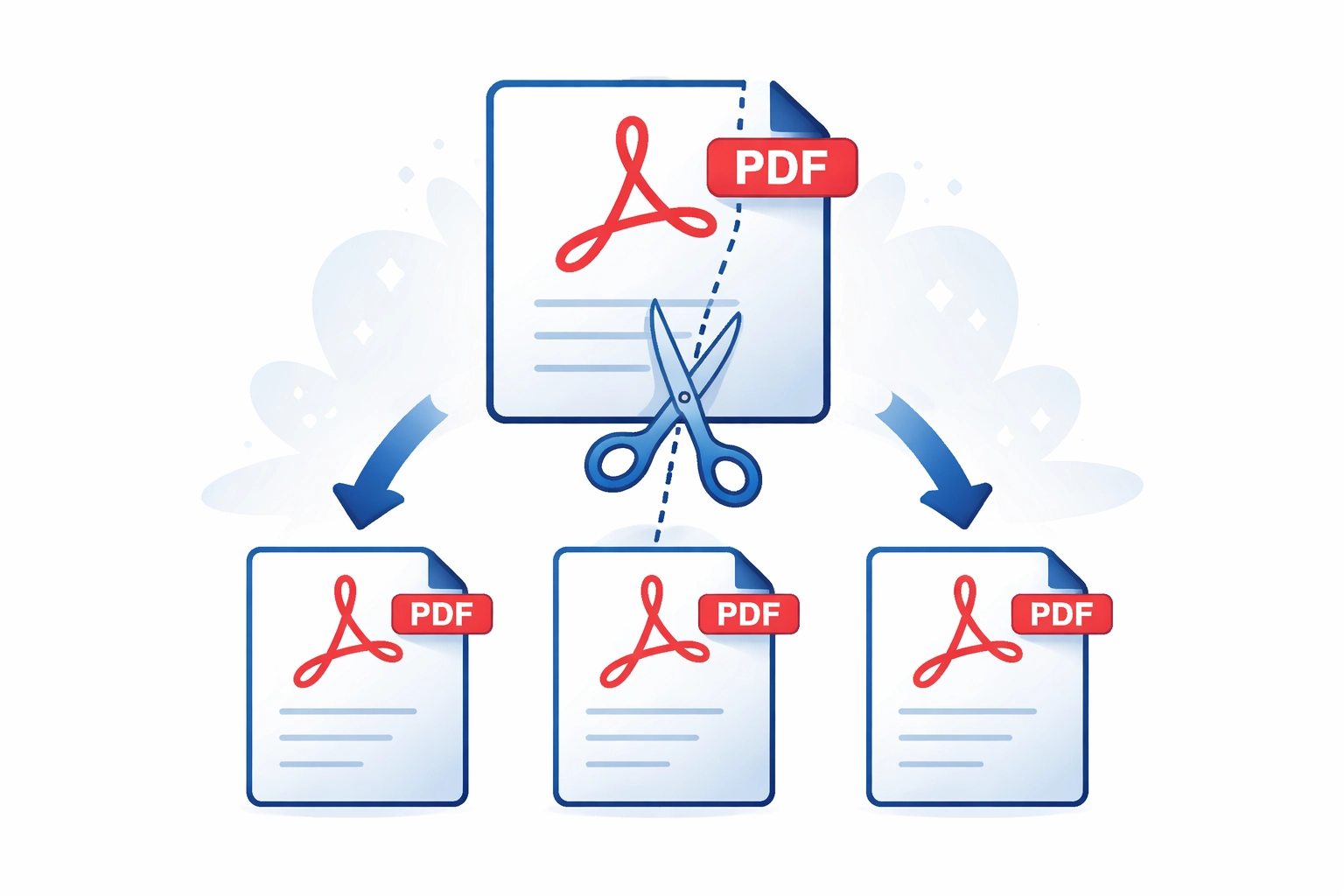
Extract individual pages, separate documents by chapter, or break large PDFs into smaller files — this guide covers every splitting method Acrobat offers.
Why Split a PDF?
Quick answer: To split a PDF in Adobe Acrobat, open the Organize Pages panel, select the pages you want to extract, click Extract, and save the resulting file. You can split by page range, bookmark, or file size.
There are many practical reasons to divide a PDF into smaller files. A compiled annual report may need to be split into chapters before distribution to different departments. A batch of scanned invoices might have been combined into a single large PDF that needs to be separated by invoice number before being imported into an accounting system. A legal bundle may need specific pages extracted for submission. A large technical manual may be too big to email and needs to be split into volumes.
Adobe Acrobat Pro provides several ways to split PDF documents, from manual page extraction through the Organize Pages panel to fully automated splitting by bookmark structure or file size. This guide covers all the main methods. For the reverse operation, see our guide on how to merge PDFs.
You can also split PDFs, extract pages, or remove pages online for free using Mapsoft's PDF Hub — no installation required.
Method 1: Extract Pages from the Organize Pages Panel
Extracting pages is the most precise splitting method, giving you full control over which pages are pulled out and what happens to the original document.
Extracting a Single Page or a Range
- Open the PDF in Acrobat Pro.
- Go to Tools > Organize Pages to open the Organize Pages panel.
- In the thumbnail view, click the page you want to extract. To select a range, click the first page, then hold Shift and click the last page. To select non-consecutive pages, hold Ctrl and click each page.
- Right-click the selection and choose Extract Pages, or click the Extract button in the toolbar at the top of the panel.
- In the Extract Pages dialog, you can optionally check Delete Pages After Extracting to remove the extracted pages from the original document, and Extract Pages as Separate Files to save each page as its own PDF.
- Click Extract. The extracted pages open as a new untitled document. Save it using File > Save As.
Delete After Extracting
The Delete Pages After Extracting option is useful when you want to move pages out of one document and into another. With this option checked, the source document is left with the extracted pages removed — effectively splitting the document at that point.
Method 2: Split Document Tool
The Split Document tool automates the process of dividing a PDF into multiple output files based on a chosen criterion. This is the most efficient approach for splitting large documents into consistently sized pieces.
Accessing Split Document
- Open the PDF and go to Tools > Organize Pages.
- Click the Split button in the Organize Pages toolbar.
Split by Number of Pages
Select Number of pages and enter a value — for example, entering 10 will create a separate PDF for every 10 pages. A 50-page document would produce five output files.
Split by File Size
Select File size and specify a maximum size in megabytes. Acrobat will split the document at page boundaries to keep each output file under the specified size. This is useful when you need to keep files within an email attachment size limit or a storage quota.
Split by Top-Level Bookmarks
Select Top-level bookmarks to split the document at each top-level bookmark entry. Each section between bookmarks becomes a separate output file. The output files are named using the bookmark text where possible. This method is ideal for splitting a document that was structured with bookmarks representing chapters, sections, or individual records.
Output Options
Before splitting, click Output Options to configure where the output files are saved and how they are named. You can save to the same folder as the original, a specific target folder, or prompt each time. File naming can use the original filename with a numeric suffix, or incorporate the bookmark name when splitting by bookmarks.
Method 3: Print to PDF (Specific Pages)
A simple but effective method for extracting a range of pages is to print the document to a PDF printer.
- Open the document in Acrobat and go to File > Print.
- In the Printer dropdown, select Adobe PDF (or Microsoft Print to PDF as a free alternative).
- Under the Pages section, enter the specific page range you want — for example, 5-12 for pages 5 through 12.
- Click Print and choose a save location for the output PDF.
This method is the quickest for a one-off extraction when you do not need to split the original document and just want a clean copy of a specific page range. Note that printing to PDF discards interactive elements such as form fields, bookmarks, and annotations.
Splitting by Bookmarks
Splitting a PDF by its top-level bookmark structure is one of the most powerful and commonly used splitting techniques, particularly for documents that were assembled from multiple source files or that contain a clear chapter-based outline.
When you use the Top-level bookmarks option in the Split Document tool, Acrobat identifies the page number where each top-level bookmark points and uses those page positions as split points. The content between consecutive bookmark targets becomes one output file.
For best results, ensure your source document has a well-structured top-level bookmark hierarchy before splitting. If you need to add or reorganise bookmarks first, consider using Mapsoft Bookmarker to create a clean bookmark structure efficiently.
Automating Splits with Acrobat JavaScript
For repeated or complex splitting tasks, Acrobat JavaScript gives you programmatic control. The extractPages() method extracts a range of pages from a document into a new PDF.
// Extract pages 5 through 10 (0-based index) from the active document
// and save as a new file
var doc = this;

doc.extractPages({
  nStart: 4,      // Page 5 (0-based index)
  nEnd: 9,        // Page 10 (0-based index)
  cPath: "/c/output/extracted-pages.pdf"
});
To split a document into individual single-page files programmatically:
// Split the active document into individual page files
var doc = this;
var totalPages = doc.numPages;
var basePath = "/c/output/page-";

for (var i = 0; i < totalPages; i++) {
  doc.extractPages({
    nStart: i,
    nEnd: i,
    cPath: basePath + (i + 1) + ".pdf"
  });
}
As with other file-system operations in Acrobat JavaScript, extractPages() with a cPath parameter requires a trusted execution context.
Preserving Metadata and Bookmarks When Splitting
When Acrobat splits a PDF, the document metadata (title, author, subject, keywords) from the original document is generally carried into each output file. You may want to update the title metadata in each split file to reflect the content of that particular segment — this can be done via File > Properties > Description in each output file, or through a JavaScript batch step in the Action Wizard.
Bookmarks are preserved in split files where the bookmark target page falls within the extracted page range. Bookmarks that point to pages outside the extracted range are not included in the output file. If you are splitting by bookmarks using the Split Document tool, the relevant top-level bookmark and its children are retained in each output file automatically.
Cross-document links — hyperlinks that point to specific pages in the original document by page number — will break after splitting if the page numbers change. Review and update any internal cross-references after a split.
After splitting, adding navigation aids to the resulting files improves usability. Mapsoft’s DogEars plugin adds visual page-edge tabs to PDF documents, giving readers a quick way to jump between sections — particularly useful for split files that have lost their original bookmark context. For rebuilding bookmarks in the split output, Bookmarker can generate a new bookmark structure from heading styles or text patterns.
Real-World Splitting Scenarios
The Acrobat split methods all map onto recognisable production patterns. The right approach depends on what the input looks like and what the consumer downstream needs.
Per-Customer Statement Splitting
Banks, utilities, and insurers print monthly statements as a single combined PDF (often hundreds of MB, thousands of pages, all customers concatenated) and then need to deliver each customer’s statement to the right portal or email address. The clean approach is to split by top-level bookmarks if the print run inserts a per-customer bookmark at each statement’s first page, or to split by a fixed page count if every statement is exactly N pages. For variable-length statements without bookmarks, an ExtendScript that scans for a known marker (the customer ID printed on every first page) is the production answer.
Court Bundle Decomposition
Legal teams routinely receive court bundles — single PDFs combining hundreds of exhibits in fixed numbered order — and need to split them back into the constituent exhibits for case management systems that expect one document per exhibit. Where the bundle has a structured bookmark tree (often it does), the Split Document tool’s "Top-level bookmarks" mode handles this in one operation. Where the bundle was produced by a less considerate counterparty without bookmarks, manual extraction by page range is the only safe approach.
Large Document Distribution Below Email Limits
Many email systems block attachments above 25 MB. A production report that ships at 80 MB needs to be split into chunks small enough to send. The "Split by file size" option with a 20 MB limit produces a clean set of email-able pieces; pair the split files with a covering email or a manifest PDF that explains which file is which.
Per-Chapter Distribution from Books and Manuals
Authoring teams produce single-volume training manuals, technical handbooks, and books, but distribute them chapter-by-chapter so users only download what they need. Splitting by top-level bookmarks (assuming chapters are top-level bookmarks in the source) is the right tool. The output filenames can incorporate the bookmark text so the chapter files are self-describing.
Audit Trail and Sample Extraction
Compliance reviewers often need to extract a defined sample of pages from a large operational document — typically random pages selected per a sampling protocol. Method 1 (Extract Pages from Organize Pages) is the right tool, with the page numbers chosen by the sampling rule. Document the page numbers extracted in the audit notes alongside the extracted PDF so the trail is reproducible.
Edge Cases: Forms, Layers, and Special Content
Most PDFs split cleanly. A handful of content types need extra care.
Form Fields
If a form field appears on a page in the extracted range, it’s carried into the output file along with its current value, validation, and calculation logic. If the same field name appears on multiple pages and only some pages are extracted, the field becomes orphaned — references to it from outside the extracted range no longer resolve. After splitting form-bearing PDFs, open each output file in the Prepare Form tool to verify the form is still functional. For splits that intentionally separate form fields by page, rename the fields with section prefixes before splitting so the resulting files have unambiguous field names.
Optional Content Groups (Layers)
PDFs with layers (CAD drawings, multi-language documents, complex maps) carry their full layer definitions into each split file even when only some layers are visible on the extracted pages. The result is split files larger than they need to be, with hidden layers that no longer apply to the visible content. Use the Optimize PDF tool (Tools > Optimize PDF) on each output file to drop unused layers, or pre-process the source by flattening layers before splitting if the layer structure isn’t meaningful in the splits.
Digitally Signed PDFs
A digital signature on a PDF covers the entire document at the moment of signing. Splitting a signed PDF invalidates the signature on all output files because the byte-level content has changed. Split before signing, not after — or accept that the signature will be marked invalid and document why in your retention notes.
PDF/A and Archival Compliance
PDF/A compliance requires the output file to be self-contained. Splitting a PDF/A document is generally safe (the output files inherit the PDF/A flag in the metadata), but the split output should be validated — particularly if the source had embedded files or external references that didn’t survive the extraction. Run Preflight on each output file to confirm PDF/A compliance before archiving.
Embedded Media and JavaScript
PDFs with embedded video, sound, or JavaScript actions can lose functionality when split: a video that plays on a page outside the extracted range is dropped; JavaScript that references pages outside the range fails silently. For interactive PDFs, validate functionality on each output file before distributing.
Automating Splits at Scale
For one-off splits, the Acrobat UI is fine. For workflows where splitting is a recurring operation — daily statement runs, weekly court bundle ingestion, monthly compliance sampling — automation is essential. Three patterns that work in production:
Action Wizard with hot-folder trigger. Build an action that runs Split Document with the right configuration and points it at a watched folder. Files dropped into the folder get split automatically; the output appears in a sibling folder. We cover the broader Action Wizard pattern in Acrobat Action Wizard.
JavaScript folder loop. The extractPages() approach shown earlier scales to any number of files. A folder-iterator that opens each PDF, splits it per a manifest, and writes the output to a destination folder runs unattended and produces a manifest of what was split into what. The right choice when the splitting logic varies per file (different page ranges per document type, for example).
Server-side splitting via the Adobe PDF Library or PDF Services API. For genuinely high-volume work where Acrobat itself is the bottleneck, server-side splitting with the Adobe PDF Library (via Datalogics) or Adobe’s cloud PDF Services API handles thousands of splits per hour without an Acrobat instance in sight. The trade-off is per-document cost (cloud) versus self-hosted complexity (PDF Library), covered in detail in the API post.
Related Articles
How to Merge PDFs in Adobe Acrobat
Learn how to merge PDF files in Adobe Acrobat using the Combine Files tool, Insert Pages, and JavaScript. Covers bookmarks, form fields, and PDF/A compliance.
How to Compare PDF Documents in Adobe Acrobat
Learn how to use Adobe Acrobat Pro's Compare Documents feature to identify differences between two versions of a PDF, understand the comparison report, and work with results.
How to Add Watermarks to PDF Files
Learn how to add text and image watermarks to PDF files in Adobe Acrobat — covering appearance, page ranges, saving configurations, removal, and programmatic watermarking with JavaScript.
Add Navigation to Your Split PDFs
Mapsoft's DogEars and Bookmarker plugins help you add navigation tabs and structured bookmarks to split PDF files, keeping them easy to navigate.