
Linearized PDF: What It Is and How to Create One
How PDF linearization (Fast Web View) restructures files for instant first-page display — and how to create, check, and work with linearized PDFs.
What Is a Linearized PDF?
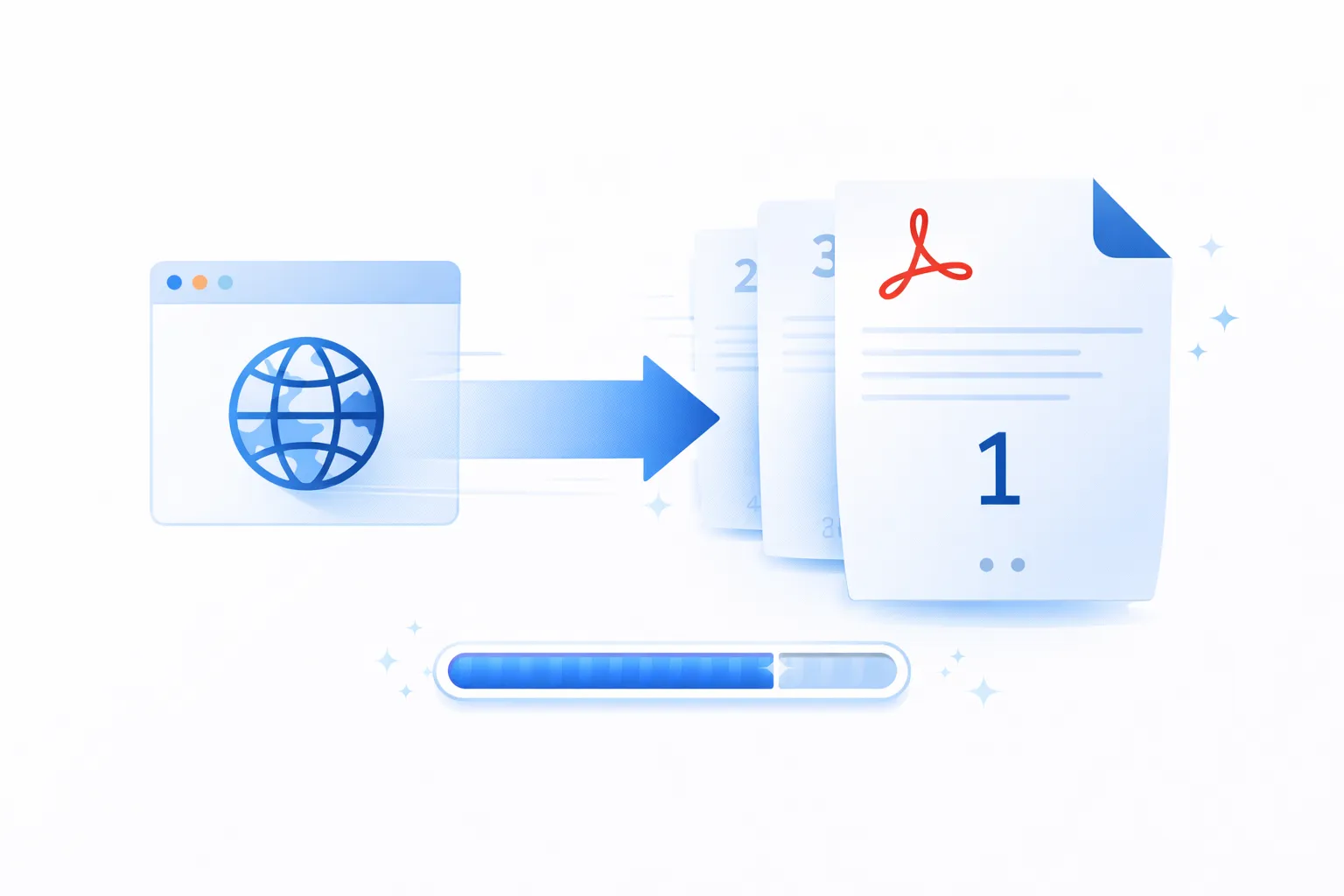
Quick answer: A linearized PDF (also called a Fast Web View PDF) is a PDF file that has been reorganised so that the first page can be displayed immediately, before the entire file has finished downloading. The objects needed for the first page — its content streams, fonts, and images — are placed at the beginning of the file, and a set of hint tables tells the viewer where to find objects for subsequent pages. In Adobe Acrobat, check File > Properties to see if a PDF is linearized, and enable Edit > Preferences > Documents > Save As optimizes for Fast Web View to create linearized files. You can also linearize PDFs online using Mapsoft's PDF Hub.
When a user clicks a link to a standard (non-linearized) PDF on a web page, the browser or PDF viewer must download the entire file before it can render the first page. For a 20 MB document, that means the user stares at a blank screen or a loading spinner until every byte has arrived. For a linearized PDF, the viewer can begin rendering the first page almost immediately, even if the remaining pages are still in transit.
Linearization is defined in Annex F of the PDF specification (ISO 32000-2:2020). It is not a separate PDF version or a different format — it is a specific internal ordering of the objects within a standard PDF file, combined with additional data structures (hint tables) that allow random access to individual pages without a full file download.
How Linearization Works Technically
A standard PDF file stores objects in whatever order they were created or last modified. The cross-reference table (xref) at the end of the file tells the viewer where each object is located, which means the viewer must download the entire file (or at least seek to the end) before it can locate any specific object.
A linearized PDF restructures the file as follows:
- Linearization parameter dictionary — The very first object in the file is a special dictionary that identifies the file as linearized and provides key parameters: the file length, the number of pages, the location of the first-page cross-reference table, and the byte offsets of the hint streams.
- First-page objects — Immediately after the linearization dictionary, all objects required to render the first page are stored contiguously: the page dictionary, its content streams, referenced fonts, images, colour spaces, and any annotations. This block is self-contained — a viewer needs nothing else to display page one.
- First-page cross-reference table and trailer — A partial cross-reference table follows the first-page objects, providing the byte offsets for just those objects. The viewer can parse this immediately and begin rendering.
- Hint tables — Two hint streams are embedded in the file: the page offset hint table (which tells the viewer the byte range of objects for each page) and the shared objects hint table (which identifies objects shared across multiple pages, such as fonts or repeating headers). These tables allow the viewer to request specific byte ranges from the server when the user navigates to a later page.
- Remaining pages — The objects for pages 2, 3, 4, and so on are stored in page order after the first-page block.
- Main cross-reference table — The full cross-reference table and trailer appear at the end, as in any PDF, but by the time the viewer reaches it, the first page is already on screen.
The key enabling technology on the server side is HTTP byte-range requests. When a web server supports the Range header (virtually all modern servers do), the PDF viewer can request specific byte ranges of the file rather than downloading it sequentially. The hint tables tell the viewer exactly which bytes to request for any given page, enabling true random page access over the network.
Why Linearization Matters for Web Delivery
The practical benefits of linearization are straightforward:
- Perceived performance — Users see the first page in seconds rather than waiting for the full download. For large documents (reports, catalogues, manuals), this can mean the difference between a user engaging with the content and navigating away.
- Bandwidth efficiency — If a user only reads the first few pages of a 200-page document, they download only the data for those pages. The remaining 195 pages are never transferred.
- Server load — Byte-range serving distributes the transfer over time and allows the server to handle more concurrent requests for large files.
- SEO and Core Web Vitals — While Google does not index PDF content as aggressively as HTML, faster-loading resources on your domain contribute to overall site performance metrics. If you link to PDFs from your pages, linearization reduces the latency a user experiences when clicking through.
Linearization adds no overhead to the file size. The hint tables and linearization dictionary are typically less than 1 KB in total. The rest of the file contains exactly the same data as the non-linearized version — just in a different order.
How to Check if a PDF Is Linearized
In Adobe Acrobat Pro or Acrobat Reader:
- Open the PDF.
- Go to File > Properties (or press Ctrl+D / Cmd+D).
- In the Description tab, look at the Fast Web View field. It will display Yes or No.
You can also check programmatically. Open the raw PDF file in a text editor and look at the first few hundred bytes. A linearized PDF will contain a dictionary with the key /Linearized near the very beginning of the file, typically within the first object. If this key is absent, the file is not linearized.
How to Create a Linearized PDF in Adobe Acrobat
Adobe Acrobat Pro can linearize any PDF through its Fast Web View feature. There are two approaches:
Method 1: Enable Fast Web View Globally
- Open Adobe Acrobat Pro.
- Go to Edit > Preferences (Windows) or Acrobat > Preferences (macOS).
- Select the Documents category in the left panel.
- Under Save Settings, tick Save As optimizes for Fast Web View.
- Click OK.
From this point forward, every time you use File > Save As, Acrobat will automatically linearize the output file. Note that a regular File > Save performs an incremental save and does not linearize — you must use Save As to trigger a full file rewrite.
Method 2: Via PDF Optimizer
- Open the PDF in Acrobat Pro.
- Go to File > Save As Other > Optimized PDF.
- In the PDF Optimizer dialog, select the Clean Up panel.
- Tick Optimize the PDF for Fast Web View.
- Configure any other optimisation settings you need (image compression, font subsetting, etc.).
- Click OK and save.
This method is useful when you want to combine linearization with other optimisations such as reducing file size in a single operation.
Linearizing PDFs Programmatically
For automated workflows — document management systems, publishing pipelines, or web applications that generate PDFs on the fly — linearization needs to happen without manual intervention.
Adobe PDF Library (APDFL)
The Adobe PDF Library is a C/C++ and .NET SDK that provides full PDF manipulation capabilities, including linearization. To linearize a document, open it with the library, then save it with the linearization flag set. The library handles the object reordering, hint table generation, and cross-reference restructuring automatically. Mapsoft has extensive experience integrating APDFL into enterprise document workflows — get in touch if you need assistance.
Mapsoft PDF Hub
For a quick, no-install solution, you can linearize PDFs online using Mapsoft's PDF Hub. Upload your file, and the tool returns a linearized version ready for web deployment. Files are processed securely and deleted automatically within 24 hours.
Other Libraries
Several open-source and commercial PDF libraries support linearization:
- QPDF — A command-line tool and C++ library that can linearize PDFs with the
--linearizeflag. It is free, open-source, and widely used in Linux-based document processing pipelines. - iText — The Java/.NET PDF library supports writing linearized output when using its
PdfWriterwith the appropriate settings. - Ghostscript — Can produce linearized output via the
-dFastWebViewparameter when converting PostScript or PDF to PDF.
When NOT to Linearize
Linearization is not always necessary or appropriate. Consider skipping it in these scenarios:
- Small files — If the PDF is under 500 KB, the entire file downloads in a fraction of a second on any reasonable connection. Linearization provides no meaningful benefit.
- Files served for download, not viewing — If users download the PDF to read locally (for example, a software manual they save to their hard drive), the progressive display benefit of linearization is irrelevant.
- Frequently edited files — Linearization is destroyed by incremental saves. If the PDF is part of a review workflow where multiple people add comments and save, the linearization will be lost after the first incremental save. Re-linearize only after the final revision.
- Encrypted or rights-managed files — Some DRM systems and encryption workflows may not preserve linearization. Test to confirm compatibility.
- PDF/A archival files — While PDF/A does not prohibit linearization, archival workflows typically do not require it because the files are stored for long-term preservation, not web viewing. Adding linearization to an archival pipeline is unnecessary complexity.
Linearization and Incremental Saves
This is a critical point that causes frequent confusion. When you perform a regular File > Save in Acrobat (as opposed to Save As), Acrobat performs an incremental save: it appends the modified objects to the end of the file without rewriting the existing content. This is fast and preserves digital signatures, but it breaks linearization because the newly appended objects are not in the correct position for linearized access.
After an incremental save, the /Linearized dictionary still exists at the beginning of the file, but the file is no longer truly linearized. Some viewers may still report it as linearized, but the progressive display behaviour will not work correctly because the cross-reference structure no longer matches the linearized layout.
To restore linearization after edits, you must perform a Save As operation with Fast Web View enabled. This rewrites the entire file from scratch in the correct linearized order.
Verifying Linearization at Scale
If you manage a large corpus of PDFs on a web server and want to verify which files are linearized, you can use command-line tools to check programmatically:
- QPDF:
qpdf --check-linearization input.pdfreports whether the file is linearized and whether the linearization data is valid. - pdfinfo (Poppler):
pdfinfo input.pdfincludes an “Optimized” field that indicates linearization status. - Custom script: Read the first 1024 bytes of the file and search for the string
/Linearized. If present, the file was linearized at some point (though incremental saves may have invalidated it).
For rigorous validation, QPDF’s --check-linearization is the most reliable option because it verifies the hint tables and object ordering, not just the presence of the linearization dictionary.
Server Configuration for Linearized PDFs
Linearization only delivers its benefits if the web server supports HTTP byte-range requests. The good news is that virtually all modern web servers — Apache, Nginx, IIS, and cloud CDNs — support byte-range serving by default. You can verify by checking the response headers for Accept-Ranges: bytes.
One common pitfall: if your PDFs are served through a proxy, load balancer, or CDN that strips the Range header or disables byte-range responses, linearization will not help. The viewer will fall back to downloading the entire file before rendering. If you are using a CDN, verify that byte-range requests are passed through to the origin or cached correctly.
Relationship with PDF Optimisation
Linearization and PDF optimisation for web are related but distinct concepts:
- Linearization changes the order of objects in the file and adds hint tables. It does not change the file size.
- Optimisation (compression, image downsampling, font subsetting) reduces the size of the file. It does not change the object order.
For the best web delivery experience, apply both: optimise the file to reduce its size, then linearize it so that the first page displays instantly. Acrobat’s PDF Optimizer can perform both operations in a single step when you enable the Fast Web View option in the Clean Up panel alongside your compression settings.
For a deeper understanding of the internal structure that linearization rearranges, see our guide to PDF file structure and the linearization glossary entry.
Conclusion
Linearization is one of the simplest and most effective optimisations you can apply to any PDF that will be served over the web. It costs nothing in file size, requires no quality trade-offs, and delivers a materially better user experience for large documents. Enable Fast Web View in your Acrobat preferences, linearize programmatically in your document pipelines, and verify the results with QPDF or Acrobat’s File Properties dialog. Your users — and your web performance metrics — will thank you.
Related Articles
PDF Optimisation for Web
How to prepare PDFs for web delivery — linearisation, compression, and fast web view settings to minimise download times and improve user experience.
Understanding PDF File Structure
A technical guide to the internal structure of a PDF file — objects, cross-reference tables, streams, and the document catalogue.
How to Reduce PDF File Size
Reduce PDF file size in Adobe Acrobat using Save As Reduced Size, PDF Optimizer, and compression settings. Step-by-step guide to making PDFs smaller.
Linearize PDFs Online — Free
Use Mapsoft's PDF Hub to linearize PDFs for Fast Web View instantly in your browser. No installation, no sign-up. Or get in touch to discuss enterprise document delivery.