
PDF Portfolios: Combining Files in a Single PDF
A complete guide to creating, navigating, and distributing PDF Portfolios in Adobe Acrobat Pro.
You can also merge PDFs and embed files in PDFs online for free using Mapsoft's PDF Hub — no installation required.
What Is a PDF Portfolio?
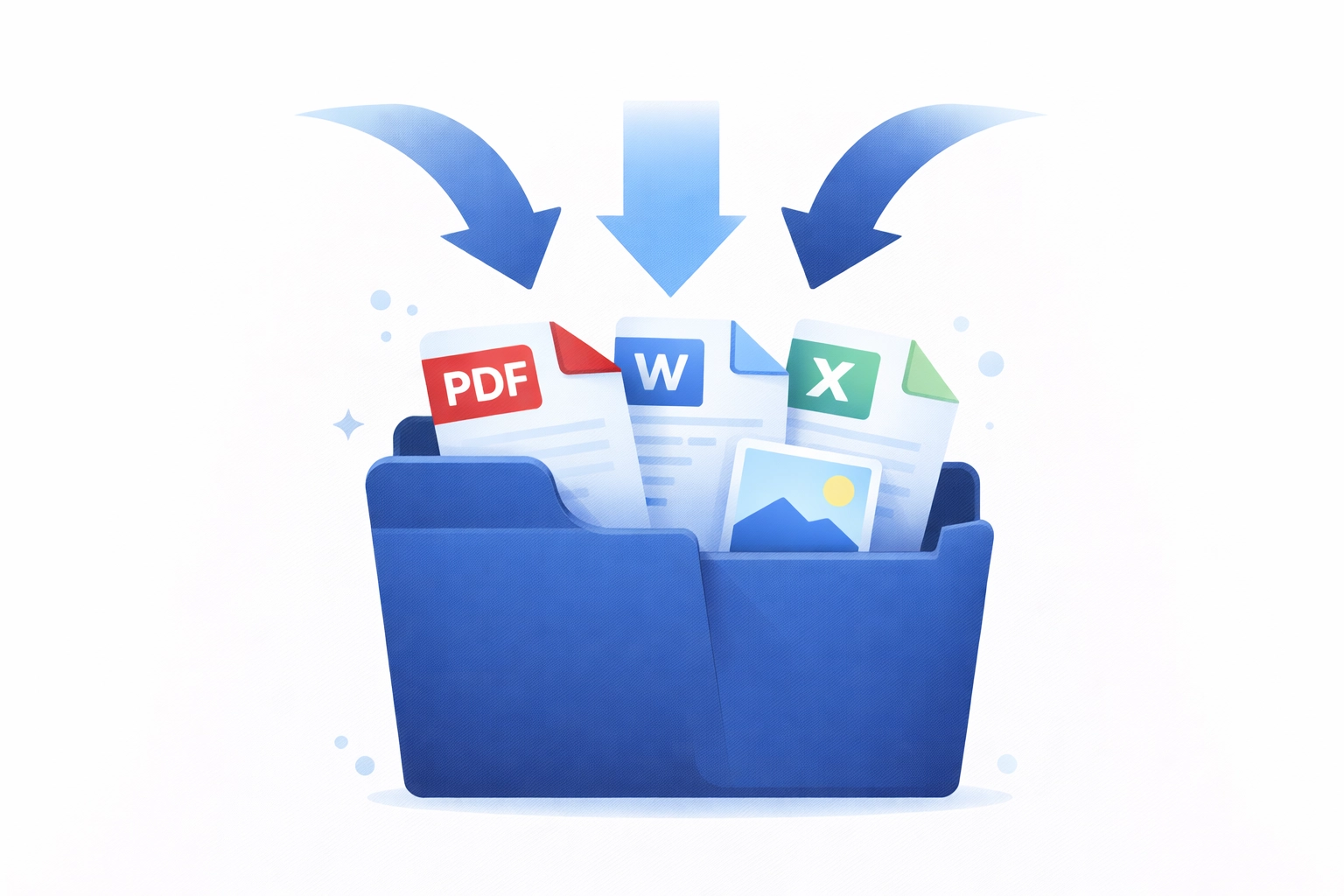
A PDF Portfolio is a single PDF file that acts as a container for multiple other files. Those component files can be PDFs themselves, but they can also be Word documents, Excel spreadsheets, PowerPoint presentations, images, video files, HTML pages, or virtually any file type. Crucially, each component file retains its original format intact within the Portfolio — a Word document inside a Portfolio remains a .docx file, not a flattened PDF conversion of it.
This distinguishes a Portfolio fundamentally from a merged PDF, where all source files are converted to PDF pages and combined into one continuous document, losing their original formats in the process.
PDF Portfolios were introduced in Acrobat 9.0 (2008) as an evolution of the simpler "PDF Package" concept from Acrobat 8.0. The Portfolio added a visual navigation layer, customisable layout themes, a welcome page, and richer metadata support.
Supported File Types
A Portfolio can contain almost any file type. Common inclusions are:
- PDF documents
- Microsoft Word (.docx, .doc)
- Microsoft Excel (.xlsx, .xls)
- Microsoft PowerPoint (.pptx, .ppt)
- Images (JPEG, PNG, TIFF, GIF, BMP)
- Video files (MP4, MOV, AVI)
- HTML files and web archives
- Text files and CSV files
- CAD files (DWG, DXF)
- ZIP archives
Files that Acrobat can natively render (PDFs, images, HTML) will display in the preview pane within the Portfolio interface. Other file types (such as native Word or Excel files) will be shown as file icons; recipients can open them in the associated application if installed, or extract them to disk for separate opening.
Navigating a Portfolio in Acrobat
When a recipient opens a Portfolio in Acrobat or Adobe Reader, they see a purpose-built navigation interface rather than the standard PDF viewer. This interface has three main views:
Card View
Card view displays each component file as a thumbnail card arranged in a grid. Each card shows a preview (for renderable files) or a file-type icon, along with the filename, file size, and any custom metadata columns. This view is ideal for visual browsing of image-heavy or document-heavy collections where thumbnail previews are informative.
Files List View
Files list view presents the contents as a sortable table, showing columns for filename, description, modification date, file size, and any custom metadata fields defined when the Portfolio was created. Recipients can sort by any column, making it easy to find a specific document in a large collection. This view mirrors how a file explorer behaves, which makes it familiar to most users.
Document View
Clicking on any component file in card or list view opens it in the document view pane, displaying its content either inline (for PDFs and images) or launching the associated application (for native Office files). A breadcrumb trail at the top allows navigation back to the Portfolio overview. For PDFs, the full Acrobat toolbar is available, including annotation and form tools.
Creating a Portfolio in Acrobat Pro
Creating a Portfolio requires Acrobat Pro (not Standard). The workflow is straightforward:
- In Acrobat Pro, go to File > Create > PDF Portfolio. Alternatively, in the Tools panel, find the Combine category and select Create PDF Portfolio.
- The Portfolio creation interface opens with a prompt to add files. Click Add Files to browse for individual files, or Add Folder to add all files from a directory at once. You can also drag and drop files directly into the Portfolio panel.
- Once files are added, they appear in the Portfolio's file list. You can reorder them by dragging, add more files, or remove files before finalising.
- Choose a layout theme (see below), optionally configure the welcome page and custom metadata columns, then save the Portfolio as a .pdf file.
Recipients with Acrobat Reader (free) can open, navigate, and extract files from a Portfolio, though they cannot create or modify one without Acrobat Pro.
Layout Themes and Visual Customisation
Portfolios support several layout themes that control the visual appearance of the Portfolio navigator. Adobe ships a number of built-in themes (such as "Click Through", "Linear", "Grid", and others) that provide different visual presentations of the component files. In older versions of Acrobat, more elaborate Flash-based themes were available; these were retired as Flash support ended.
Within a theme, customisation options typically include choosing accent colours to match a brand palette, and controlling whether a header graphic or logo is displayed. For professional proposals and client-facing deliverables, this allows a degree of branded presentation that a plain PDF does not offer.
Welcome Page and Navigation Customisation
A Portfolio can include a welcome page — an introductory page displayed when the Portfolio is first opened, before the user begins browsing the component files. The welcome page can carry introductory text, a logo, contact details, or instructions. It is particularly useful for proposals and handover packages where orienting the recipient before they dive into the documents is valuable.
Custom metadata columns can be added to the file list view. Beyond the default filename, description, and dates, you can define columns such as "Document Type", "Author", "Status", "Revision", or any other field relevant to your workflow. These columns are searchable and sortable, turning the Portfolio into a lightweight document management interface.
Searching Across All Files in a Portfolio
One of the Portfolio's most powerful capabilities is full-text search across all component PDF files simultaneously. Using the standard Acrobat search (Ctrl+F or Cmd+F), you can search the text content of every PDF within the Portfolio without opening each one individually. Matching results are displayed with the containing filename, allowing you to navigate directly to any match.
Note that full-text search applies to the text content of PDF components only. The content of non-PDF files (such as embedded Word or Excel documents) is not indexed for search within the Portfolio viewer itself; those files must be opened in their native applications to be searched.
Printing and Exporting from a Portfolio
Individual component files can be printed directly from within the Portfolio viewer by selecting the file and using the standard Print command. Acrobat will print the selected file using whatever renderer is appropriate — the PDF engine for PDF components, or the associated application for native files if it is installed.
To export a component file from the Portfolio (extracting it as a standalone file), right-click the file in the Portfolio navigator and choose Save File or Extract. This creates an independent copy of the file on disk. Entire Portfolios can also be extracted at once: File > Portfolio > Extract All Files will save every component to a folder of your choice. You can also extract embedded files from a PDF online for free using Mapsoft's PDF Hub.
Portfolio vs Merged PDF: When to Use Each
The choice between a Portfolio and a merged PDF depends on several factors:
| Scenario | Portfolio | Merged PDF |
|---|---|---|
| Recipients need to edit source files (Word, Excel) | Yes — original formats preserved | No — files are converted to PDF |
| Single continuous reading experience | Less suited — files are navigated individually | Ideal — all pages in sequence |
| Mixed file types including non-PDFs | Yes — any file type supported | Only if all files can be converted to PDF |
| Branded or visually customised presentation | Yes — themes and welcome page | Limited — standard PDF only |
| Maximum compatibility with all PDF viewers | Requires Acrobat Reader 9+ for full Portfolio UI | Works in all PDF viewers |
| Court or regulatory filing requiring a single document | Depends on the jurisdiction's rules | Generally preferred for regulatory submission |
PDF/A-3 Embedded File Attachments as an Alternative
For archival contexts where long-term preservation matters, PDF/A-3 (ISO 19005-3) offers an alternative approach to bundling files. PDF/A-3 is an archival PDF standard that uniquely permits the embedding of arbitrary file attachments within an archival PDF — including native source formats such as XML, CAD files, or spreadsheets. This differs from a Portfolio in that the primary document is a conventional, readable PDF page sequence with attachments embedded alongside it, rather than a container navigated through the Portfolio interface.
PDF/A-3 with embedded attachments is widely used in electronic invoicing (ZUGFeRD and Factur-X standards use it to embed structured XML invoice data inside a human-readable PDF), in hybrid document archival, and in situations where both a readable document and a machine-processable data file must be bundled together for long-term storage.
Use Cases
PDF Portfolios are well suited to a range of professional scenarios:
- Legal discovery packages — bundle pleadings, exhibits, correspondence, and supporting evidence in a single deliverable with a structured file list, while preserving each document in its original format for authenticity.
- Proposal and tender bundles — present a proposal document alongside supporting spreadsheets, reference case studies, CVs, and certification documents in a branded, professionally presented package.
- Technical documentation sets — assemble multiple PDF manuals, data sheets, CAD drawings, and specification files into a single deliverable for a product release or project handover.
- Training materials — combine PDF workbooks, video files, and supplementary resources for a course into a single portable package.
- Client reporting — deliver monthly or quarterly reports alongside supporting data files, allowing the client to read the narrative PDF while retaining access to the raw data.
Related Articles
PDF Bookmarks: A Complete Guide
A complete guide to PDF bookmarks: what they are, how they work in the PDF specification, how Acrobat generates them, and how to automate their creation.
PDF Annotations: Types and Usage
A comprehensive guide to PDF annotations: the different types, how they are stored in the PDF format, review workflows, flattening, and scripting with Acrobat JavaScript.
PDF Layers (Optional Content Groups)
Everything about PDF layers (Optional Content Groups): how OCGs work in ISO 32000, use cases in CAD and maps, creating layers in InDesign and Acrobat, scripting visibility, and printing.
Need Help with PDF Document Workflows?
Mapsoft specialises in PDF technology and Adobe Acrobat solutions. Explore our products or get in touch to discuss your document workflow requirements.