
Does Your Software Produce Accessible PDFs? A PDF/UA Checklist
If your system generates PDFs, accessibility rules increasingly apply to every one of them. Here is how to check what it produces against PDF/UA, and where to fix the problems you find.
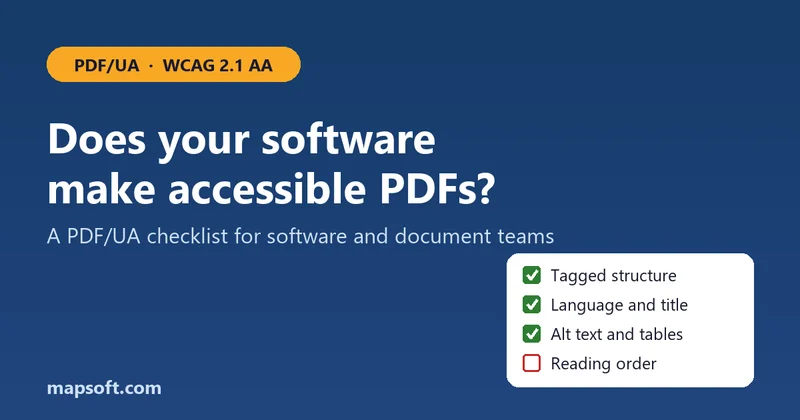
Most writing about PDF accessibility assumes you have a finished document open in Acrobat and an afternoon to fix it. That works for a brochure. It does not work when your software produces thousands of statements, invoices or reports a day, because every one of them comes out with the same problems.
The rules have caught up with those documents. The European Accessibility Act has applied since 28 June 2025 to many consumer-facing services and the documents they provide. In the United States, the ADA Title II rule requires state and local government content, documents included, to meet WCAG 2.1 AA, with deadlines now in April 2027 and April 2028. Public-sector and enterprise buyers are passing the same requirements on to their suppliers.
This checklist is for the developers and document teams who own the process that makes the PDFs. Work through it with a few real samples of your output.
1. Know which standard you are aiming at
For PDF, the technical standard is PDF/UA, ISO 14289. PDF/UA-1 is the version most requirements refer to today; PDF/UA-2 is its successor for PDF 2.0 files. The legal frameworks mostly cite WCAG 2.1 AA, directly or through the European standard EN 301 549, and a PDF that conforms to PDF/UA is the practical way to meet the parts of WCAG that apply to documents. Our guide to PDF accessibility explains how the two relate.
2. Check the document-level basics
These are quick to check and, when they fail, usually fail in every document your system produces:
- The file is tagged. It has a structure tree and declares itself as tagged content. Without tags, assistive technology has nothing to work with. Our tagged PDF guide explains what tags are.
- The language is set, so a screen reader pronounces the text correctly.
- It has a real title in its metadata, and is set to show that title rather than the file name.
- It identifies itself as PDF/UA in its metadata, if you intend to claim conformance.
- Fonts are embedded and the text maps to Unicode, so it can be read aloud, searched and copied correctly. Text that copies out as gibberish will be read out as gibberish too.
3. Check the structure
Tags only help if they describe the document truthfully. Look at the tag tree of a sample, in Acrobat's Tags panel or an inspection tool, and check that:
- All real content is tagged, and repeated decoration such as running headers, footers, page numbers and background graphics is marked as an artifact so it is not read out on every page.
- Headings are tagged as headings, in a sensible hierarchy, not as ordinary paragraphs in a bigger font.
- Lists are tagged as lists, with their items.
- Tables are tagged as tables, with header cells marked as headers and their scope (row or column) set, so a cell can be read with its headings.
Generated documents most often fail here. A template that makes text look like a heading or a table does not, by itself, tell the PDF that it is one.
4. Check images, links and form fields
- Meaningful images, charts and logos carry alternative text that says what they show; purely decorative images are artifacts.
- Links are tagged as links, with text that makes sense on its own.
- Form fields have a name or tooltip that a screen reader can announce.
5. Check the reading order
A screen reader follows the order of the tags, not the position of text on the page. Multi-column layouts, sidebars, call-out boxes and tables are where the two most often disagree. Read a sample in tag order, or with a screen reader, and check that it makes sense from start to finish.
6. Test with tools, then with people
Automated checkers find the mechanical problems quickly. veraPDF, the open-source validator supported by the PDF Association, and PAC, the free PDF Accessibility Checker, both test against PDF/UA. Inside Acrobat, our free Check PDF Standards plug-in reports which standards a file claims to meet. Use them on every sample.
They cannot tell you whether alternative text is accurate, whether the reading order makes sense or whether a heading really is a heading. The PDF Association's Matterhorn Protocol, which sets out how to test PDF/UA, marks many of its checks as needing human judgement. So also listen to a sample with a screen reader such as the free NVDA, or have someone experienced review it.
7. Fix it where the PDF is made
Once you know what fails, resist fixing the output by hand. Find where each problem starts:
- Templates and authoring tools. In Word or InDesign, real heading and list styles plus the export option for tagged or accessible PDF solve many structure problems at once.
- HTML-to-PDF conversion. Accessible PDF starts with semantic HTML: real headings, lists, table headers and alt attributes. Then check that your converter writes tags at all, as some do not unless configured to.
- PDF libraries. Most libraries can write tagged PDF, but only when the code asks for it and supplies the meaning: this text is a heading, this cell is a column header, this image is decorative. That knowledge usually exists in your data; it just is not being passed through.
A fix in the template or the code corrects every future document, and often lets you regenerate the old ones, which is far cheaper than remediating files one at a time.
Want a second pair of eyes? Our fixed-price $950 PDF accessibility audit covers up to five sample PDFs from one source. We test them against PDF/UA and WCAG 2.1 AA, trace each problem to where it starts in your process, and give you a written report and a fixed quote to fix it at source.
Frequently asked questions
What is PDF/UA?
PDF/UA (Universal Accessibility) is the ISO standard for accessible PDF, ISO 14289. It sets out how a PDF must be structured and tagged so that assistive technology such as screen readers can present it reliably. PDF/UA-1 is the version most requirements refer to; PDF/UA-2 is its successor for PDF 2.0.
Is a tagged PDF automatically accessible?
No. Tagging is necessary but not sufficient. The tags must describe the document correctly: headings as headings, tables with header cells, images with meaningful alternative text, decoration marked as artifacts, and a logical reading order. Many generated PDFs are tagged but still fail because the tags are wrong or incomplete.
Can an automated checker confirm that a PDF meets PDF/UA?
Only partly. Validators such as veraPDF and PAC reliably find mechanical failures, but several requirements, including the accuracy of alternative text and whether the reading order makes sense, need human judgement. A full check combines automated validation with manual review.
Related links
Related Articles
PDF Accessibility: Creating Accessible Documents
Tagged PDF, WCAG 2.1, PDF/UA, logical structure, alternative text, table markup and reading order, explained in depth.
Tagged PDFs: Definition, Usage and Examples
What tagged PDFs are, why they matter for accessibility, and how to create them.
Germany Mandates PDF/UA for Government Documents
What the German requirement means and how to verify that your PDFs meet the standard.
Is Your Software's Output Accessible?
A fixed-price $950 audit tells you what fails, why, and what fixing it at source costs.