
Photoshop Actions and Droplets: GUI-Recordable Automation
Photoshop has something no other Adobe application has: recordable automation. Click a record button, perform an operation, click stop, and you have an Action you can replay forever. Wrap it in a Droplet and non-developers can run it by drag-and-drop. Here’s how to use them well, when they win against scripts, and when they don’t.
Why Photoshop is unusual
Of the major Adobe applications, only Photoshop has a recording-based automation system that anyone can use without writing code. Illustrator has scripting and panels but no equivalent of Actions. InDesign has scripting and panels but no equivalent of Droplets. The Actions panel and the Droplet pattern are unique to Photoshop, and they’re among the most useful features the application ships.
The reason is mostly historical: Photoshop’s automation primitives predate modern scripting. Actions shipped in Photoshop 4 (1996); Droplets in Photoshop 6 (2000); ExtendScript and the Photoshop SDK came later. The recording model has been refined for thirty years, and the result is genuinely good — for the workflows it covers.
This post is the GUI-recordable side of Photoshop automation. The script-driven side, including the cases where Actions can’t go, is covered in Photoshop automation: Actions, Scripts, and Plugins and Photoshop batch processing.
How Actions work
Open the Actions panel (Window → Actions). Create a new Action set, then a new Action inside it. Click the record button at the bottom of the panel. Now perform your sequence of operations — menu commands, tool selections, layer manipulations, filter applications, save commands. Photoshop records each operation as an entry in the Action’s step list. Click stop when done.
To replay: select the Action and click play. Photoshop runs each recorded step against the active document. The same Action runs against any document with the same starting state — same layer structure, same colour mode, same selections (or no selections, depending on what the Action did with the existing state).
What records and what doesn’t
The recording model captures:
- Menu commands — everything from File → Save to Filter → Sharpen → Smart Sharpen with all dialog values
- Tool operations on layers and selections — layer creation, deletion, reordering, blending mode changes, opacity changes
- Adjustment values — Levels, Curves, Hue/Saturation, etc., with their slider positions captured
- Selection operations — Select All, Inverse, marquee selections of recorded coordinates
- Type and shape operations — type layer creation, shape creation with recorded geometry
The recording model does not capture:
- Free-hand paint strokes — the brush operations that depend on the cursor path can’t be replayed pixel-for-pixel
- Some pen tool operations — certain hand-drawn path constructions don’t record reliably
- Operations on the History panel itself — you can’t record "go back three steps in history"
- Some clone-source operations — cursor-position-dependent clone targets
For operations that don’t record natively, the panel offers Insert Menu Item (records a menu choice without executing it during recording, useful for capturing dialogs that need user input each replay) and Insert Stop (pauses the Action with a custom message, useful for hand-off Actions where users intervene).
Conditional steps
Modern Photoshop Actions support conditionals via Insert Conditional from the panel menu. The conditions are limited (current tool, current layer type, document mode, etc.) but cover common cases like "if the document is in RGB mode, convert to CMYK". For more elaborate logic, scripts are the right answer.
Modal vs non-modal
Each step in an Action has a small modal-toggle icon. When toggled on, the step pauses for user input each time it replays (useful for "this Action lets the user choose blur radius"). When toggled off, the recorded values are used silently. The choice depends on whether the Action is a fixed pipeline or a configurable tool.
Practical Actions every Photoshop user benefits from
Save for Web preset
Record an Action that runs File → Export → Save for Web (Legacy) with your standard settings (JPEG quality 70, sRGB conversion, metadata stripped, target file size). One key shortcut becomes the standard "save this as a web JPEG" operation.
Standard sharpening
The studio’s consistent print-sharpening preset (Smart Sharpen with specific Amount/Radius/Threshold values, applied to a separate layer at a specific blend mode) becomes one click. Every image gets the same treatment without manual tweaking each time.
Standard layer setup
For studios that work to a consistent template — specific named layers, specific masks, specific colour fills — an Action that creates the entire scaffold at the start of every job. Stops the "wait, what was the layer convention?" question.
Cleanup before delivery
An Action that flattens the document, converts to sRGB, strips metadata except the copyright line, runs a sharpening pass, and saves a copy. The "ready to send" Action.
Droplets — Actions as drag-and-drop executables
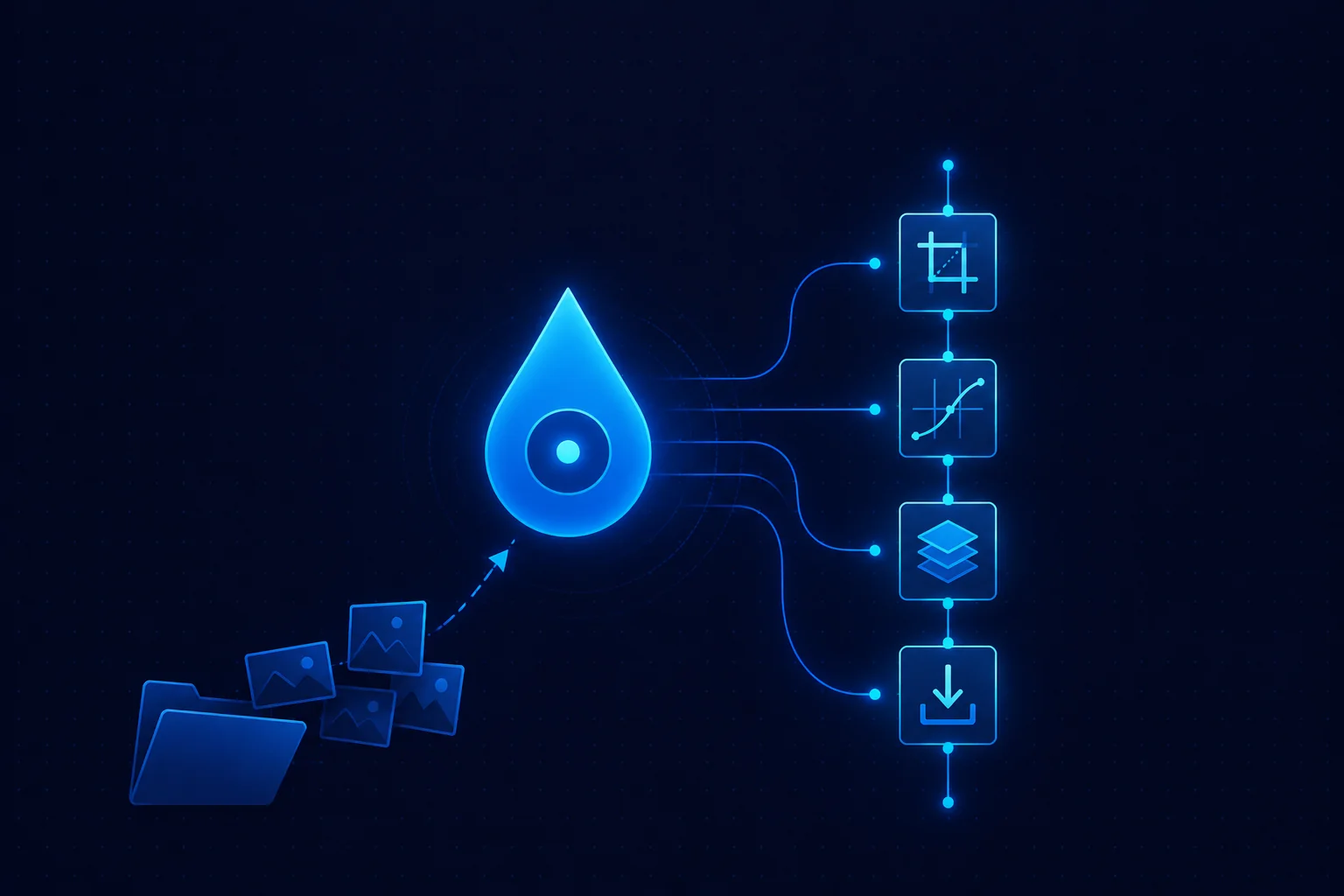
A Droplet is an Action exported as a standalone application. The Droplet appears as an icon (Mac) or .exe (Windows) in the operating system. Drag one or more files (or a folder) onto the Droplet and Photoshop opens (if it isn’t already running), processes each file with the recorded Action, and saves the result.
Create one via File → Automate → Create Droplet. The dialog asks: which Action, what to do with source files (overwrite, save as, save as copy), what to do with errors (stop, log to file), what destination folder to use. Save the Droplet anywhere; share it like any executable.
Why Droplets matter
Droplets are how Actions become useful to non-Photoshop developers. A production team can build the right Action once, save it as a Droplet, and ship it to designers, marketing teams, content moderators, or anyone who needs to apply the operation at scale without learning the Actions panel. The drag-and-drop model is universally legible.
Common deployments:
- Studios with non-developer photographers — Droplets for "make this image press-ready", "make this image web-ready", "make this image social-ready", named clearly.
- Agencies handing off processed images to clients — the Droplet that runs the agency’s house style, packaged with the rest of the deliverable.
- Quality control checkpoints — a Droplet that flags images that don’t meet specifications (wrong colour mode, missing metadata) without modifying them.
Droplet quirks
Droplets are platform-specific. A Mac Droplet won’t run on Windows; a Windows Droplet won’t run on Mac. For mixed-OS teams, build both. Droplets also embed a path to the Photoshop application that built them — if Photoshop is uninstalled or moved, the Droplet may fail to launch the application. Re-creating Droplets when Photoshop major versions change is the safest practice.
The Batch command — Actions at folder scale
The Batch command (File → Automate → Batch) is the same engine that powers Droplets, exposed directly as a dialog. Choose an Action, choose a source folder, choose a destination folder, choose error handling, click OK. Photoshop runs the Action against every file in the source folder, saving results to the destination.
The Batch command and Droplets do almost the same thing; the difference is interactivity. Batch is right when you’re running it ad-hoc and changing parameters between runs. A Droplet is right when the same Action against the same kind of input runs repeatedly, possibly by users who shouldn’t need to think about the parameters.
The full batch-processing landscape, including ExtendScript folder loops and the Image Processor, is covered in Photoshop batch processing.
When Actions win against Scripts
Actions have specific advantages over scripts that get understated in developer-focused content:
- Anyone can build them. A photographer can record an Action in two minutes; writing the equivalent ExtendScript would take an hour for a developer.
- Anyone can edit them. The Actions panel shows each step; double-click to change a value. Users without coding knowledge can adjust an Action without breaking it.
- Anyone can hand them off. Save Actions, Load Actions, or build a Droplet. No code review, no installer, no plugin marketplace.
- They survive Photoshop upgrades better than scripts. ExtendScript occasionally breaks across major Photoshop versions; Actions almost never do, because they’re recorded against the GUI which is more stable than the underlying scripting DOM.
- The recording is the documentation. An Action’s step list is human-readable. Reading "Make Layer / Apply Smart Sharpen / Set Curves" is faster than reading the equivalent script.
When Scripts win against Actions
The cases where ExtendScript or UXP is the right answer instead:
- Conditional logic beyond the built-in conditionals. "If the image was shot at ISO > 800, apply more aggressive noise reduction" needs script-level inspection.
- External data. "Apply each row’s watermark text from this CSV" needs file I/O.
- Operations that don’t record. Anything pixel-position-dependent or History-API-dependent.
- UI state your panel needs to track. Persistent panels, async operations, network calls all live in UXP, not Actions.
- Cross-document operations. Actions operate on the active document; scripts can iterate across multiple open documents or files on disk.
The general rule: if the operation is one repeatable Photoshop sequence applied per file, Action. If it needs decisions, external data, or file iteration, script. The full decision framework is covered in Photoshop extension technologies.
Sharing Actions and Droplets with a team
Three distribution paths, each appropriate for a different audience:
- .atn files for Photoshop users. From the Actions panel menu, choose Save Actions to export the selected Action set. Other Photoshop users load via Load Actions. Right for inter-developer or inter-photographer sharing where everyone uses the panel.
- Droplets for non-Photoshop users. The drag-and-drop model means you don’t need to teach anyone the Actions panel. Right for hand-off to clients, marketing teams, content moderators.
- Bundled inside a UXP plugin. For commercial distribution where Actions are part of a larger product, the plugin includes the .atn file in its assets, loads it on startup via the UXP Action API, and presents a Spectrum-styled panel for invocation.
The honest take
Actions and Droplets are the unsung heroes of Photoshop automation. Most "I should automate this" cases are exactly what Actions are designed for — consistent operations applied per file, recordable in minutes, runnable by anyone. The mistake is reaching for a script when an Action would do, or building an Action when a script’s logical capabilities are required.
The right discipline: every recurring Photoshop operation should at least be considered as an Action first. If it records cleanly and behaves consistently, you’re done. If it doesn’t — if you find yourself wanting conditionals, file iteration, or external data — the next step up is ExtendScript. And if Actions ship as part of a larger product, package them inside a UXP plugin and present them with a modern panel UI.
Related Articles
Photoshop Automation: Actions, Scripts, and Plugins
The full automation overview including the script-driven side of Photoshop automation that goes beyond what Actions can express.
Photoshop Batch Processing
The five batch primitives, naming conventions, multi-format export, error handling, and the escalation to the Photoshop API.
Photoshop Extension Technologies
The five-way comparison of ExtendScript, UXP, CEP, Hybrid Plugins, and the C++ SDK — with the decision flow for picking the right one.
Need a Production Photoshop Action or Droplet?
Mapsoft builds Photoshop automation packages — Actions, Droplets, scripts, and panels — for production studios, e-commerce pipelines, and editorial teams.
Mapsoft is an Adobe affiliate. We may earn a commission on Adobe purchases made through these links, at no extra cost to you.