
Adobe Acrobat Reader vs Acrobat: Free vs Paid, and Which One You Need
The free Reader and the paid Acrobat Standard and Pro compared, with the product names untangled and a straight answer on which one to install.
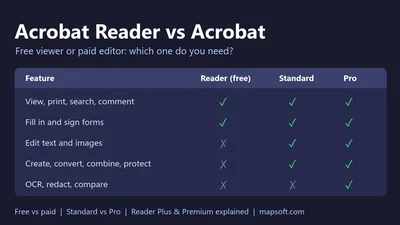
The short answer: Adobe Acrobat Reader is the free viewer. It opens, prints, searches and comments on PDFs, and it fills in and signs forms. Adobe Acrobat — sold as Acrobat Standard and Acrobat Pro — is the paid editor. It does everything Reader does and adds the ability to create, edit, convert, combine, protect and, in Pro, redact, compare and OCR PDFs. If you only ever need to read and sign what other people send you, Reader is enough. If you need to change the content of a PDF, you need Acrobat or another editor.
That answer covers most searches for “Acrobat vs Reader”, but the details matter: Reader can do more than people expect (fill and sign is genuinely free), the paid tier you need depends on a handful of specific features, and Adobe’s naming — Reader, Standard, Pro, Studio, Plus, Premium, DC — is confusing enough that it is worth a section of its own. This article walks through all of it. If you have already decided to pay and only want to know whether Standard or Pro is right, go straight to our companion piece Acrobat Standard vs Pro.
What Acrobat Reader Can Do (For Free)
Adobe describes Reader as the tool to “view, print, share, and comment” on PDFs and to “fill out PDF forms and sign PDFs on any device”. In practice the free application gives you:
- Viewing and printing — any PDF, with fonts, layout and embedded content rendered as the author intended. Reader remains the reference renderer that other viewers are measured against.
- Search and navigation — full-text search, bookmarks, page thumbnails, links and the reading-order view for accessible documents.
- Commenting and markup — sticky notes, highlights, strikethroughs, text boxes, stamps and freehand drawing, with threaded replies when reviewing with other people.
- Fill & Sign — type into interactive form fields, add text to flat forms, and apply a typed, drawn or image signature. This is the feature most people assume costs money; it does not.
- Certificate signature validation — Reader checks digital signatures and shows whether a signed document has been altered since signing.
- Cloud and mobile — the same free account syncs recently opened files between the desktop app, the browser and the iOS and Android apps.
What Acrobat Reader Cannot Do
Adobe is explicit on its own Reader page: “Text and image editing is not available in Acrobat Reader.” The same applies to the rest of the authoring toolset. Reader will show you the Edit, Create, Export, Combine, Organise, Protect and Compress tools in its toolbar, but using any of them opens a prompt to subscribe. Specifically, Reader cannot:
- Edit existing text, images or page layout.
- Create a PDF from Word, Excel, images or web pages (other than by using a separate “print to PDF” driver).
- Convert a PDF to Word, Excel or PowerPoint.
- Combine several files into one PDF, or split, rotate, delete and reorder pages and save the result.
- Compress a PDF to reduce its size.
- Add or remove password protection and permissions.
- Run OCR to make a scanned document searchable.
- Redact content, compare two versions, or check a file against PDF/A and other standards.
- Load third-party plug-ins such as Mapsoft’s (see the FAQ below).
Every item on that list is available in Acrobat Standard or Pro, and most of them are also available free from browser-based tools, which we cover further down.
Feature Comparison: Reader vs Standard vs Pro
The table summarises where each capability sits across the three desktop editions, following Adobe’s own plan comparison and pricing pages as of November 2026.
| Feature | Acrobat Reader (free) | Acrobat Standard | Acrobat Pro |
|---|---|---|---|
| View, print, search and share PDFs | Yes | Yes | Yes |
| Comment, highlight and mark up | Yes | Yes | Yes |
| Fill in forms and sign (Fill & Sign) | Yes | Yes | Yes |
| Validate digital signatures | Yes | Yes | Yes |
| Edit text and images in a PDF | No | Yes | Yes |
| Create PDFs from Office files, images and web pages | No | Yes | Yes |
| Export PDF to Word, Excel, PowerPoint | No | Yes | Yes |
| Combine files; organise, rotate and delete pages | No | Yes | Yes |
| Compress PDFs | No | Yes | Yes |
| Password-protect and restrict permissions | No | Yes | Yes |
| Create fillable forms and send them | No | Yes | Yes |
| Collect e-signatures (Acrobat Sign) | No | Limited (2 per month) | Yes |
| Send bulk e-signature requests | No | No | Yes |
| OCR: turn scans into searchable, editable PDFs | No | No | Yes |
| Redact sensitive content permanently | No | No | Yes |
| Compare two versions of a PDF | No | No | Yes |
| Web forms, custom branding | No | No | Yes |
| Preflight, PDF/A and accessibility checking | No | No | Yes |
| Action Wizard batch processing | No | No | Yes |
| AI Assistant (ask AI to edit, convert, summarise) | Add-on only | Add-on only | Partial; full set in Studio or add-on |
| Third-party plug-ins (including Mapsoft) | No | Yes | Yes |
| Price | Free | Subscription | Subscription (higher) |
Two rows deserve a note. Adobe’s comparison lists e-signature collection in Standard as two per month, so a Standard subscriber who regularly sends contracts for signature will hit that cap quickly. And the AI Assistant row is deliberately hedged: Adobe currently positions “Ask AI to edit, convert, or compress PDFs” as a Pro feature, document chat and summaries as part of the Studio tier, and separately sells an AI Assistant add-on that it says can be attached to Reader, Standard or Pro. That packaging has changed several times and is worth re-checking on Adobe’s AI Assistant page before you buy for that reason alone.
The Acrobat Product Line, Decoded
Much of the confusion behind “Acrobat vs Acrobat Pro” searches comes from Adobe using the word Acrobat for the free viewer, the paid editors, a mobile app, a web service and a brand. Here is the current line-up:
- Acrobat Reader — the free desktop viewer for Windows and macOS, and the free mobile app. Formerly “Adobe Reader” and “Acrobat Reader DC”.
- Acrobat Standard — the entry-level paid editor. Create, edit, convert, combine, organise, protect and sign. Historically a Windows-only product; Adobe’s current system-requirements page lists Standard alongside Pro for macOS, so check the requirements page for your platform before buying.
- Acrobat Pro — the full paid editor for Windows and macOS, adding redaction, Compare, OCR, Preflight, accessibility tools, Action Wizard and unlimited e-signature collection. Our Standard vs Pro article lists every Pro-only feature.
- Acrobat Studio — introduced in 2025 as the top tier: everything in Pro plus AI Assistant, PDF Spaces and Adobe Express Premium.
- Acrobat online (acrobat.adobe.com) — Adobe’s browser-based tools. Adobe advertises “25+ powerful PDF and e-signing tools for free” here, including convert, merge, compress, edit and Fill & Sign, with an Adobe account; a paid subscription unlocks unlimited use and the full set.
- Acrobat mobile app tiers: Reader Plus and Premium — inside the iOS and Android app, Adobe sells two mobile-only subscriptions. Acrobat Reader Plus unlocks editing text and images, creating PDFs and OCR on the phone or tablet; Adobe notes it “does not include premium features on desktop or web”. Acrobat Premium unlocks the full mobile toolset: create, edit, export, combine, organise, compress and password-protect. Neither turns the desktop Reader into Acrobat; for that you need a Standard, Pro or Studio plan, which covers desktop, web and mobile together.
- The retired “DC” suffix — from 2015 the products were called Acrobat Reader DC, Acrobat Standard DC and Acrobat Pro DC, the DC standing for Document Cloud. Adobe dropped the suffix from product names and window titles around 2023, which is why a PC can show “Adobe Acrobat” where it used to say “Adobe Acrobat Pro DC”, and why a free Reader install may now simply read “Adobe Acrobat” in its title bar. The application underneath is unchanged. Our complete list of Acrobat versions explains how to tell which one you are actually running.
- Acrobat Pro 2024 (“Classic” track) — a desktop-only, fixed-term licence sold as a one-time purchase for organisations that cannot use subscriptions. Adobe has confirmed there will be no new perpetual Acrobat after Acrobat 2020; Pro 2024 provides up to three years of access without the ongoing feature updates or cloud services.
Pricing: Free vs Paid
Acrobat Reader costs nothing, and Adobe has never charged for it. The paid editions are sold by subscription, individually or per seat for teams, with a cheaper rate for an annual commitment and a higher rate for a month-to-month plan that can be cancelled at any time. Pro costs roughly a third more than Standard, and Studio a little more again; the AI Assistant add-on is priced separately. Creative Cloud All Apps subscriptions include Acrobat Pro, which is worth checking before buying a second subscription.
For reference, when we checked Adobe’s UK pricing page on 24 November 2026 the individual annual plans, billed monthly and including VAT, were listed at £14.99 per month for Standard, £19.97 for Pro and £24.98 for Studio, with prepaid annual and month-to-month options alongside. Adobe changes these figures and runs promotions regularly, so treat them as a snapshot and confirm the current price on that page.
Which One Should You Choose?
You mostly open and read PDFs
Install Acrobat Reader and stop there. It is free, it is the most compatible viewer available, and it handles the occasional form or signature without any upgrade. If you also want to merge or compress a file once in a while, use a free online tool for that one job rather than paying a subscription.
You fill in and sign forms regularly
Still Reader. Fill & Sign, typed and drawn signatures, and saving the completed form are all included. The only time you need to move up is when you are the one creating the forms or sending documents out for other people to sign, which is a Standard or Pro feature.
You edit, convert and assemble PDFs every week
Acrobat Standard is the sensible starting point for office users: editing text, converting to and from Office formats, combining and organising pages, and password protection. Move to Pro if you find yourself needing OCR for scanned paperwork, sending more than a couple of e-signature requests a month, or any of the items in the next scenario.
You work in legal, compliance, finance or publishing
Acrobat Pro. Redaction that actually removes content rather than drawing a black box over it, Compare Documents for contract versions, Bates numbering for discovery, Preflight for PDF/A archiving and PDF/X print delivery, and the accessibility checker for PDF/UA and public-sector obligations are all Pro-only. Our guide to PDF redaction explains why doing this properly matters.
You are a developer or you automate document workflows
Reader is irrelevant here except as a test target. Acrobat Pro gives you Action Wizard, the JavaScript console and the plug-in host you need for Acrobat SDK development. For server-side or high-volume processing, neither edition is licensed for unattended use, and you will want a library such as the Adobe PDF Library or a REST service instead.
You use a Mac
Reader and Pro are both available on macOS. Standard was Windows-only for most of its history, so if you are quoted a Standard plan for Mac users, confirm it against Adobe’s system requirements first.
Free Alternatives for the Paid Features
Most of the features that separate Reader from Acrobat are things people need occasionally rather than daily. For those, a browser-based tool is cheaper than a subscription and does not require installing anything. Mapsoft’s PDF Hub offers 55+ free online tools that run on the same Adobe PDF Library engine Acrobat is built around. The Reader gaps map directly onto them:
- Combine files — Merge PDFs and Split PDF.
- Compress — Compress PDF.
- Export to Word — PDF to Word.
- Password protection — Protect PDF.
- Redaction (a Pro-only feature in Acrobat) — Redact PDF.
- OCR (Pro-only) — OCR PDF.
- Compare documents (Pro-only) — Compare PDFs.
- Check a digital signature — Validate Signature, useful when a recipient without Reader asks whether a signed file is genuine.
- Edit text — Edit PDF in the browser.
Adobe’s own online tools cover similar ground with an Adobe account, and our comparison of free vs paid PDF editors and round-up of Acrobat alternatives look at desktop options such as Foxit, PDF-XChange and Nitro.
Already Paying for Acrobat? Extend It
If you have settled on Acrobat Standard or Pro, note that the paid editions are also the only ones that accept plug-ins. Mapsoft’s Acrobat plug-ins add bookmarking and table-of-contents generation, stamping and Bates numbering, page scaling, batch redaction and standards checking directly inside Acrobat, and eight of them are free. They do not install into Reader — which brings us to the questions we are asked most often.
Frequently Asked Questions
Is Adobe Acrobat Reader free?
Yes. Acrobat Reader is free to download and use on Windows, macOS, iOS and Android. It lets you view, print, share and comment on PDFs, and fill in and sign forms. Adobe sells optional add-ons and subscriptions on top of it, but the viewer itself has no charge.
Can Acrobat Reader edit PDFs?
No. Adobe states that text and image editing is not available in Acrobat Reader. Reader can annotate a PDF — comments, highlights, sticky notes, drawings — and fill in form fields, but changing the underlying text, images or page layout needs Acrobat Standard, Acrobat Pro, or a separate PDF editor.
Can Acrobat Reader convert a PDF to Word?
Not on its own. Converting a PDF to Word, Excel or PowerPoint is a paid Acrobat feature; the Reader desktop app shows the Export PDF tool but asks you to subscribe when you use it. Free alternatives include Adobe’s online tools (with an Adobe account) and Mapsoft’s free PDF to Word converter.
Do Acrobat plug-ins work with Acrobat Reader?
No. Acrobat plug-ins, including all Mapsoft plug-ins, load only in the paid Acrobat Standard and Acrobat Pro desktop applications. Reader has a locked-down plug-in architecture that only accepts Adobe-certified Reader-enabled plug-ins, so third-party tools cannot be installed into it. Our article What is an Acrobat plug-in? explains how plug-ins work.
What is the difference between Acrobat Standard and Acrobat Pro?
Both are paid editors that create, edit, convert, combine, protect and sign PDFs. Pro adds the tools Standard lacks: redaction, Compare Documents, OCR, Preflight and PDF/A checking, print production, accessibility remediation, Action Wizard batch processing, Bates numbering and unlimited e-signature collection. Our Acrobat Standard vs Pro article covers the full list.
Is Acrobat the same as Acrobat Reader?
No, although Adobe’s naming makes them easy to confuse. Acrobat Reader is the free viewer. Acrobat — sold as Acrobat Standard, Acrobat Pro and, since 2025, Acrobat Studio — is the paid editor. On a PC both can be installed side by side, and since Adobe dropped the DC suffix the window titles are simply “Acrobat Reader” and “Acrobat”.
Sources checked 24 November 2026: Adobe’s Acrobat Reader page, plan comparison, UK pricing, online tools, mobile subscriptions and perpetual-licence end-of-sale notice.
Related Articles
Acrobat Standard vs Pro
Already decided to pay? Every feature that separates Acrobat Standard from Acrobat Pro — redaction, Preflight, Compare, Action Wizard, accessibility tools — and who needs which edition.
Free vs Paid PDF Editors: Acrobat Pro Comparison
Compare free PDF editors with Adobe Acrobat Pro: editing, OCR, forms, redaction, security, batch tools, limitations, and when paid software is worth it.
Adobe Acrobat Versions: Complete List 1993–2026
Every Acrobat version in one table, the current build number, Reader vs Standard vs Pro, and how to check which version you have installed.
Extend Acrobat with Mapsoft Plugins
Using Acrobat Standard or Pro? Mapsoft plugins add bookmarking, stamping, Bates numbering, redaction and standards checking inside Acrobat — and eight of them are free. Only need the occasional merge, compress or convert? The PDF Hub does it in the browser at no cost.