
Print PDF vs Web PDF: Why One File Format Has Two Lives
The same three-letter extension hides two very different artifacts. A press-ready PDF and a website-ready PDF are produced from the same source, but the export presets that govern them disagree on almost every parameter. Here’s why — and why getting the choice wrong is one of the most common mistakes in document production.
Where PDFs actually end up
It’s tempting to think of PDF as a single thing, but in practice the format is asked to do at least six different jobs, each with its own conventions and ISO standard:
- Print prepress — PDF/X. The press-ready file handed off to a printer.
- Web distribution — ad-hoc presets, but linearised, compressed, and interactive.
- Long-term archival — PDF/A, the format that institutions like the US National Archives and the Library of Congress have standardised on for born-digital records.
- Forms and e-signature — AcroForms and XFA, plus the digital signature dictionary.
- Accessibility — PDF/UA, the tagging and structure rules that screen readers depend on.
- Engineering and CAD — PDF/E, with embedded 3D model data and measurement tools.
If you’ve read the PDF Standards Guide already, none of these will be new. The point here is that no single PDF can serve all of them at once — the requirements actively conflict. A press-ready PDF/X-4 cannot also be a PDF/A archive without compromise, and neither will be a good web PDF. Print and web are simply the two largest of those camps, and the differences between them are stark enough to be worth treating as a category in its own right.
From PostScript to PDF: how print prepress changed hands
Through the 1990s, high-end print production ran on Adobe PostScript. Designers laid out pages in QuarkXPress (and later InDesign), and the output to the imagesetter or platesetter was a PostScript file — a program, not a document, executed by a RIP (raster image processor) at the printer to produce the actual plates. PostScript was extraordinarily flexible and extraordinarily fragile: a missing font, a malformed colour space, or a too-clever EPS placement could halt the RIP at 3 a.m. on a deadline.
PDF was Adobe’s answer. The Camelot proposal John Warnock circulated internally in 1991 outlined a format that would do what PostScript did — reproduce a page faithfully on any device — but with self-contained fonts, predictable resource handling, and a deterministic page model. Acrobat 1.0 shipped in 1993 with Acrobat Distiller as the bridge: a tool that consumed PostScript and produced a stable PDF. For most of that decade, Distiller was the safety net that let designers keep working in PostScript-driven applications while shipping PDFs to printers.
What sealed the transition was standardisation. By the early 2000s, the print industry had had enough of "send me a PDF" meaning twenty different things, and ISO began publishing the PDF/X family of standards — ISO 15930 — defining exactly what a press-ready PDF could and could not contain. Once the spec was an ISO standard, the workflow tipped: by the mid-2000s, native PostScript output to print was the exception, and PDF/X was the rule. The fuller arc of that transition lives in our history of PDF and history of Acrobat posts.
Why Acrobat sits inside Creative Cloud
Creative Cloud has two halves — production and publication — and they’re less symmetric than the marketing suggests.
The production half is what most people picture when they hear "Creative Cloud": InDesign for page layout, Illustrator for vector artwork, Photoshop for raster imagery, plus the rest of the constellation. These applications produce intent — the page exists in their native file format, and the PDF is one of several possible outputs.
The publication half is Acrobat. Once the PDF has been exported, Acrobat is where it’s preflighted (does it actually meet PDF/X-4? are all fonts embedded? is the bleed correct?), corrected, optimised for whatever its destination is, secured if needed, digitally signed if needed, and shipped. Acrobat Pro / Acrobat Studio ship inside Creative Cloud because forcing print and design teams to procure the finishing tool separately would put a pointless seam down the middle of a workflow that has been one workflow since Distiller. The bundle is the closure of the loop.
PDF/X in one paragraph
PDF/X is the print-prepress branch of the standards family. The four most-used variants are PDF/X-1a:2001 (CMYK and spot colour only, transparency flattened, the safest bet for older RIPs and still common in newspaper and packaging), PDF/X-3:2003 (allows ICC-tagged colour, so files can include calibrated RGB), PDF/X-4:2010 (allows live transparency and ICC colour, the modern default for commercial print), and PDF/X-6:2020 (the PDF 2.0-based refresh, slowly being adopted). Every variant requires the file to declare an output intent — the press condition the file is targeted at — and embeds enough information that a print provider you’ve never met can reproduce the page faithfully. The full breakdown lives in the PDF Standards Guide; the practical rule is: ask the printer, and if they have no preference, send PDF/X-4.
The two PDFs, side by side
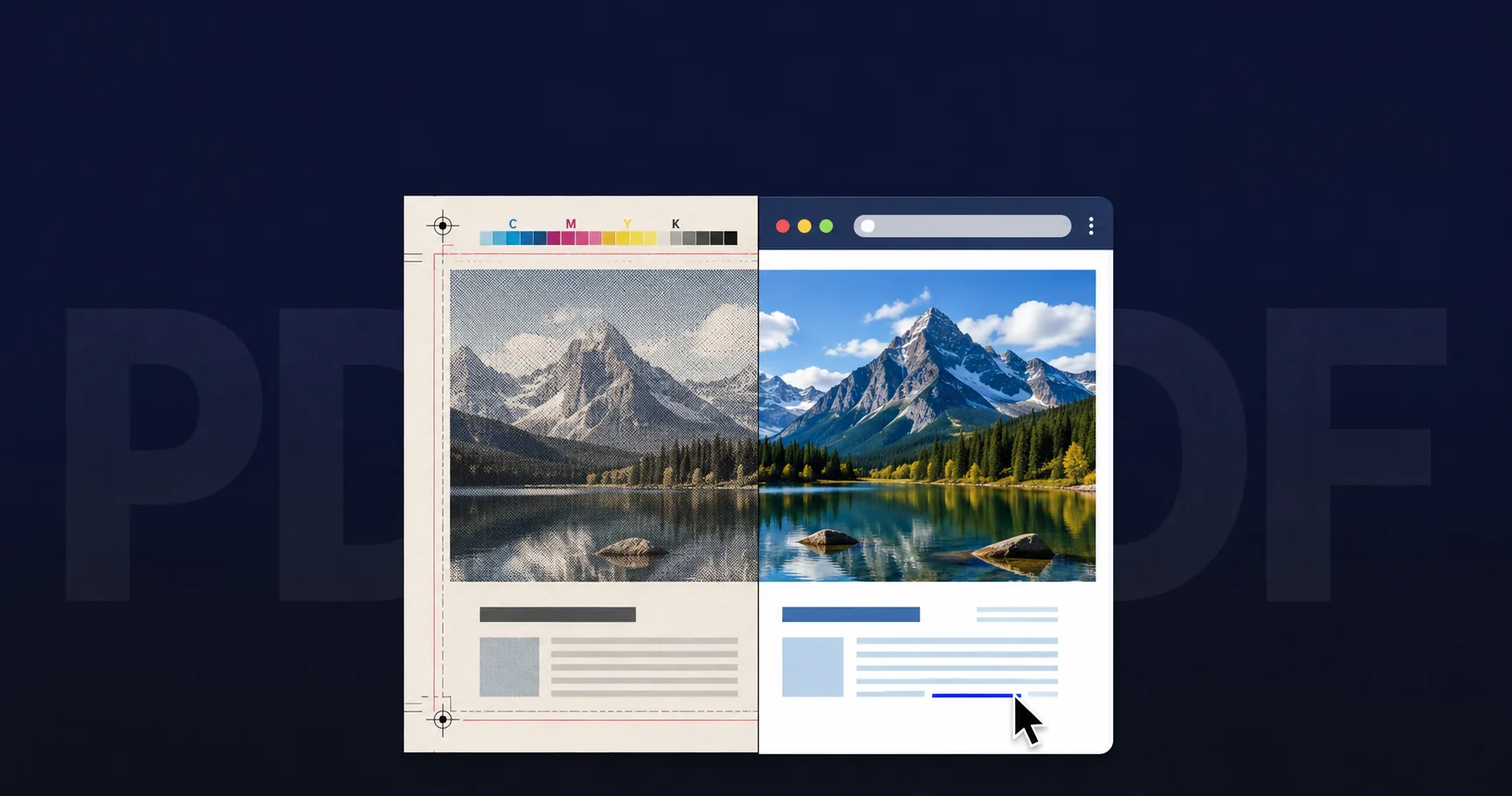
Here’s what changes between a press-ready PDF and a web-ready PDF, generated from the same source artwork:
| Print PDF (PDF/X) | Web PDF | |
|---|---|---|
| Colour space | CMYK + spot (Pantone) inks; ICC-tagged on PDF/X-3 / X-4 | sRGB (occasionally Display P3); device-independent for screen |
| Image resolution | 300 dpi for halftone, 1200 dpi for line art | 72–150 dpi, downsampled aggressively |
| Image compression | Lossless or low-loss JPEG; preserves detail for press | Higher-loss JPEG, sometimes JPEG2000 or JBIG2 for text scans — see PDF compression |
| Fonts | Fully embedded, often as full font (not subset), to allow last-minute correction | Subset to only the glyphs used; smaller file, no editing assumption |
| Transparency | Flattened on PDF/X-1a; live on PDF/X-4 (modern RIPs handle it natively) | Live transparency — browsers and Reader render it directly |
| Output intent | Required — e.g. Coated FOGRA39, GRACoL2013, SWOP | Absent — sRGB is implied, no press condition to declare |
| Bleed and crop marks | 3 mm bleed plus crop, registration, and colour bars | Stripped — nothing outside the visible page |
| Linearisation | Not used — press doesn’t stream | Required for Fast Web View — see linearized PDF |
| File size | 50 MB to 500 MB+ for image-heavy work | 200 KB to 5 MB — orders of magnitude smaller |
| Security / permissions | None — PDF/X forbids password protection, prepress needs unrestricted access | Often password-protected, watermarked, or DRM-restricted — see PDF security |
| Hyperlinks, bookmarks, forms | Irrelevant — ink on paper has no JavaScript | Essential — the things that make a web PDF useful |
| Audience | One print provider on calibrated equipment | Anyone with a browser, on any screen |
The single biggest divergence in real numbers is file size. A 32-page brochure with full-bleed photography exports at around 280 MB as PDF/X-4 from InDesign with image compression set to "Do Not Downsample". The same source, exported with the Smallest File Size preset, comes out at 6 MB. That’s a 47× reduction — the kind of difference that matters when the destination is a download link rather than an offset press.
The technical posts on PDF colour management, compression, file size, web optimisation, and PDF printing dig into each row of that table individually. The point of having both columns next to each other is that almost no parameter is shared.
Generating PDFs from Creative Cloud apps
Each of the three production apps exposes the print/web split through its export presets. They share an underlying engine — the Adobe PDF Library, the same SDK that ships inside Acrobat — but each app surfaces it differently.
InDesign
InDesign is where the print-vs-web distinction is most explicit. File → Export offers two PDF options, and they are not the same dialog: Adobe PDF (Print) with presets including PDF/X-1a:2001, PDF/X-4:2010, Press Quality, and High Quality Print; and Adobe PDF (Interactive) with hyperlinks, bookmarks, page transitions, embedded media, and JavaScript actions, intended for screen-only consumption. The Interactive export deliberately doesn’t conform to PDF/X — it can’t, because PDF/X forbids most of what makes it interactive.
For web distribution, the right path is the Print export with the Smallest File Size preset, which downsamples images to 100 dpi, applies higher JPEG compression, removes printer marks, and flattens transparency to a screen-appropriate profile. It produces a PDF you can put on a website that retains hyperlinks and bookmarks but not at full press fidelity. Underneath both flows, the Adobe PDF Print Engine (APPE) is what InDesign uses to render its native page model into PDF objects.
Illustrator
Illustrator’s File → Save As → Adobe PDF writes a PDF that can also be re-opened as a fully editable Illustrator file — the Preserve Illustrator Editing Capabilities checkbox embeds the original AI data alongside the rendered PDF page. For a print provider, you turn that off and pick the Press Quality or one of the PDF/X presets; for web, Smallest File Size strips the editing data and downsamples images. Illustrator is a vector-first tool, so the file-size delta between presets is generally smaller than InDesign’s — vector art compresses identically regardless of preset — but rasterised effects (drop shadows, gradient meshes, raster brushes) inflate the file dramatically if not downsampled.
Photoshop
Photoshop’s File → Save As → Photoshop PDF produces a PDF that is, in effect, a wrapper around a single image. The same Press Quality / Smallest File Size presets apply, but the parameters that matter most are downsampling and JPEG quality — the page itself is one big raster. Photoshop PDFs can preserve layers, alpha channels, and ICC profiles when saved with Preserve Photoshop Editing Capabilities, which lets a designer treat the PDF as a working file. For print delivery, that option is normally off; for web, downsampling and JPEG quality are the two sliders that control the result.
The Adobe PDF Library underneath
All three apps, plus Acrobat itself, generate their PDFs by calling into the Adobe PDF Library — the C/C++ SDK that implements the ISO 32000 PDF specification. Adobe doesn’t sell that SDK directly; it’s licensed through Datalogics, the channel partner that has handled Adobe PDF Library distribution since the 1990s. Mapsoft uses the same library for the PDF generation and manipulation in our own plug-ins. The practical implication for a Creative Cloud user is that the PDF-writing engine is consistent across the suite — what differs is the preset that drives it and the page model the host application starts from.
Why a print PDF breaks on the web
Browsers will render a PDF/X-4 file. They will not render it well. The concrete failure modes:
- File size punishes everyone. A 280 MB brochure download is unusable on mobile data, slow on fibre, and expensive to host at scale. A web-optimised version of the same content is 5 MB. The user experience difference is not a tuning detail; it’s the difference between the file being read and the file being closed.
- Colour looks wrong. A CMYK file rendered in a browser without an embedded ICC profile is converted to sRGB on the fly with no calibration. Reds turn muddy, blues turn purple, neutral greys pick up a colour cast. Even with an ICC profile present, browsers vary in whether they honour it. The destination is sRGB, so the source should be sRGB.
- It can’t stream. Print PDFs are not linearised. The browser has to download the whole file before it can render the first page — the user sees a blank tab while a 280 MB file downloads. A linearised web PDF renders the first page as soon as that page’s objects have arrived.
- No hyperlinks, no bookmarks, no forms. A press PDF is a closed deliverable. There’s no expectation that anyone will click anything. A web PDF that doesn’t include hyperlinks for citations, bookmarks for navigation, or form fields where they’re needed is doing less than the medium allows.
- Transparency-flattened text becomes raster. On PDF/X-1a, transparency is flattened, which can convert affected text to a rasterised image at the resolution chosen at flatten time. On a 300-dpi press file viewed at 100% on a 4K display, that text looks fine. Zoom in or scale up, and it pixellates. Live-transparency PDF/X-4 avoids this, but legacy PDF/X-1a workflows still produce it routinely.
Where Mapsoft tooling fits
The work that determines whether a web PDF reads well happens before the export — bookmarks, a working table of contents, accurate metadata, sensible open options. Two of our plug-ins map directly to that prep step: TOCBuilder generates a table of contents from a document’s heading structure, and Bookmarker creates and manages PDF bookmarks at scale. For files that need security or redaction before they go on a website, our Redactor plug-in handles permanent content removal. None of these touch the print-prepress side — they’re for the web destination — but they make the difference between a PDF that’s useful to a website visitor and a PDF that’s a flat scrolling slab.
The honest take
The mistake people make is treating "PDF" as one thing. It isn’t. The format is broad enough to span a 500 MB Pantone-spec packaging file and a 200 KB web brochure, and the only reason both can be called PDFs is that the underlying object model is the same. Every other parameter — colour, resolution, fonts, compression, security, interactivity — is set differently for the two destinations.
Once you internalise that, the workflow falls out naturally. Author once in InDesign, Illustrator, or Photoshop. Export twice: once to PDF/X for the printer, once with Smallest File Size for the web. Preflight both in Acrobat. Don’t try to make one PDF do both jobs — the geometry of the requirements doesn’t allow it. The fact that Adobe ships InDesign, Illustrator, Photoshop, the Adobe PDF Library, and Acrobat in the same Creative Cloud subscription is the recognition, baked into the product, that producing a PDF is the start of the job and not the end of it.
Related Articles
PDF Standards Explained: PDF/A, PDF/UA, PDF/X, PDF/E, PDF/VT
The full breakdown of the ISO PDF standards family — what each one is for, how they differ, and how to verify which standards a PDF claims conformance to.
Optimising PDFs for the Web
Linearisation, image downsampling, JPEG vs ZIP compression, font subsetting, and unused-object removal — how to make a web PDF small and fast.
The Camelot Project: PDF’s Origin Story
John Warnock’s 1991 internal memo that laid out the vision for what would become PDF — and the design decisions that still shape the format thirty years on.
Try Adobe Creative Cloud
InDesign, Illustrator, Photoshop, and Acrobat — the production-to-publication chain in a single subscription, with PDF/X export and preflight built in.
Mapsoft is an Adobe affiliate. We may earn a commission on Adobe purchases made through these links, at no extra cost to you.