
Creating Interactive PDF Forms with Adobe Acrobat
A complete guide to building fillable PDF forms with text fields, checkboxes, dropdowns, buttons, and more.
You can also edit PDFs online for free using Mapsoft's PDF Hub — no installation required.
What Is a PDF Form?
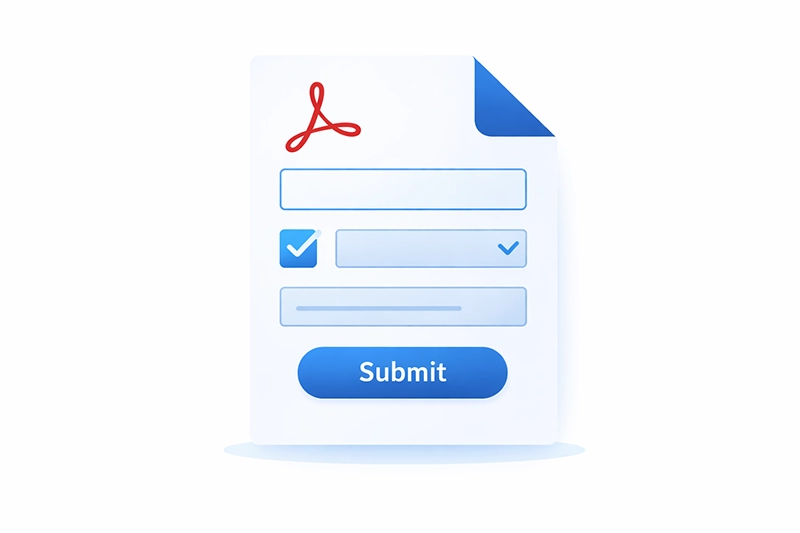
A PDF form is a PDF document that contains interactive fields where users can enter text, select options, sign documents, and submit data. PDF forms are widely used across government, legal, healthcare, finance, and business workflows because they combine the visual fidelity of PDF with the interactivity of a web form. For a broader look at interactive PDF features beyond forms, see our guide to interactive PDFs.
PDF forms can be created from scratch in Adobe Acrobat, or by converting existing documents from Word, Excel, InDesign, or scanned paper into fillable PDFs. Acrobat's form editing tools allow you to add interactive elements to any PDF document.
PDF Form Field Types
Adobe Acrobat supports nine types of interactive form fields, each suited to different kinds of data input:
- Text Field: The most common field type. Accepts text, numbers, dates, and other typed input. Can be single-line or multi-line, and supports formatting, validation, and calculation scripts.
- Check Box: A toggle that represents a yes/no or true/false value. Useful for agreements, preferences, and option lists where multiple selections are allowed.
- Radio Button: A group of mutually exclusive options where only one can be selected at a time. Ideal for questions with a single correct answer.
- List Box: Displays a scrollable list of options. Users can select one or multiple items depending on the configuration.
- Dropdown (Combo Box): A compact field that expands to show a list of options when clicked. Saves space compared to radio buttons or list boxes.
- Push Button: Triggers an action when clicked, such as submitting the form, printing the document, resetting fields, or running a JavaScript function.
- Digital Signature: A field for applying digital signatures to authenticate the document and verify the signer's identity.
- Barcode: Encodes form data into a visual barcode format (PDF417, QR Code, or Data Matrix) for automated data capture.
- Image Field: Allows users to place an image into a designated area of the form.
Creating a Form: Step by Step
1. Prepare Your Source Document
Start with a well-designed PDF that contains the static content of your form — labels, instructions, headings, and any visual layout. You can create this in any application (Word, InDesign, Illustrator) and export to PDF, or work directly with an existing PDF.
If you are working from a scanned document, run OCR (text recognition) first so that Acrobat can identify field labels and positions. However, starting from a digitally created document produces better results.
2. Open the Prepare Form Tool
In Acrobat, navigate to Tools > Prepare Form (in classic Acrobat DC) or All Tools > Prepare Form (in newer versions). Select your PDF and click Start. Acrobat will scan the document and may automatically detect and create form fields based on the layout.
Review any auto-detected fields carefully — they often need renaming, resizing, or repositioning. Delete any incorrectly placed fields and add any that were missed.
3. Add and Configure Fields
Use the toolbar at the top of the form editor to select a field type, then click and drag on the document to place it. After placing a field:
- Name it meaningfully: Use descriptive names like
firstName,email, oragreesToTermsrather than the defaults (Text1,Text2). This is essential for any downstream processing or data extraction. - Set the appearance: Right-click the field and open Properties. Under the Appearance tab, set the font, font size, text colour, border style, and fill colour.
- Configure options: The Options tab varies by field type. For text fields, you can enable multi-line, set a character limit, or add a default value. For dropdowns and list boxes, you define the available choices here.
- Add validation: Under the Format and Validate tabs, you can restrict input to numbers, dates, percentages, or custom patterns.
- Mark as required: Right-click a field and select Properties > General > Required to prevent form submission until the field is completed. Required fields display with a red border.
4. Align and Distribute Fields
Select multiple fields by holding Shift and clicking each one. The toolbar provides alignment options (left, right, top, bottom, centre) and distribution options (equal horizontal or vertical spacing). Consistent field placement makes forms look professional and improves usability.
5. Set Tab Order
The tab order determines the sequence in which fields receive focus when the user presses Tab. A logical tab order (typically top-to-bottom, left-to-right) is important for usability and accessibility. Set this under Page Properties > Tab Order or by arranging field order in the Fields panel.
Fonts and File Size
Font choice has a significant impact on PDF file size. When a form is filled in, the PDF viewer may need to embed the font used in text fields. Stick to standard PDF fonts (Helvetica, Times Roman, Courier) to keep file sizes small. Custom or decorative fonts can add 400–600 KB per font to the document.
The Auto font size option automatically scales text to fit within the field boundaries. This is useful when the amount of text is unpredictable, but be aware that very long entries may become unreadably small.
Enabling Form Saving in Acrobat Reader
By default, users opening a PDF form in the free Adobe Acrobat Reader can fill in fields but cannot save the completed form. To enable saving, open the form in Acrobat Pro and go to File > Save As Other > Reader Extended PDF > Enable More Tools. This grants Reader users the ability to fill in, save, and in some cases add comments to the form.
Filling Forms Automatically
For high-volume form generation, manual filling is impractical. PDF forms can be populated programmatically using:
- Acrobat JavaScript: Scripts that set field values from data sources, databases, or other documents.
- FDF/XFDF data files: Standard formats for importing form data into PDF fields.
- Mail merge plugins: Tools such as Mapsoft's Engage plugin populate PDF forms from spreadsheets or databases to generate personalised documents at scale (invoices, certificates, letters).
- The Acrobat SDK: For building custom applications that create and fill PDF forms programmatically.
Collecting Form Data
Once forms are filled in and returned, there are several ways to aggregate the data:
- Acrobat's built-in tools: The Prepare Form > More > Merge Data Files option consolidates responses from multiple completed forms into a spreadsheet.
- Submit buttons: Add a push button that submits form data via email (as FDF or PDF attachment) or to a web server (as HTTP POST).
- Programmatic extraction: Use the Acrobat SDK or JavaScript to extract field values from batches of completed forms.
Best Practices
- Use clear, descriptive field names — they are essential for any data processing workflow.
- Provide instructions within the form or as tooltip text on fields.
- Test the form in Acrobat Reader, not just Acrobat Pro, to ensure it works for all users.
- Set a logical tab order for keyboard navigation and accessibility.
- Use standard fonts to minimise file size.
- Consider accessibility — add tooltips to every field and ensure a meaningful reading order for screen readers. A properly tagged PDF with correct form tags is essential for screen reader compatibility.
- Keep the form layout clean and uncluttered. Group related fields visually and use consistent spacing.
Related Articles
How to Merge PDFs in Adobe Acrobat
Learn how to merge PDF files in Adobe Acrobat using the Combine Files tool, Insert Pages, and JavaScript. Covers bookmarks, form fields, and PDF/A compliance.
How to Split PDF Files in Acrobat
Learn how to split PDF files in Adobe Acrobat — extract pages, split by page count or file size, split by bookmarks, and automate splits with JavaScript.
How to Compare PDF Documents in Adobe Acrobat
Learn how to use Adobe Acrobat Pro's Compare Documents feature to identify differences between two versions of a PDF, understand the comparison report, and work with results.
Need Custom PDF Form Solutions?
Mapsoft builds automated form processing solutions using the Acrobat SDK. From mail merge to data extraction, we can help.