
InDesign Automation: When Scripting Beats Clicking
InDesign workflows are full of repetition that doesn’t need to be manual. Master-page propagation, paragraph-style normalisation, find/change at scale, multi-document export, packaging for handoff — the kinds of work that consume editorial and production teams every week. Here’s the framework for deciding what to automate, and which of InDesign’s four levers to reach for.
The threshold
The honest test for whether to automate something in InDesign is simple: am I going to do this more than ten times, or on more than one document? Below that, the time to write and test a script costs more than doing the work manually. Above it, scripting almost always pays back — and the second time you do the same job, the script is already there.
InDesign is a particularly automation-friendly application. The scripting DOM is comprehensive, the Scripts panel is built into the workspace, and most editorial and production workflows have a recognisable shape (open document, normalise something, export, repeat). The cases where automation pays off most heavily are exactly the ones publishing teams encounter weekly: brand-style enforcement across hundreds of files, multi-language layout updates, master-page propagation across a book, and the production-stage export work that turns InDesign sources into press-ready PDFs. (The same decision framework applies across the suite — see the equivalents for Photoshop and Illustrator.)
The four levers
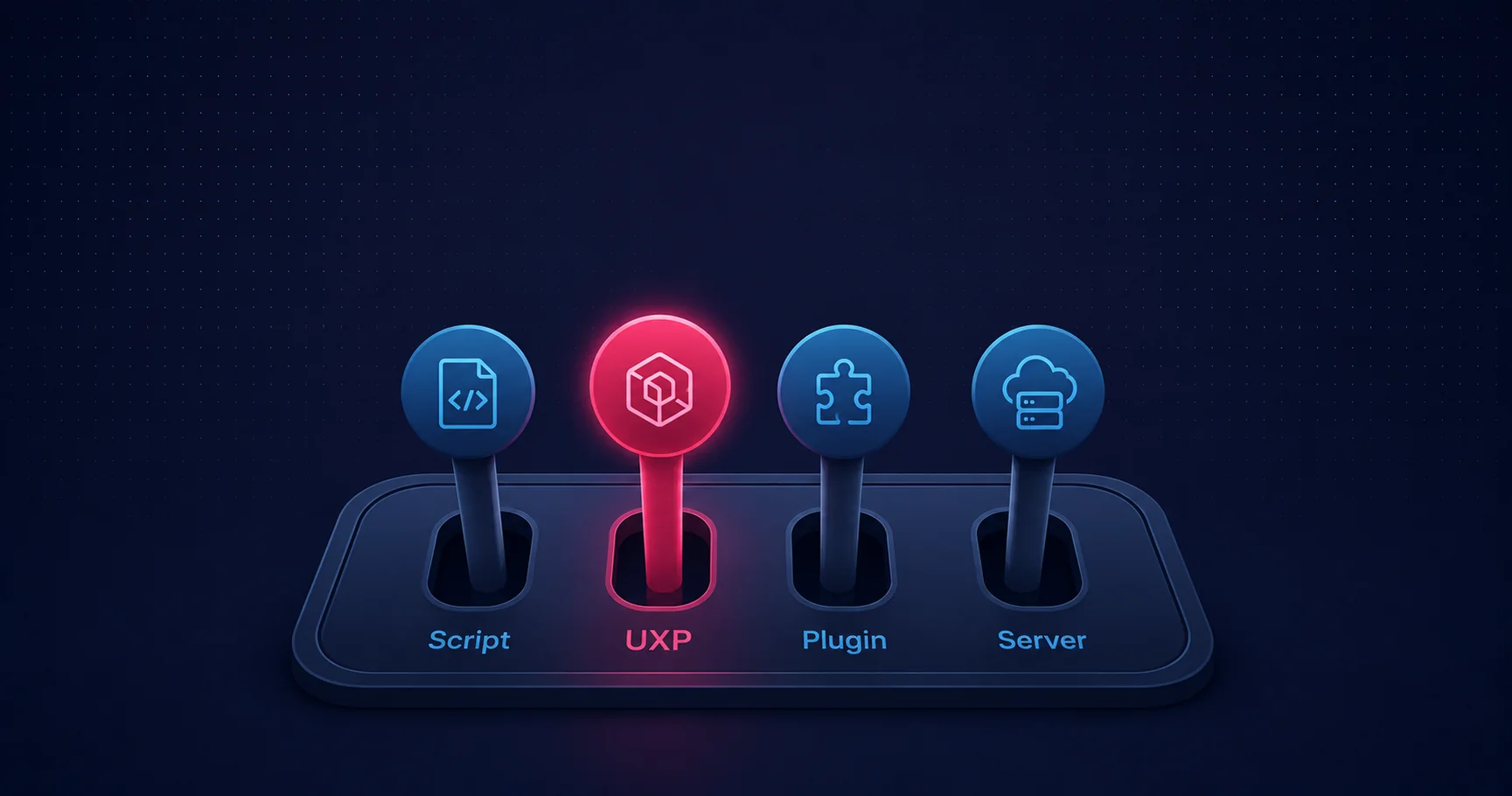
InDesign gives you four progressively more capable automation tools. Pick the simplest one that does the job.
1. ExtendScript — the workhorse
ExtendScript is Adobe’s ES3-based JavaScript dialect, saved as .jsx files and run from the Scripts panel or via File → Scripts → Other Script… It’s the right answer for almost everything that doesn’t need a persistent UI:
- Folder-level batch processing (open every file in a directory, do something, save and close)
- Conditional logic ("if this paragraph has the wrong style, fix it")
- Reading and writing external files (CSV inputs, JSON outputs, log files)
- Cross-application messaging via BridgeTalk to Photoshop, Illustrator, Acrobat
- Custom dialogs for user input via ScriptUI
ExtendScript is what most production InDesign automation actually is. It deploys with a drop into the Scripts panel folder, survives InDesign upgrades better than panels do, and runs anywhere InDesign runs — including (with limitations) on InDesign Server. We catalogue 105 production-ready ExtendScript tools in our free InDesign script collection.
2. UXP — for persistent panels
If users need a panel that stays visible while they work — a settings interface, an asset browser, a search-and-replace tool, a database-backed brand swatch picker — ExtendScript’s modal ScriptUI dialogs aren’t enough. UXP is the right answer for new InDesign panel work in 2026. Publicly available since InDesign v18.5, with mature developer tooling and an active third-party ecosystem. We cover UXP for InDesign in detail in UXP for InDesign.
3. C++ SDK — for speed and deep integration
The C++ SDK is the right answer when ExtendScript or UXP can’t go fast enough or deep enough — performance-critical batch processing, custom file format support, custom tools that appear in the toolbox, anything that hooks the InDesign notifier system, or any extension that needs to run on InDesign Server with native performance. The cost is a per-version recompile and a more demanding development environment. The upside is that anything ExtendScript and UXP can’t do, the SDK can.
4. InDesign Server — for unattended high volume
The fourth lever is qualitatively different from the first three. InDesign Server is the headless InDesign engine for server-side rendering — the same composition core as desktop InDesign, designed to run unattended on a server and process documents at volume. It’s the right answer when the workflow exceeds what desktop InDesign can reasonably handle: high-volume catalogue rendering, transactional document factories, on-demand certificate generation, web-driven publishing pipelines. We cover the architecture in InDesign Server for automated publishing.
Common automation patterns
Most production InDesign automation falls into a small number of recognisable shapes:
Paragraph- and character-style normalisation
Different editors and designers use slightly different style conventions; over time, even a tightly-managed style sheet drifts. The fix is a script that opens each file, walks every story, and replaces non-canonical styles with their library counterparts. The pattern looks like:
var canonicalStyles = {
  'Body 1': 'Body',
  'Body Text': 'Body',
  'BodyOld': 'Body'
  // ... more mappings
};

for (var i = 0; i < doc.stories.length; i++) {
  var paragraphs = doc.stories[i].paragraphs;
  for (var j = 0; j < paragraphs.length; j++) {
    var styleName = paragraphs[j].appliedParagraphStyle.name;
    if (canonicalStyles[styleName]) {
      paragraphs[j].appliedParagraphStyle =
        doc.paragraphStyles.itemByName(canonicalStyles[styleName]);
    }
  }
}
Wrap that in a folder loop and you have a brand-enforcement tool that processes a directory of working files in minutes.
Find/change at scale — especially with GREP
InDesign’s GREP find/change is one of its most powerful features and is fully scriptable. The pattern: define a set of GREP rules in code, apply them to every story in every document. Common cases: replacing straight quotes with curly quotes (per language), standardising em-dash spacing, normalising URLs, fixing hard-coded line breaks where soft hyphens are appropriate.
app.findGrepPreferences = NothingEnum.NOTHING;
app.changeGrepPreferences = NothingEnum.NOTHING;
app.findGrepPreferences.findWhat = ' \\\\- ';   // space-hyphen-space
app.changeGrepPreferences.changeTo = ' \\u2014 '; // em-dash
doc.changeGrep();
Master-page propagation across a Book
InDesign’s Book panel groups multiple documents and lets you sync settings across them. The native sync covers styles, swatches, and master-page A; for finer-grained control (specific master pages, conditional sync rules, validation), an ExtendScript driving the Book API gives you the control the UI doesn’t.
Multi-format export pipelines
The classic case: a designer hands over a folder of .indd source files, and the deliverable is each one as a press-quality PDF/X-4, a web-optimised PDF, an EPUB, and an IDML for archive. Doing each of those manually is fragile (state can drift between exports). Doing all four in one ExtendScript pass is reliable. The patterns and naming conventions are covered in InDesign batch processing.
Packaging for handoff
InDesign’s native Package command collects all linked images, fonts, and the IDML into a folder for handoff to a printer or production team. The native command is interactive; an ExtendScript automates the same flow across every document in a folder, with consistent options:
doc.packageForPrint(
  destinationFolder,  // where to put the package
  true,   // copy fonts
  true,   // copy linked graphics
  true,   // copy profiles
  true,   // update graphics
  true,   // include hidden layers
  true,   // ignore preflight errors
  null,   // creator info
  null,   // job info
  true    // generate report
);
Variable data — Data Merge automation
InDesign’s Data Merge feature is one of its most powerful capabilities — binding text and image placeholders to columns in a CSV. For runs of dozens to a few hundred personalised documents, Data Merge handles the job natively. For larger runs, an ExtendScript wraps Data Merge in a folder loop or hands off to a downstream tool. Covered in InDesign Data Merge for variable data printing.
Cross-application automation
InDesign rarely works alone. Most production pipelines have it in a chain: Photoshop processes raster sources, Illustrator does vector composition, InDesign builds the multi-page layout, Acrobat finishes the PDF. ExtendScript’s BridgeTalk system lets one application send a message to another asking it to run a script and return a result.
Common cross-app patterns:
- Photoshop → InDesign: An InDesign script tells Photoshop to apply a colour correction action to source images, then places the results into the InDesign document at the right positions.
- Illustrator → InDesign: Illustrator generates a series of vector logos at the right sizes; InDesign places them into a multi-page brochure layout.
- InDesign → Acrobat: An InDesign export hands off to Acrobat for prepress checks, watermarking, or batch combination with other PDFs.
- Bridge as orchestrator: Bridge can run scripts that coordinate Photoshop, Illustrator, and InDesign together, treating each as a worker in a larger pipeline.
Graduation thresholds — when to step up
Five signals that ExtendScript has hit its limit and you should reach for a higher lever:
- You need persistent UI. ScriptUI dialogs are modal — they take focus, block the rest of InDesign, and disappear when dismissed. If users need a panel that stays visible while they work, build a UXP plugin.
- You need async or modern web APIs. ExtendScript predates JavaScript’s
async/awaitby twenty years and has no real network primitives. UXP gives you both. - Performance is a problem. ExtendScript is interpreted and single-threaded. Operations that touch every paragraph in a 500-page book, or process hundreds of MB of artwork per document, can be slow enough to be unusable. The C++ SDK is the answer.
- You need a managed installer. A
.ccx-packaged UXP plugin or.zxp-packaged CEP extension installs cleanly, persists across InDesign upgrades, and surfaces in Window → Plugins. Loose.jsxfiles don’t survive an OS reinstall. - The volume exceeds desktop. If the work needs to run unattended overnight on thousands of documents, or come through a web queue, the right host is InDesign Server, not desktop InDesign.
The honest take
Most InDesign teams would benefit enormously from automating an hour of repetitive work per week, and most never do because the tooling looks intimidating. It isn’t. ExtendScript is a JavaScript file. UXP is a JavaScript plugin. The hardest part isn’t the technology — it’s recognising the threshold and reaching for the right lever before the work has cost more than the script would have.
If you have a workflow you’re still doing by hand more than once a week, it’s a script. If users keep asking for the same panel, it’s UXP. If the work needs to run overnight on a server, it’s InDesign Server. Most production InDesign work fits one of those three shapes — the rest is choosing which.
Related Articles
InDesign Batch Processing
Production-grade folder loops, naming conventions, multi-format export, error handling, and the escalation path to InDesign Server.
UXP for InDesign
The recommended path for new InDesign panel work in 2026 — modern JavaScript, direct host API, Spectrum components, and a worked example.
Combining InDesign Extension Technologies
How ExtendScript, UXP, CEP, and the C++ SDK fit together — the comparison table and decision flow.
Need to Automate an InDesign Workflow?
Mapsoft builds InDesign scripts, panels, and plugins for editorial and production workflows — from one-off automation to InDesign Server pipelines.
Mapsoft is an Adobe affiliate. We may earn a commission on Adobe purchases made through these links, at no extra cost to you.