
InDesign Data Merge for Variable Data Printing
One template, a CSV of records, one personalised document per row. InDesign’s native Data Merge is the most capable variable-data feature in Adobe’s suite. Here’s how to design templates that handle real-world data, when to use Data Merge directly, and where the production handoff to InDesign Server or Mapsoft Engage takes over.
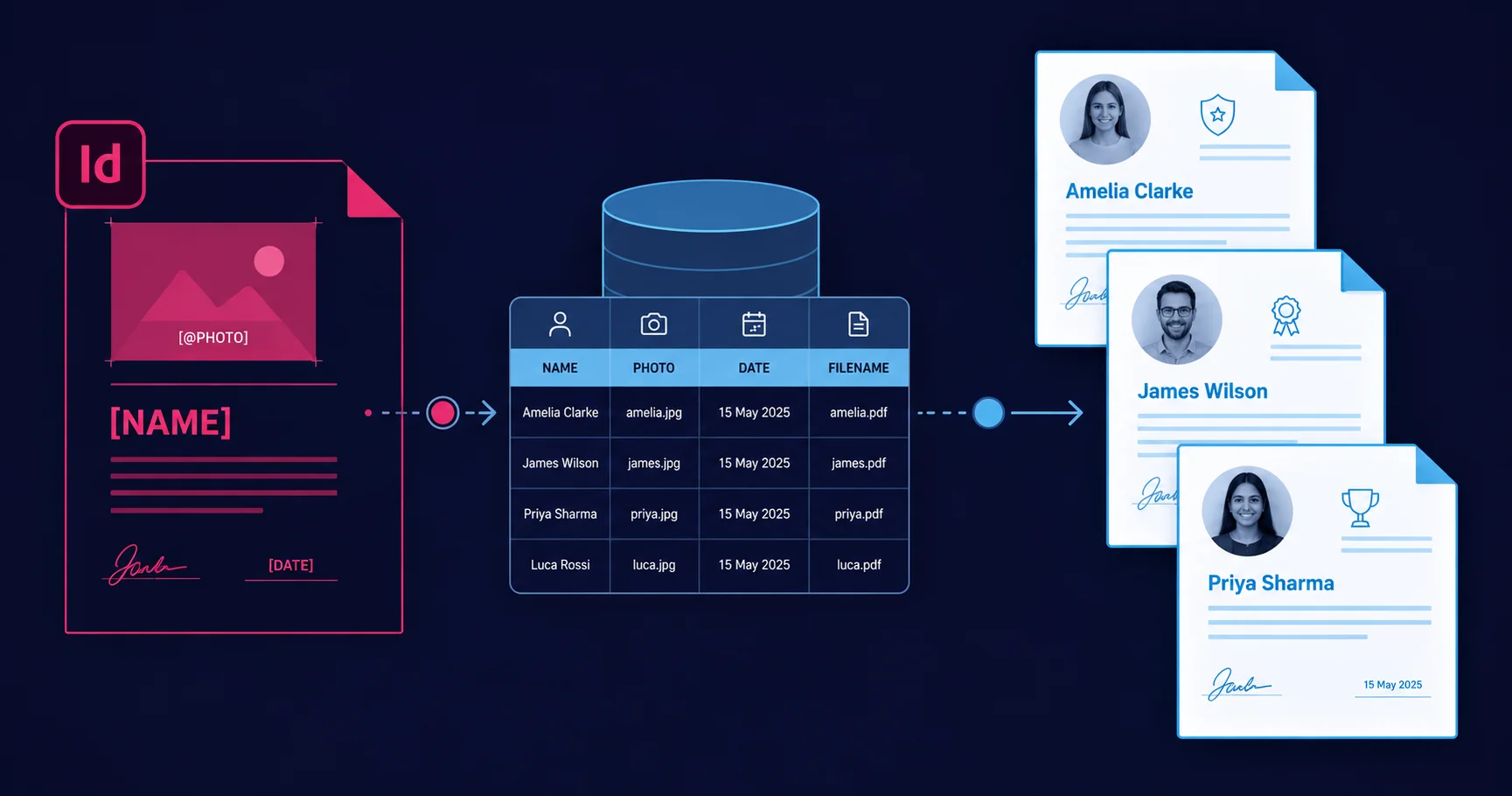
What Data Merge actually is
InDesign Data Merge is a built-in feature that binds placeholders in a template document to columns in a data source, then generates one output document per row of data. The placeholders can be text fields (replaced with the row value at merge time) or image fields (replaced with the file path’s referenced image). Multiple records can be placed per page (for labels, tickets, name badges) or one per page (for letters, certificates, brochures).
It’s the most capable native variable-data tool in Adobe’s Creative Cloud suite. Compared with Illustrator’s Variables panel (one binding per variable, awkward XML data format, limited image handling), InDesign Data Merge is genuinely production-ready for runs of dozens to a few thousand records. For runs at production scale — tens of thousands or more — Data Merge is still the right place to design the template, but the bulk run usually moves to InDesign Server or a dedicated VDP tool.
The data file format
Data Merge accepts CSV or tab-delimited TXT. The first row defines field names; subsequent rows are records. A minimal example for a customer letter:
FirstName,LastName,Address,@Photo,VipFlag
Alice,Smith,"12 High Street, London",photos/alice.jpg,Yes
Bob,Jones,"34 Park Lane, Manchester",photos/bob.jpg,No
Charlie,Patel,"56 Queen Road, Bristol",photos/charlie.jpg,Yes
Three details that matter in production:
- Image fields are prefixed with
@. The column name@Phototells Data Merge that the values are file paths, not text. Without the prefix, Data Merge treats them as literal strings and no image is placed. - Image paths can be relative. If
data.csvlives next to aphotos/folder, image paths likephotos/alice.jpgresolve correctly. This is the right pattern for portable Data Merge projects — the data file plus its image folder constitute a self-contained package. - Encoding matters. UTF-8 with BOM is the safe encoding for any data with non-ASCII characters (accented names, currency symbols, Unicode quotes). Without the BOM, InDesign on some platforms misinterprets the encoding and produces character corruption.
Building the template
Open a new InDesign document, design the layout normally, then open the Data Merge panel (Window → Utilities → Data Merge) and choose Select Data Source. The panel populates with the field names from the CSV. Drag a field onto a text frame to insert a text placeholder; drag an image field onto an image frame to bind it.
Three template authoring rules that prevent the most common production failures:
1. Anchor variable text frames
A name field that auto-grows to fit "Stanislav Konstantinovich Tymoshenko" must not push other layout elements out of position. Use point text frames with explicit sizes, or use the auto-size text frame options carefully. Auto-flowing area text is fine when the frame has enough space for the longest realistic value; it breaks when designers size the frame for the average case and a long value overflows.
2. Plan for missing data
Every variable should have a defined behaviour when the row data is empty. Three options:
- Sensible fallback. A blank value renders blank; check that the surrounding layout copes with the empty space.
- Conditional content. Use Data Merge’s Remove Blank Lines for Empty Fields option to collapse a multi-line address block when the optional fields are empty.
- Visibility-driven layout. Use a dedicated boolean field (
VipFlagin the example above) to drive whether an entire artwork block appears, with a paragraph style that sets the block’s opacity or a script that hides it post-merge.
3. Use named character and paragraph styles consistently
The merged output is most reliable when the template uses well-defined paragraph and character styles for every variable text element. Direct formatting tends to drift between merge runs and produces unpredictable results when the data contains unusual characters or line breaks.
Multiple records per page
Data Merge’s most powerful feature for repeat-content layouts is Multiple Record Layout. Set the option in the Data Merge panel; choose how many rows and columns to fit per page; specify gutter spacing. Data Merge then automatically duplicates the template content across the page grid, filling each cell with the next record. The natural fit for:
- Mailing labels. A4 sheet of 21 labels, 21 records per page, hundreds of pages from a thousand-row CSV.
- Event tickets. Letter-size sheet, four tickets per page, each with a unique attendee name and barcode.
- Name badges. A4 sheet of conference badges, one row per attendee.
- Trading cards / catalogue cards. 9-up product cards from a product database.
Image handling at scale
The image field gotchas that surface when you scale up:
- Image dimensions vary. The placed image scales to fill the frame by default. If image aspect ratios differ between records, use Fit Content Proportionally with consistent frame dimensions and accept some letterboxing.
- Image format. JPEG and PNG are the safe choices. PSD with layers, large TIFFs, and unusual formats can cause merge failures or unexpectedly long processing times.
- Resolution. Provide images at the resolution the output needs — 300 dpi for press, 144 dpi for web. Avoid using 12-megapixel source photos in a name-badge template; the merge succeeds but the resulting PDF is bloated.
- Missing images. If the path doesn’t resolve, Data Merge logs an error and inserts a placeholder. The merge continues. Build the post-merge QA step to catch placeholders before press.
Scripting Data Merge
The Data Merge object is fully scriptable. The pattern: load a data source, configure merge options, trigger the merge, save or export the result. ExtendScript can wrap this in a folder loop for batch runs:
(function () {
  var template = new File('/path/to/template.indd');
  var dataSrc = new File('/path/to/data.csv');
  var output = new Folder('/path/to/output');

  var doc = app.open(template);
  app.scriptPreferences.userInteractionLevel =
    UserInteractionLevels.NEVER_INTERACT;

  var dm = doc.dataMergeProperties;
  dm.selectDataSource(dataSrc);
  dm.dataMergeOptions.recordsPerDocumentPage = RecordsPerPage.ONE_RECORD;
  dm.dataMergeOptions.removeBlankLines = true;

  // Merge to a new document and export to PDF
  var merged = dm.mergeRecords();
  merged.exportFile(ExportFormat.PDF_TYPE,
    new File(output.fsName + '/merged.pdf'),
    false, app.pdfExportPresets.itemByName('[PDF/X-4:2010]'));

  merged.close(SaveOptions.NO);
  doc.close(SaveOptions.NO);
}());
This is the foundation. Production scripts wrap this with manifest-driven configuration (multiple template-data pairs), error handling (per-merge try/catch), and naming conventions (output names derived from the data). The general batch patterns are covered in InDesign batch processing.
When Data Merge isn’t enough — the production handoff
Data Merge handles most variable-data work cleanly up to a few thousand records. Beyond that, three failure modes appear:
- Memory pressure. Loading a 50,000-row CSV into Data Merge can exhaust available memory, particularly with image fields and complex templates. The merge starts, slows progressively, then crashes.
- Single-threaded slowness. InDesign processes records sequentially; a 100,000-record run takes hours of wall-clock time on a single workstation.
- Recovery story. If a merge fails partway through, the partial output is mixed in with the unprocessed inputs. Resuming from record 47,832 needs custom logic that Data Merge doesn’t provide.
For production VDP at scale, the pattern is two-stage:
- Design and proof in InDesign. Use Data Merge to author the template, validate it against representative sample records (long names, missing optional fields, RTL languages, edge-case characters), and confirm visual quality.
- Production run elsewhere. The template feeds either InDesign Server for end-to-end unattended publishing, or a dedicated PDF VDP tool such as Mapsoft Engage — which takes a finished PDF template plus the data source and handles the bulk generation, with proper queue management, error recovery, and parallel processing.
The hand-off cleanly separates concerns: designers iterate on the template without touching production volume; production engineers handle volume without touching design.
Worked example: certificate generation
The classic Data Merge use case: certificates of completion for an online course, with the participant’s name, course title, completion date, and a personalised certificate number. The CSV:
Name,Course,Date,CertNumber,@Signature
Alice Smith,InDesign for Editorial,2026-04-15,IDED-2026-0001,sigs/dean.png
Bob Jones,Photoshop Production,2026-04-15,PSPR-2026-0001,sigs/dean.png
Charlie Patel,Illustrator Mastery,2026-04-15,ILMA-2026-0001,sigs/dean.png
The template is a single-page A4 certificate with the name in 36pt centred, the course in 18pt italic, the date and certificate number in 10pt at the foot, and a signature image at the bottom right. Drag each field from the Data Merge panel onto the corresponding text frame; drag @Signature onto the image frame.
For a hundred certificates, Data Merge handles the run natively in a minute. For ten thousand certificates, the run goes to InDesign Server with the same template, exporting a single PDF per record into a delivery folder ready for email or print mail. Same template, same data file, different scale — that’s the value of the design-once / scale-elsewhere split.
Print vs digital VDP outputs
Most VDP runs need both a print deliverable and a digital one. Print: PDF/X-4 with the press output intent and bleed. Digital: web-optimised PDF or PNG with hyperlinks to a personalised landing page. The print/web parameter differences are covered in detail in Print PDF vs Web PDF; the relevant point here is that the same Data Merge template usually generates both via different export presets in the same script pass.
The honest take
InDesign Data Merge is one of the most underused features in InDesign. The capability is there for almost every editorial team that produces personalised documents — mailing labels, certificates, name badges, conference materials, monthly statements — and most teams do this work manually because they don’t know Data Merge can do it. For runs of dozens to a few thousand, the feature is genuinely production-ready and the time to learn it pays back the first run.
For runs at production scale, the right approach is two-stage: design in Data Merge, scale in InDesign Server or a dedicated VDP tool. Don’t try to make Data Merge do unattended ten-thousand-record runs — it wasn’t built for that. Don’t try to design templates in a production VDP tool — that’s harder than it needs to be. Each tool plays to its strength, and the handoff is just one finished template.
Related Articles
Mapsoft Engage
Mail merge and variable data printing for PDFs at scale. Connect to CSVs and databases; generate hundreds or thousands of personalised PDFs in batch.
InDesign Server for Automated Publishing
The headless InDesign engine for production-scale VDP runs — queue-driven, unattended, designed for volume.
Variable Data Printing Standards
The standards landscape for VDP — PDF/VT, PPML, and how they fit into print production workflows.
Building a Variable Data Pipeline?
Pair InDesign Data Merge for template design with Mapsoft Engage for production-scale PDF VDP, or InDesign Server for end-to-end unattended publishing.
Mapsoft is an Adobe affiliate. We may earn a commission on Adobe purchases made through these links, at no extra cost to you.