
Handling hundreds of PDFs across a large enterprise can feel overwhelming when document details are buried deep within hidden layers. Efficient metadata editing with Adobe Acrobat gives IT managers the control needed to maintain accurate, searchable records. By mastering structured preparation and precise editing techniques, you can reduce errors, save valuable time, and ensure every PDF supports your organization’s compliance and workflow demands. Unlock the advantage of strategic PDF metadata management and take the first steps toward smoother document operations.
Table of Contents
- Step 1: Prepare PDF Files for Metadata Editing
- Step 2: Open Adobe Acrobat and Access Metadata Tools
- Step 3: Edit Document Metadata Fields Efficiently
- Step 4: Save Changes and Validate Metadata Accuracy
- Step 5: Automate Metadata Updates for Bulk PDFs
Quick Summary
| Key Point | Explanation |
|---|---|
| 1. Assess PDF metadata before editing | Review existing metadata and document security settings to prepare for modifications. |
| 2. Use Adobe Acrobat effectively | Familiarize yourself with the navigation and tools to access and edit PDF metadata efficiently. |
| 3. Edit with precision and consistency | Ensure accurate updates to critical fields like Title and Author for effective document management. |
| 4. Validate changes post-editing | Always double-check metadata edits to confirm accuracy and compliance with your organization’s standards. |
| 5. Automate bulk metadata updates | Leverage automated tools and scripts to efficiently manage metadata across multiple PDFs, reducing errors. |
Step 1: Prepare PDF Files for Metadata Editing
Successfully editing PDF metadata requires strategic preparation and understanding of the underlying document structure. Your goal in this initial phase is to ensure your PDF files are ready for precise metadata modifications using Adobe Acrobat.
Before diving into editing, you’ll want to assess your PDF files through a systematic review process. Start by gathering all PDF documents you intend to modify and checking their current metadata status. Document metadata fundamentals provide critical insights into understanding what information is currently embedded in your files.
Key preparation steps include:
- Verify file permissions and edit capabilities
- Review existing metadata fields
- Check document security settings
- Ensure you have appropriate Adobe Acrobat access level
Metadata represents the hidden information layer within your PDF that contains critical descriptive and administrative details about the document.
When preparing your files, pay special attention to understanding the current metadata structure. Most PDFs contain standard metadata fields like title, author, creation date, and keywords. By comprehensively reviewing these elements beforehand, you’ll create a more strategic approach to subsequent editing tasks.
Pro tip: Always create a backup copy of your original PDF files before initiating any metadata modification process to protect against potential data loss.
Step 2: Open Adobe Acrobat and Access Metadata Tools
Navigating Adobe Acrobat’s metadata tools requires understanding the specific interface and navigation pathways to efficiently manage document properties. Your objective in this step is to locate and access the metadata editing capabilities within the application.
To begin, launch Adobe Acrobat and open the PDF file you want to modify. Discovering PDF metadata involves understanding the standard metadata interface, which can be found through multiple access points. Typically, you’ll want to use the Document Properties dialog, which serves as the central hub for metadata management.
Here are the primary methods to access metadata tools:
- Click “File” in the top menu bar
- Select “Properties” from the dropdown menu
- Navigate to the “Description” and “Custom” tabs
- Look for the metadata editing options within these sections
Adobe Acrobat provides multiple pathways to view and edit document metadata, offering flexibility for different user preferences and workflow requirements.
Alternatively, you can use keyboard shortcuts to quickly access document properties. For Windows users, this typically involves pressing Alt + File > Properties, while Mac users can use Command + Option + P. These shortcuts provide rapid access to the metadata editing interface.
Pro tip: Familiarize yourself with the keyboard shortcuts to streamline your metadata editing workflow and save valuable time during document management tasks.
Step 3: Edit Document Metadata Fields Efficiently
Editing metadata fields in Adobe Acrobat requires precision and strategic attention to detail. Your goal is to update document properties accurately while maintaining the integrity of your PDF’s information structure.

Metadata editing practices emphasize careful modification of key fields like author, title, subject, and keywords. Within the Document Properties window, you’ll find multiple tabs where you can systematically update your metadata information.
Key steps for efficient metadata editing include:
- Navigate to the “Description” tab first
- Review current metadata entries carefully
- Update fields with accurate and consistent information
- Use controlled vocabulary for keywords and subjects
- Verify all changes before saving
Professional metadata management requires attention to detail and understanding of how each field contributes to document searchability and organization.
When editing, pay special attention to critical metadata fields. Title, Author, and Subject fields are particularly important for document identification and retrieval. Ensure that the information you enter is precise and standardized across your organization’s documents.
Additionally, consider the custom metadata fields that might be specific to your workflow. These can include project codes, department identifiers, or other organizational tags that help categorize and track documents more effectively.
Here’s a concise summary of standard and custom PDF metadata fields and their impact:
| Metadata Field | Purpose | Typical Impact |
|---|---|---|
| Title | Main document identifier | Improves search results |
| Author | Identifies document creator | Facilitates ownership |
| Subject | Explains document content | Enhances classification |
| Keywords | Enables targeted searching | Boosts discoverability |
| Custom Field | Tracks workflow specifics | Streamlines organization |
Pro tip: Create a metadata template or style guide for your organization to maintain consistency across all document metadata entries.
Step 4: Save Changes and Validate Metadata Accuracy
Saving and validating metadata changes is a critical final step in ensuring your PDF document’s integrity and information accuracy. Your objective is to confirm that all metadata modifications have been correctly implemented and documented.
Discovering PDF metadata requires a systematic approach to verifying the accuracy of your edits. After making changes, take time to carefully review each metadata field to ensure precision and consistency.
Validation steps include:
- Click “Save” or “Apply” in the Document Properties window
- Review all modified metadata fields again
- Check for any unexpected or unintended changes
- Verify field formatting and content accuracy
- Confirm compliance with organizational metadata standards
Metadata validation is not just about saving changes but ensuring the document’s long-term information integrity and searchability.
Additionally, consider using built-in Adobe Acrobat validation tools to cross-check metadata entries. Pay special attention to critical fields like title, author, and keywords, ensuring they precisely represent the document’s content and purpose.
For enterprise workflows, you might want to develop a metadata review checklist that standardizes the validation process across your organization. This approach helps maintain consistency and reduces the likelihood of errors.
Pro tip: Create an automated metadata validation script or use third-party tools to perform comprehensive checks beyond Adobe Acrobat’s built-in features.
Step 5: Automate Metadata Updates for Bulk PDFs
Batch processing metadata across multiple PDF documents can dramatically improve workflow efficiency and ensure consistent document information management. Your goal is to implement automated strategies that streamline metadata updates across large document collections.
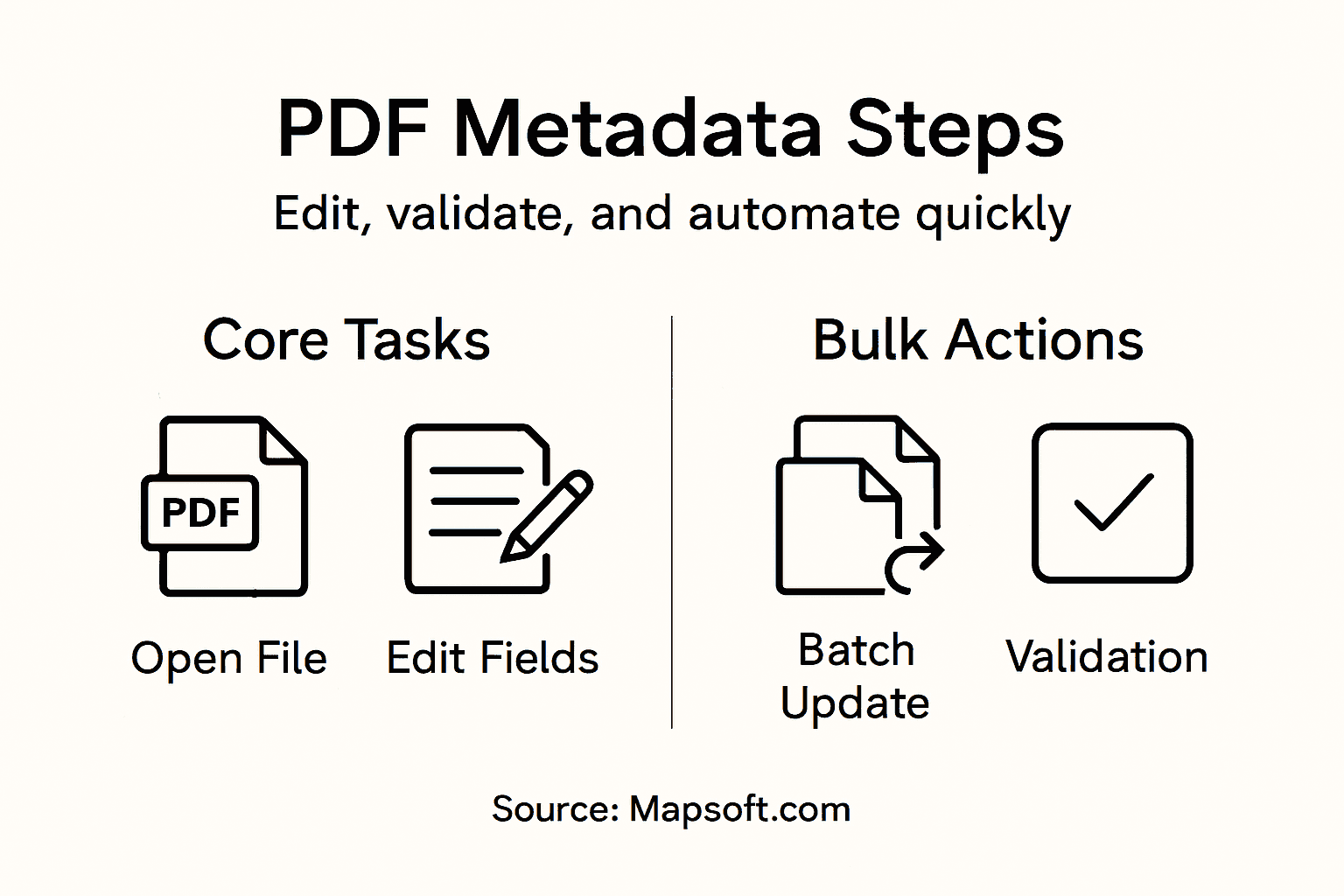
Bulk metadata processing techniques offer powerful solutions for organizations managing extensive PDF libraries. By leveraging automation tools and scripts, you can rapidly modify metadata fields across hundreds or thousands of documents with precision and minimal manual intervention.
Key strategies for bulk metadata automation include:
- Use command-line tools for batch processing
- Develop standardized metadata templates
- Create scripted metadata update workflows
- Implement consistent naming and tagging conventions
- Utilize Adobe Acrobat’s batch processing capabilities
Automation transforms metadata management from a time-consuming manual task into a streamlined, efficient process that reduces human error and increases productivity.
For enterprise environments, consider developing custom metadata update scripts that can integrate with your existing document management systems. These scripts can perform complex operations like search and replace, append, or remove metadata fields across multiple PDFs simultaneously.
Professional automation approaches often combine multiple tools and techniques. This might include using Adobe Acrobat’s built-in batch processing features alongside custom scripts or third-party metadata management utilities.
Below is a comparison of manual versus automated PDF metadata editing approaches:
| Approach | Workflow Speed | Error Reduction | Best Use Case |
|---|---|---|---|
| Manual Editing | Slow | Prone to mistakes | Single document updates |
| Automated Editing | Fast | Consistent accuracy | Bulk document processing |
Pro tip: Create a metadata validation checkpoint in your automation script to ensure data integrity and catch potential errors before final document processing.
Streamline Your PDF Metadata Workflow with Expert Solutions
Managing and editing PDF metadata manually can be time-consuming and error-prone. This article highlights the challenges of efficiently updating critical fields like title, author, and keywords while maintaining document integrity. You want a reliable way to simplify metadata editing and ensure consistency across large volumes of PDFs without risking data loss or workflow delays.
Digital Preservation – is a vital part of managing your PDFs long-term. At Mapsoft.com, we understand these pain points and offer advanced tools and services tailored to boost your Adobe Acrobat workflows. Whether you need to automate bulk metadata updates, enforce style consistency, or validate changes quickly, our solutions help you stay in control and maximize productivity.

Unlock powerful PDF management by exploring our enhanced Acrobat plugins and batch processing capabilities today. Visit Mapsoft.com to discover how our customized software and expert support can transform your PDF metadata editing. Don’t wait to elevate your document workflows with proven digital preservation strategies.
Frequently Asked Questions
How do I access the metadata editing tools in Adobe Acrobat?
To access the metadata editing tools in Adobe Acrobat, open your PDF file and navigate to the top menu bar. Click on “File,” then select “Properties” to access the Document Properties dialog where you can edit the metadata.
What key metadata fields should I consider when editing my PDF files?
When editing your PDF files, focus on key metadata fields such as Title, Author, Subject, and Keywords. These fields are essential for effective document identification and searchability, so ensure the information is accurate and standardized.
How can I validate the accuracy of the metadata changes I made?
To validate the accuracy of your metadata changes, review each modified field in the Document Properties window and check for any unexpected changes. Ensure compliance with your organizational metadata standards before saving the file.
How can I automate the metadata editing process for multiple PDFs at once?
You can automate the metadata editing process for multiple PDFs by using command-line tools or developing scripted workflows. This approach allows for quick batch processing, saving you time and ensuring consistency across large document collections.
What should I do if I find errors in the existing metadata before editing?
If you find errors in the existing metadata, take note of them during your review process and make the necessary corrections during editing. Document these changes for future reference to maintain high metadata quality in your workflow.