
More than 60 percent of american businesses now rely on digital document management, making efficient PDF conversion crucial for daily operations. The challenge is not just about turning files into PDFs but about preserving accuracy, layout, and compliance at every step. With so many variables in play, understanding each stage of the conversion process helps you avoid costly mistakes and ensures your documents always meet professional standards.
Table of Contents
- Step 1: Assess Source Files And Define Conversion Goals
- Step 2: Select Optimal PDF Conversion Tools And Settings
- Step 3: Configure Batch Workflows For Consistency
- Step 4: Execute Conversions And Monitor Performance
- Step 5: Verify Output Quality And Ensure Compliance
Quick Summary
| Key Point | Explanation |
|---|---|
| 1. Assess Your Source Files | Analyze layout, complexity, and content type to define tailored conversion strategies for different document types. |
| 2. Choose the Right Tools | Select PDF conversion tools with flexible settings that meet specific output requirements and optimize for file size and quality. |
| 3. Configure Batch Workflows | Create repeatable batch processing templates to ensure consistent settings and minimize manual errors across multiple conversions. |
| 4. Monitor During Conversion | Implement performance tracking to catch conversion issues early, ensuring quality and adherence to your predefined standards. |
| 5. Verify Output Quality | Conduct thorough reviews of converted documents against originals to ensure accuracy, formatting, and compliance with standards. |
Step 1: Assess Source Files and Define Conversion Goals
Before diving into PDF conversion, you need a strategic approach to understanding your source documents. According to research from arXiv, selecting the right parsing tools depends critically on your specific document categories and conversion objectives.
Start by thoroughly examining your source files. Look for variations in layout, complexity, and content type. The arXiv study evaluated multiple PDF parsing tools and found that different document types require tailored conversion strategies. This means you cannot use a one-size-fits-all approach. Pay attention to details like:
- Total number of source files
- Document complexity
- Required output formats
- Preserving original formatting
- Text and image preservation needs
Documents with intricate layouts or mixed content types will need more sophisticated conversion methods. Consider consulting technical specialists if your files include complex graphics, multilingual text, or specialized formatting that automated tools might struggle to replicate accurately.
Pro Tip: Always create backup copies of original documents before starting any conversion process.
Your next step will involve selecting appropriate conversion tools that match your specific requirements and document characteristics.
Step 2: Select Optimal PDF Conversion Tools and Settings
Now that you have assessed your source files, it is time to choose the right conversion tools and configure their settings strategically. According to Adobe HelpX, PDF conversion requires careful consideration of settings that balance file size and quality for your specific needs.
Start by evaluating conversion tools that offer flexible settings and support your required output formats. The University of Michigan recommends configuring settings that preserve document integrity while optimizing performance. Key considerations include:
- Compression levels for file size management
- Image quality preservation
- Font embedding options
- Compatibility with target platforms
- Metadata retention
Different conversion scenarios demand unique approaches. For instance, archival documents might require higher image resolution, while web documents need smaller file sizes. Most professional tools offer preset configurations, but do not hesitate to customize settings for your specific requirements.

Pro Tip: Always preview converted documents to verify formatting and content accuracy before processing large batches.
Your next step will involve running test conversions to validate your selected tool and settings.
Step 3: Configure Batch Workflows for Consistency
Batch processing transforms PDF conversion from a time consuming manual task into an efficient automated workflow. According to Adobe HelpX, professional PDF tools now offer robust batch processing capabilities that allow you to apply consistent settings across multiple documents simultaneously.
To set up an effective batch workflow, start by creating a template configuration that captures your standard conversion requirements. This means defining consistent parameters like file naming conventions, output destinations, compression levels, and metadata handling. Your goal is to create a repeatable process that minimizes manual intervention and reduces potential human error.
Consider these critical elements when designing your batch workflow:
- Predefined conversion settings
- Automatic file naming rules
- Specific output folder destinations
- Standardized quality and compression preferences
- Error handling and logging mechanisms
Professional batch processing tools enable you to save these configurations as reusable profiles.
This means you can quickly apply the same high quality conversion standards to hundreds or even thousands of documents with just a few clicks.
Pro Tip: Always test your batch workflow on a small sample set before processing large document collections to confirm accurate results.
Your next step will involve monitoring and refining your batch conversion process for optimal performance.
Step 4: Execute Conversions and Monitor Performance
With your batch workflow configured, it is time to execute the PDF conversions and carefully monitor their performance. Adobe HelpX recommends implementing robust monitoring strategies to ensure each conversion meets your predefined quality standards.
Initiate your conversion process by running the configured batch workflow on a representative sample of documents. This approach allows you to validate the settings and catch potential issues before processing large document collections. According to University of Michigan, systematic performance monitoring involves tracking several key metrics:
- Successful conversion rates
- Total processing time
- File size variations
- Formatting preservation accuracy
- Metadata retention
Professional conversion tools typically provide detailed logs and error reports that help you quickly identify and resolve any conversion anomalies. Pay close attention to documents that fail conversion or show unexpected formatting changes. These outliers often indicate the need for fine-tuning your workflow settings or addressing specific document complexities.
Pro Tip: Set up automated notifications for conversion failures to ensure immediate troubleshooting.
Your next step will involve analyzing the conversion results and implementing necessary refinements to optimize your workflow.
Step 5: Verify Output Quality and Ensure Compliance
After executing your PDF conversions, a critical step is thoroughly verifying the output quality and ensuring regulatory compliance. Adobe HelpX emphasizes the importance of comprehensive quality checks that go beyond surface level visual inspections.
Begin by systematically reviewing converted documents against your original source files. According to University of Michigan, compliance verification involves examining multiple critical aspects:
- Text accuracy and readability
- Preservation of original formatting
- Image and graphic fidelity
- Metadata integrity
- Accessibility standards compatibility
- Archival format requirements (PDF/A)
Professional PDF tools often include built-in validation features that can automatically detect potential issues such as font embedding problems, color space incompatibilities, and structural inconsistencies. Use these diagnostic tools to catch subtle conversion errors that might not be immediately visible during manual review. Pay special attention to documents with complex layouts, multiple languages, or embedded multimedia elements.
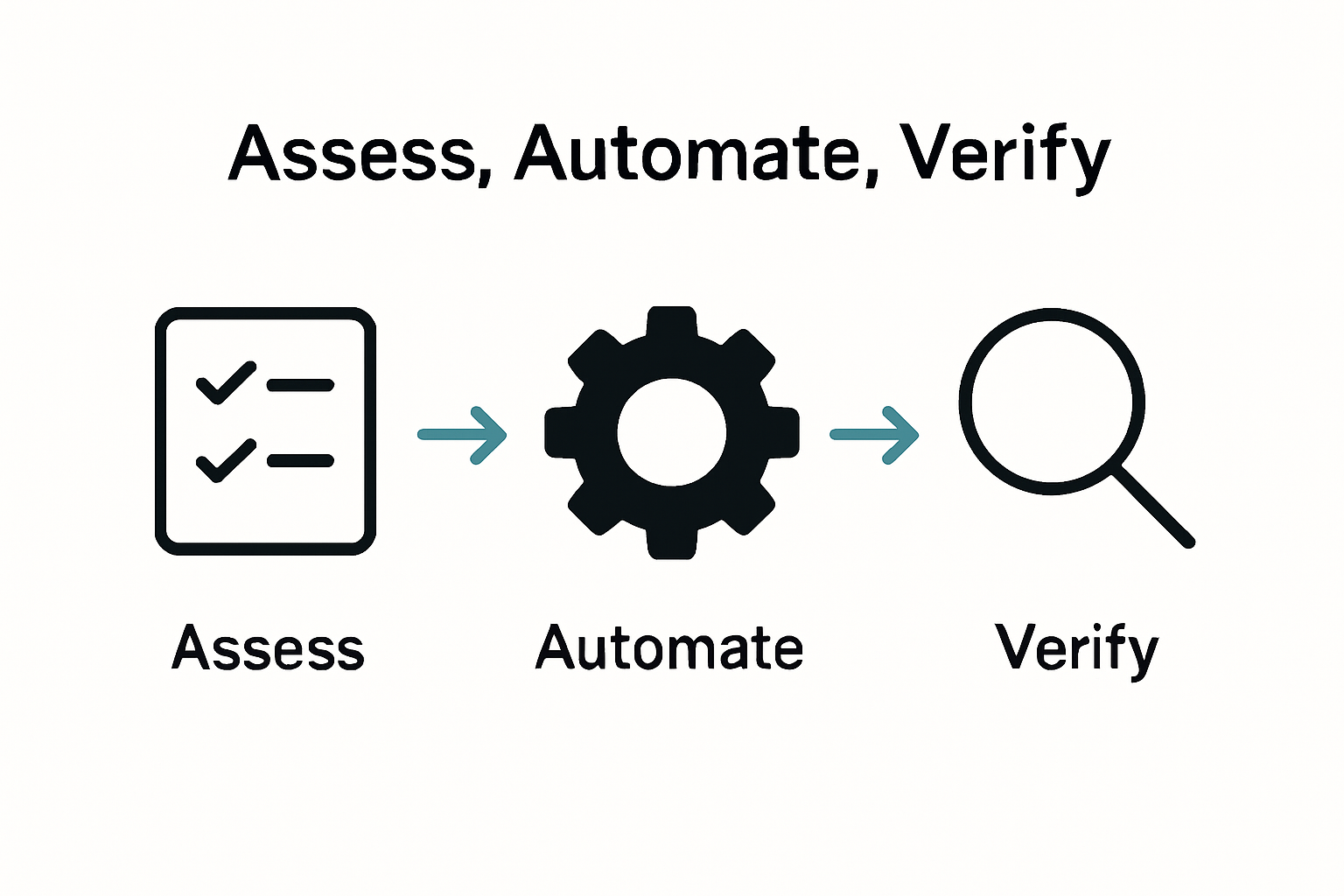
Pro Tip: Create a standardized quality checklist to ensure consistent and thorough validation across all converted documents.
Your next step will involve implementing corrective measures for any identified conversion discrepancies.
Optimize Your PDF Workflows with Expert Solutions
The article highlights the challenge of maintaining consistent quality and efficiency when converting large volumes of PDFs while preserving formatting, metadata, and accessibility. If you face frustrations like complex batch workflows, error tracking, or balancing file size with output quality then you are not alone. Experts recommend a strategic approach covering tool selection, configuration, and verification to avoid costly errors or time-consuming manual fixes.

Take control of your PDF conversions today by exploring advanced solutions at Mapsoft.com. Our specialized platform and plugins help you automate batch workflows, ensure digital preservation standards, and optimize document processing so you can deliver flawless results every time. Dive deeper into best practices on Digital Preservation and access comprehensive tools tailored for demanding PDF workflows. Don’t let manual bottlenecks slow you down visit Mapsoft.com now and transform your document processes with confidence.
Frequently Asked Questions
What should I assess before starting the PDF conversion process?
Before starting the PDF conversion process, you should assess your source files to understand their layout, complexity, and content type. Examine the total number of source files, document complexity, required output formats, and preservation needs to tailor your conversion strategy effectively.
How can I choose the right PDF conversion tools?
To choose the right PDF conversion tools, evaluate tools that offer flexible settings to accommodate your conversion goals. Consider key factors like compression levels, image quality, font embedding options, and compatibility with target platforms before making a selection.
What is the best way to configure a batch workflow for PDF conversion?
The best way to configure a batch workflow is to create a template with predefined settings for consistency across multiple documents. Include parameters such as file naming conventions, output destinations, and quality preferences to facilitate an efficient and error-free conversion process.
How can I monitor the performance of my PDF conversions?
Monitor the performance of your PDF conversions by tracking metrics such as successful conversion rates, processing time, and formatting accuracy. Implement automated notifications for any conversion failures to ensure you can troubleshoot issues immediately.
What key aspects should I verify after completing the PDF conversions?
After completing the PDF conversions, verify aspects like text accuracy, original formatting preservation, and metadata integrity. Create a standardized quality checklist to ensure thorough verification and compliance with accessibility standards and archival requirements.
How often should I test my batch workflow to ensure accuracy?
You should test your batch workflow on a small sample set each time you make adjustments to the settings or before running large document collections. This practice helps confirm accurate results and can reduce errors by ensuring the workflow is functioning as intended.