
Illustrator Batch Processing: Folder Loops, Naming, and Multi-Format Export
Batch processing is where Illustrator automation pays back the most: the same operation applied across a folder of files, unattended, with logging. Here’s the production-grade pattern — folder loops, naming conventions, error handling, and the multi-format export that turns one source into every deliverable in one pass.
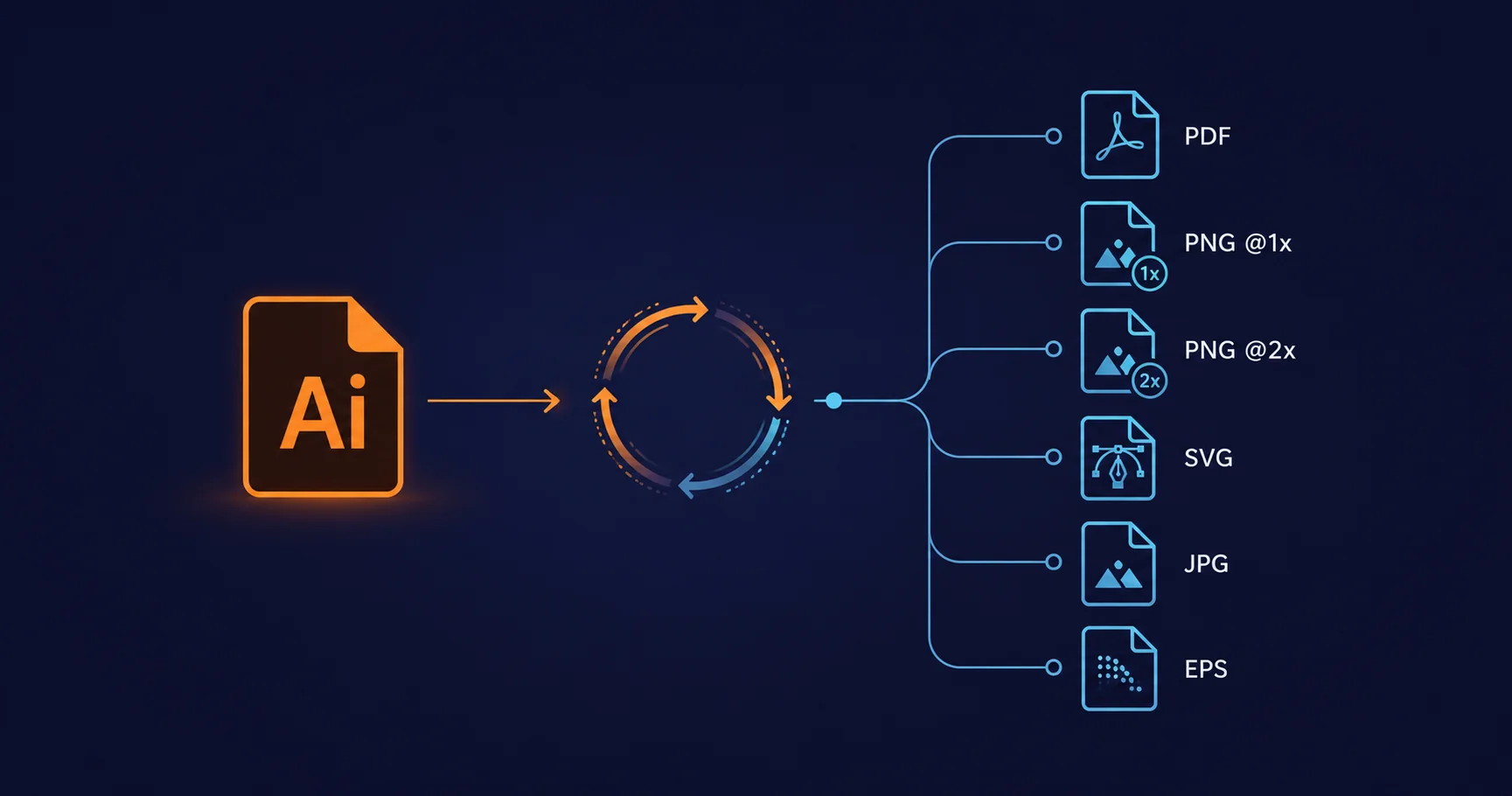
The three batch options
Illustrator gives you three ways to apply the same operation to many files. Pick the simplest one that does the job:
1. Actions panel + File → Automate → Batch
The Actions panel records a sequence of menu and tool operations; File → Automate → Batch applies that recorded action to every file in a chosen folder. It’s the right answer for genuinely simple cases:
- One action, applied uniformly to every input
- No conditional logic ("if the file has a certain layer, do X")
- No external data (CSV inputs, lookup tables, naming patterns derived from filenames)
- Output to a single folder with a simple destination naming rule
The setup is fast: record the action once, point Batch at a source folder and a destination folder, click Run. Limitations show up quickly — the action runs literally regardless of file content, and any error halts the batch with a modal dialog.
2. ExtendScript folder loop
The production answer for almost everything else. File → Scripts → Other Script… runs a .jsx file that opens each file in a folder, does the work, and saves or exports the result. The shape:
(function () {
  var srcFolder = Folder.selectDialog('Choose source folder');
  if (!srcFolder) return;
  var dstFolder = Folder.selectDialog('Choose destination folder');
  if (!dstFolder) return;

  app.userInteractionLevel = UserInteractionLevel.DONTDISPLAYALERTS;

  var files = srcFolder.getFiles('*.ai');
  var ok = 0, errs = [];

  for (var i = 0; i < files.length; i++) {
    try {
      var doc = app.open(files[i]);
      // ... do work on doc ...
      var outPath = dstFolder.fsName + '/' + doc.name.replace(/\.ai$/i, '.pdf');
      doc.saveAs(new File(outPath), pdfPressOptions());
      doc.close(SaveOptions.DONOTSAVECHANGES);
      ok++;
    } catch (e) {
      errs.push(files[i].name + ': ' + e.message);
    }
  }

  writeLog(dstFolder, ok, errs);
}());
That skeleton is the basis of most production Illustrator batch scripts. Everything else is filling in the work that goes inside the loop — and for plug-in starting points covering common operations, our free Illustrator script collection ships 100 ready-made ExtendScript tools.
3. CEP panel or C++ plugin
The third option is a custom panel or plugin. CEP panels are appropriate when batch jobs need configuration (which preset to use, which folder to crawl, which manifest to load) frequently enough that a persistent UI is worth the engineering. C++ plugins are appropriate when the per-file work is performance-bound and ExtendScript is too slow. Both are covered in Illustrator extension technologies.
Naming conventions that survive a re-run
The single most important production decision in any Illustrator batch is the output naming convention. Three rules that save more support hours than anything else in this article:
- Output is reproducible from input. The output filename should be derivable from the input filename and the export type alone, with no random or time-based components.
logo-acme.ai → logo-acme-press.pdf, logo-acme-web.pdf, logo-acme-144.pngis good.logo-acme.ai → output-2026-05-07-1842.pdfis bad — you can’t tell what generated it, and re-running the batch produces different filenames. - Re-running the batch is idempotent. If the script has already produced
logo-acme-press.pdffrom a source, re-running should overwrite the same file, not producelogo-acme-press-2.pdf. The naming convention plus an unconditional overwrite gets you idempotence; uniqueness suffixes break it. - Output goes to a sibling folder, not the source folder. Always export to a separate destination directory. Mixing input and output in the same folder makes the next batch run pick up its own outputs as inputs, with predictably bad results.
The naming pattern that works well in production: <source-name-without-ext>-<variant>.<ext>. Variant is one of press, web, 144, 2x — a short, stable token that identifies the output flavour.
Multi-format export from a single source
Most production batches need to produce more than one output per input. The classic case: a designer hands over a folder of .ai source files, and the deliverable is each one as press-quality PDF, web-optimised PDF, 1x and 2x PNG, and SVG. Doing that in five separate Action runs is fragile (any divergence in source state between runs produces inconsistent outputs); doing it in one ExtendScript pass is reliable.
The pattern wraps each file in a single app.open/work/close cycle, with multiple export calls inside:
function processFile(file, dst) {
  var doc = app.open(file);
  var base = doc.name.replace(/\.ai$/i, '');

  // Press-quality PDF (PDF/X-4)
  doc.saveAs(new File(dst.fsName + '/' + base + '-press.pdf'),
    pdfOptions({ preset: 'PDF/X-4:2010', preserveEditability: false }));

  // Web-optimised PDF (Smallest File Size preset)
  doc.saveAs(new File(dst.fsName + '/' + base + '-web.pdf'),
    pdfOptions({ preset: 'Smallest File Size' }));

  // 1x PNG at 72 dpi
  doc.exportFile(new File(dst.fsName + '/' + base + '.png'),
    ExportType.PNG24, pngOptions(72));

  // 2x PNG for retina
  doc.exportFile(new File(dst.fsName + '/' + base + '@2x.png'),
    ExportType.PNG24, pngOptions(144));

  // SVG (responsive web-friendly)
  doc.exportFile(new File(dst.fsName + '/' + base + '.svg'),
    ExportType.SVG, svgOptions());

  doc.close(SaveOptions.DONOTSAVECHANGES);
}
One open per file. Five outputs per file. The source document state is consistent across all five exports because they share the same in-memory document. The export options helpers (pdfOptions, pngOptions, etc.) wrap the verbose Illustrator option objects into one-liners; we cover the parameter differences between print and web exports in Print PDF vs Web PDF.
Error handling that doesn’t halt the batch
The single biggest source of pain in production Illustrator batches is unhandled errors. A 200-file batch that aborts on file 73 because of a corrupt source leaves you with 73 outputs and 127 unprocessed inputs — and no clear log of which files succeeded.
The reliable pattern is per-file try/catch, with errors written to a log:
app.userInteractionLevel = UserInteractionLevel.DONTDISPLAYALERTS;

var ok = 0, errs = [];
for (var i = 0; i < files.length; i++) {
  try {
    processFile(files[i], dstFolder);
    ok++;
  } catch (e) {
    errs.push(files[i].name + ': ' + (e.message || e));
    // Make sure no document is left open
    while (app.documents.length > 0) {
      app.documents[0].close(SaveOptions.DONOTSAVECHANGES);
    }
  }
}

var logFile = new File(dstFolder.fsName + '/batch-log.txt');
logFile.open('w');
logFile.writeln('Batch run: ' + new Date().toString());
logFile.writeln('Processed OK: ' + ok);
logFile.writeln('Errors: ' + errs.length);
for (var j = 0; j < errs.length; j++) logFile.writeln(' - ' + errs[j]);
logFile.close();
Two non-obvious details. First, the DONTDISPLAYALERTS setting suppresses Illustrator’s warning dialogs (missing fonts, embedded raster colour profiles, etc.) so the batch doesn’t halt waiting for human acknowledgement. Second, the catch clause closes any document that was left open when the error fired — otherwise a script that fails partway through processing accumulates open documents, eventually exhausting memory.
Source-data-driven batches
Many production batches are driven by a CSV or JSON manifest rather than by simply iterating a folder. The shape: each row of the input data describes one job — which template to open, which substitutions to make, what to name the output. The script reads the manifest and processes one row per loop iteration:
var manifest = readCsv(new File(srcFolder.fsName + '/jobs.csv'));
for (var i = 0; i < manifest.length; i++) {
  var job = manifest[i];
  var doc = app.open(new File(templatesFolder.fsName + '/' + job.template));
  applySubstitutions(doc, job);
  doc.saveAs(new File(dstFolder.fsName + '/' + job.outputName + '.pdf'),
    pdfOptions({ preset: 'PDF/X-4:2010' }));
  doc.close(SaveOptions.DONOTSAVECHANGES);
}
This is the pattern that powers most variable-data print runs at small scale — covered in detail in Illustrator variable data workflows. For larger runs (thousands of personalised PDFs), the production tool is usually Mapsoft Engage rather than a hand-rolled script.
Running batches unattended
Most production batches run when a human is around to start them. A few need to run overnight or on a schedule. Three things to know:
- Illustrator must be running. ExtendScript executes in the host application; there’s no headless Illustrator. Schedule the OS task to launch Illustrator with a startup script (
-run path/to/batch.jsx) and let it close itself when done. - No modal dialogs. Set
app.userInteractionLevel = UserInteractionLevel.DONTDISPLAYALERTSat the top of the script. Avoidalert()entirely — it halts execution waiting for an OK click that won’t come at 3 a.m. - Use the log file. Unattended runs need a log because there’s no human watching the progress bar. The log is the production artefact: which files were processed, how long it took, what errors occurred.
The honest take
Production Illustrator batch processing is, at the level of code, mostly the same five-file skeleton repeated with variations: open, work, save, close, log. The interesting work is everything around it — the naming conventions, the error logging, the manifest format, the integration with the rest of the pipeline. The script is the easy part; the operational discipline around it is the rest.
If you have a batch you’re running by hand more than once a week, or one that produces inconsistent output because different files get processed in different states, the script is worth writing. If you’re running batches large enough to be unattended, the operational discipline is worth doing properly.
Related Articles
Illustrator Automation: When Scripting Beats Clicking
The threshold of "do it once" vs "script it", the four levers, and the practical decision framework for picking the right tool.
Illustrator Variable Data Workflows
From the Variables panel to Engage — the production VDP pipeline for thousands of personalised PDFs from a single template.
Illustrator Map Production Workflows
Cartographic series — producing twenty regional variations of the same map template, driven from a manifest with scripted layer visibility, colour assignment, and PDF/X-4 export.
Need a Production Batch Workflow?
Mapsoft builds Illustrator batch tools for production pipelines — multi-format export, manifest-driven runs, scheduled overnight processing, and integration with downstream PDF tooling.
Mapsoft is an Adobe affiliate. We may earn a commission on Adobe purchases made through these links, at no extra cost to you.