
Illustrator Variable Data Workflows: From Variables Panel to Engage
One template, a data source, and personalised output for every row. Illustrator handles the design side cleanly with the Variables panel; the question is what happens when "every row" is ten thousand. Here’s the practical pipeline from template authoring to production-scale VDP, with the handoff conventions that make the run repeatable.
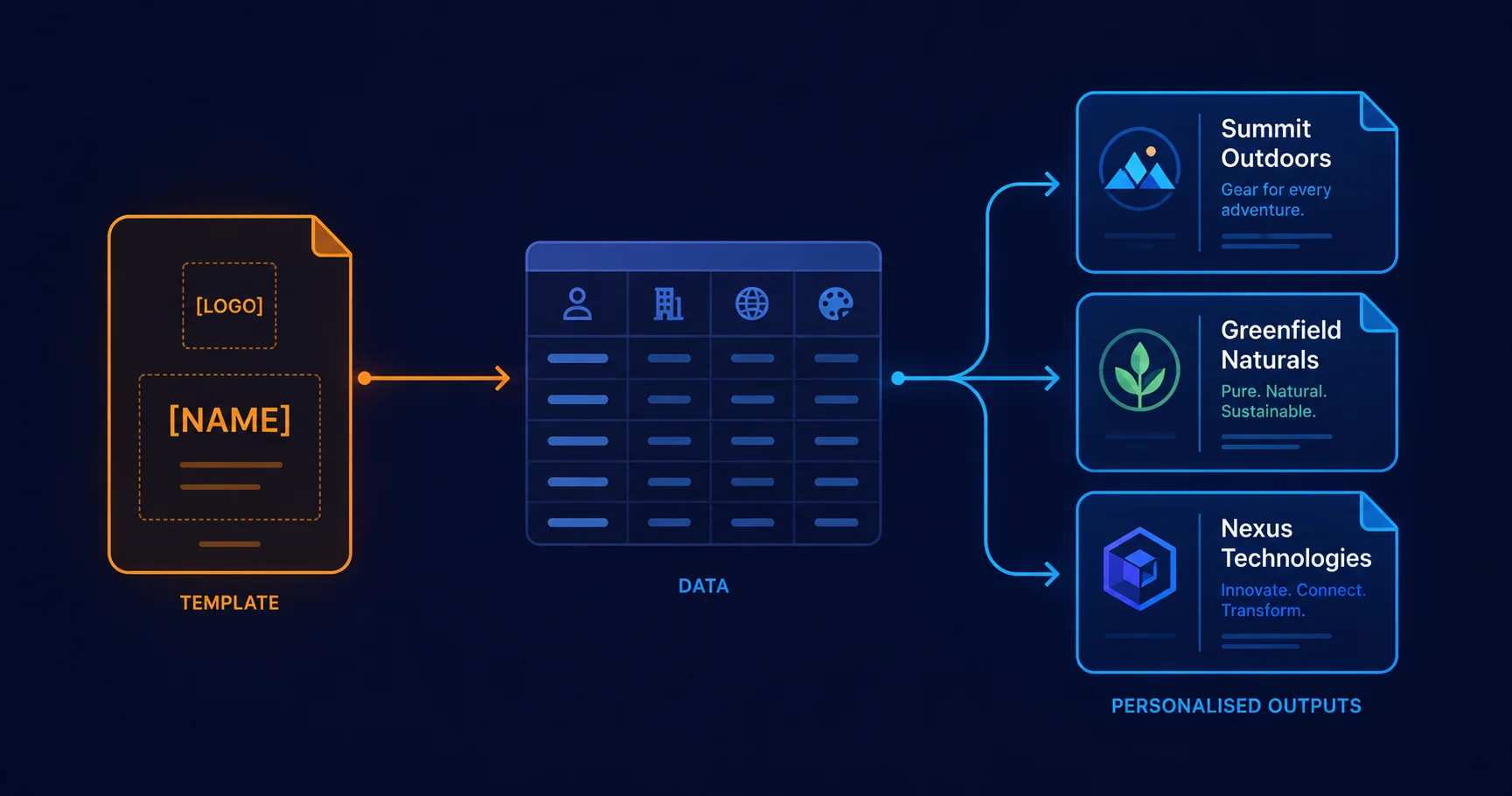
What variable data printing actually is
Variable Data Printing (VDP) is the production of personalised documents from a single template plus a data source. Every row in the data source produces one personalised output: a name swapped in, an image substituted, a barcode regenerated, a regional variant selected. The mechanics are unglamorous — it’s a glorified mail merge — but the production discipline around it is what separates a working campaign from one that ships a thousand letters addressed to "Dear FIRSTNAME".
Illustrator’s role in VDP is the design side: authoring the template, defining what varies and what doesn’t, and proofing a handful of representative variants before the bulk run. The bulk run itself usually happens elsewhere — a dedicated VDP tool, a digital press front-end, or (for PDFs) a tool like Mapsoft Engage.
Illustrator’s native Variables panel
The native VDP support sits in Window → Variables. The panel lists the variables defined in the document and lets you bind document objects to them. There are four variable types:
- Text String — replaces a text frame’s contents. Used for names, addresses, custom messages, conditional copy.
- Linked File — replaces a placed image. Used for personalised photos, regional logos, language-specific imagery.
- Visibility — toggles a layer or object on or off. Used for conditional artwork ("show this offer only for VIP customers").
- Graph Data — populates a graph object with row-specific values. Useful but rare in commercial VDP.
The Data Sets feature loads a CSV or XML file and provides a row-stepper UI: each click of "Next" applies the next row’s values to the bound variables. For design-time proofing — checking that the template handles long names, missing images, and all language variants — this is the right tool. For production, it’s the manual version of what an automated pipeline does in batch.
Data file structure
Illustrator expects a specific XML format for variable data import. The Data Sets feature can import CSV files, but converts them internally into the same XML structure. The structure binds named variables (matching what’s in the Variables panel) to row values:
<svg xmlns="http://www.w3.org/2000/svg" xmlns:i="...">
  <variableSets>
    <variableSet varSetName="default">
      <variables>
        <variable varName="firstName" trait="textcontent" category="..."/>
        <variable varName="customerLogo" trait="fileref" category="..."/>
        <variable varName="vipBlock" trait="visibility" category="..."/>
      </variables>
      <v:sampleDataSets xmlns:v="...">
        <v:sampleDataSet dataSetName="row1">
          <firstName><p>Alice</p></firstName>
          <customerLogo><v:fileRef href="acme.png"/></customerLogo>
          <vipBlock><v:visibility>visible</v:visibility></vipBlock>
        </v:sampleDataSet>
      </v:sampleDataSets>
    </variableSet>
  </variableSets>
</svg>
Production pipelines usually generate this XML programmatically from a database or CSV; the format is documented in Adobe’s SDK and stable across recent Illustrator versions.
ExtendScript for small runs
For runs of a few hundred records, an ExtendScript wraps the Variables panel logic in a folder loop. The pattern: open the template, iterate over rows in a CSV manifest, programmatically apply each row’s values to the document’s variables, export to PDF, repeat:
(function () {
  var template = new File('/path/to/template.ai');
  var manifestFile = new File('/path/to/manifest.csv');
  var outFolder = new Folder('/path/to/output');

  var rows = readCsv(manifestFile); // [{ firstName: 'Alice', customerLogo: 'acme.png', ... }, ...]
  app.userInteractionLevel = UserInteractionLevel.DONTDISPLAYALERTS;

  for (var i = 0; i < rows.length; i++) {
    var doc = app.open(template);
    applyVariables(doc, rows[i]);
    var outPath = outFolder.fsName + '/' + rows[i].outputName + '.pdf';
    doc.saveAs(new File(outPath), pdfPrintOptions());
    doc.close(SaveOptions.DONOTSAVECHANGES);
  }
}());

function applyVariables(doc, row) {
  for (var i = 0; i < doc.variables.length; i++) {
    var v = doc.variables[i];
    if (row[v.name] !== undefined) {
      v.contents = row[v.name];
    }
  }
}
Two production caveats. First, opening the template fresh on every iteration is intentional — it guarantees no state leakage between rows. Reusing one open document and just changing the variables seems faster but is fragile in practice. Second, the script needs to handle the variable types correctly: text variables take strings, linked-file variables take file paths, visibility variables take booleans. The skeleton above only handles text; production scripts dispatch by v.kind.
The general pattern is the same one we use for any folder-driven Illustrator batch — covered in detail in Illustrator batch processing, with ready-made starting scripts in our free 100-script collection.
Where the pipeline scales: Engage
Illustrator’s native VDP and the ExtendScript variant of it work cleanly for runs of a few hundred. They start creaking at a thousand and break in obvious ways at ten thousand:
- Loading the entire data set into Illustrator memory becomes slow and unstable.
- The script’s open/work/close cycle is single-threaded; ten thousand iterations means a script run measured in hours, not minutes.
- If the run fails midway, the recovery story is messy — Illustrator may not have closed cleanly, the partial outputs are mixed in with the unprocessed inputs, and resuming from row 4,732 needs custom logic.
The production answer is to use Illustrator for what it’s good at — designing the template, proofing a handful of representative rows, exporting one canonical PDF as the input to the production tool — and use a dedicated VDP engine for the bulk run. Mapsoft Engage is that engine for PDF VDP. The handoff:
- Design the template in Illustrator. Use the Variables panel to define what varies. Use Data Sets to proof half a dozen representative rows visually — long names, short names, missing optional fields, RTL languages, all the edge cases.
- Export one canonical PDF. The exported PDF carries the form fields (or named text frames) Engage will populate. The fields’ names match the column names in the production data source.
- Run Engage against the data source and the canonical PDF. Engage handles the bulk generation, naming, output organisation, and the recovery story for partial runs.
That handoff also unlocks a meaningful operational benefit: the Illustrator template can be updated independently of the data source. Designers iterate on the visual without touching the production data; data engineers swap data sources without touching the design.
Template authoring rules
The most expensive failures in production VDP almost never come from the engine; they come from templates that didn’t handle real-world input gracefully. Five rules that prevent the worst of them:
- Anchor variable text frames. A name field that auto-grows to fit "Stanislav Konstantinovich Tymoshenko" must not push other layout elements out of position. Use anchored point text with manual line breaks, not auto-flowing area text.
- Plan for missing data. Every variable should have a defined behaviour when the row data is empty — either a sensible fallback, or a visibility variable that hides the surrounding artwork entirely.
- Use named layers and named groups. Visibility variables target named objects. Anonymous artwork is invisible to the data binding pass.
- Lock everything that doesn’t vary. A locked layer can’t accidentally be modified by a script with a wider selection than intended. The locked-by-default discipline saves recoveries from corrupted templates.
- Test with edge-case data first. A real production data file always contains the longest name, the empty optional field, the RTL string, the special character that breaks the font, the duplicate ID. Build the test data set to include those before the first design review, not after.
Print vs digital VDP outputs
Most production VDP runs need both a print output and a digital one. They’re not the same file:
- Print VDP — PDF/X-4 (or X-1a, depending on the printer’s spec), CMYK colour space, full bleed and crop marks, fonts fully embedded, large file sizes acceptable. The output goes to a digital press or a prepress workflow.
- Digital VDP — sRGB, web-optimised PDF or PNG, smaller file sizes (the recipient is downloading or viewing in a browser), interactive elements (hyperlinks to a personalised landing page) preserved.
The two outputs are usually generated from the same source artwork with different export presets — the multi-format batch pattern. We cover the parameter differences in detail in Print PDF vs Web PDF.
The honest take
Variable data work in Illustrator is a clean separation-of-concerns problem. The design half is genuinely best in Illustrator — the Variables panel is well-designed, Data Sets give you a row-stepper for proofing, and the Illustrator type system handles the personalisation cases that matter. The production half — loading ten thousand rows, generating ten thousand outputs, handling partial failures — is best done by a tool built for that job. The mistake is trying to do all of it in Illustrator and discovering at row 3,000 that the workflow doesn’t scale.
The right pipeline is two-stage: Illustrator for the template, Engage (or an equivalent dedicated VDP engine) for the run. Each tool plays to its strength, the handoff is a single canonical PDF, and the recovery story for the production half exists. For projects that go beyond what scripting can deliver — custom file formats, performance-critical bulk processing, or persistent panels for VDP operators — see Combining Illustrator extension technologies.
Related Articles
Illustrator Automation: When Scripting Beats Clicking
The threshold of "do it once" vs "script it", the four levers, and the practical decision framework for picking the right automation tool.
Illustrator Batch Processing
The folder-loop and manifest-driven batch patterns that scale variable-data scripts cleanly — naming conventions, error handling, and multi-format export.
Illustrator Map Production Workflows
Cartographic series — producing twenty regional variations of the same map template, driven from a manifest with scripted layer visibility, colour assignment, and PDF/X-4 export.
Building a Variable Data Pipeline?
Mapsoft Engage handles production-scale PDF VDP runs — from hundreds to tens of thousands of personalised outputs. Pair it with Illustrator for template design and you have the full pipeline.
Mapsoft is an Adobe affiliate. We may earn a commission on Adobe purchases made through these links, at no extra cost to you.