
{
“@type”: “Article”,
“image”: {
“url”: “https://csuxjmfbwmkxiegfpljm.supabase.co/storage/v1/object/public/blog-images/organization-3822/1768624411093_image_1768624410858.png”,
“@type”: “ImageObject”,
“caption”: “Business analyst working on PDF workflow”
},
“author”: {
“url”: “https://mapsoft.com”,
“name”: “Mapsoft”,
“@type”: “Organization”
},
“@context”: “https://schema.org”,
“headline”: “How to Optimise PDF Adobe Workflows for Maximum Efficiency”,
“publisher”: {
“url”: “https://mapsoft.com”,
“name”: “Mapsoft”,
“@type”: “Organization”
},
“inLanguage”: “en-US”,
“articleBody”: “Learn to optimise pdf adobe processes with step-by-step actions, from setup to verifying optimized documents. Achieve streamlined workflows and enhanced efficiency.”,
“description”: “Learn to optimise pdf adobe processes with step-by-step actions, from setup to verifying optimized documents. Achieve streamlined workflows and enhanced efficiency.”,
“datePublished”: “2026-01-17T04:34:09.640Z”
}
Managing PDF workflows across large organizations can quickly become unwieldy when documents lack structure, accessibility, and reliable optimization practices. For IT managers and document workflow specialists, ensuring that every file meets professional standards and compliance requirements demands more than basic tools. By focusing on strategic Adobe PDF optimization, you unlock smoother automation processes, better governance, and scalable solutions that align with regulatory expectations like Section 508 and ISO standards—delivering reliable performance across enterprise environments.
Table of Contents
- Step 1: Prepare Adobe Tools and Assess PDF Requirements
- Step 2: Configure PDF Optimisation Settings in Adobe Acrobat
- Step 3: Apply Advanced Optimisation Techniques for Large Files
- Step 4: Verify PDF Quality and Test Optimized Output
- Step 5: Automate PDF Optimisation Across Enterprise Workflows
Quick Summary
| Key Insight | Explanation |
|---|---|
| 1. Assess PDF Specifications | Review technical requirements like structure and accessibility before optimizing PDFs. |
| 2. Configure Optimization Settings | Adjust settings in Adobe Acrobat to enhance document performance and security. |
| 3. Apply Advanced Techniques | Use intelligent compression and font subsetting to manage large PDF file sizes. |
| 4. Verify PDF Quality | Conduct thorough checks for compliance and quality post-optimization for best results. |
| 5. Automate Optimization Workflows | Implement automation to streamline PDF processing, improving efficiency and consistency. |
Step 1: Prepare Adobe Tools and Assess PDF Requirements
Successfully optimizing PDF workflows begins with strategic tool preparation and comprehensive document requirement assessment. This initial phase sets the foundation for streamlined document processing and ensures your Adobe environment is perfectly configured for maximum efficiency.
Start by thoroughly examining your PDF documents through the lens of comprehensive PDF specifications. Understanding the technical requirements involves analyzing document structure, metadata, accessibility features, and potential transformation needs. Adobe Acrobat provides robust tools for this assessment, allowing you to inspect page layouts, embedded fonts, security settings, and interactive elements. Focus on identifying potential optimization bottlenecks like inconsistent formatting, complex graphics, or embedded multimedia that could impact workflow performance.
Evaluate your specific organizational requirements by conducting a detailed audit of existing PDF documents. Assess factors such as file size, compression needs, color management, and compliance standards like Section 508 accessibility guidelines. Accessibility standards verification becomes crucial for ensuring your documents meet regulatory requirements while maintaining professional quality. Pay special attention to document tagging, alternative text for images, and proper reading order to support assistive technologies.
Pro Tip: Always create a baseline document template with predefined settings to accelerate future PDF workflow optimization efforts.
Here’s how common PDF optimization issues and their solutions compare:
| Optimization Issue | Impact on Workflow | Recommended Solution |
|---|---|---|
| Large file size | Slow upload and sharing | Apply intelligent compression |
| Inconsistent formatting | Poor user experience | Use document templates |
| Missing accessibility | Fails compliance checks | Implement structured tagging |
| Embedded multimedia | Increased resource usage | Remove unnecessary elements |
Step 2: Configure PDF Optimisation Settings in Adobe Acrobat
Configuring PDF optimization settings in Adobe Acrobat is a critical process that determines your document workflow efficiency and performance. This step transforms raw PDF files into streamlined digital assets that meet your organization’s specific requirements and technical standards.
Begin by accessing Acrobat’s optimization tools and carefully configuring key settings based on recommended security configurations. Focus on balancing functionality with security by adjusting JavaScript execution permissions, cloud document features, and user interaction settings. Pay close attention to document properties like compression levels, image quality, font embedding, and transparency settings. These configurations directly impact file size, rendering speed, and overall document integrity.

Proceed with accessibility configuration by implementing comprehensive accessibility standards within Acrobat. This involves setting proper document language, creating structured tags, ensuring proper reading order, and adding alternative text for images. Systematically review each PDF to confirm that optimization settings align with both technical performance requirements and organizational compliance needs.
Pro Tip: Create and save multiple optimization presets for different document types to accelerate future workflow processing.
Step 3: Apply Advanced Optimisation Techniques for Large Files
Navigating the complex landscape of large PDF file optimization requires strategic techniques that balance file size, quality, and performance. This crucial step transforms unwieldy documents into streamlined digital assets that maintain their professional integrity while reducing resource consumption.
Implement advanced optimization strategies by utilizing PDF optimization methodologies that focus on intelligent compression and structural refinement. Key techniques include font subsetting, which removes unnecessary font data while preserving essential character sets, and advanced image compression that significantly reduces file size without compromising visual clarity. Target specific elements like embedded graphics, unnecessary metadata, and redundant content that inflate document sizes. Leverage Adobe Acrobat’s built in tools to analyze file composition and systematically eliminate unnecessary data layers.
Further enhance your optimization process by applying structural accessibility techniques that simultaneously improve document performance and compliance. This involves implementing precise artifact tagging, optimizing optical character recognition (OCR) settings, and carefully managing document metadata. Pay special attention to creating logical reading structures, embedding appropriate alternative text for images, and ensuring that your optimization process maintains the document’s semantic integrity and accessibility standards.
Pro Tip: Always create a backup of original files before applying aggressive optimization techniques to preserve document authenticity.
Step 4: Verify PDF Quality and Test Optimized Output
The final stage of PDF workflow optimization involves rigorous quality verification and comprehensive testing to ensure your documents meet professional standards and functional requirements. This critical step validates the effectiveness of your previous optimization efforts and confirms the integrity of your digital assets.
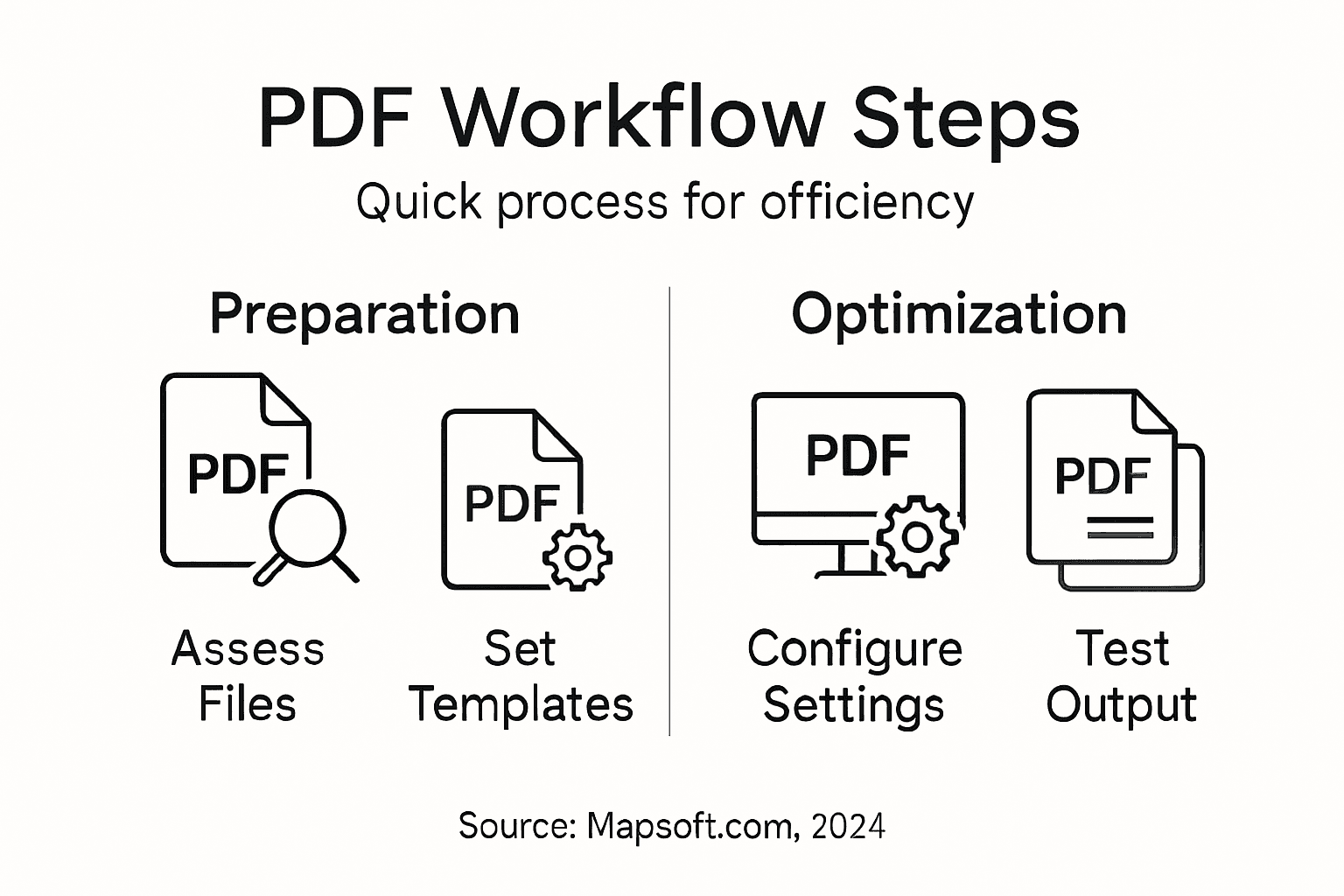
Utilize Adobe Acrobat’s built in tools to conduct a thorough examination of your optimized PDFs. Start by running comprehensive accessibility checks that validate document structure, tagging accuracy, and compliance with universal accessibility standards. Systematically review each document for potential rendering issues, font embedding problems, image quality degradation, and interactive element functionality. Test the PDF across multiple devices and platforms to guarantee consistent performance and visual fidelity.
Delve deeper into technical verification by employing specialized PDF validation tools that detect potential compatibility and integrity issues. These diagnostic instruments can uncover hidden problems like improper metadata, embedded object inconsistencies, and potential security vulnerabilities that might compromise document usability. Pay special attention to comparing the optimized file against the original to confirm that critical content and formatting remain intact throughout the optimization process.
Pro Tip: Create a standardized testing checklist to ensure consistent and comprehensive PDF quality verification across all document types.
Step 5: Automate PDF Optimisation Across Enterprise Workflows
Transforming PDF optimization from a manual process to an automated enterprise solution requires strategic planning and robust technological integration. This critical stage enables organizations to scale document processing capabilities while maintaining consistent quality and compliance across massive document volumes.
Leverage enterprise PDF automation strategies that utilize software development kits and programmatic interfaces for seamless workflow integration. Implement batch processing capabilities that automatically apply predefined optimization rules to incoming documents, including font embedding, compression settings, security parameters, and accessibility standards. Configure automated pipelines that can dynamically assess document characteristics and apply appropriate transformation techniques without manual intervention.
Align your automation framework with comprehensive accessibility and standards compliance to ensure that automated workflows consistently generate high quality PDFs. Develop standardized optimization templates that can be deployed across different departments, creating a unified approach to document management. Integrate monitoring and logging mechanisms that track optimization performance, detect potential issues, and provide detailed analytics about your enterprise document processing ecosystem.
Pro Tip: Design modular automation scripts that can be easily modified and scaled to accommodate evolving organizational document requirements.
Here are key benefits of automating PDF optimization in enterprise workflows:
| Automation Benefit | Business Impact | Example Implementation |
|---|---|---|
| Increased processing speed | Quicker document turnaround | Batch processing pipelines |
| Enhanced standardization | Consistent document quality | Use shared optimization rules |
| Better compliance tracking | Improved audit readiness | Automated quality checks |
| Reduced manual effort | Lower operational costs | Programmable scripts |
Maximize Your PDF Workflow Efficiency with Expert Solutions
If you are facing challenges optimizing Adobe PDF workflows for maximum efficiency the right tools and automation strategies are vital Your goal to streamline complex document processes manage large files efficiently and ensure compliance with accessibility standards requires specialized solutions beyond basic Adobe Acrobat functionality
Digital Preservation – offers an ideal starting point to elevate your PDF handling using expert techniques and technologies tailored to sustain document quality and accessibility while reducing file size and processing times

Partner with Mapsoft.com to unlock advanced PDF workflow capabilities including batch processing compression editing and automated optimization routines designed specifically for enterprise-scale demands Visit https://mapsoft.com today to explore how our dedicated plug-ins, API platforms, and custom Adobe Acrobat enhancements can empower your organization to overcome PDF inefficiencies now. Start transforming your PDF workflows for measurable productivity gains and compliance assurance.
Frequently Asked Questions
How can I assess my PDF requirements before optimization?
Start by conducting a thorough audit of your existing PDF documents. Evaluate factors like file size, formatting consistency, and compliance with accessibility standards to identify potential optimization bottlenecks.
What key settings should I configure in Adobe Acrobat for PDF optimization?
Focus on document properties such as compression levels, image quality, font embedding, and security settings. Adjust these settings based on your organization’s specific document requirements to enhance efficiency and reduce file size.
What advanced techniques can I use to optimize large PDF files?
Utilize intelligent compression methods, such as font subsetting and advanced image optimization, to significantly reduce file sizes. Analyze document components to remove unnecessary metadata and optimize graphics while maintaining quality.
How do I verify the quality of my optimized PDF files?
Use Adobe Acrobat’s built-in tools to conduct comprehensive checks for accessibility, document structure, and font embedding. Test the optimized PDF on multiple devices to ensure consistent performance and visual integrity.
What are the benefits of automating PDF optimization in enterprise workflows?
Automation increases processing speed and ensures consistent document quality across large volumes. By implementing batch processing and standardized templates, you can reduce operational costs and improve compliance tracking.