
Manual document processing can slow down even the most efficient global teams. For IT managers in large corporations, transforming physical paperwork into clear, accessible digital files is more than just convenience—it protects information and drives productivity. Using secure online PDF scanning tools and following proven digitization best practices, enterprises can achieve reliable document automation, enhance workflow speed, and significantly reduce costs, all while keeping business data safe and compliant.
Table of Contents
- Step 1: Prepare Documents For Online Scanning
- Step 2: Access A Trusted Online PDF Scanning Tool
- Step 3: Upload PDF Files Securely
- Step 4: Initiate The Free Scanning Process
- Step 5: Verify And Download Scanned PDF Results
Quick Summary
| Key Point | Explanation |
|---|---|
| 1. Prepare Documents Carefully | Assess and handle documents to avoid damage, ensuring they are clean and free of debris for optimal scanning results. |
| 2. Choose a Reliable Scanning Tool | Select an online PDF scanning tool that ensures security, speed, and compatibility while offering advanced features like OCR for efficiency. |
| 3. Securely Upload PDF Files | Implement security measures during upload, including encrypted connections and malware scanning to protect sensitive documents. |
| 4. Verify Scanned Document Quality | Conduct thorough checks on scanned PDFs for clarity, text searchability, and accessibility to ensure they meet your needs. |
| 5. Backup Original Documents | Always download and save a backup of original documents alongside scanned versions to maintain complete digital records. |
Step 1: Prepare documents for online scanning
Preparing documents for online scanning requires careful attention to detail and understanding key digitization principles. The goal is to transform physical documents into clear, usable digital files that maintain their original information and integrity.
Before scanning, gather all documents and assess their condition. Scanning best practices recommend carefully handling materials to prevent damage and ensure high-quality digital reproduction. Key preparation steps include:
- Flatten any creased or folded documents
- Remove staples, paperclips, or other fasteners
- Ensure documents are clean and free of debris
- Sort documents by type and scanning requirements
When selecting documents for scanning, consider file format and size constraints. Most online platforms accept standard formats like .jpg, .jpeg, and .pdf, typically with file size limits around 2-4 MB. For multi-page documents, combine related pages into single files to streamline the process.
Tip: Always scan signed documents with a pen to guarantee clear signature visibility and legal authenticity.
Recommended scanning settings include:
- 300 dpi resolution for text documents
- Color mode for documents with graphics or color information
- Grayscale for text-only documents to reduce file size
Pro tip: If file sizes exceed platform limits, use image compression tools or rescan at lower resolution to maintain document readability.
Step 2: Access a trusted online PDF scanning tool
Navigating the digital landscape requires finding reliable online PDF scanning solutions that transform your physical documents into versatile digital files. Document scanning technologies have evolved dramatically, offering professionals multiple options for quick and efficient file conversion.
When selecting an online PDF scanning tool, consider these critical factors:
- Compatibility with multiple file formats
- Secure cloud storage options
- User-friendly interface
- Processing speed and reliability
- Support for different document types
Professional tools offer more than basic scanning – they provide comprehensive document management solutions.
Key features to evaluate include optical character recognition (OCR), file compression capabilities, and integration with existing workflow platforms. Some advanced online scanning tools provide additional functionalities like automatic file organization, metadata extraction, and direct export to cloud storage services.
Security considerations are paramount when choosing an online scanning platform:
- Verify encryption protocols
- Check data privacy policies
- Ensure GDPR and CCPA compliance
- Review user access controls
Pro tip: Always test the online PDF scanning tool with a small, non-sensitive document before uploading critical business materials to validate its performance and security.
Step 3: Upload PDF files securely
Securing your PDF files during online upload requires strategic planning and understanding of critical cybersecurity protocols. Secure file upload practices have become increasingly important in protecting sensitive business documents from potential digital threats.
Before initiating your PDF upload, implement these essential security measures:
- Verify file size limits
- Check supported file formats
- Ensure encrypted connection (HTTPS)
- Validate file content before upload
- Use trusted platforms with robust security features
Protecting your digital documents starts with understanding potential vulnerabilities in file transfer processes.
Important security checkpoints for PDF uploads include:
- Scanning files for malware before transfer
- Removing potentially sensitive metadata
- Using two-factor authentication
- Selecting platforms with end-to-end encryption
- Limiting file access permissions
When selecting an upload platform, prioritize services that offer comprehensive document protection mechanisms. Advanced platforms provide additional layers of security such as automatic file sanitization, temporary storage with automatic deletion, and granular access controls.

Consider how these advanced document protection features enhance your information security:
| Feature | How It Works | Business Advantage |
|---|---|---|
| End-to-End Encryption | Secures files during transfer | Prevents interception or leaks |
| File Sanitization | Removes threats automatically | Stops malware before upload |
| Access Controls | Assigns user permissions | Limits document exposure |
| Automatic Deletion | Removes files after use | Minimizes data retention risks |
Pro tip: Create a dedicated, sanitized digital workspace for sensitive document uploads, separating these files from your primary work environment to minimize potential security risks.
Step 4: Initiate the free scanning process
Launching your digital document transformation begins with understanding the fundamental steps of online scanning. Scanning and uploading techniques require careful preparation and strategic execution to ensure optimal results.
To start the free scanning process, you’ll need the right equipment and approach:
- Select scanning device: Smartphone or dedicated scanner
- Ensure stable internet connection
- Position documents for clear capture
- Check lighting conditions
- Verify device camera or scanner resolution
Professional scanning is about precision, not just capturing an image.
Key scanning considerations include:
- Maintaining document orientation
- Capturing full document edges
- Adjusting resolution for file size and clarity
- Using preview features to verify quality
- Saving in compatible file formats
Modern scanning platforms offer multiple methods for document digitization, including smartphone apps, web-based tools, and desktop software. Advanced scanning technologies can automatically detect document edges, correct perspective, and enhance image clarity.
Here’s a quick comparison of document scanning devices to help you choose the best one for your needs:
| Device Type | Image Quality Level | Ease of Use | Best For |
|---|---|---|---|
| Dedicated Scanner | High | Simple, reliable | Large document batches |
| Smartphone App | Moderate to High | Convenient, portable | Scanning on-the-go |
| All-in-One Printer | Moderate | Multi-function device | Occasional home use |
| Web-Based Tool | Varies by camera | Accessible via browser | Quick, small jobs |
Pro tip: Create a consistent scanning setup with neutral backgrounds and consistent lighting to produce professional-quality digital documents every time.
Step 5: Verify and download scanned PDF results
The final stage of your digital document workflow involves meticulously reviewing and securing your scanned PDF files. Scanned document verification ensures that your digital files are accurate, accessible, and ready for immediate use.
When verifying scanned PDF results, focus on these critical aspects:
- Check overall document clarity
- Verify text searchability
- Confirm full page visibility
- Ensure proper orientation
- Test accessibility features
Quality control transforms good scans into exceptional digital documents.
Key verification techniques include:
- Using Optical Character Recognition (OCR) tools
- Previewing entire document
- Checking text layer accuracy
- Validating metadata information
- Comparing original and scanned documents
Modern PDF platforms offer advanced verification capabilities that automatically detect potential scanning issues, such as skewed pages, unclear text, or incomplete document captures. These intelligent systems can help you quickly identify and resolve potential problems before final download.
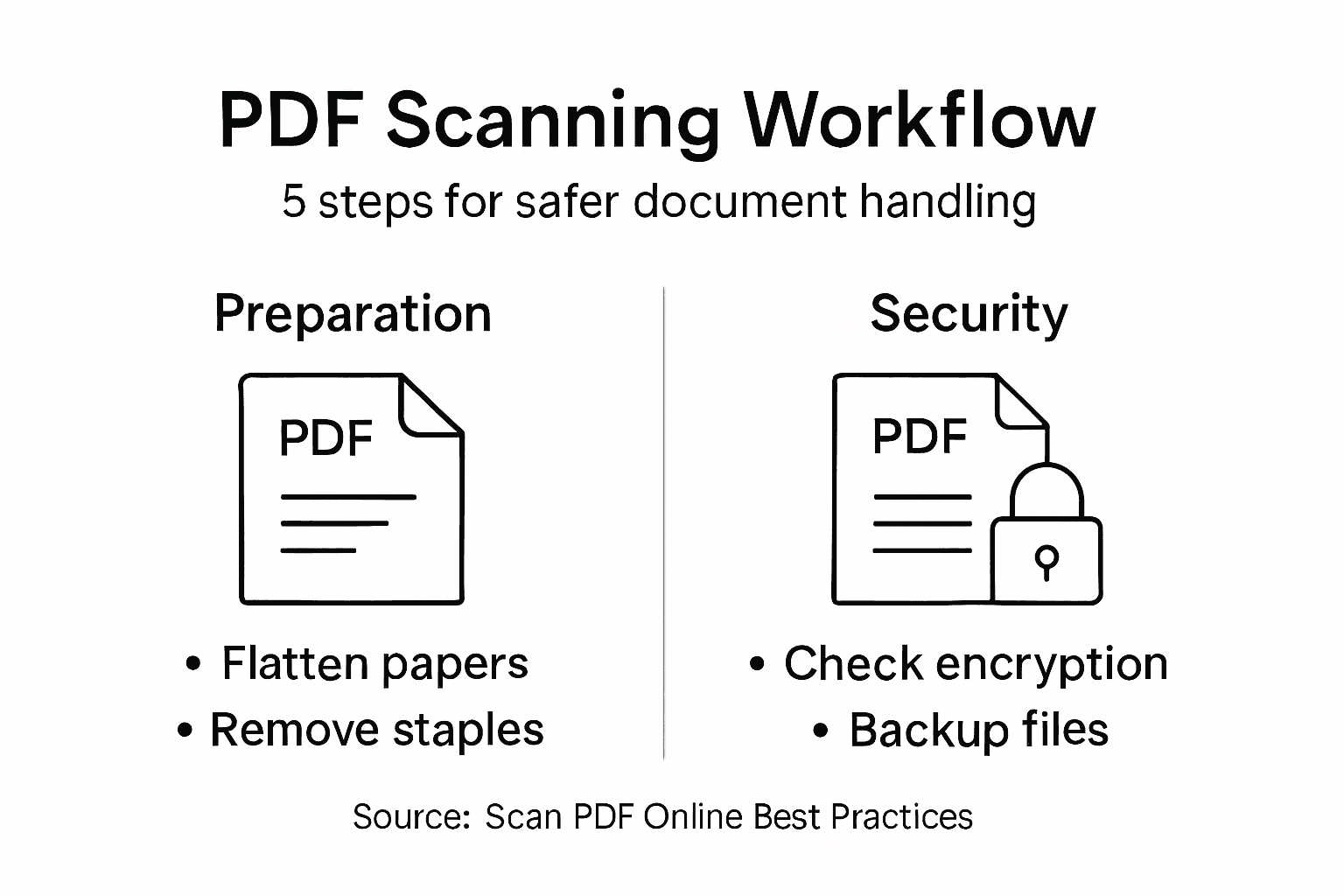
Pro tip: Always download and save a backup copy of your original document alongside the scanned version to maintain a complete digital record.
Streamline Your Document Workflow with Advanced PDF Solutions
Scanning PDFs online free for an efficient workflow can present challenges such as file size limits, security risks during uploads, and the need for high-quality, searchable documents. This article highlights the importance of secure uploads, OCR capabilities, and reliable scanning tools to maintain document clarity and accessibility. If you want to overcome these pain points and elevate your PDF processing, specialized tools and expert software integration are crucial.

Discover how Mapsoft.com provides powerful Adobe Acrobat® platform enhancements and PDF management solutions tailored to your business needs. With our Digital Preservation services and the versatile Mapsoft PDF Hub, you can securely convert, edit, optimize, and automate your PDF workflows with confidence. Visit Mapsoft.com now to harness comprehensive PDF handling tools designed to protect your documents and maximize efficiency at every step.
Frequently Asked Questions
How can I prepare my documents for online PDF scanning?
To prepare your documents for online PDF scanning, flatten crease or folded papers, remove any fasteners, and ensure they are clean and free of debris. Organize your documents by type and ensure they conform to acceptable file formats like .jpg or .pdf.
What scanning settings should I use for optimal PDF quality?
For optimal PDF quality, set your scanner resolution to 300 dpi for text documents and use color mode for documents with graphics. Adjusting these settings enhances readability while keeping file sizes manageable, typically around 2-4 MB.
How do I ensure the online PDF scanning tool I choose is secure?
To ensure the online PDF scanning tool is secure, check for encryption protocols and verify GDPR and CCPA compliance. Look for platforms with user access controls and test them with non-sensitive documents to assess their reliability before uploading critical files.
What steps should I follow to verify my scanned PDF results?
To verify your scanned PDF results, check for overall clarity, confirm that text is searchable, and ensure pages are correctly oriented. Use Optical Character Recognition tools to enhance accuracy and review the scanned document against the original to catch any discrepancies.
What should I do if my scanned PDF file exceeds upload limits?
If your scanned PDF file exceeds upload limits, consider compressing the file or rescanning at a lower resolution while maintaining clarity. Use image compression tools to reduce the file size without sacrificing quality, allowing for smoother uploads.