
Organizing complex documents into dynamic presentations often becomes a challenge for IT managers handling large enterprise workflows. Selecting the right tools to convert PDFs to PowerPoint is crucial for maintaining document clarity and team collaboration. With Adobe Acrobat, you gain a reliable method to preserve formatting integrity throughout the conversion process, saving time and minimizing manual corrections. This guide offers step-by-step strategies for preparing, converting, and reviewing your files to achieve seamless transformation.
Table of Contents
- Step 1: Prepare PDF Files for Acrobat Conversion
- Step 2: Launch Adobe Acrobat and Open the PDF
- Step 3: Select Export Options for PowerPoint Format
- Step 4: Execute PDF to PowerPoint Conversion
- Step 5: Verify and Review the Converted PowerPoint
Quick Summary
| Important Insight | Explanation |
|---|---|
| 1. Prepare PDF for conversion | Ensure your PDF is high-quality and clear for a smooth transformation to PowerPoint. Remove any complex elements that may complicate the process. |
| 2. Use Adobe Acrobat properly | Launch the most updated version of Adobe Acrobat; verify you have selected the correct PDF that you want to convert. |
| 3. Configure export settings | Adjust specific settings for the export process, including ensuring the correct format and layout retention for an optimal PowerPoint result. |
| 4. Review the converted file | After conversion, meticulously check the PowerPoint for any formatting errors, image placements, or font inconsistencies to ensure presentation quality. |
| 5. Address common issues | Be prepared to manually correct alignment and reinsert images to address any minor discrepancies observed in the converted PowerPoint. |
Step 1: Prepare PDF Files for Acrobat Conversion
Before converting your PDF to PowerPoint, you need to ensure your document is clean, clear, and ready for seamless transformation. Proper preparation helps minimize formatting errors and ensures a smoother conversion process.
Start by reviewing your PDF thoroughly. Check that the document is high-quality and readable, with no obscured text or complex layouts that might complicate conversion. Create accurate PDFs from original source files whenever possible to maintain formatting integrity.
Here are key steps to prepare your PDF for conversion:
- Verify the document is not password-protected
- Remove any unnecessary security restrictions
- Ensure text is selectable and clear
- Check for consistent formatting across pages
- Eliminate complex graphical elements that might not transfer well
Specifically, focus on documents created from Word, Excel, PowerPoint, or image files. These source formats typically provide the most reliable conversion results. Complex scanned documents or image-based PDFs might require additional preprocessing.
Here’s a quick comparison of PDF types and their ease of conversion to PowerPoint:
| PDF Type | Conversion Reliability | Common Challenges |
|---|---|---|
| Text-based (Word, Excel) | High | Minor formatting shifts |
| Image-based | Low | Loss of text selectability |
| Scanned Documents | Medium | OCR errors, layout distortion |
| Graphics-heavy | Low | Graphics may not transfer |
A clean, well-structured PDF is the foundation of a successful PowerPoint conversion.
Pro tip: Always work with the highest quality original document available to minimize conversion complications.
Step 2: Launch Adobe Acrobat and Open the PDF
To begin converting your PDF to PowerPoint, you’ll need to successfully launch Adobe Acrobat and load your target document. This crucial first step sets the foundation for a smooth conversion process.
Opening PDFs in Acrobat is straightforward and can be accomplished through multiple methods. Most users have three primary ways to access their PDF files:
- Use the Home > Recent view to quickly access recently opened documents
- Select Open from the main menu to browse and select your PDF
- Double-click the PDF file directly in your computer’s file system
When launching Acrobat, ensure you’re using a fully updated version of the software to guarantee optimal conversion performance. The application should automatically detect and load your PDF, displaying the document in its default reading view.
Selecting the correct PDF is the first critical step in your conversion journey.
Pay special attention to ensure you’ve selected the exact PDF you want to convert. Complex documents with multiple pages or intricate formatting may require additional preparation before conversion begins.
Pro tip: Always verify your PDF is unlocked and fully readable before attempting any conversion process.
Step 3: Select Export Options for PowerPoint Format
Now that your PDF is open, you’ll configure the specific export settings to transform your document into a PowerPoint presentation. Converting PDF to PowerPoint requires careful attention to detail to preserve your original document’s layout and content.
Locate the Convert option in the toolbar, which will open a range of export configuration choices. You’ll want to focus on several key settings that impact your final PowerPoint file:
- Select Microsoft PowerPoint PPTX as your target format
- Choose layout retention options
- Configure image and text recognition settings
- Preview conversion settings before final export
Pay special attention to complex document formatting that might not transfer perfectly. Scanned documents or PDFs with intricate graphics may require additional preprocessing to ensure accurate conversion.
Precise export settings can mean the difference between a seamless conversion and a formatting nightmare.
For documents with multiple pages or mixed content types, take time to review each conversion option carefully. Some PDFs might need manual adjustments to maintain their original visual structure in PowerPoint.
Pro tip: Always create a backup of your original PDF before attempting conversion to prevent potential data loss.
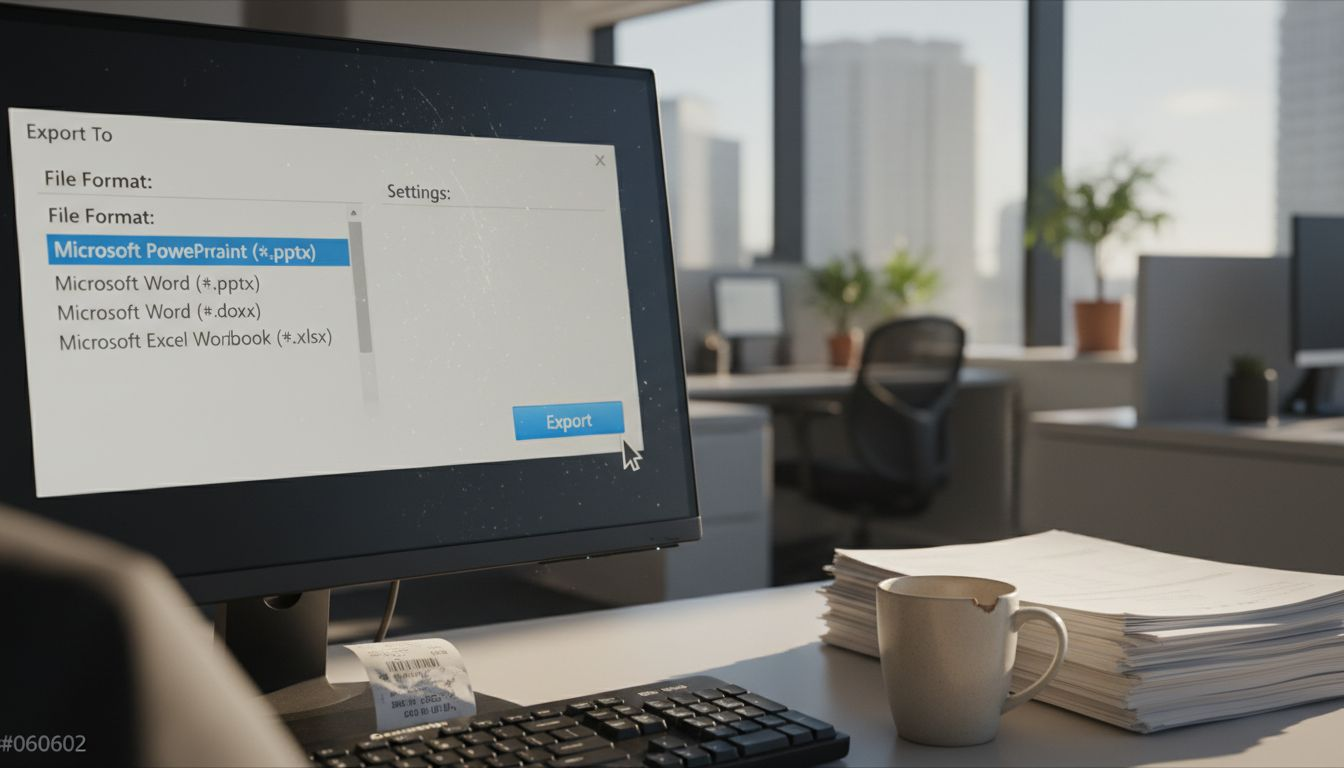
Step 4: Execute PDF to PowerPoint Conversion
With your export settings configured, you’re now ready to transform your PDF into a PowerPoint presentation. Converting PDF files requires precision to maintain your document’s original formatting and content integrity.
Complete the conversion process by following these critical steps:
- Click the Convert button in the toolbar
- Select your desired save location
- Choose Microsoft PowerPoint PPTX as the file type
- Review the automatic OCR processing for scanned documents
- Click Export or Convert to finalize the process
During conversion, pay close attention to file preview windows that might appear. These previews can help you identify potential formatting issues before finalizing the export. Acrobat will automatically attempt to preserve your original layout, text, and image positioning.
Successful conversion depends on careful attention to detail and understanding your source document’s complexity.
Complex documents with multiple page layouts, embedded graphics, or intricate formatting might require multiple conversion attempts to achieve the desired PowerPoint result. Some manual adjustments might be necessary to perfect the final presentation.
Pro tip: Perform a test conversion with a sample page to validate the overall formatting before converting the entire document.
Step 5: Verify and Review the Converted PowerPoint
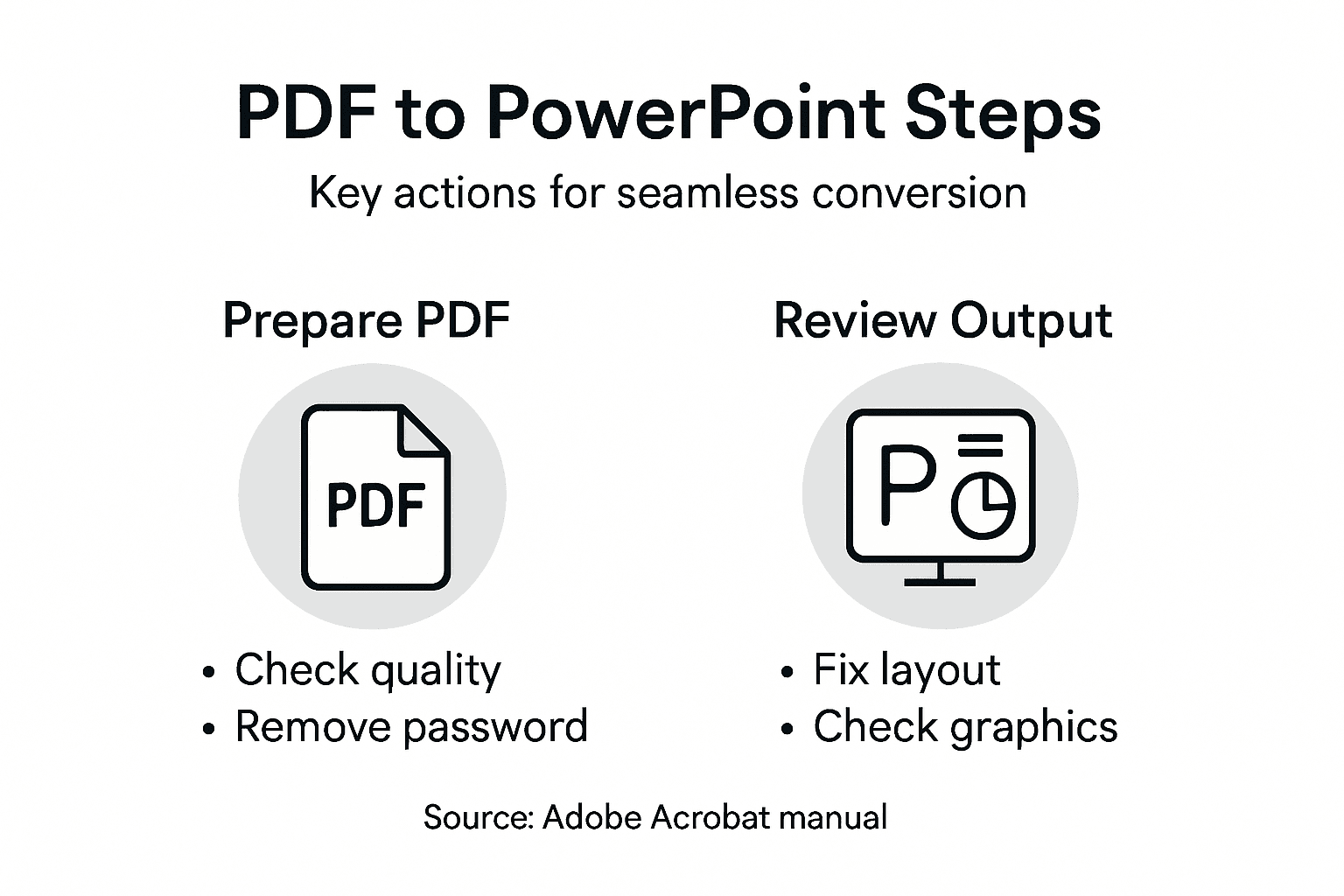
After completing the conversion process, your next critical step is thoroughly examining the new PowerPoint file to ensure all content transferred accurately. Reviewing converted documents requires a systematic and detailed approach to maintain presentation quality.
Open the converted PowerPoint and perform a comprehensive review focusing on these key areas:
- Check text formatting and readability
- Verify graphics and image placement
- Confirm slide layout and structure
- Inspect font consistency
- Validate hyperlinks and embedded elements
Pay special attention to complex visual elements that might have shifted during conversion. Scanned documents or PDFs with intricate designs often require manual adjustments to preserve their original appearance.
Small formatting discrepancies can significantly impact your presentation’s professional appearance.
If you encounter minor inconsistencies, use PowerPoint’s built-in editing tools to realign text boxes, resize graphics, or adjust slide layouts. Some manual refinement is typically necessary to achieve a polished final presentation.
Review the most common post-conversion PowerPoint issues and how to address them:
| Issue Detected | Likely Cause | Suggested Solution |
|---|---|---|
| Text misalignment | Complex page layouts | Adjust text boxes manually |
| Missing images | Embedded graphics in PDF | Reinsert images in PowerPoint |
| Font inconsistency | Unavailable fonts in export | Replace fonts in PowerPoint |
| Broken hyperlinks | Lost link encoding | Relink manually on each slide |
Pro tip: Compare the original PDF side by side with the new PowerPoint to quickly identify and correct any conversion-related formatting issues.
Simplify Your PDF to PowerPoint Conversion with Expert Solutions
Converting PDFs to PowerPoint can be challenging when dealing with complex layouts, scanned documents, or formatting inconsistencies. This article highlights how important it is to prepare your PDF properly, select the right export options, and carefully review the converted file to avoid common pain points like text misalignment and missing images. If you want to eliminate these frustrations and streamline your workflow, explore tailored tools designed to enhance your Adobe Acrobat experience.

Discover how Mapsoft’s cutting-edge plugins and web-based platforms can optimize your document conversions, improve accuracy, and save valuable time. Whether you need to convert, edit, secure, or automate PDF workflows, our solutions empower businesses to unlock the full potential of Adobe Acrobat features. Start transforming your PDF handling today by learning more at Digital Preservation or visit our main site at Mapsoft.com for personalized support and software development tailored to your needs. Don’t wait until conversion errors slow you down. Take control of your document processes now.
Frequently Asked Questions
How do I prepare my PDF for conversion to PowerPoint in Adobe Acrobat?
Start by ensuring your PDF is high-quality and readable. Verify that text is selectable, the document is not password-protected, and remove any unnecessary graphical elements before starting the conversion process.
What steps do I follow to open my PDF in Adobe Acrobat for conversion?
You can open your PDF in Adobe Acrobat by selecting it from the Home > Recent view, using the Open option from the main menu, or double-clicking the PDF file in your file system. Ensure that your version of Acrobat is fully updated to facilitate a smooth conversion.
How can I select the correct export options for PowerPoint in Adobe Acrobat?
Locate the Convert option in the toolbar and choose Microsoft PowerPoint PPTX as your export format. Adjust the layout retention options and any necessary image and text recognition settings before finalizing the export.
What should I do if the formatting of my converted PowerPoint file is not correct?
Open the converted PowerPoint file and thoroughly review it for any formatting discrepancies. Use PowerPoint’s editing tools to adjust misaligned text boxes, resize images, or correct slide layouts as needed.
How can I ensure the best results when converting a scanned PDF to PowerPoint?
When converting a scanned PDF, it is crucial to enable Optical Character Recognition (OCR) during the export process. This step helps maintain text clarity and layout accuracy in the final PowerPoint presentation.
What is the best way to review my converted PowerPoint presentation after the conversion?
Compare the original PDF and the new PowerPoint side by side to identify any issues quickly. Pay close attention to text formatting, images, and slide layout to ensure everything transferred correctly.