
Over 80 percent of american professionals work with documents that require format changes each week. Managing PDFs often feels tedious, especially when smooth conversion to Word is a must for editing or collaboration. Using Adobe Acrobat can make this entire process faster and far more reliable. This guide walks through practical steps so you can convert PDFs to Word with better results and less frustration.
Table of Contents
- Step 1: Prepare Your PDF Documents In Adobe Acrobat
- Step 2: Select The Convert To Word Option
- Step 3: Customize Output And Conversion Settings
- Step 4: Initiate The PDF To Word Conversion Process
- Step 5: Review And Verify Converted Word Documents
Quick Summary
| Key Point | Explanation |
|---|---|
| 1. Duplicate the original PDF | Always create a copy of your PDF before making edits. This preserves the original document as a backup. |
| 2. Utilize text recognition features | For scanned documents, use the ‘Recognize Text’ option to enhance conversion accuracy before exporting to Word. |
| 3. Customize conversion settings | Adjust settings like text flow and image handling to achieve the best representation of your document’s content in Word. |
| 4. Thoroughly review the converted document | After conversion, inspect the Word file for formatting issues to ensure accuracy and maintain document integrity. |
| 5. Be prepared to retry conversion | If discrepancies are found, adjust settings and re-export the PDF until the output meets your expectations. |
Step 1: Prepare Your PDF Documents in Adobe Acrobat
Getting your PDF ready for conversion requires strategic preparation to ensure a smooth and accurate Word document transformation. Adobe Acrobat provides comprehensive tools to optimize your document before export, focusing on text integrity, formatting preservation, and overall document structure.
Start by reviewing your PDF for any complex elements that might complicate conversion. Check for scanned pages, images with embedded text, multiple columns, or intricate layouts. Adobe Acrobat allows you to edit text, adjust formatting, and clean up potential conversion obstacles. Scanning for potential formatting challenges helps prevent awkward results when transforming your document. Embedded fonts and precise text recognition are critical – these factors determine how accurately your original document transfers to Word.
Pro Tip: Always work with a duplicate of your original PDF to preserve your source document. Running a quick text recognition scan can dramatically improve conversion accuracy, especially for documents with non standard fonts or complex graphic elements.
Step 2: Select the Convert to Word Option
Converting your PDF to a Word document requires precise navigation through Adobe Acrobat’s export tools. In Adobe Acrobat, users can select the ‘Export PDF’ tool with just a few strategic clicks, transforming your document seamlessly from one format to another.
Locate the ‘Export PDF’ option typically found in the right sidebar or under the ‘File’ menu. When the export window opens, choose ‘Microsoft Word’ as your target format. You will usually see multiple Word format options like .docx or .doc depending on your version of Microsoft Office. Pay attention to document complexity some formatting might shift during conversion especially with documents containing complex layouts images or multiple columns.
Pro Tip: If your document contains scanned text or intricate graphics select the ‘Recognize Text’ option before conversion to improve accuracy. This preliminary step ensures that Adobe Acrobat can better interpret and translate your document’s content into an editable Word format.
Step 3: Customize Output and Conversion Settings
Customizing your PDF to Word conversion settings is crucial for maintaining document integrity and achieving the most accurate representation of your original file. Adobe Acrobat allows users to fine tune conversion parameters that directly impact how your document will look in its new format.
In the conversion settings window, you will encounter several critical options that control how text tables images and overall layout transfer to Word. Acrobat provides detailed customization options for handling complex document elements, including choices for preserving flowing text or maintaining exact page layouts. Pay special attention to options like text reflow formatting retention and image handling. Some conversion settings allow you to prioritize either text accuracy or visual fidelity depending on your specific document needs.
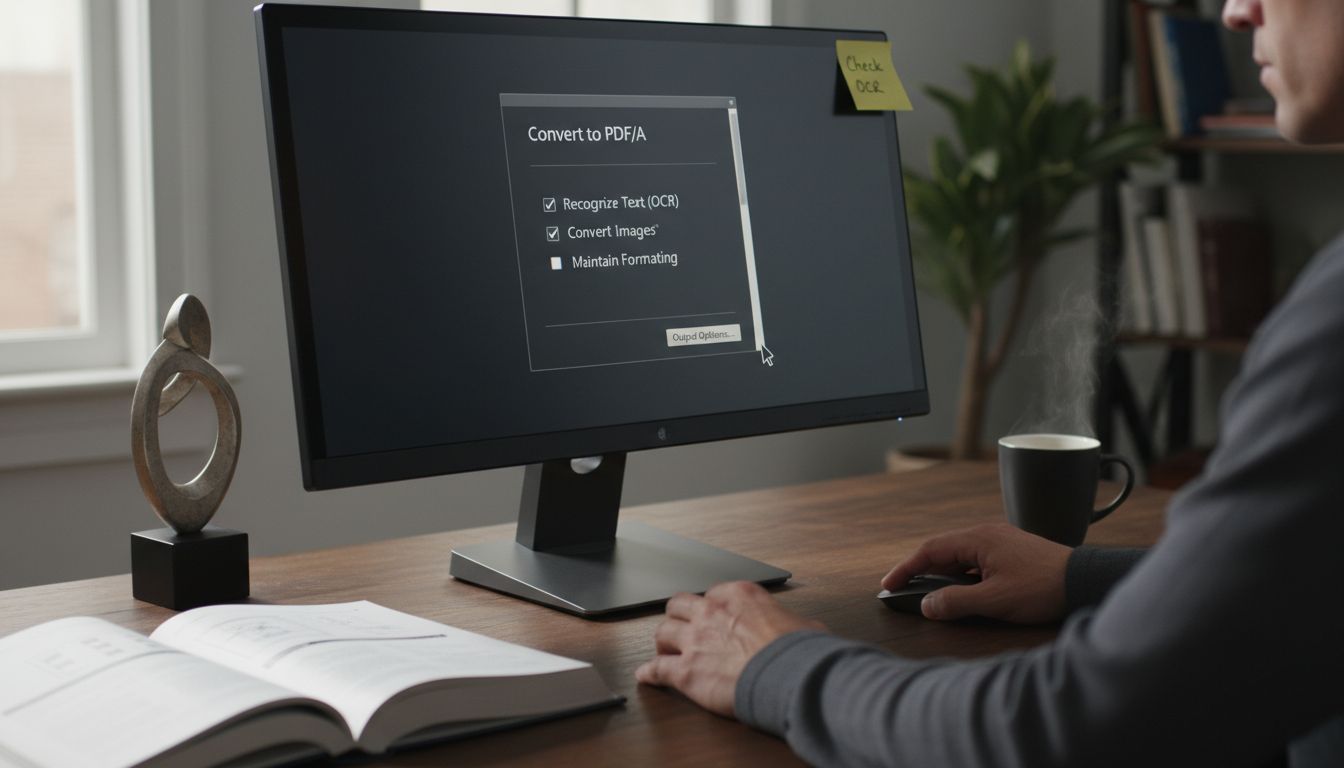
Pro Tip: Always preview your conversion settings before finalizing. If your document contains technical diagrams charts or complex formatting select the most precise conversion mode to minimize manual reformatting later. Consider creating a test conversion first to understand how different settings impact your specific document structure.
Step 4: Initiate the PDF to Word Conversion Process
With your settings carefully configured, you are now ready to transform your PDF into an editable Word document. After selecting the desired settings, users can click ‘Export’ to begin the conversion, launching Adobe Acrobat’s powerful conversion engine.
Click the ‘Export’ button located in the conversion settings window. Acrobat will immediately begin processing your document, automatically handling text recognition for scanned content. Depending on your document’s complexity and size, the conversion might take anywhere from a few seconds to several minutes. Watch the progress bar carefully and avoid interrupting the process to ensure a clean conversion. Some documents with intricate layouts or multiple graphic elements may require additional processing time.
Pro Tip: Save your original PDF in a backup location before conversion. While Acrobat is generally reliable, having a pristine original document ensures you can always start over if the conversion does not meet your exact specifications. If the initial conversion looks imperfect, you can always adjust your settings and retry the process.
Step 5: Review and Verify Converted Word Documents
After successfully converting your PDF, your next critical task is thoroughly examining the new Word document to ensure complete accuracy. Post conversion verification is essential for maintaining document integrity, requiring a systematic and careful review of every element.
Begin by scrolling through the entire document, paying close attention to formatting complex elements like tables images and specialized text layouts. The Acrobat Reference Guide recommends focusing specifically on intricate document components that might have transformed during conversion. Check paragraph alignments font styles embedded graphics and overall page structure. Look for any unexpected text shifts misaligned columns or unusual spacing that could indicate conversion inconsistencies.
Pro Tip: If significant discrepancies appear consider adjusting your original conversion settings and attempting the process again. Some documents with complex graphics or multilayered layouts might require multiple conversion attempts to achieve perfect results. Keeping your original PDF as a reference point will help you compare and verify the accuracy of your newly created Word document.
Master Your PDF to Word Workflow with Advanced Solutions
Converting PDFs to editable Word documents can be frustrating when formatting shifts or text recognition fails. The step-by-step guide on “Adobe Acrobat Convert PDF to Word” highlights how careful preparation and conversion settings influence your results. If you want to move beyond basic conversion hurdles and increase accuracy without extra manual fixes explore powerful tools that support seamless PDF transformations.

Discover how Mapsoft enhances your document workflows with specialized Acrobat plugins and web-based solutions designed to optimize PDF handling and conversion efficiency. Whether you need to convert PDFs, manage complex layouts, or automate repetitive tasks our expertise in Digital Preservation ensures your content stays accurate and professional. Visit Mapsoft to unlock advanced PDF creation, editing, and conversion tools that save time and improve productivity starting now.
Frequently Asked Questions
How do I prepare my PDF in Adobe Acrobat before converting it to Word?
To prepare your PDF for conversion, review it for complex elements like scanned pages or intricate layouts. Edit any potential formatting issues and conduct a quick text recognition scan to improve accuracy.
What options do I have when selecting ‘Convert to Word’ in Adobe Acrobat?
When you choose ‘Convert to Word,’ you can select between different Word formats such as .docx or .doc. Pay attention to complex layouts, as these may require adjustments during conversion for the best results.
How can I customize the output settings during the PDF to Word conversion?
In the conversion settings, customize options that handle text, images, and overall layout. Choose settings that prioritize either text accuracy or visual fidelity based on your document’s needs to achieve the best outcome.
What steps should I take if my converted Word document has formatting issues?
If you encounter formatting issues after conversion, first review your conversion settings and adjust them as necessary. Then, consider re-running the conversion to refine the output and ensure consistency in formatting.
How can I ensure the accuracy of my converted Word document?
After conversion, thoroughly review the Word document for formatting and accuracy. Check specific elements like tables, images, and text layouts to identify any discrepancies that need correction.
Is it safe to convert my PDF files to Word using Adobe Acrobat?
Yes, converting PDFs to Word using Adobe Acrobat is generally safe. Always keep a backup of your original PDF, ensuring you have a reference point in case the conversion does not meet your expectations.