Over 80 percent of large organizations report challenges with manual document processing, putting secure workflows and productivity at risk for any american enterprise. As digital archives grow, the need to swiftly transform vast PDF collections into accurate, searchable data is mission-critical. This guide offers IT managers step-by-step insights to help you align OCR technology with business needs, assess your document landscape, and make smart choices for smoother Adobe Acrobat integrations.
Table of Contents
- Step 1: Assess Document Requirements And OCR Needs
- Step 2: Select And Configure PDF OCR Software Solutions
- Step 3: Prepare PDF Files For Optimal OCR Processing
- Step 4: Execute OCR Conversion And Extract Text
- Step 5: Verify OCR Accuracy And Integrate Outputs
Quick Summary
| Key Point | Explanation |
|---|---|
| 1. Assess Document Requirements First | Conduct a thorough evaluation of your document types, volume, and intended uses to choose the right OCR software and workflow. |
| 2. Select Software That Fits Needs | Prioritize OCR solutions offering high accuracy and flexibility, ensuring they integrate smoothly into your existing processes. |
| 3. Prepare Documents Before Scanning | Inspect physical conditions and enhance images to optimize OCR results, ensuring documents are clean and properly aligned for scanning. |
| 4. Execute a Multi-Stage OCR Process | Implement advanced techniques including layout analysis and semantic extraction to maximize accuracy and usability of the converted text. |
| 5. Verify and Integrate Outputs | Systematically check OCR accuracy against originals and integrate validated outputs into your document management for traceability. |
Step 1: Assess Document Requirements and OCR Needs
Optical Character Recognition (OCR) implementation requires a strategic approach to understanding your specific document processing requirements. Carefully evaluating your document landscape helps determine the right OCR software and workflow optimization strategy. Organizations need to conduct a comprehensive assessment that considers document types, volume, complexity, and ultimate usage goals.
Begin by creating an inventory of your document collection, categorizing materials based on characteristics like age, condition, original format, and expected digital transformation outcomes. Digitization quality management policies recommend analyzing each document type for its legal and evidentiary value. Some documents might require higher resolution scanning or specialized OCR processing, particularly for historical or legally significant records. Pay special attention to factors like text density, language diversity, handwritten content, and graphic elements that could impact OCR accuracy.
Next, map out your specific workflow requirements by identifying key stakeholders and their document interaction needs. Determine whether your primary goals involve searchability, text extraction, archival preservation, or collaborative editing. Different OCR solutions offer varying capabilities, so matching software features to your precise organizational requirements is crucial.
Pro tip: Conduct a small pilot test with a representative sample of your documents to validate OCR performance and accuracy before full scale implementation.
Step 2: Select and Configure PDF OCR Software Solutions
Selecting the right PDF OCR software requires a methodical approach that matches your specific organizational requirements and document processing needs. Your goal is to find a solution that provides maximum accuracy, flexibility, and seamless integration with your existing workflow.
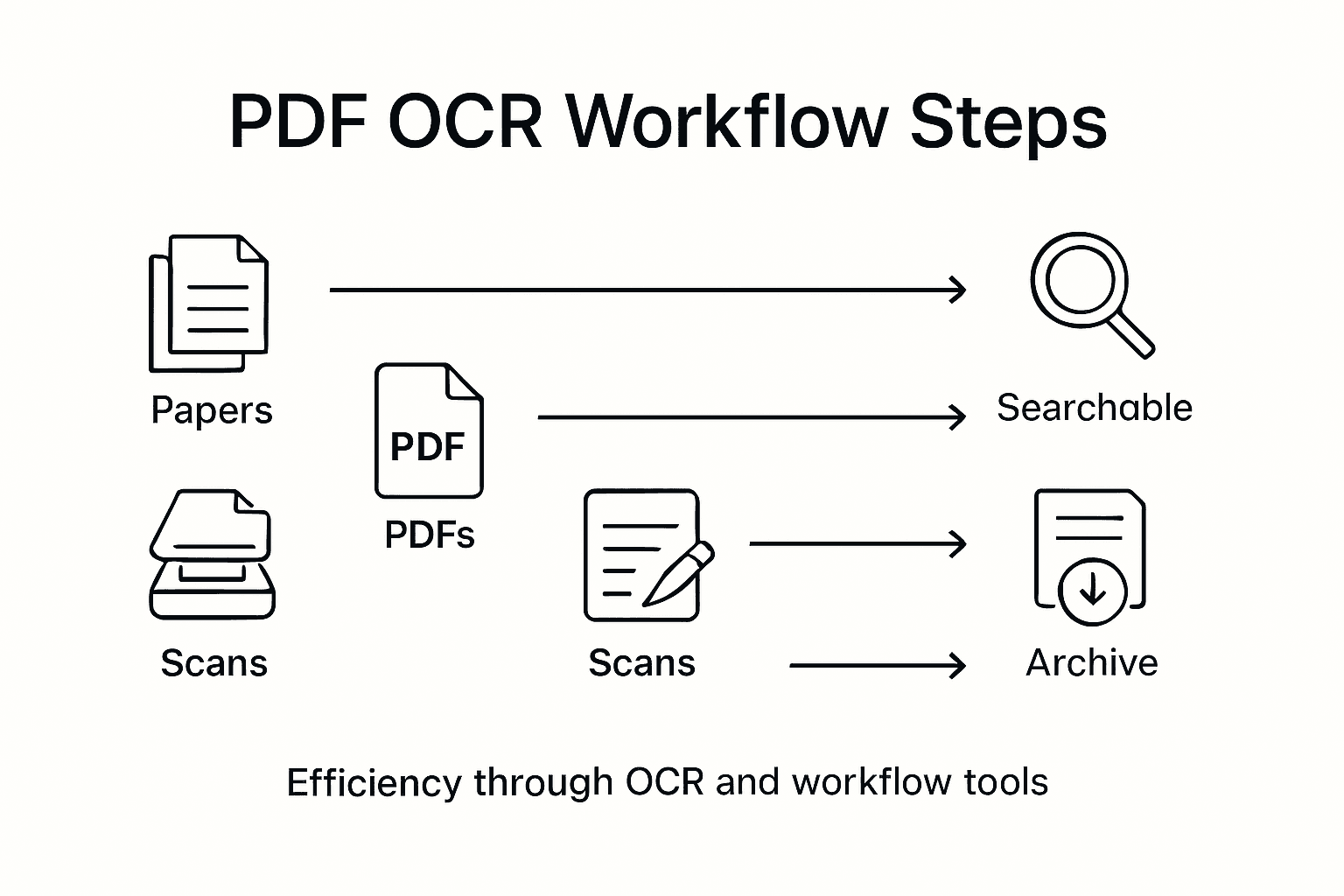
Start by evaluating OCR software capabilities through a comprehensive comparison of features. Comparative research on OCR tools highlights the importance of assessing parameters like accuracy, language support, layout recognition, and processing speeds. Microsoft’s OCR services recommend examining different modes optimized for various document types, including scanned documents and complex images. Consider factors such as text density, multilingual support, handwriting recognition, and the ability to handle diverse document formats.
When configuring your chosen OCR solution, focus on customization options that enhance extraction quality. Experiment with different preprocessing settings, resolution levels, and recognition parameters to optimize performance for your specific document types. Look for software that offers advanced features like automated layout analysis, metadata extraction, and the ability to handle mixed content such as tables, graphics, and multilingual text.
Pro tip: Request trial versions of multiple OCR software solutions and conduct side by side testing with your actual document collection to determine the most accurate and efficient option.
Here’s a summary of OCR software selection criteria and their typical impacts:
| Selection Criterion | Why It Matters | Business Impact |
|---|---|---|
| Accuracy | Ensures correct text extraction | Reduces manual corrections |
| Language Support | Handles diverse documents | Expands document coverage |
| Layout Recognition | Preserves original formatting | Improves readability and usability |
| Processing Speed | Processes documents efficiently | Increases productivity |
| Integration Options | Fits with existing systems | Simplifies adoption and training |
Step 3: Prepare PDF Files for Optimal OCR Processing
Preparing PDF files for OCR processing is a critical step that dramatically impacts the accuracy and efficiency of your document digitization workflow. Your primary objective is to ensure documents are in the best possible condition before running them through optical character recognition software.
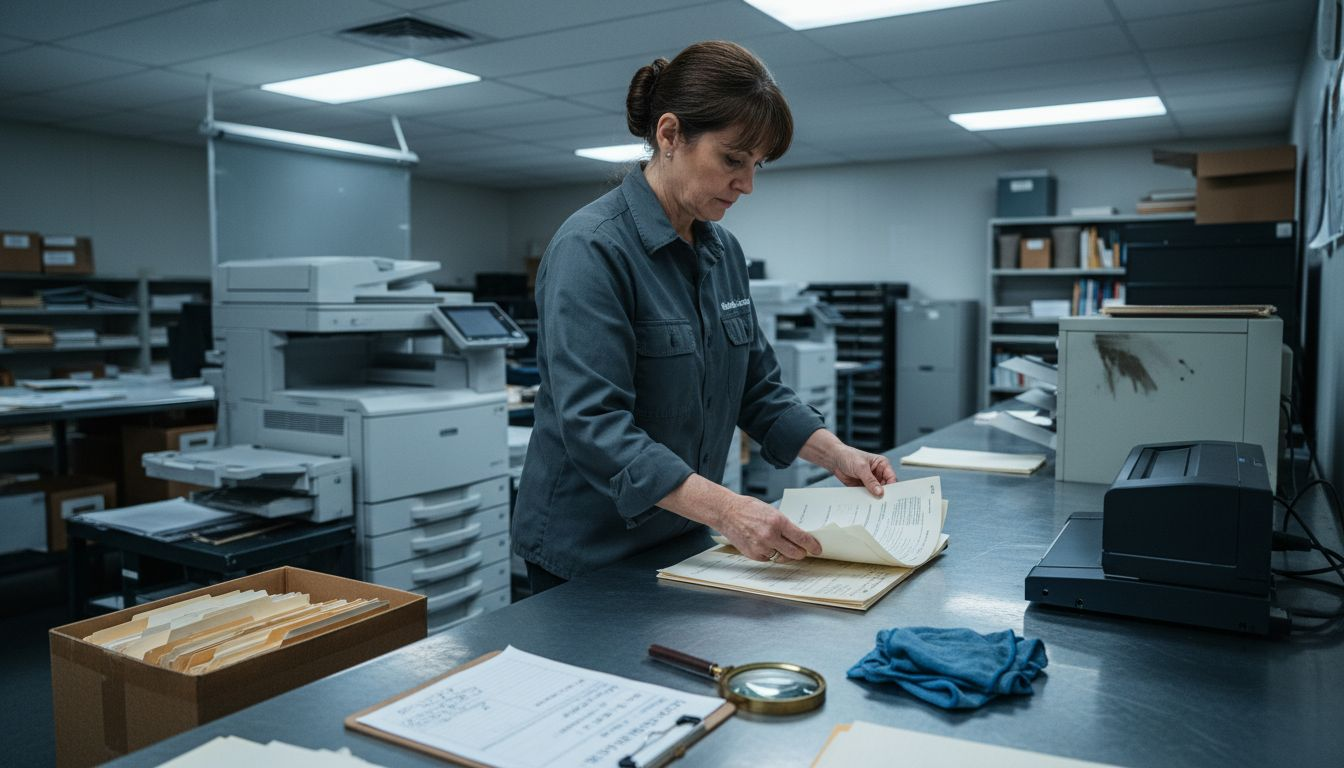
Comprehensive document preparation guidelines emphasize the importance of addressing physical document conditions prior to scanning. Begin by carefully inspecting each document for physical defects such as tears, wrinkles, or stains that could interfere with image quality. Ensure documents are clean, flat, and properly aligned before scanning. Select an appropriate resolution settings typically between 300 to 600 dpi for text documents to capture clear, crisp images that optimize OCR performance.
Academic research on OCR processing highlights the significance of pre-processing techniques. Implement image enhancement strategies like noise reduction, binarization, and orientation correction to improve text recognition accuracy. Remove background patterns, adjust contrast, and ensure consistent lighting during scanning. Pay special attention to documents with complex layouts, faded text, or mixed content types that require more sophisticated preprocessing to achieve reliable optical character recognition results.
Pro tip: Create a standardized document preparation checklist to ensure consistent quality across all scanning and OCR processing workflows.
Step 4: Execute OCR Conversion and Extract Text
Executing OCR conversion is a sophisticated process that transforms your prepared PDF documents into fully searchable and editable text. Your goal is to leverage advanced machine learning techniques to accurately capture and extract textual content from your scanned documents.
OCR systems employ complex multi stage processing that goes beyond simple image scanning. Begin by selecting the appropriate OCR engine or API that matches your specific document types. Run the conversion process through multiple stages including image preprocessing, text recognition algorithms, and sophisticated layout analysis. Pay close attention to document complexity, ensuring your chosen OCR solution can handle variations in font styles, text densities, and mixed content layouts.
Advanced OCR workflows now integrate semantic analysis to provide context aware text extraction. This means the system does more than simply recognize individual characters it interprets document structures and relationships between text elements. Configure your OCR software to extract not just raw text but meaningful data structures that preserve original document formatting, support metadata extraction, and enable intelligent content parsing. Consider using advanced machine learning models that can recognize and categorize different types of information within your documents.
Pro tip: Always perform a sample test run with a small batch of documents to validate OCR accuracy before processing your entire document collection.
Compare standard versus advanced OCR workflows:
| Workflow Type | Core Features | Best For |
|---|---|---|
| Standard OCR | Basic text extraction, minimal formatting | Simple, uniform documents |
| Advanced OCR | Layout analysis, semantic extraction, metadata support | Complex or structured documents |
Step 5: Verify OCR Accuracy and Integrate Outputs
Verifying OCR accuracy is a critical final step that ensures the quality and usability of your digitized documents. Your goal is to systematically validate the extracted text and seamlessly integrate the processed outputs into your document management workflow.
OCR evaluation metrics and verification processes provide a comprehensive framework for assessing digital document quality. Begin by conducting a thorough manual review of the OCR output, comparing the converted text against the original document. Focus on multiple accuracy dimensions including text correctness, layout fidelity, and preservation of original reading order. Use sampling techniques to verify a representative percentage of your documents, paying special attention to challenging sections with complex formatting, multiple languages, or unique typography.
Integrate your verified OCR outputs into your document management system with robust traceability and metadata tracking. Document any corrections made during the verification process, creating an audit trail that supports legal admissibility and long-term preservation. Configure your workflow to automatically flag documents requiring human review, and establish clear protocols for manual intervention when OCR accuracy falls below acceptable thresholds. Implement version control mechanisms that allow you to track changes and maintain the integrity of your digital document repository.
Pro tip: Develop a standardized accuracy scoring system to quickly assess and categorize OCR quality across different document types and sources.
Enhance Your Document Workflows with Mapsoft PDF OCR Solutions
Struggling with low OCR accuracy or time-consuming document workflows in your organization? The article highlights key challenges like optimizing OCR software selection, preparing PDFs for better recognition, and verifying outputs to reduce errors. You need powerful tools that not only improve text extraction accuracy but also seamlessly integrate into your existing Adobe Acrobat® workflows.

Discover how Mapsoft’s specialized PDF processing and workflow automation solutions can help you overcome these pain points. With features such as OCR processing, text extraction, document editing, and metadata management, our tools are designed to maximize your productivity and ensure high-quality digital preservation. Explore our Digital Preservation resources to learn more about maintaining document integrity and enhancing your document lifecycle. Ready to optimize your document workflows today Visit Mapsoft.com to find tailored solutions that meet your PDF OCR needs and streamline your entire workflow.
Frequently Asked Questions
What are the initial steps to assess my document requirements for PDF OCR software?
Start by creating an inventory of your document collection, categorizing materials by their age, condition, and original format. This helps determine the necessary OCR features that align with your digitization goals.
How can I choose the right PDF OCR software for my organization?
Evaluate OCR software capabilities by comparing features such as accuracy, language support, and layout recognition. Conduct trial runs with various options to find the one that best meets your document processing needs.
What should I do to prepare my PDF files for OCR processing?
Inspect each document for physical defects like tears or stains and ensure they are clean and flat. Use a resolution setting between 300 to 600 dpi for optimal scanning quality and apply image enhancement strategies like contrast adjustment before processing.
How can I verify the accuracy of OCR outputs after conversion?
Conduct a manual review by comparing the extracted text to the original document, focusing on accuracy dimensions like text correctness and layout fidelity. Use sampling techniques to assess a representative percentage of documents, especially those with complex formatting.
What are the benefits of integrating OCR outputs into my document management system?
Integrating OCR outputs allows for efficient retrieval and management of digital documents, enhancing searchability and collaboration. Establish protocols to track corrections and maintain the integrity of your digital repository.