
Protecting sensitive documents is a top concern for businesses, and over 80 percent of organizations rely on watermarks to deter unauthorized sharing. Watermarking PDFs is a critical but often overlooked step in securing your company’s content and maintaining consistent branding. Getting the process right ensures your files are not just marked, but protected with precision. This guide will help you prepare, apply, and automate watermarks for your PDF documents so you can work smarter and keep your information secure.
Table of Contents
- Step 1: Prepare PDF Files For Watermarking
- Step 2: Configure Acrobat PDF Watermark Settings
- Step 3: Apply Watermark To Multiple PDF Documents
- Step 4: Verify And Review Watermarked PDFs
- Step 5: Automate Batch Watermarking For Workflows
Quick Summary
| Key Point | Explanation |
|---|---|
| 1. Choose Document Thoughtfully | Select PDFs suitable for watermarking and understand content interactions before applying a watermark. |
| 2. Customize Watermark Settings | Utilize Adobe Acrobat to define text, image, and opacity settings for a tailored watermark experience. |
| 3. Implement Batch Watermarking | Use batch processing to apply consistent watermarks across multiple PDF documents simultaneously, saving time. |
| 4. Conduct Thorough Reviews | After watermarking, meticulously check each PDF for proper placement and visibility of watermarks to ensure effectiveness. |
| 5. Automate Watermarking Tasks | Create repeatable workflows that automate batch watermarking, enhancing efficiency in document management processes. |
Step 1: Prepare PDF Files for Watermarking
Preparing your PDF files for watermarking involves selecting the right documents and understanding how watermarks will interact with your existing content. According to Adobe Helpx, the first step is opening your desired PDF in Adobe Acrobat and accessing the watermarking feature.
Before adding a watermark, review your PDF thoroughly to determine the best placement and style. Watermarks can appear either in front of or behind existing content, giving you flexibility in how you brand or secure your document. Adobe Helpx notes that you can specify specific pages or page ranges where watermarks should appear, which means you can customize the watermarking process to suit your exact requirements.
A pro tip when preparing files is to choose high contrast watermarks that are readable but not overly disruptive to the document’s primary content. Consider factors like document purpose, audience, and the level of visibility you want your watermark to have. Once you’ve selected your document and determined your watermarking strategy, you’ll be ready to move forward with actually adding the watermark to your PDF.
Step 2: Configure Acrobat PDF Watermark Settings
Configuring watermark settings in Adobe Acrobat allows you to create professional and secure document identifiers that suit your enterprise needs. Adobe Helpx provides detailed guidance on accessing the watermark customization options through the ‘Watermark’ menu.
Once you open the ‘Add Watermark’ dialog, you will have comprehensive control over your watermark design. According to Adobe Helpx, you can customize multiple aspects including the watermark source text or image, specify precise page ranges, adjust opacity levels, and even set rotation angles. This granular control ensures that your watermarks look exactly how you want while maintaining document readability.
A strategic tip for enterprise users is to create consistent watermark templates that align with your organization’s branding guidelines. Consider using standardized opacity levels, font styles, and positioning to ensure a professional and uniform appearance across different documents. By thoughtfully configuring your watermark settings, you transform a simple document identifier into a powerful tool for document tracking and protection.
Step 3: Apply Watermark to Multiple PDF Documents
Applying watermarks to multiple PDF documents simultaneously streamlines your enterprise document management workflow. Adobe Helpx offers a powerful batch processing feature that allows you to apply consistent watermarks across numerous files with just a few clicks.
To begin the batch watermarking process, select the ‘Apply to Multiple Files’ option in the watermark dialog. According to Adobe Helpx, this feature enables you to add multiple PDF files and configure output preferences simultaneously. This means you can create a uniform watermark that will be applied identically across all selected documents, ensuring consistency and saving significant time in large document management projects.
A critical pro tip for enterprise users is to create a master watermark template before batch processing. Carefully review your watermark settings for opacity, positioning, and visibility to ensure they meet your organization’s security and branding requirements. By mastering this batch watermarking technique, you can efficiently protect and brand multiple documents in a single workflow, dramatically reducing the time and effort required for document management.
Step 4: Verify and Review Watermarked PDFs
After applying watermarks to your PDF documents, a thorough review is crucial to ensure your enterprise security and branding standards are met. Adobe Helpx recommends carefully examining each document to confirm that watermarks appear exactly as intended across all pages.
Open each watermarked PDF and systematically check the placement, visibility, and consistency of your watermarks. According to Adobe Helpx, Acrobat provides flexible options to update or remove watermarks if you notice any discrepancies during your review. Pay special attention to details like opacity, positioning, and how the watermark interacts with the underlying document content.
A critical tip for enterprise users is to create a comprehensive checklist for watermark verification. This should include checking watermark visibility at different zoom levels, ensuring the watermark does not obscure critical document information, and verifying that the watermark appears consistently across different document types and page layouts. By implementing a systematic review process, you can guarantee the professional and secure presentation of your watermarked documents.

Step 5: Automate Batch Watermarking for Workflows
Automating batch watermarking transforms time consuming document management into a streamlined enterprise workflow. Adobe Helpx offers a powerful ‘Apply to Multiple Files’ feature that enables organizations to add watermarks simultaneously across multiple PDF documents with remarkable efficiency.
To create an automated watermarking workflow, start by selecting your master watermark template and identifying the document set you want to process. Configure your output preferences including watermark placement, opacity, and page range to ensure consistent branding and security standards across all files. Acrobat’s batch processing capabilities allow you to apply complex watermarking rules without manual intervention, dramatically reducing the time and effort required for document preparation.
A strategic tip for enterprise users is to develop a repeatable batch watermarking process that integrates seamlessly with your existing document management systems. Consider creating preset configurations that can be quickly applied to different document types, ensuring scalability and consistency. By mastering these automation techniques, you can transform watermarking from a manual task into an efficient, standardized workflow that protects your organizational documents with minimal manual effort.
Elevate Your Enterprise PDF Workflows with Advanced Watermark Solutions
Struggling to keep your PDF documents secure and professionally branded across your enterprise? The article highlights key challenges like configuring watermark settings, batch processing multiple files, and ensuring consistent visibility without obscuring important content. If accuracy, efficiency, and streamlined document protection are priorities for your organization, it is time to explore specialized solutions that make these tasks effortless.

Discover how Mapsoft.com can transform your PDF watermarking process with customized Acrobat plugins and automated batch workflows designed for seamless integration. Our expertise in Adobe® technologies and enterprise-grade PDF handling tools ensures your documents meet exact security and branding standards every time. Visit our Digital Preservation category to learn how our solutions support long-term document security and compliance. Ready to save time and reduce manual errors? Start optimizing your workflows today at Mapsoft.com and unlock the full potential of your PDF management.
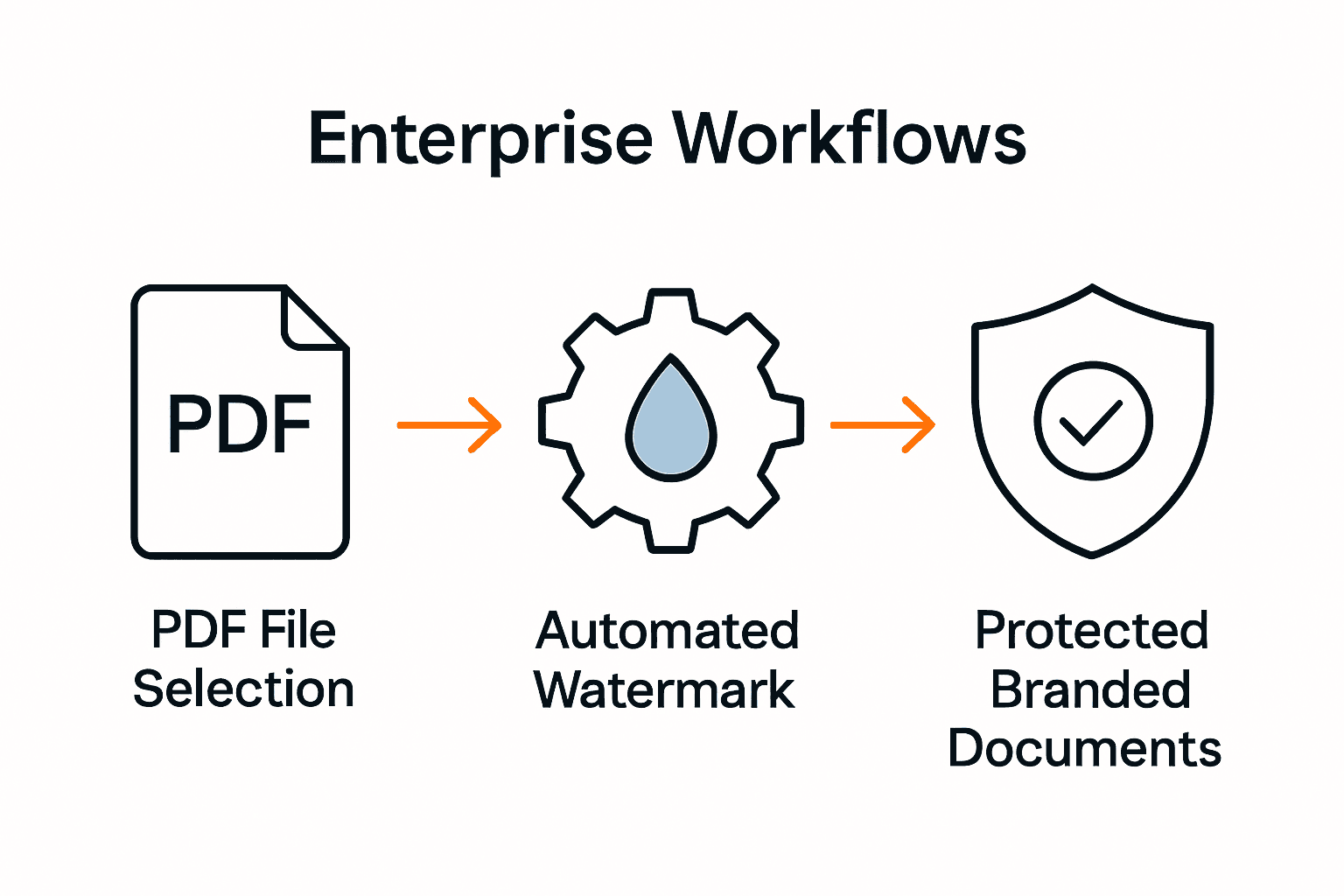
For flexible, enterprise-focused PDF enhancements and expert support, explore resources in our Uncategorized section and experience the difference of tailored Adobe Acrobat solutions.
Frequently Asked Questions
How do I prepare my PDF files for watermarking in Acrobat?
To prepare your PDF files for watermarking in Acrobat, open the desired PDF and review its content for the best watermark placement. Ensure your watermark contrasts well with the document content to maintain readability and then proceed to access the watermarking feature.
What settings can I customize while adding a watermark to my PDF in Acrobat?
You can customize various settings, including the watermark text or image source, page ranges, opacity levels, and rotation angles. Set these parameters to ensure your watermark aligns with your brand identity and document security needs.
How can I apply watermarks to multiple PDFs at once?
To apply watermarks to multiple PDFs, use the ‘Apply to Multiple Files’ feature in the watermark dialog. Select all the documents you want to process at once, which will save you time and ensure consistent branding across your entire document set.
What should I check while reviewing watermarked PDFs?
When reviewing your watermarked PDFs, check for the watermark’s placement, visibility, and consistency across all pages. Ensure that the watermark does not obscure key document information and appears uniformly in different types and layouts of documents.
How can I automate the watermarking process for my document workflows?
To automate the watermarking process, create a master watermark template and set your output preferences, including placement and opacity. This will allow you to apply the watermark to multiple documents without manual intervention, significantly reducing your document management time.
What are some benefits of using batch watermarking in enterprise workflows?
Batch watermarking helps streamline document management, providing consistency across all your files while enforcing branding and security protocols. By applying watermarks to large sets of files simultaneously, you can enhance efficiency and save significant time, allowing for quicker document processing.