
Securing sensitive business documents has never felt more urgent for IT leaders in large organizations. As regulatory demands escalate and internal controls become more complex, evaluating PDF security is now a fundamental task. Using professional tools like Adobe Acrobat gives enterprises a clear edge in comprehensive document protection while meeting compliance needs and streamlining workflow. This guide explores each critical step IT managers should follow to safeguard confidential files and enforce strict access controls across the enterprise.
Table of Contents
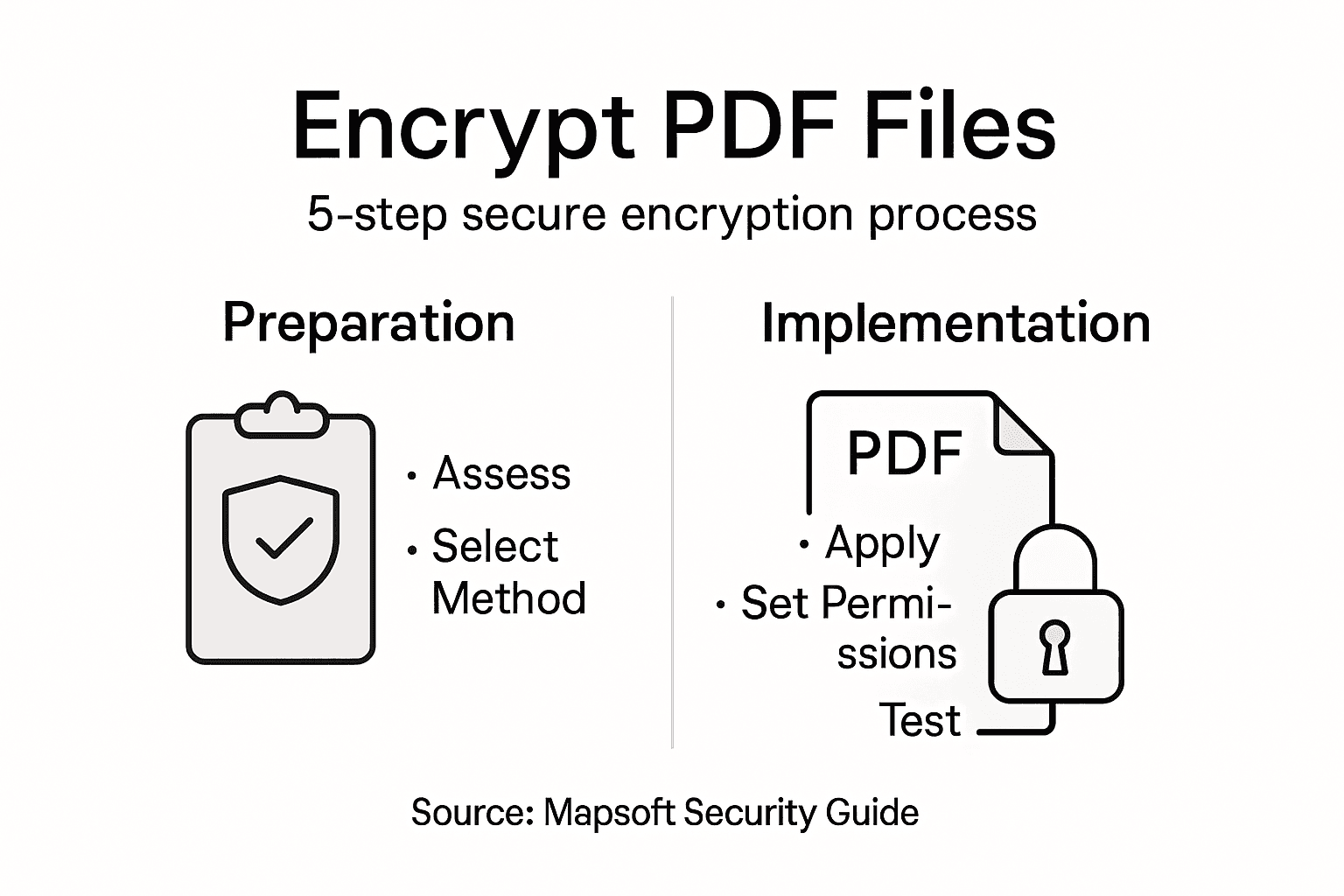
- Step 1: Assess PDF Security Requirements
- Step 2: Select Appropriate Encryption Method
- Step 3: Apply Encryption Using Adobe or Mapsoft
- Step 4: Set Access Permissions and Passwords
- Step 5: Verify and Test PDF Encryption
Quick Summary
| Key Point | Explanation |
|---|---|
| 1. Conduct a security assessment | Evaluate the sensitivity level, audience, and regulatory standards to identify appropriate security measures. |
| 2. Choose the right encryption method | Select encryption strategies like AES 256-bit that balance strong security with usability requirements. |
| 3. Implement encryption effectively | Use tools like Adobe Acrobat to apply encryption settings, ensuring protection while maintaining accessibility. |
| 4. Set precise access permissions | Define viewing, printing, editing, and copying permissions to control user interactions with sensitive documents. |
| 5. Test encryption thoroughly | Validate security by attempting unauthorized access and checking functionality from various user accounts. |
Step 1: Assess PDF Security Requirements
Successfully protecting sensitive documents starts with a comprehensive security assessment of your PDF files. You’ll need to systematically evaluate potential risks and determine the appropriate encryption strategies that align with your organization’s confidentiality requirements.
When assessing PDF security requirements, you must consider multiple critical factors:
- Sensitivity level of the document contents
- Audience who will access the files
- Regulatory compliance standards in your industry
- Potential transmission channels for the documents
- Existing infrastructure and security protocols
The Risk Management Framework assessment procedures provide structured guidance for systematically evaluating security controls. Your evaluation should include detailed analysis of:
- Document classification levels
- Potential exposure risks
- Required access permissions
- Encryption strength needed
Thorough security assessment prevents unauthorized access and protects critical organizational information.
Document classification represents the foundational element of your security strategy. Different documents require different levels of protection – financial reports demand higher security than general communication materials.
Pro tip: Conduct a comprehensive risk assessment before implementing any encryption strategy to ensure you’re addressing all potential vulnerabilities.
Step 2: Select Appropriate Encryption Method
Selecting the right encryption method is crucial for protecting sensitive PDF documents and ensuring your organization’s data remains secure. You’ll need to choose an encryption strategy that balances robust protection with practical usability.
When evaluating encryption methods, consider these key factors:
- Sensitivity level of document contents
- Compliance requirements for your industry
- Performance impact of encryption
- Key management capabilities
- Compatibility with existing systems
The encryption standards recommended by Johns Hopkins University emphasize using strong, industry-accepted algorithms like Advanced Encryption Standard (AES). For most enterprise PDF security needs, you should focus on:
Here’s a quick summary of how key PDF encryption methods differ in practice:
| Encryption Method | Usability Impact | Suitable For | Security Strength |
|---|---|---|---|
| AES 256-bit | High compatibility | Financial/legal docs | Maximum industry level |
| Password-based Protection | Moderate | Everyday sensitive PDFs | Depends on password |
| Certificate-based | Requires setup | Enterprises, workflows | Strong, scalable |
| Digital Signature | Invisible to users | Document authenticity | Tamper detection |
- AES 256-bit encryption
- Password-based file protection
- Digital signature verification
- Access control permissions
Not all encryption methods offer the same level of security – choose wisely based on your specific organizational requirements.
Advanced Encryption Standard (AES) remains the gold standard for protecting sensitive information. This symmetric encryption method provides multiple key length options – 128, 192, and 256 bits – allowing you to match security levels with document sensitivity.

Pro tip: Always select encryption methods that provide granular access controls and support comprehensive key management strategies.
Step 3: Apply Encryption Using Adobe or Mapsoft
Now that you’ve assessed your security requirements, it’s time to implement robust PDF encryption using professional tools. You’ll learn how to protect your sensitive documents through precise encryption techniques that safeguard your critical information.
For most organizations, password protecting PDF files involves several critical steps:
- Open your PDF in Adobe Acrobat Pro
- Navigate to security settings
- Configure encryption parameters
- Set document permissions
- Apply password protection
Choose between two primary encryption approaches:
- Document Open Password
- Permissions Password
- Certificate-Based Encryption
- Digital Signature Protection
Encryption is not just a technical requirement – it’s a critical business protection strategy.
Adobe Acrobat provides comprehensive encryption options that allow granular control over document access. Mapsoft PDF Hub offers additional automation capabilities for enterprises needing scalable encryption workflows.
Pro tip: Always test your encrypted PDF with multiple user scenarios to confirm proper access restrictions and functionality.
Step 4: Set Access Permissions and Passwords
Configuring precise access permissions and passwords is critical for maintaining document security and controlling how users interact with your sensitive PDF files. You’ll need to strategically define who can view, edit, print, or modify your documents.
PDF security best practices recommend implementing comprehensive access controls that balance protection with usability. Key permission settings include:
Use this table to reference common PDF access permissions and their impact:
| Permission Type | Business Benefit | Typical Restriction Level |
|---|---|---|
| Viewing | Confidentiality assurance | Limited to select users |
| Printing | Prevents unauthorized copies | Often disabled for drafts |
| Editing | Data integrity protection | Allowed for managers only |
| Copying | Safeguards sensitive info | Disabled for most users |
- Viewing document contents
- Printing restrictions
- Editing capabilities
- Copying text and graphics
- Form filling permissions
When setting document passwords, follow these critical steps:
- Create a strong document open password
- Set a separate permissions password
- Define specific user access levels
- Configure granular editing restrictions
- Enable digital signature verification
Effective password management transforms your PDF from an open document to a controlled, secure asset.
Document Open Passwords prevent unauthorized users from accessing the file entirely, while Permissions Passwords allow more nuanced control over what authenticated users can do with the document.
Pro tip: Use unique, complex passwords for each sensitive document and store them securely in an encrypted password manager.
Step 5: Verify and Test PDF Encryption
After implementing PDF encryption, you must thoroughly verify and test your security measures to ensure they function as intended. This critical step confirms that your document protection strategies actually prevent unauthorized access and maintain data integrity.
Information security testing methodologies recommend a comprehensive approach to encryption validation. Key testing strategies include:
- Attempt unauthorized document access
- Validate password restrictions
- Check permission settings
- Test printing capabilities
- Verify digital signature protections
Perform these systematic testing procedures:
- Open the encrypted PDF with incorrect passwords
- Verify editing and printing restrictions
- Test access from different user accounts
- Confirm metadata protection
- Validate encryption algorithm functionality
Rigorous testing transforms theoretical security into practical protection.
Password validation requires attempting multiple access scenarios to confirm robust security implementations. Permissions testing ensures that your defined restrictions work precisely as configured.
Pro tip: Create a dedicated test environment with dummy documents to validate encryption settings without risking sensitive information.
Enhance Your PDF Security with Mapsoft’s Advanced Solutions
Encrypting PDF files for maximum security is essential to protect sensitive information from unauthorized access and maintain your organization’s compliance. If you struggle with assessing proper encryption methods or managing complex password and permission settings, Mapsoft offers powerful tools designed to simplify PDF protection. With capabilities such as password protection, certificate-based encryption, and comprehensive access control, you can confidently safeguard your documents while streamlining workflows.

Explore our solutions for Digital Preservation that ensure your PDF files remain secure and intact over time. Visit Mapsoft.com today to discover how our PDF Hub and Adobe Acrobat enhancements help you automate encryption tasks, enforce granular permissions, and maintain document integrity with ease. Take control of your PDF security now and keep your critical data safe from threats.
Frequently Asked Questions
What steps should I follow to encrypt PDF files securely?
To encrypt PDF files securely, first assess your security requirements based on sensitivity and compliance needs. Then, choose an appropriate encryption method, apply it using professional tools, set access permissions and passwords, and finally verify the encryption to ensure it works as intended.
How do I determine the sensitivity level of my PDF documents?
To determine the sensitivity level of your PDF documents, analyze their contents and classify them based on the potential impact of unauthorized access. For example, financial reports and legal documents usually require higher protection than general communication materials.
What are the best encryption methods for PDF files?
The best encryption methods for PDF files include AES 256-bit encryption for maximum security and password-based protection for moderate needs. Choose a method that aligns with your security requirements and balances usability with protection.
How can I set access permissions for encrypted PDF files?
You can set access permissions for encrypted PDF files by defining specific user roles, including viewing, printing, and editing permissions. Make sure to restrict access based on the document’s sensitivity, allowing only authorized users to interact with the content as needed.
How do I test if my PDF encryption is effective?
To test the effectiveness of your PDF encryption, attempt unauthorized access using incorrect passwords and verify the permission settings. This step ensures that your restrictions work as configured and protects your sensitive information from untoward exposure.
What should I consider when managing passwords for encrypted PDFs?
When managing passwords for encrypted PDFs, create strong, unique passwords for each document and store them securely in an encrypted password manager. This practice reduces the risk of unauthorized access and enhances your overall PDF security strategy.