
Unauthorized access to sensitive documents costs American companies billions each year. For IT managers at large enterprises, maintaining robust document security is not just a technical challenge but a compliance mandate. Adobe PDF password protection offers advanced safeguards to help global teams control access, enforce permissions, and reduce the risk of data breaches. This guide breaks down actionable steps that empower you to prepare, secure, test, and distribute password protected PDFs with confidence.
Table of Contents
- Step 1: Prepare Your PDF Documents For Password Security
- Step 2: Choose And Set Strong Password Protection Options
- Step 3: Apply Password Protection To Your Adobe PDF
- Step 4: Verify And Test PDF Password Security
- Step 5: Distribute Secure PDFs To Your Team
Quick Summary
| Key Point | Explanation |
|---|---|
| 1. Assess Document Security Needs | Evaluate each PDF for its required security levels based on confidentiality and distribution. |
| 2. Implement Complex Passwords | Create unique passwords using a mix of characters to enhance security against unauthorized access. |
| 3. Apply Multiple Password Protections | Use both document open and permissions passwords to offer layered security for your PDFs. |
| 4. Verify Password Effectiveness | Test PDFs in various scenarios to ensure that passwords effectively block unauthorized access. |
| 5. Use Secure Distribution Methods | Share PDFs through encrypted channels and keep passwords communicated separately for better security. |
Step 1: Prepare Your PDF Documents for Password Security
Securing your PDF documents requires strategic preparation before applying password protection. Understanding how to properly set up your files helps prevent unauthorized access and protects sensitive information from potential security breaches.
Begin by carefully reviewing the document contents and determining the appropriate level of password security needed for enterprise protection. Not every document requires the same level of security some may need view only restrictions while others demand complete editing lockdowns. Assess each PDF individually evaluating factors like confidentiality sensitivity and potential distribution channels. Select permissions that align with your organization’s specific security protocols without unnecessarily restricting legitimate user access.
When preparing your PDF document for password protection focus on creating robust access controls. Choose complex passwords that combine uppercase and lowercase letters numbers and special characters. Avoid using predictable information like birthdays or sequential number patterns. Consider implementing multifactor authentication for additional security layers when possible. Ensure your chosen password meets minimum complexity standards recommended in standard password policy frameworks to resist potential offline attacks.
Pro tip: Create a secure password management system that allows you to generate and store complex passwords without compromising document accessibility for authorized team members.
Here’s a summary of commonly used password types and their security impact for PDF protection:
| Password Type | Purpose | Security Impact |
|---|---|---|
| Document Open Password | Restricts access to viewing | Blocks unauthorized opening |
| Permissions Password | Limits actions like editing and printing | Controls document modification |
| Two-Factor Authentication | Adds verification step | Strong defense against breaches |
| Complex Passwords | Uses varied characters | Increases resistance to attacks |
Step 2: Choose and Set Strong Password Protection Options
Selecting robust password protection options is critical for maintaining the confidentiality and integrity of your PDF documents. Your goal is to implement security measures that effectively shield sensitive information from unauthorized access while ensuring legitimate users can still interact with the document as needed.
When configuring password protection options, focus on implementing comprehensive security strategies recommended by cybersecurity experts. Begin by selecting advanced encryption settings within Adobe Acrobat that require passwords for opening or editing the document. Choose between document open passwords and permissions passwords to create layered access controls. The document open password prevents anyone from viewing the file without the correct credentials while the permissions password restricts specific actions like printing copying or editing.
Prioritize creating strong password protection by utilizing modern encryption algorithms that resist brute force attacks. Select encryption levels of at least 128 bits preferably 256 bits for maximum security. Design passwords that are complex and unique combining uppercase and lowercase letters numbers and special characters. Avoid using predictable information like names birthdates or common words. Consider implementing additional security layers such as two factor authentication when possible to provide an extra barrier against potential unauthorized access.
Pro tip: Use a reputable password manager to generate and securely store complex passwords that meet high security standards while preventing potential memory lapses.
Step 3: Apply Password Protection to Your Adobe PDF
Applying password protection to your Adobe PDF documents is a critical step in safeguarding sensitive information from unauthorized access. By implementing strategic security measures within Adobe Acrobat you can create multiple layers of protection that prevent unauthorized viewing editing or printing.
Detailed password security configurations involve navigating to the document security settings in Adobe Acrobat. Open your PDF and select File then Protect Document. Choose between two primary password protection methods document open password and permissions password. The document open password prevents anyone from accessing the file without entering the correct credentials while the permissions password restricts specific actions like printing copying or editing the document. When setting these passwords ensure they are complex and unique combining uppercase and lowercase letters numbers and special characters.

To apply the password protection navigate to Adobe Acrobat Protect Document menu and select the appropriate security level. For comprehensive protection set both document open and permissions passwords. Specify the exact actions you want to restrict such as printing text copying or editing. Double check your settings to confirm that legitimate users will retain necessary document access while preventing unauthorized modifications. Remember that each password should be different and stored securely to maintain document integrity and prevent accidental lockouts.
Pro tip: Create a secure backup of your password protected document and store the access credentials in a separate password manager to prevent potential permanent document loss.
Step 4: Verify and Test PDF Password Security
Testing and verifying your PDF password protection is a critical final step to ensure your document remains secure across different computing environments. This verification process confirms that your carefully configured security settings function exactly as intended and block unauthorized access effectively.
Comprehensive password security testing requires methodical validation across multiple scenarios. Open your password protected PDF in different Adobe Acrobat versions and alternative PDF readers to confirm consistent security behavior. Test both document open and permissions passwords independently verifying that incorrect credentials consistently prevent access. Simulate potential breach scenarios by attempting to print copy or edit the document without proper authorization. Confirm that each restricted action generates appropriate access denial warnings and prevents unauthorized modifications.
Proceed with systematic testing protocols that simulate real world security challenges. Close your original Adobe Acrobat session and reopen the document from a different user account to validate password requirements. Attempt accessing the PDF from alternative devices like tablets or smartphones to confirm cross platform protection consistency. Verify that each password performing different functions document opening versus editing permissions operates precisely as configured. Document your testing results carefully noting any unexpected access points or potential security vulnerabilities that might require additional configuration.
Pro tip: Create a comprehensive testing checklist with specific password validation scenarios to ensure thorough and consistent security verification across all potential access methods.
Step 5: Distribute Secure PDFs to Your Team
Distributing password protected PDF documents requires strategic planning and secure communication protocols to maintain confidentiality and control access. Your goal is to share sensitive information efficiently while preventing unauthorized viewing or modifications.
Secure document distribution strategies demand careful consideration of communication channels and access management. Transmit your password protected PDFs through encrypted email services or secure file sharing platforms that support advanced security features. When sharing passwords communicate them through separate communication channels like encrypted messaging apps or secure phone calls to prevent interception. Establish clear guidelines for your team about handling password protected documents including protocols for initial access initial password change and document retention.
Implement comprehensive cybersecurity protocols for document sharing that align with your organizations security policies. Use enterprise grade file sharing solutions that provide additional layers of tracking and access control. Configure granular permissions that allow specific team members to view edit or print the document based on their role and required access level. Maintain an audit trail of document access and track who has viewed or modified the secured PDF. Regularly review and update access permissions to ensure ongoing document security and compliance with organizational standards.
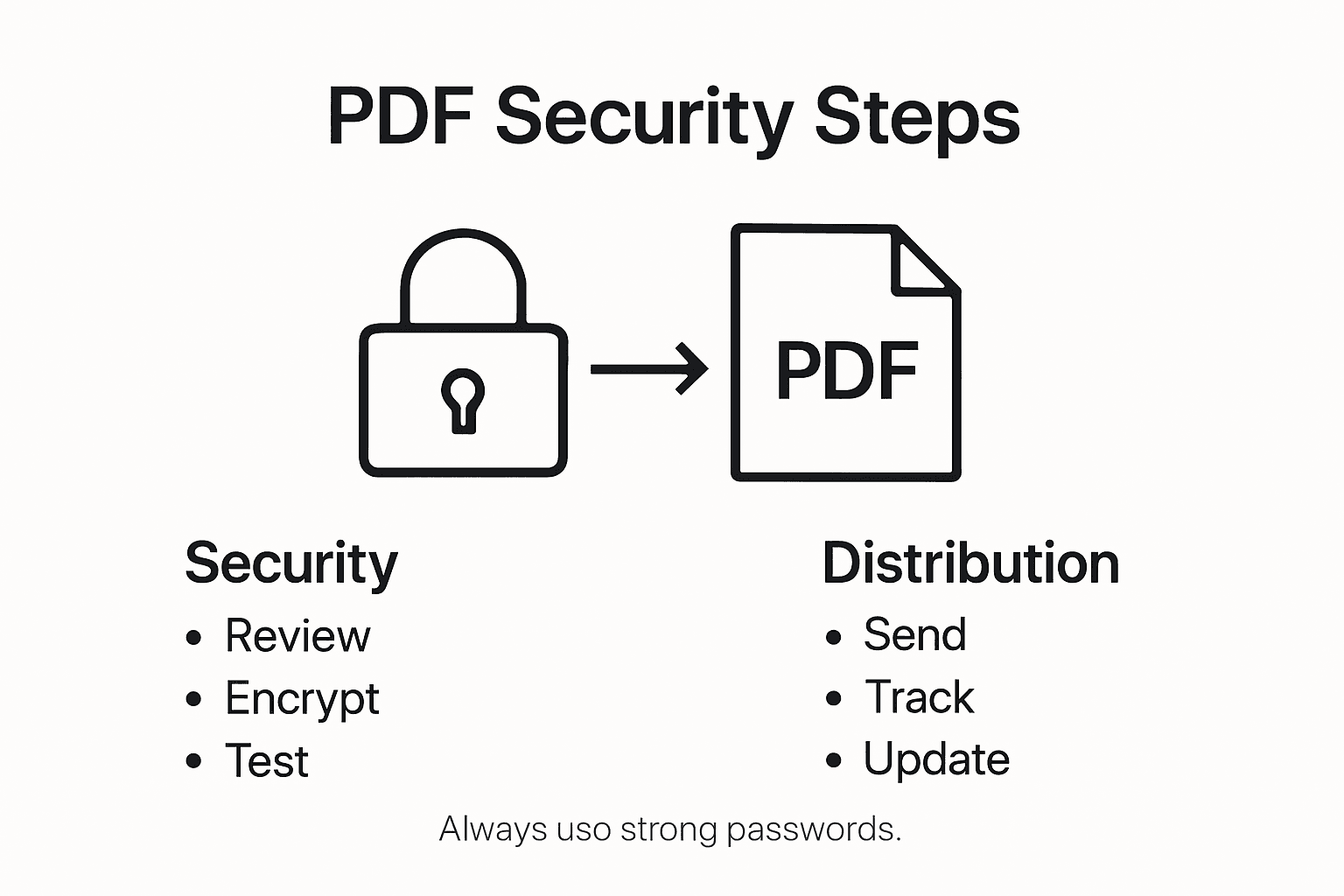
Pro tip: Create a standardized secure document sharing workflow that includes encrypted transmission channels password communication protocols and clear team guidelines to streamline secure PDF distribution.
For efficient and secure PDF sharing, compare these recommended distribution methods:
| Distribution Method | Security Features | Use Case |
|---|---|---|
| Encrypted Email | End-to-end message protection | Team communication |
| Secure File Platform | Access control and audit trail | Enterprise document sharing |
| Encrypted Messaging App | Separate password transmission | Confidential password sharing |
| Phone Call | Direct password communication | Emergency or critical access |
Protect Your PDF Workflows with Advanced Security Solutions
The article highlights common challenges when implementing effective Adobe PDF password protection such as choosing the right password types, avoiding unauthorized access, and maintaining secure document distribution. These pain points can create serious risks for organizations handling sensitive information, especially when outdated or manual security processes complicate enforcing strong password policies and comprehensive access controls. If you want to move beyond basic password protection and streamline security for large-scale or enterprise PDF workflows, specialized tools are essential.

Explore how Mapsoft.com empowers businesses to secure, optimize, and automate PDF protections with ease. Our solutions support robust password protection, encryption, and permissions management among other PDF security features that align with the detailed steps discussed in this guide. Visit our Digital Preservation category for tools focused on protecting digital content integrity or start your journey at our main site to discover comprehensive Acrobat® enhancements and PDF workflow automation. Don’t risk security gaps—partner with Mapsoft to safeguard your sensitive documents and increase team productivity now.
Frequently Asked Questions
How do I prepare my PDF documents for password protection in Adobe PDF?
To prepare your PDF documents for password protection, review the content to assess the level of security needed. Choose complex passwords and consider implementing dual-factor authentication to enhance security.
What are the different types of password protections I can use for my PDF documents?
You can use a document open password, which restricts access to viewing the file, and a permissions password, which limits actions like editing and printing. Apply both types for layered security, ensuring you specify the exact actions to restrict.
How can I test if my PDF password protection is effective?
To test your PDF password protection, open the document in different PDF readers and try accessing it with incorrect passwords. Simulate various scenarios, such as attempting to edit or print the document, to verify that all restricted actions are properly enforced.
What should I consider when distributing password-protected PDFs?
When distributing password-protected PDFs, use secure communication channels like encrypted email or secure file-sharing platforms. Share passwords separately through a different medium to prevent interception and establish clear guidelines for your team on handling these documents.
How often should I review access permissions for my password-protected PDFs?
You should review access permissions regularly, at least once every few months, or whenever team roles change. This process ensures ongoing document security and compliance with your organization’s policies and reduces the risk of unauthorized access.
Can I use password management tools for storing my PDF passwords?
Yes, using password management tools is recommended for storing your PDF passwords securely. These tools can generate and save complex passwords, making it easier for authorized users to access the documents without compromising security.