
{
“@type”: “Article”,
“image”: “https://csuxjmfbwmkxiegfpljm.supabase.co/storage/v1/object/public/blog-images/organization-3822/1765932116608_image_1765932116310.png”,
“author”: {
“url”: “https://mapsoft.com”,
“name”: “Mapsoft”,
“@type”: “Organization”
},
“@context”: “https://schema.org”,
“headline”: “How to Lock PDF Files for Secure Business Use”,
“publisher”: {
“url”: “https://mapsoft.com”,
“name”: “Mapsoft”,
“@type”: “Organization”
},
“inLanguage”: “en”,
“articleBody”: “Learn how to lock PDF files using Mapsoft tools. Follow step-by-step instructions to protect, manage, and verify secure business documents with locked PDFs.”,
“description”: “Learn how to lock PDF files using Mapsoft tools. Follow step-by-step instructions to protect, manage, and verify secure business documents with locked PDFs.”,
“datePublished”: “2025-12-17T00:42:27.144Z”
}
Nearly half of American businesses report losing critical data because their PDF files lacked proper security. Protecting sensitive documents is not just an IT issue for American organizations, it directly affects financial stability, client trust, and regulatory compliance. This guide breaks down the practical steps to locking PDFs securely so every American company can guard their information and avoid costly breaches.
Table of Contents
- Step 1: Assess PDF Security Needs
- Step 2: Prepare PDFs for Locking
- Step 3: Apply Password Protection and Permissions
- Step 4: Use Mapsoft Tools to Lock PDF Files
- Step 5: Verify Locked PDF Security Settings
Quick Summary
| Key Point | Explanation |
|---|---|
| 1. Assess security needs thoroughly | Conduct a detailed audit to categorize documents by sensitivity and understand access risks. |
| 2. Prepare PDFs for locking | Remove metadata and ensure all text is searchable to eliminate security gaps before applying protection. |
| 3. Implement strong password protection | Set complex open and permissions passwords to restrict unauthorized access and actions for enhanced security. |
| 4. Utilize Mapsoft tools effectively | Use specialized tools to streamline security settings, allowing for consistent protection across multiple documents. |
| 5. Verify security settings meticulously | Test each security measure to confirm effectiveness and ensure no sensitive data is exposed during the verification process. |
Step 1: Assess PDF Security Needs
Before locking down your PDF files, you need a strategic security assessment that matches your specific business requirements. Evaluating data security strategies starts with understanding the sensitive information contained within your documents and identifying potential vulnerabilities.
Begin by conducting a comprehensive audit of your PDF files. Categorize documents based on their confidentiality level: public information, internal communications, restricted data, and highly sensitive materials. Analyze who currently has access to these files and determine the potential risks if unauthorized individuals were to view or manipulate them. Consider factors like intellectual property protection, regulatory compliance, client privacy, and potential financial or reputational damage from potential data breaches.
Mapping out these security requirements will help you select the most appropriate PDF locking mechanisms. Different documents might need varying levels of protection from basic password restrictions to advanced encryption methods. Research security policies recommend creating a tiered approach that matches security protocols with specific document sensitivity.
Pro tip: Create a detailed security matrix that scores each document type according to its confidentiality level, helping you systematically apply the right protection strategy for each file.
Step 2: Prepare PDFs for Locking
Before applying security measures, you must first optimize your PDF documents to ensure they are ready for protection. Remediating PDFs involves several critical preparatory steps that guarantee document integrity and security effectiveness.
Start by performing a comprehensive document review. Remove any unnecessary metadata that could potentially expose sensitive information. This includes stripping out author names, creation dates, editing history, and any embedded comments or tracked changes. Verify that all text is fully searchable and that scanned documents have accurate optical character recognition (OCR) to prevent potential security gaps. Check for hidden layers, form fields, or embedded files that might compromise your document’s security.

Next, standardize your document format and ensure all content is exactly as you want it before applying security locks. Perform a final content audit to confirm no unintended information remains visible. Verify page formatting, remove any unnecessary blank pages, and consolidate document sections to create a clean, professional file ready for protection.
Pro tip: Create a duplicate working copy of your original document before beginning the security preparation process, allowing you to preserve the original file while safely modifying your security version.
Step 3: Apply Password Protection and Permissions
Securing your PDF requires strategic password protection and carefully configured access permissions. Locking down PDF documents involves implementing two critical layers of security that control both document access and potential user actions.
Begin by setting two distinct passwords. The first is an open password that prevents unauthorized individuals from opening the document. The second is a permissions password that restricts specific actions like printing, copying text, editing, or extracting pages. When configuring these passwords, use complex combinations of uppercase and lowercase letters, numbers, and symbols to maximize protection. Encryption strategies recommend using passwords with at least 12 characters to create robust document security.
Carefully select the specific permissions you want to enable or restrict. This might include preventing document printing, disabling text selection, blocking annotations, or stopping content copying. Each permission setting adds an additional layer of control, ensuring that even if someone bypasses the initial password, their ability to interact with the document remains limited.
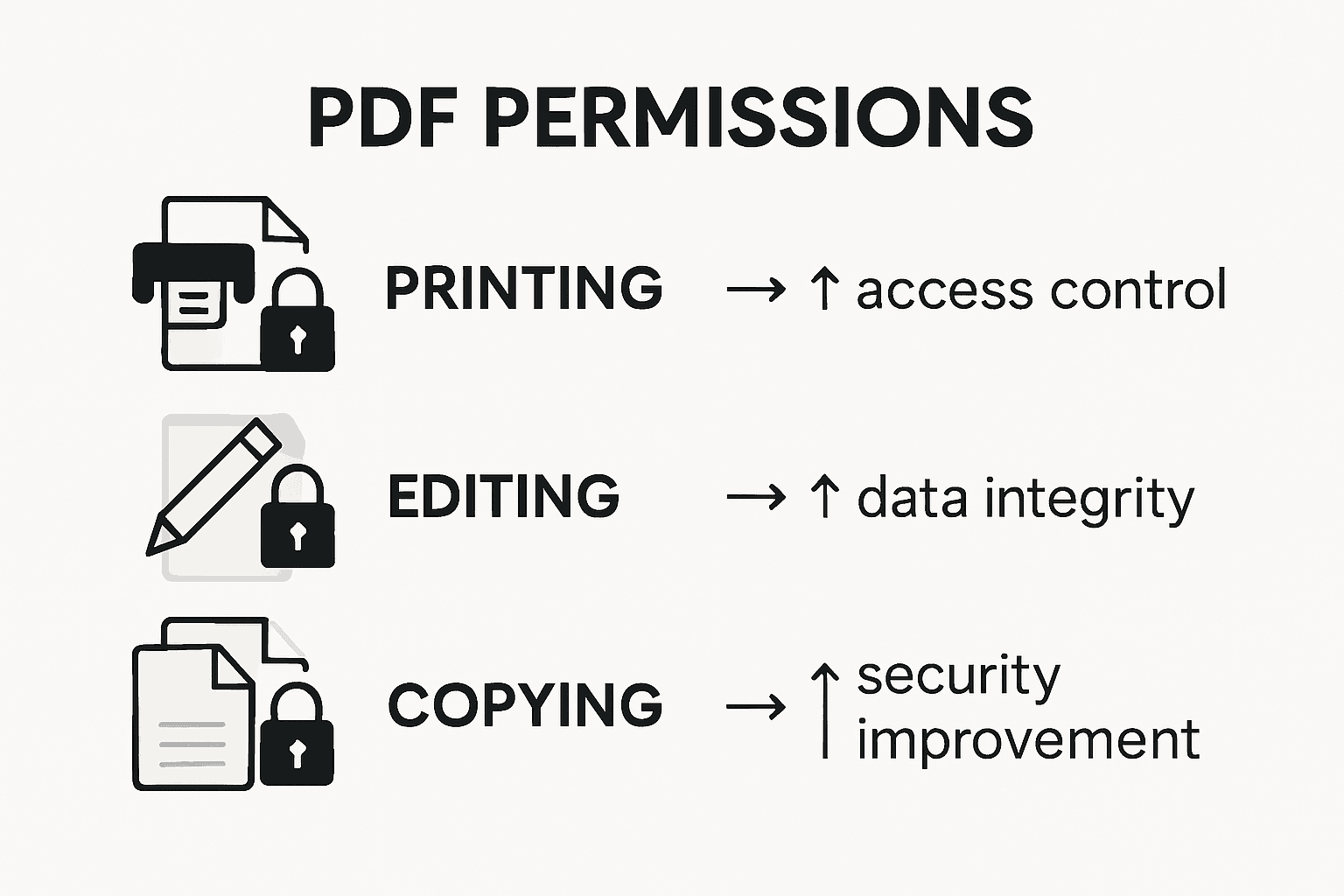
Here’s a quick reference to typical PDF permission settings and their effects:
| PDF Permission Setting | What It Restricts | Business Benefit |
|---|---|---|
| Printing | Printing the document | Prevents unauthorized distribution |
| Copying Text | Copy-paste functionality | Protects sensitive data |
| Editing | Modifying content | Maintains document integrity |
| Annotation | Adding comments/notes | Limits unwanted feedback marks |
| Page Extraction | Removing or saving pages | Stops partial data leaks |
Pro tip: Create a secure password management system to track your PDF passwords, using an encrypted password manager that allows you to store and retrieve complex credentials safely.
Step 4: Use Mapsoft Tools to Lock PDF Files
Mapsoft provides specialized tools designed to streamline PDF security processes with precision and ease. Navigating secured PDF workflows requires understanding the specific features available through their platform for comprehensive document protection.
The Mapsoft PDF Hub offers multiple security configuration options directly within its interface. Start by uploading your prepared document and accessing the security settings panel. Here you can implement password protections, set granular permission controls, and apply encryption levels that match your specific business requirements. The platform allows you to define user access restrictions including preventing printing, blocking text copying, limiting editing capabilities, and controlling document interactions with remarkable detail.
Locked PDF management becomes straightforward with Mapsoft tools that provide intuitive workflows for implementing security measures. You can batch process multiple documents simultaneously, apply consistent security protocols across entire document sets, and generate detailed access logs that track document interactions and permission modifications.
Pro tip: Always create a backup of your original document before applying security settings to ensure you have an unaltered version in case of unexpected configuration challenges.
Step 5: Verify Locked PDF Security Settings
Validating your PDF security configuration is crucial to ensuring complete document protection. Locking electronic signatures and document data requires a systematic approach to confirming that all security measures function exactly as intended.
Begin by testing each security setting individually. Open the document in a different computer or user account to verify password requirements. Attempt actions like printing, copying text, or editing to confirm that the permissions you established are working correctly. Check that the document cannot be opened without the correct password and that restricted functions remain inaccessible. Pay special attention to metadata visibility and ensure no sensitive information is accidentally exposed during your verification process.
Create a comprehensive security checklist that documents each setting you have implemented. This should include password complexity, permission restrictions, encryption levels, and any additional security features. Run multiple test scenarios simulating different user access levels to confirm that your security configuration provides robust protection against unauthorized access or modifications.
Pro tip: Use a separate test document with dummy content to practice and validate security settings before applying them to your actual sensitive files.
The table below summarizes the main steps to ensure effective PDF security:
| Security Step | Key Action | Outcome for Business |
|---|---|---|
| Assess Security Needs | Audit & categorize documents | Tailored protection strategy |
| Prepare PDFs | Remove metadata and review content | Clean, safe files for locking |
| Apply Passwords | Set open & permission passwords | Restricted access and actions |
| Use Mapsoft Tools | Configure settings and batch process | Consistent security deployment |
| Verify Settings | Test and simulate different users | Confidence in document security |
Strengthen Your PDF Security with Mapsoft Solutions
Securely locking your PDF files is essential to protect sensitive business information from unauthorized access and misuse. If managing password protection, permissions, and encryption feels overwhelming or if you need to implement consistent, scalable security measures across many documents, Mapsoft has you covered. Our expertise with Adobe technologies and powerful tools like the Mapsoft PDF Hub simplify the process of applying robust PDF security while maintaining workflow efficiency.

Explore how our solutions can help you remove metadata, set complex password controls, and automate batch security settings to safeguard critical documents. Visit our Digital Preservation category for insights and tools focused on document integrity and long-term protection. Ready to enhance your document security strategy immediately Use Mapsoft to streamline PDF locking and much more at Mapsoft.com today.
Frequently Asked Questions
How do I assess the security needs of my PDF files?
Start by conducting a comprehensive audit of your documents to categorize them based on confidentiality levels, such as public, internal, or highly sensitive. Follow this by analyzing access risks to determine the appropriate level of security needed for each type of document, which can help you tailor your protection strategy effectively.
What steps should I take to prepare my PDFs for locking?
To prepare your PDFs, review each document and remove any unnecessary metadata, ensuring that all text is searchable and free from sensitive hidden information. Standardize the content and structure before locking to create a clean and professional file ready for protection.
How do I apply password protection and set permissions on my PDF files?
You can apply password protection by setting two distinct passwords: an open password to prevent unauthorized access and a permissions password to restrict actions like printing or editing. Use complex combinations of characters for these passwords to secure your documents effectively.
What tools can I use to lock my PDF files securely?
Consider specialized PDF security tools that offer comprehensive features for applying password protections and permission settings. These tools often allow for batch processing multiple documents, ensuring that your security measures are consistently implemented across all your files.
How can I verify that my PDF security settings are effective?
Test your security settings by attempting to open the document from a different user account or computer to confirm that the password and permissions are functioning correctly. Create a checklist of each setting implemented and simulate different user access levels to ensure comprehensive protection against unauthorized actions.
Recommended
- 7 Secure File Sharing Methods Every PDF Workflow Needs –
- Password Protecting Documents: Master PDF Security with Adobe Acrobat –
- How to Adobe Encrypt PDF for Secure Enterprise Use –
- Master Secure Document Sharing for Business Success –
- Confidential Document Shredding Process for UK Businesses 2025 – Venture Waste