
Enterprise IT managers face a persistent challenge: bloated PDF files that clog storage, slow down sharing, and strain network bandwidth. Adobe’s online compression tools offer a practical solution, reducing file sizes by 40 to 70 percent while preserving document integrity. This guide walks you through prerequisites, step by step compression procedures, automation strategies, troubleshooting tips, and measurable outcomes to streamline your PDF workflows efficiently.
Table of Contents
- Prerequisites And Preparation
- Step By Step Guide To Adobe Online PDF Compression
- Compression Levels And Quality Tradeoffs
- Automation And Batch Processing For Enterprise Workflows
- Common Mistakes And Troubleshooting
- Expected Outcomes And Measuring Success
- Enhance Your Enterprise PDF Workflows With Mapsoft Solutions
- Frequently Asked Questions About Online PDF Compression With Adobe
Key Takeaways
| Point | Details |
|---|---|
| Prerequisites | Active Adobe account and secure backups are essential before starting compression. |
| File Size Support | Adobe online compressor handles files up to 2GB with High, Medium, and Low compression levels. |
| Automation Options | Adobe PDF Services API enables batch processing and workflow integration for enterprise scale. |
| Quality Balance | Medium compression achieves ~50% size reduction while preserving visual fidelity for business documents. |
| Expected Results | Typical outcomes range from 40 to 70 percent size reduction with minimal noticeable quality loss. |
Prerequisites and Preparation
Successful PDF compression starts with proper groundwork. You need an active Adobe Acrobat or Adobe online account to access official compression tools. Confirm stable internet connectivity before initiating uploads or downloads to prevent interruptions during processing.
Review your source PDFs carefully. Remove unnecessary elements like unused images, embedded media files, or redundant layers that inflate file size without adding value. This preemptive cleanup can reduce compression time and improve final results.
Backup original PDFs securely before any compression work. Store copies in a separate location to enable restoration if compressed versions lose critical data or exhibit unexpected quality issues. This safety net protects against irreversible changes.
Ensure files comply with enterprise security policies before uploading to online platforms. Verify that documents do not contain sensitive information requiring restricted handling or encryption beyond what the compression service provides.
Pro Tip: Run a pre compression audit using your PDF viewer to identify hidden objects, metadata, or embedded fonts that contribute to file bloat. Removing these elements before compression can yield additional size reductions of 10 to 15 percent.
For detailed Adobe online PDF compression prerequisites guide, consider enterprise specific requirements like audit trails and compliance documentation. Preparation reduces downstream issues and accelerates deployment.
Step by Step Guide to Adobe Online PDF Compression
Follow these sequential actions to compress PDF files using Adobe’s official online platform:
-
Access Adobe’s official online PDF compressor by navigating to adobe.com and locating the compression tool in the services menu.
-
Upload your PDF file by dragging it into the designated area or clicking the upload button. Adobe’s online PDF compressor supports files up to 2GB and offers selectable compression levels.
-
Select your compression level from the available options: High delivers maximum size reduction but may degrade image quality, Medium balances size and fidelity for typical business documents, and Low prioritizes quality preservation with modest size reductions.
-
Initiate the compression process by clicking the compress button. Processing time varies based on file size and network speed, typically completing within two minutes for files under 100MB.
-
Download the compressed PDF once processing finishes. Save it to your designated storage location and retain the original until you verify the compressed version meets your quality standards.
-
Verify file integrity and quality by opening the compressed PDF and checking critical elements like text clarity, image sharpness, form fields, and hyperlinks. Compare file sizes to confirm expected reduction.
Pro Tip: Use Medium compression for standard business documents containing text, tables, and moderate resolution images. This setting maintains clarity for screen viewing and printing while achieving substantial size reductions of approximately 50 percent.
For detailed Adobe online PDF compression steps tailored to enterprise workflows, including batch processing integration points, consult workflow automation documentation.
Compression Levels and Quality Tradeoffs
Understanding compression levels helps you make informed decisions about file size versus visual quality. High compression yields greatest size reduction but may degrade image quality; Medium balances size and fidelity; Low preserves quality with less size reduction.
High compression achieves up to 70 percent size reduction by aggressively downsampling images and removing redundant data. This setting works well for text heavy documents where image quality is secondary. However, photographs and graphics may exhibit noticeable pixelation or loss of fine details.
Medium compression delivers approximately 50 percent reduction while preserving visual fidelity adequate for most business purposes. This balanced approach maintains readability for screen viewing and standard printing without significant quality degradation.
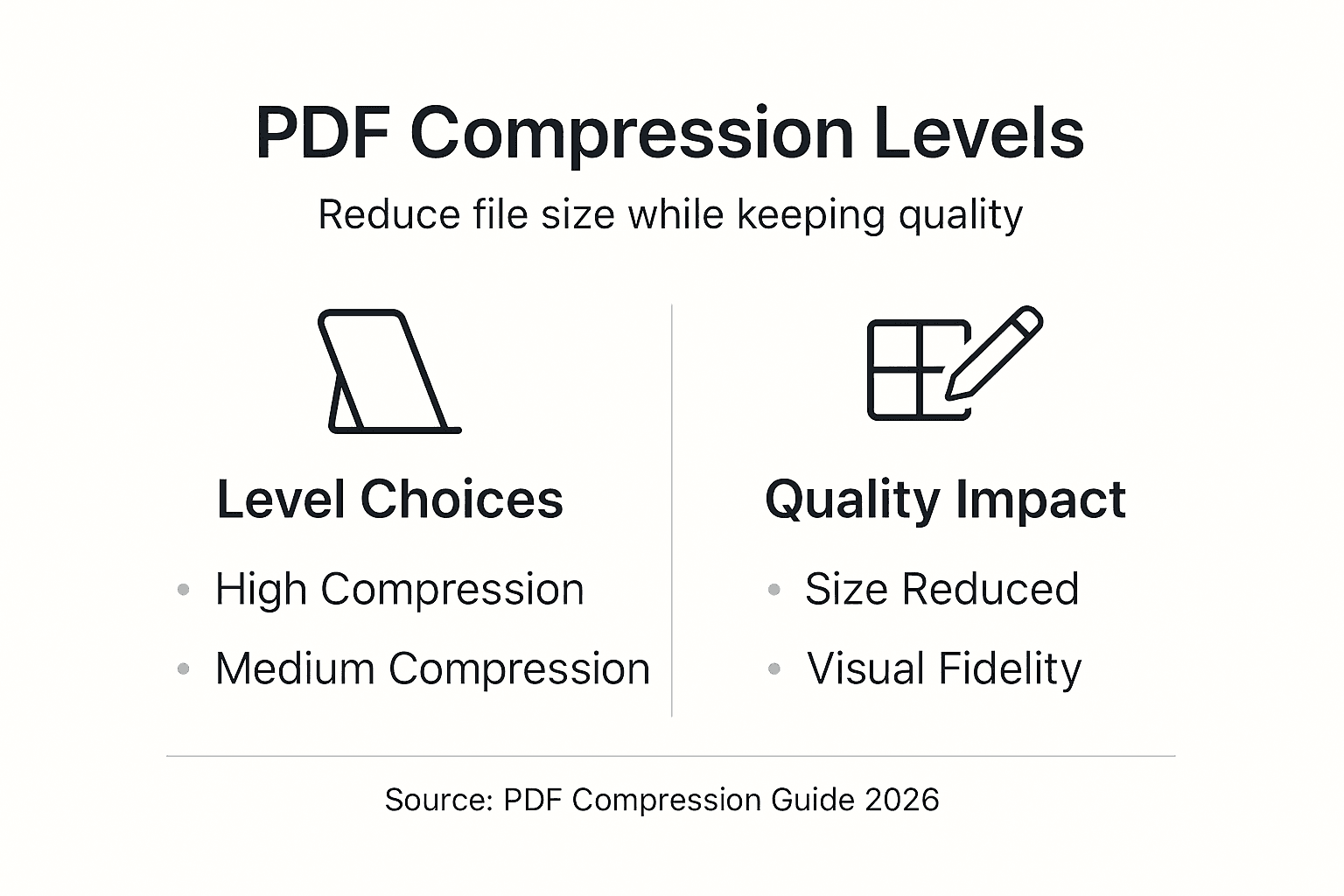
Low compression reduces file size by roughly 40 percent with minimal perceptible quality changes. Choose this setting for documents requiring high fidelity reproduction, such as marketing materials, presentations with detailed graphics, or archival records.
| Compression Level | Size Reduction | Quality Impact | Best Use Cases |
|---|---|---|---|
| High | 60 to 70% | Noticeable image degradation | Text heavy reports, internal memos |
| Medium | 45 to 55% | Minimal visible loss | Business documents, standard presentations |
| Low | 35 to 45% | Negligible quality change | Marketing materials, archival records |
Image resolution and embedded metadata are primary targets for compression algorithms. Higher resolution images contain redundant pixel data that compression removes without affecting perceived quality at typical viewing sizes.
Choose compression based on document purpose. Archival documents requiring long term preservation benefit from low compression. Sharing copies for review or collaboration work well with medium compression. Internal reports circulated for information only can use high compression. For more guidance, review the compression level guide specific to your document types.
Automation and Batch Processing for Enterprise Workflows
Enterprises processing hundreds or thousands of PDFs monthly need automation to scale compression efficiently. Batch compression allows multiple PDFs to be compressed simultaneously, saving hours of manual effort and reducing human error.

Adobe PDF Services API supports batch processing and integration into enterprise document workflows, enhancing efficiency and cost savings. The API accepts programmatic requests to compress files stored in cloud repositories, network shares, or document management systems.
Automation reduces manual intervention, lowering operational costs by 30 to 50 percent compared to manual processing. Staff can focus on higher value tasks while automated workflows handle routine compression jobs during off peak hours.
Supports processing large files within enterprise cloud environments like Azure, AWS, or Google Cloud Platform. Integration with existing infrastructure eliminates data transfer bottlenecks and maintains security protocols.
Pro Tip: Test batch jobs with sample PDFs representing your document variety before enterprise wide deployment. Run pilot batches of 10 to 20 files covering different sizes, content types, and complexity levels. Verify output quality, processing time, and error handling to refine automation parameters.
For comprehensive solutions, explore enterprise PDF workflow automation platforms that combine compression with other document operations like conversion, merging, and metadata management. Additional resources on Adobe PDF automation solutions demonstrate integration patterns for common business scenarios. External examples of enterprise workflow automation show real world implementations across industries.
Common Mistakes and Troubleshooting
Avoiding frequent errors ensures smooth compression outcomes and maintains document quality. Avoid aggressive compression settings and always verify compressed PDFs to prevent quality loss or corruption.
Do not choose maximum compression without testing output first. Starting with high compression on mission critical documents risks unacceptable quality degradation. Test on representative samples before applying settings to entire document sets.
Always verify compressed PDFs visually and functionally before distribution. Open files in Adobe Reader or Acrobat and scroll through every page. Check that text remains readable, images display clearly, hyperlinks function correctly, and form fields preserve data entry capabilities.
Keep backups of original PDFs to allow restoration if needed. Store originals in separate storage locations with appropriate version control. This practice protects against compression errors, accidental overwrites, or quality issues discovered after distribution.
Check for file corruption or missing elements after compressing. Compare page counts between original and compressed versions. Verify that bookmarks, annotations, and digital signatures remain intact. Test interactive features like buttons and embedded videos.
Confirm internet connection stability before and during upload or download operations. Interrupted transfers can produce incomplete or corrupted files. Use wired connections instead of wireless when processing large files to minimize disconnection risks.
For additional help, consult PDF compression troubleshooting tips covering specific error messages and resolution steps. Network related issues often benefit from connectivity troubleshooting guides addressing bandwidth, firewall, and proxy configuration problems.
Expected Outcomes and Measuring Success
Setting realistic expectations helps IT managers evaluate compression effectiveness and justify workflow investments. Typical compression reduces PDF size by 40 to 70 percent depending on chosen settings and source document characteristics.
Visual quality at medium compression is preserved with negligible noticeable loss. Text remains crisp and readable at standard screen resolutions and print outputs. Photographs and graphics retain adequate detail for business communication purposes.
Compression time depends mainly on file size and internet speed. Files under 100MB typically process in under two minutes on connections exceeding 10 Mbps upload speed. Larger files or slower connections require proportionally more time but rarely exceed five minutes for 2GB files.
File integrity checks ensure no loss of critical elements like text accuracy, form field functionality, or hyperlink targets. Automated validation tools can compare original and compressed PDFs to identify discrepancies in content, structure, or metadata.
| Metric | Typical Range | Measurement Method |
|---|---|---|
| Size Reduction | 40 to 70% | Compare file sizes before and after |
| Processing Time | 1 to 5 minutes | Time from upload to download completion |
| Quality Score | 85 to 95% fidelity | Visual inspection or automated comparison |
| Cost Savings | 30 to 50% storage reduction | Calculate storage fees based on size differences |
Successful compression improves sharing speed by reducing email attachment sizes and accelerating cloud sync operations. Storage cost efficiency increases as smaller files consume less disk space and backup capacity. Organizations processing thousands of PDFs monthly realize substantial infrastructure savings through systematic compression deployment.
Enhance Your Enterprise PDF Workflows with Mapsoft Solutions
Compressing PDFs is just one step toward optimized document operations. Mapsoft provides advanced batch processing and automation solutions tailored for Adobe PDF workflows, enabling you to scale compression efforts across your entire organization.
Integrate Mapsoft tools to streamline enterprise document operations beyond basic compression. 
Master PDF Batch Processing for Workflows with platforms designed for high volume environments. Combine compression with conversion, merging, splitting, and metadata management in unified workflows that eliminate manual handoffs. Automate PDF Document Workflows to reduce processing time by 60 percent or more compared to manual operations.
Maximize efficiency, reduce costs, and ensure consistent PDF quality across workflows with enterprise grade solutions. Automate PDF Processing to free IT staff from repetitive tasks while maintaining compliance and audit trail requirements. Explore Mapsoft’s offerings for comprehensive PDF workflow enhancements tailored to your industry and document volume.
Frequently Asked Questions About Online PDF Compression with Adobe
How secure is Adobe’s online PDF compression for enterprise documents?
Adobe’s online compression uses encrypted connections for file transfers and does not retain uploaded files after processing completes. For highly sensitive documents, consider using Adobe Acrobat desktop software or enterprise API solutions that keep files within your controlled infrastructure. Always review your organization’s data handling policies before uploading confidential materials to any cloud service.
Can I compress multiple PDFs at once using Adobe’s online tools?
Adobe’s basic online compressor processes one file at a time. For batch compression, use Adobe PDF Services API or third party enterprise platforms supporting bulk operations. These solutions handle dozens or hundreds of files simultaneously, dramatically reducing processing time for large document sets.
What Internet speed is recommended for compressing large PDF files online?
Minimum upload speed of 5 Mbps works for files under 50MB. For files approaching the 2GB limit, 25 Mbps or faster upload speeds prevent timeouts and reduce processing delays. Test your connection speed before starting large compression jobs to estimate realistic completion times.
Is there a risk of losing form fields or annotations after compression?
Medium and low compression settings typically preserve form fields and annotations without issue. High compression may strip some interactive elements depending on how they were originally created. Always test compressed files by filling out forms and checking annotation visibility before distributing to end users.
How can I recover if the compressed PDF quality is unsatisfactory?
Restore from your original backup and recompress using a lower compression level. If you did not retain the original, recovery is not possible, which is why maintaining backups before compression is critical. For mission critical documents, test compression settings on copies first to confirm acceptable quality before replacing originals.
Recommended
- How to Adobe Online Compress PDF for Efficient Workflows –
- How to Compress PDF on Mac for Efficient Workflows –
- Master Optimizing PDF File Size for Business Efficiency –
- How to Use Adobe Optimize PDF for Efficient Document Workflows –
- Tendenze siti internet 2025: Come innovare online – Riccardowebdesign
- Metodi Veloci per Ripassare: 25% Tempo Risparmiato