
{
“@type”: “Article”,
“image”: {
“url”: “https://csuxjmfbwmkxiegfpljm.supabase.co/storage/v1/object/public/blog-images/organization-3822/1769216401180_image.png”,
“@type”: “ImageObject”,
“caption”: “IT manager overseeing document conversion process”
},
“author”: {
“url”: “https://mapsoft.com”,
“name”: “Mapsoft”,
“@type”: “Organization”
},
“@context”: “https://schema.org”,
“headline”: “Word to PDF Accuracy: Ensuring Seamless Document Workflows”,
“publisher”: {
“url”: “https://mapsoft.com”,
“name”: “Mapsoft”,
“@type”: “Organization”
},
“inLanguage”: “en-US”,
“articleBody”: “”,
“description”: “Word to PDF accuracy impacts enterprise workflows. Learn how conversion works, why errors happen, and best practices for flawless results.”,
“datePublished”: “2026-01-24T01:00:41.103Z”
}
Conversion errors disrupting compliance reviews or brand consistency are a headache for even the most seasoned IT manager. For global enterprises, ensuring that every converted PDF truly mirrors its original Word counterpart protects everything from regulatory adherence to client trust. By tackling common myths and focusing on definition clarity, you gain critical insight into how Word to PDF accuracy drives document reliability when deploying Adobe integrations at scale.
Table of Contents
- Defining Word To PDF Accuracy And Common Myths
- Types Of Conversion Tools And Techniques
- Key Elements Affecting Conversion Fidelity
- Enterprise Workflow Impact And Use Cases
- Avoiding Data Loss And Common Pitfalls
Key Takeaways
| Point | Details |
|---|---|
| Understanding Conversion Accuracy | Accurate Word to PDF conversion is crucial for compliance and operational efficiency in enterprises. Misunderstandings about conversion limitations can lead to significant workflow disruptions. |
| Testing Before Deployment | Always test conversion solutions with complex documents representative of your workflows to identify potential issues early. This helps prevent costly corrections after wide deployment. |
| Choosing the Right Tools | Different conversion tools serve various needs; consider customization and security features while selecting a solution for different departmental requirements. |
| Addressing Common Pitfalls | Common issues like data loss and file size restrictions can be mitigated by thorough testing and ensuring the selected tool has a good track record for reliability and security. |
Defining Word to PDF Accuracy and Common Myths
Word to PDF accuracy refers to how faithfully a converted PDF preserves the original Word document’s formatting, layout, fonts, colors, images, and overall visual appearance. This isn’t about whether the conversion produces a PDF file—it’s about whether that PDF matches what you intended to create. For IT managers overseeing document workflows across enterprise systems, understanding this distinction matters because a “successful” conversion that loses critical formatting can derail compliance requirements, client deliverables, or archival standards. Defining terminology clearly helps avoid misinterpretations that lead teams down the wrong path when evaluating conversion solutions.
Several myths cloud how organizations think about Word to PDF conversion accuracy. The first is the belief that all PDF conversions perform identically regardless of the tool used—they don’t. Different conversion engines handle complex Word features like macros, embedded objects, tracked changes, and advanced styling in vastly different ways. A second common misconception suggests that free conversion tools automatically produce inferior results, while premium solutions guarantee perfection. Reality is more nuanced. Tool quality depends on specific technical architecture, not price point alone. A third myth assumes that what looks correct on screen will convert perfectly—missing the fact that PDF rendering engines interpret color spaces, font substitution, and layout precision differently than Word’s display engine. Perhaps most problematic, many teams believe conversion accuracy is “good enough” if the document remains readable, overlooking how misconceptions around concepts can hinder understanding of technical specifications and requirements.
Accuracy also varies based on Word document complexity. Simple documents with standard fonts and basic formatting convert cleanly across most platforms. But documents containing form fields, conditional formatting, embedded OLE objects, or specialized fonts often expose conversion weaknesses. Enterprise teams working with templates, branded documents, or regulatory-required layouts need conversion solutions that handle these edge cases reliably. The difference between a 95 percent accurate conversion and a 99 percent accurate one can represent hours of manual correction work multiplied across thousands of documents monthly.
Understanding these distinctions helps IT managers establish realistic expectations when evaluating conversion workflows and selecting tools that match actual requirements rather than assumptions. Your conversion accuracy needs depend on document complexity, regulatory requirements, and downstream usage patterns. Assessing these factors upfront prevents choosing solutions that work for simple cases but fail when complexity increases.
Pro tip: Test any conversion solution against your most complex, heavily formatted documents before deployment, not your simplest ones—this reveals actual capability limits and prevents discovering critical gaps after full implementation.
Types of Conversion Tools and Techniques
Conversion tools fall into three primary categories, each handling Word to PDF transformation differently. Built-in solutions leverage native operating system or application features—Microsoft Word’s “Save As PDF” function exemplifies this approach, offering simplicity but limited customization. Online converters operate through web browsers, accepting file uploads and returning converted PDFs without requiring software installation, though they introduce data transfer considerations for enterprise security teams. Desktop applications and specialized software provide granular control over conversion parameters, handling complex formatting requirements that simpler tools miss. Understanding these categories helps IT managers match tools to specific workflow requirements rather than defaulting to whatever seems easiest.
Conversion techniques vary significantly in how they process Word documents. The most common approach uses direct export functionality, where conversion engines parse Word’s underlying XML structure and translate formatting directly to PDF format. This method works well for standard documents but sometimes struggles with advanced styling or proprietary Word features. Print-to-PDF techniques create a virtual print driver that treats the Word document as a print job, routing output to PDF instead of a physical printer. This approach preserves visual appearance accurately but may lose metadata or interactive elements. Leading conversion tools vary in features like ease of use and file size handling, with some offering batch processing capabilities for enterprise-scale operations. Your choice between these techniques depends on whether you prioritize formatting fidelity, metadata preservation, or processing speed.
Enterprise teams often need solutions beyond basic conversion. Batch processing capabilities allow converting hundreds or thousands of documents automatically, critical for organizations migrating legacy archives or processing recurring document workflows. OCR (Optical Character Recognition) integration enables converting scanned documents and images into searchable, editable PDFs—essential for teams handling physical paperwork or historical documents. Advanced security features like password protection, permission restrictions, and watermarking integrate into some conversion workflows, addressing compliance requirements. Cloud-based solutions offer scalability and centralized management, while on-premises tools provide data residency control for organizations with strict confidentiality requirements.
The right conversion approach depends on your document complexity, volume requirements, and downstream usage. Organizations handling simple business correspondence can rely on built-in Word features. Those managing complex branded documents, forms with field preservation, or large-scale migrations need more sophisticated solutions. Many enterprise teams use layered approaches—built-in tools for routine conversions, specialized software for complex documents, and batch processing solutions for high-volume operations.
Here is a comparison of Word to PDF conversion tool types and their enterprise suitability:
| Tool Type | Customization Level | Security Considerations | Ideal Use Case |
|---|---|---|---|
| Built-in (e.g., Word) | Low | Depends on local security | Simple, routine documents |
| Online Converter | Very limited | Risk of data exposure | Occasional, low-sensitivity files |
| Desktop/Specialized App | High | Strongest with proper setup | Complex or regulated content |
Pro tip: Evaluate tools using representative samples from your actual workflow, not generic test files, since accuracy varies dramatically based on specific formatting, fonts, and embedded objects your organization uses.
Key Elements Affecting Conversion Fidelity
Font handling stands as the first critical factor determining whether your converted PDF matches the original Word document. When Word documents use specialty fonts not installed on the conversion system, the engine substitutes available alternatives, potentially distorting text appearance and layout spacing. Standard fonts like Calibri, Arial, and Times New Roman convert reliably across platforms, but proprietary or brand-specific typefaces require embedding within the PDF file to maintain accuracy. Additionally, font sizes, weights, and styling (bold, italics, underlining) depend on how precisely the conversion tool interprets Word’s formatting codes. For enterprise documents using consistent brand fonts, this single element can make the difference between professional output and documents requiring correction.

Image handling and color management introduce another layer of complexity. Word documents often embed images at various resolutions, and conversion tools handle compression differently—some preserve original quality while others aggressively compress to reduce file size. Color space interpretation varies significantly too. A logo appearing vibrant in Word might shift slightly when the conversion engine interprets RGB colors as CMYK or applies color profile transformations. Key challenges affecting fidelity include formatting inconsistencies and image quality degradation, along with hyperlink failures that break document navigation. Tables with complex formatting, merged cells, or conditional shading frequently suffer degradation during conversion. The solution involves preparing source documents carefully—using PDF-friendly fonts, embedding images properly, and testing with your actual conversion tool before processing large batches.
Metadata and interactive elements often get overlooked but impact workflow significantly. Hyperlinks, bookmarks, form fields, and tracked changes may fail to convert properly or disappear entirely depending on the tool. Word documents containing macros, embedded objects, or conditional formatting encounter the most conversion challenges. File size bloat represents another fidelity concern—poorly optimized conversions can produce PDFs three times larger than the original Word file, creating storage and transmission problems across enterprise systems. The conversion settings you choose matter enormously here. Selecting “Save As” within Word provides different results than print-to-PDF or third-party tools, each handling these edge cases differently.
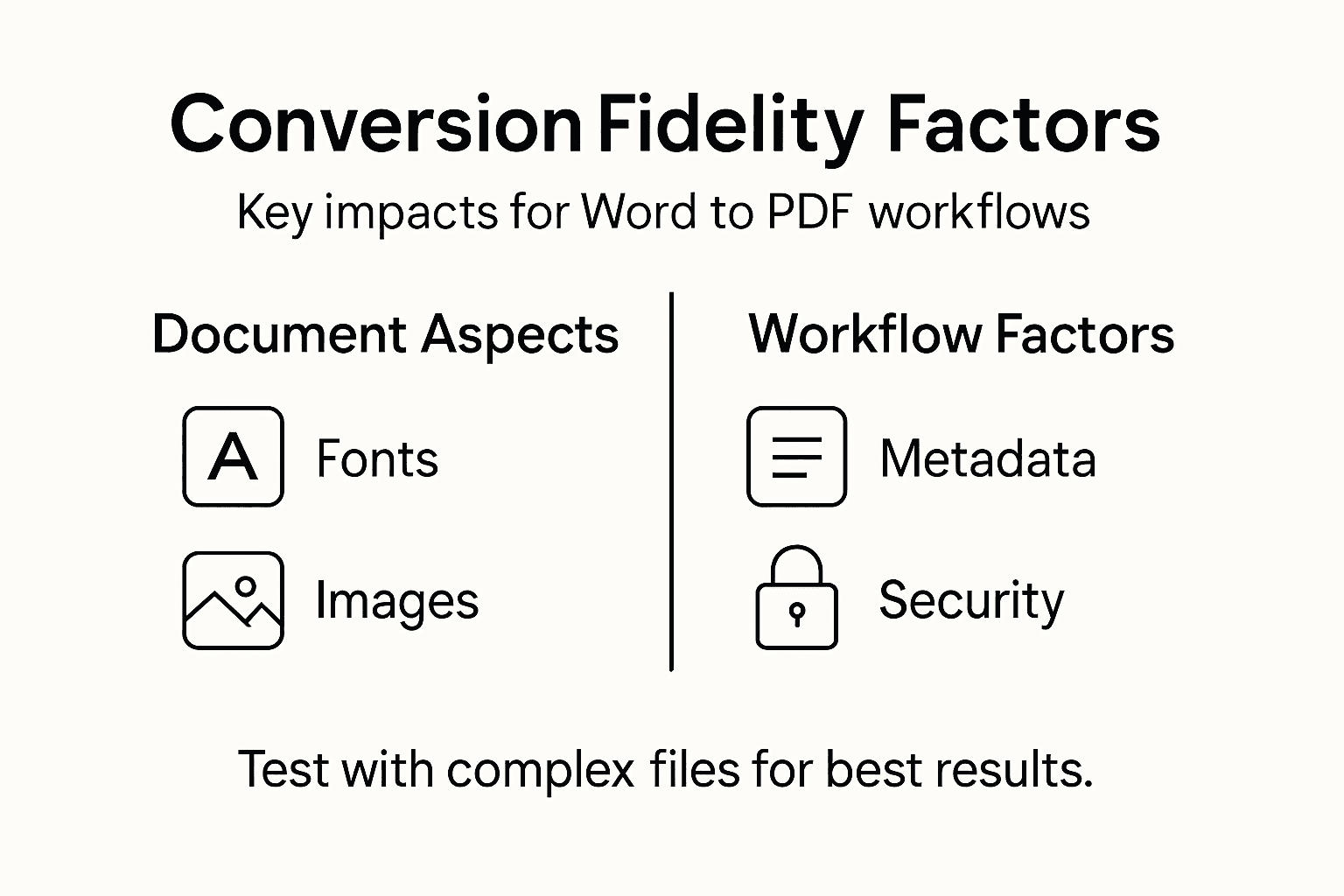
Addressing these elements requires a systematic approach. Before deploying any conversion solution enterprise-wide, test it against your actual document templates containing specialty fonts, embedded images, hyperlinks, and complex tables. Identify which elements matter most to your workflows—if hyperlink preservation is critical, verify your chosen tool maintains them. If file size concerns you, compare compression settings. This upfront testing prevents discovering critical gaps after implementation when thousands of documents have already converted incorrectly.
Pro tip: Create a standardized document template using PDF-friendly fonts, embedded images, and simple table structures, then migrate existing documents to match this standard before conversion—this eliminates most fidelity issues before they occur rather than trying to fix conversion problems afterward.
Enterprise Workflow Impact and Use Cases
Word to PDF conversion accuracy directly impacts how efficiently enterprise teams operate across multiple departments and document types. When conversions fail or produce degraded output, the ripple effects multiply—legal teams must re-review documents, finance departments struggle with form field data, and compliance officers question whether archived PDFs meet regulatory standards. A single inaccurate conversion affecting 500 documents means 500 individual corrections or, worse, 500 documents that fail audit requirements. Organizations managing high-volume document workflows cannot afford accuracy problems that cascade through their operations. This is why understanding real-world use cases matters. Different departments have vastly different conversion requirements, and solutions designed for one scenario often fail in another.
Consider how finance departments use Word to PDF conversion. They receive vendor contracts, proposals, and regulatory filings in Word format, often with embedded tables containing critical numbers, conditional formatting showing calculations, and form fields for signatures. Converting these to PDF must preserve table precision, maintain hyperlinked references to appendices, and protect form functionality. A single misaligned table cell or lost hyperlink can delay contract approval or create compliance questions during audits. Legal teams face similar challenges but emphasize metadata preservation and tracked change visibility—converting documents that contain confidential comments or revision history requires tools that either preserve or completely strip this information, depending on workflow requirements. Automating file handling in enterprise workflows becomes critical when handling sensitive content at scale.
Human Resources departments convert offer letters, policy manuals, and employee handbooks where consistency and professional appearance matter enormously. A branded document losing its color scheme or logo positioning creates an unprofessional impression. Operations teams convert invoices, shipping documents, and inventory reports where accurate table formatting and barcode preservation are non-negotiable—a misaligned barcode becomes unscannble. Marketing departments convert brand guidelines and campaign materials where color accuracy determines brand integrity. Each use case requires different conversion priorities, and a solution optimized for finance may inadequately serve marketing requirements.
The common thread across these scenarios is that accurate conversion directly impacts operational efficiency. When accuracy fails, IT departments absorb the correction workload, pulling resources from strategic initiatives. Organizations processing thousands of documents monthly discover that even a 2 percent failure rate equals dozens of documents requiring manual intervention. This creates compelling business cases for investing in robust conversion solutions rather than accepting “good enough” accuracy from cheaper tools. Enterprise teams that standardize on high-accuracy conversion solutions report measurable improvements in document processing speed, reduced compliance risk, and lower correction costs.
Pro tip: Map your document types to specific workflow requirements before selecting a conversion solution—identify which elements matter most to each department, then test tools against representative samples from each category rather than assuming one tool works universally across your organization.
Avoiding Data Loss and Common Pitfalls
Data loss during conversion happens more often than most IT managers expect, yet many organizations discover it only after deployment. The primary culprit is selecting conversion tools based on convenience rather than reliability. Free online converters offer tempting simplicity, but they introduce multiple risks. Files uploaded to unknown servers create data security exposures, especially when handling confidential business documents or client materials. Some converters store uploads indefinitely, creating compliance violations under GDPR, HIPAA, or industry-specific regulations. Worse, unreliable converters may corrupt files, lose embedded data, or strip metadata without warning. Common mistakes when converting documents include using unreliable converters and ignoring file size limits, both of which can compromise document integrity and create downstream workflow problems that are expensive to remediate.
File size limits represent another hidden pitfall that catches organizations off guard. Many online and some desktop converters impose file size restrictions, rejecting large documents containing embedded images, multiple pages, or multimedia content. When a 50 MB document fails conversion without clear error messaging, teams waste hours troubleshooting before discovering the limitation. Large files also expose compression risks. Some tools aggressively compress images to meet size requirements, degrading quality below acceptable standards. Before converting at scale, verify actual maximum file sizes your chosen tool handles and test with documents matching your real-world complexity. Additionally, batch processing capabilities matter enormously for enterprise teams. Tools lacking batch functionality force manual individual conversions, creating bottlenecks for high-volume workflows. A tool that converts one document at a time becomes impractical when you have 5,000 invoices to process monthly.
Verification failures represent the most insidious pitfall. Many IT teams deploy conversion solutions without thoroughly reviewing output quality. They assume successful conversion equals accurate conversion, missing degraded formatting, missing content, or corrupted elements that only reveal themselves during use. A legal team discovers after deployment that hyperlinks stopped working. A finance team finds that form fields didn’t convert, breaking their downstream data collection process. These discoveries mid-workflow are expensive to remediate. The solution is straightforward but often skipped. Before production deployment, convert representative samples from each major document type used across your organization. Review outputs pixel-by-pixel, test every hyperlink, verify all form fields function, and confirm metadata preservation. This pre-deployment validation takes hours but prevents discovering critical gaps after thousands of documents have already converted incorrectly.
Security and privacy considerations demand equal attention. Select tools offering data encryption in transit and at rest, clear privacy policies confirming document deletion, and compliance certifications matching your regulatory requirements. Document retention policies should specify how long conversion systems retain uploaded files before automatic deletion. This becomes critical during audits when you cannot guarantee that confidential materials were genuinely deleted.
The following table summarizes common conversion pitfalls and effective prevention strategies:
| Pitfall | Consequence | Preventive Measure |
|---|---|---|
| Data loss | Missing content or formatting | Use validated, reputable converters |
| File size restriction | Conversion failures, wasted labor | Test actual limits before deployment |
| Poor output verification | Unnoticed errors in documents | Review samples from each doc type |
| Weak privacy safeguards | Data breaches or compliance issues | Choose tools with encryption and policies |
Pro tip: Build a comprehensive pre-deployment validation checklist covering document types, file sizes, metadata requirements, and security standards specific to your organization, then test against this checklist before committing to any conversion solution for enterprise-wide use.
Ensure Flawless Word to PDF Accuracy with Trusted Solutions
The article explores the critical challenges enterprise teams face when converting Word documents to PDF formatos and the risks of data loss, formatting errors, and workflow disruptions. If you are dealing with complex layouts, specialty fonts, or require batch processing to maintain regulatory compliance and branding consistency, then understanding conversion accuracy is essential. Your workflows deserve tested solutions that handle all elements reliably without wasting time on manual fixes.

Discover how Mapsoft offers powerful PDF handling and automation tools designed to preserve formatting fidelity while securely processing large volumes of documents. From advanced PDF creation and editing features to batch automation, our Digital Preservation capabilities help you protect your critical document standards. Take control of your enterprise workflows today by exploring custom software and Adobe Acrobat® plug-ins tailored to your needs at Mapsoft.com. Don’t wait until costly errors occur. Experience precision and efficiency now.
Frequently Asked Questions
What is Word to PDF accuracy?
Word to PDF accuracy refers to how well a converted PDF preserves the formatting, layout, and visual elements of the original Word document. High accuracy means the PDF looks and functions as intended without any loss of important formatting.
Why do some conversion tools produce better results than others?
Different conversion tools utilize varying technologies to handle complex Word features like images, tables, and fonts differently. This can result in significant discrepancies in the converted PDF’s appearance and functionality.
How can I ensure my PDF retains its original formatting when converted?
To ensure formatting consistency, test the conversion tool with your most complex documents before full deployment. Utilize conversion solutions that specifically handle your document’s unique formatting and styling requirements.
What elements can affect the fidelity of a PDF conversion?
Key elements include font handling, image quality, color management, and the preservation of interactive features like hyperlinks and form fields. Ensuring these components are accurately managed during conversion is crucial for maintaining PDF fidelity.