
Managing thousands of PDF documents across an enterprise often means battling bottlenecks, manual errors, and compliance headaches. These challenges disrupt productivity and weigh down IT departments that need reliable, automated workflows. By adopting AI-driven document understanding and integrating advanced Adobe Acrobat solutions, IT managers can shift from tedious processing to efficient, auditable operations that keep teams focused on high-value work.
Table of Contents
- Understanding Automated Document Workflows
- Key Types and Approaches for Enterprises
- Essential Features and Adobe Integrations
- Risks, Compliance, and Cost Implications
- Choosing Solutions and Avoiding Pitfalls
Key Takeaways
| Point | Details |
|---|---|
| Automated Workflows Improve Efficiency | Implementing automated document workflows can reduce processing time by 60-80% and minimize the risk of errors in data entry. |
| Enhanced Compliance and Audit Trails | Automated systems maintain thorough audit trails, which help satisfy compliance obligations and protect organizations during regulatory scrutiny. |
| Technology Spectrum Tailored to Needs | Different automation technologies cater to varying document complexities, ensuring organizations can select the right tools based on their specific requirements. |
| Gradual Implementation is Crucial | A systematic approach to deployment, starting with high-volume documents, will enhance acceptance and allow for adjustments based on initial performance. |
Understanding Automated Document Workflows
Automated document workflows eliminate repetitive manual tasks by using technology to move documents through predefined processes. Instead of employees manually routing invoices, contracts, or forms between departments, these systems handle routing, approvals, and data extraction automatically. The result is faster processing with fewer errors.
Think of it like an assembly line for your documents. Each step triggers the next automatically, removing the need for constant human intervention. When a purchase order arrives, the system extracts key data, routes it for approval, and integrates it into your accounting system without anyone touching it multiple times.
How They Work
Automated document workflows rely on several connected components working together:
- Trigger recognition: A document arrives (email, portal upload, scanner feed) and the system detects it
- Data extraction: AI-driven document understanding pulls specific information like invoice numbers, amounts, vendor names, and dates automatically
- Routing logic: Documents move to the right person or system based on content, amount, or approval rules
- Multi-step approvals: Finance approves transactions, compliance checks documents, operations confirms receipt
- Integration: Approved data flows directly into your ERP, accounting software, or business systems
- Audit trails: Every step is logged for compliance and tracking purposes
Your enterprise likely handles thousands of documents monthly. Manual processing means bottlenecks, delayed approvals, and data entry mistakes that compound across departments.
Why This Matters for IT Managers
You already know that manual document handling creates real problems. Automated workflows respond to specific triggers, maintain document quality through multi-step approvals, and synchronize content across platforms automatically. This approach cuts processing time by 60-80% in most enterprises, depending on document complexity.
Beyond speed, these systems reduce compliance risks. Every document move is tracked, timestamped, and auditable. If your organization faces regulatory scrutiny, that audit trail protects you. When you implement workflow process automation, you also create accountability that’s difficult to achieve with manual processes.
Error reduction matters too. Humans make mistakes during data entry. Systems don’t. One manufacturing company discovered that manual invoice processing had a 3.2% error rate. After automation, that dropped to 0.04%.
The Core Benefits
- Reduce document processing time from days to hours
- Lower operational costs by eliminating manual data entry
- Minimize errors that lead to payment delays or compliance issues
- Create audit trails that satisfy regulatory requirements
- Free up staff to handle exceptions and higher-value work
- Scale processing capacity without hiring additional staff
Automated workflows transform document management from a cost center requiring constant oversight into an efficient, auditable process that runs in the background.
Pro tip: Start with your highest-volume, most repetitive documents—invoices, expense reports, or claims—to show quick ROI and build momentum for wider implementation across your organization.
Key Types and Approaches for Enterprises
Enterprises don’t adopt a one-size-fits-all approach to document automation. Your organization’s complexity, document types, and processing volume determine which technologies make sense. Understanding the spectrum of available options helps you choose the right tools for your specific challenges.
The Technology Spectrum
Document automation exists across a spectrum, each tier handling increasing complexity:
- OCR (Optical Character Recognition): Converts scanned images into searchable text. Useful for digitizing old paper documents but doesn’t extract structured data.
- Rule-based processing: Applies predefined extraction rules to documents. Works well for standardized formats like invoices with consistent layouts.
- Intelligent document processing (IDP): Adds classification and extraction capabilities. The system learns which fields matter and pulls them automatically, handling some format variations.
- AI-driven systems: Uses AI agents handling contextual understanding and edge cases. Handles unusual document formats, complex relationships between data points, and exceptions that rule-based systems miss.
Most enterprises use a combination. You might use OCR for legacy documents, rule-based processing for standard invoices, and AI-driven systems for contracts with variable structures.
Here’s a summary of major document automation technologies and when they fit best:
| Automation Approach | Main Strength | Ideal Document Types | Limitation |
|---|---|---|---|
| OCR | Digitizes paper docs | Legacy paper invoices and forms | No structured data extraction |
| Rule-based | Fast, predictable results | Standardized, repeatable formats | Struggles with variation |
| Intelligent (IDP) | Learns varied templates | Semi-structured contracts, variable reports | Needs training data |
| AI-driven | Handles exceptions, context | Complex, unusual, or mixed documents | Higher setup effort |
Template-Based Assembly
Document automation architectures increasingly focus on integrating inputs from diverse sources and generating structured documents compliant with templates. Your company likely creates hundreds of documents daily using standard templates: contracts, proposals, reports, compliance documents.

Template-based generation automates this by pulling data from multiple systems and assembling documents automatically. When a sales deal closes, the system generates a contract by inserting customer name, terms, pricing, and legal language into the right template sections.
Rule-Based and Validation Approaches
Enterprises adopt rule-based systems to validate data during capture and assembly:
- Extract data consistently from similar documents
- Apply business rules automatically (amount thresholds trigger additional approvals)
- Validate data before processing (catch missing fields immediately)
- Enforce compliance rules at document creation time
- Improve accuracy by catching errors in source data
Different automation approaches address different operational needs. Your choice depends on document complexity, volume, and how much variation you need to handle.
Which Approach for Your Organization?
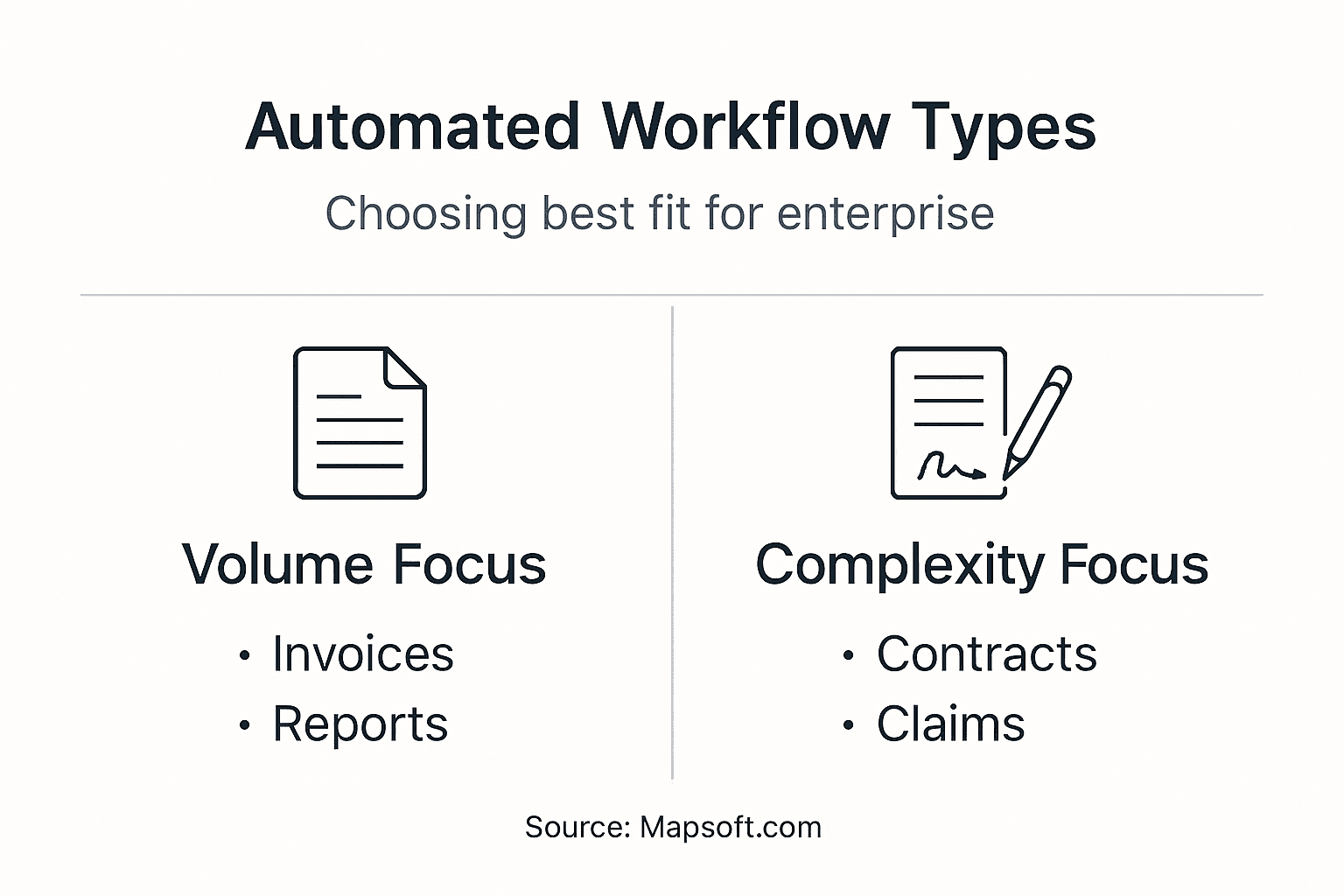
Start with why automating PDF processing matters for your specific workflows. High-volume, standardized documents benefit from rule-based systems. Complex contracts or forms with significant variation require intelligent or AI-driven approaches.
Most IT managers begin with invoices, expense reports, or purchase orders because these documents follow consistent patterns and generate immediate cost savings. Once you prove ROI there, expand to more complex document types.
Pro tip: Map your document types by volume and complexity before selecting tools—automate high-volume, simple documents first to demonstrate value, then graduate to more complex automation as your team gains experience.
Essential Features and Adobe Integrations
Automated document workflows succeed when they include the right capabilities. You need features that handle the technical side of automation while integrating seamlessly with tools your teams already use. Adobe integrations are critical here—they let you automate backend processes without disrupting how people work daily.
Core Automation Features
Every solid document workflow platform should include these essentials:
- Trigger-based automation: Documents arriving via email, portal, or API automatically launch predefined processes
- Multi-step approvals: Route documents through required approval chains automatically
- Data extraction: Advanced data extraction powered by machine learning captures names, dates, amounts, and order numbers with high accuracy
- Content synchronization: Keep document versions aligned across systems in real time
- Automated notifications: Stakeholders receive alerts when action is required or milestones are reached
- Version control: Track document changes with full audit trails for compliance
- Compliance tracking: Document every action taken during processing for regulatory proof
Without these features, you’re just digitizing manual processes—not actually automating them.
Use this table to check how automation features support core business goals:
| Feature/Function | Business Value | Risk if Missing |
|---|---|---|
| Multi-step approvals | Ensures policy compliance | Unauthorized decisions |
| Version control | Tracks changes for audits | Regulatory penalties |
| Data extraction | Reduces manual input errors | Inaccurate payments |
| Automated notifications | Speeds user response times | Process bottlenecks |
Adobe Integration Advantages
Adobe Acrobat and Adobe Sign are built for document work. Integration with Adobe products facilitates working directly on PDFs, enabling form filling, electronic signatures, and real-time collaboration. Here’s why this matters operationally:
Your teams already know Adobe tools. Integration means they don’t need new software training. When a document requires approval, reviewers can open it in Acrobat, add comments, fill forms, and sign electronically without leaving familiar interfaces. The workflow system handles routing and compliance behind the scenes.
Why This Architecture Matters
Separating user experience from backend automation creates flexibility. Teams work naturally with Adobe tools they trust. Meanwhile, your automation layer handles complex logic: validating data, applying business rules, checking compliance requirements, and moving documents to the next step.
Effective automation balances user experience with backend control—teams need familiar tools while workflows enforce consistent processes automatically.
Real Integration vs. Surface-Level Connectivity
True Adobe integration means leveraging robust document handling within familiar Adobe environments while automating backend processing. Not every automation platform does this well. Some force users into clunky custom interfaces. The best solutions let people work in Adobe Acrobat or Adobe Sign while automation manages the operational complexity.
Pro tip: Prioritize automation platforms with native Adobe Acrobat and Adobe Sign integration—this eliminates training friction and ensures faster adoption across your enterprise since teams already use these tools daily.
Risks, Compliance, and Cost Implications
Automation sounds like a silver bullet, but it introduces new challenges you need to manage carefully. Security vulnerabilities, compliance gaps, and implementation costs can undermine the benefits if you’re not intentional about addressing them. IT managers need to understand these trade-offs before investing.
Security and Data Handling Risks
When documents move through automated systems, they pass through more connection points. Each integration point creates potential exposure. Common PDF security risks include unauthorized access to sensitive data, improper encryption during transmission, and inadequate access controls on processed documents.
Consider what happens when an invoice containing vendor payment details moves through your automation system. If encryption isn’t enforced end-to-end, credentials could be exposed. If access controls fail, anyone with system access sees confidential financial information.
Compliance Requirements You Can’t Ignore
Automated workflows create audit trails, which is good for compliance. But they also introduce new compliance obligations. Healthcare organizations must ensure HIPAA compliance. Financial services firms face PCI-DSS requirements. Legal departments handle confidential attorney-client communications.
Understanding PDFs in regulated industries and how to maintain compliance during automation is critical. Each regulation specifies how documents must be handled, stored, and disposed of. Automation systems must enforce these requirements automatically.
The Real Cost Picture
Implementation costs extend beyond software licenses:
- Initial setup: Configuring workflows, testing integrations, training teams
- Customization: Adapting workflows to match your specific business processes
- Ongoing maintenance: Updating rules as processes change, troubleshooting failures
- Staff adjustment: Retraining employees whose roles shift from processing to exception handling
- Infrastructure: Database capacity, API integrations, security infrastructure
- Compliance management: Audit logs, retention policies, security certifications
Most IT managers see ROI within 12-18 months for high-volume processes. But expect 6-12 months of implementation and stabilization first.
Automation success requires balancing cost savings against security investments, compliance obligations, and implementation complexity. Underestimating either side derails projects.
What Gets Underestimated Most Often
Change management destroys more automation projects than technical problems. When document processing moves from human hands to systems, people need time to adapt. Some roles disappear. Others transform. Without proper communication and training, adoption stalls.
Also underestimated: exception handling. Not every document fits standard patterns. Unusual formats, missing data, or edge cases require human review. Your workflow needs clear escalation paths for these situations.
Pro tip: Calculate your total cost of ownership including implementation, integration, security hardening, and change management—not just software costs—then validate that volume and error savings justify the investment before committing to implementation.
Choosing Solutions and Avoiding Pitfalls
Picking the wrong automation platform wastes months and budgets. The market overflows with options, each promising to solve your document challenges. You need a systematic approach to evaluate vendors and avoid common mistakes that derail implementations.
Assessing Your Real Needs First
Before looking at solutions, map your actual requirements. Choosing the right automated document workflow solution involves assessing organizational needs, process complexity, and integration capabilities. Don’t start with vendors—start with processes.
Document what documents you handle monthly, how long processing takes now, where errors occur most, and which compliance requirements apply. This baseline determines what features you actually need versus nice-to-have functionality.
Evaluating Solutions Systematically
When comparing vendors, focus on these criteria:
- Ease of implementation: How much customization is required? Can your team configure workflows without extensive coding?
- Scalability: Will the system handle 10x your current volume without degradation?
- Compliance features: Does it enforce your regulatory requirements automatically?
- Exception handling: Can humans easily intervene when documents don’t fit standard patterns?
- Integration capabilities: Does it connect to your existing systems without custom development?
- Vendor support: Will the company support you during rollout and troubleshoot issues?
- Cost transparency: Are there hidden fees for additional processing volume or API calls?
Request demos focused on your specific documents, not generic examples. Bad demonstrations hide complexity.
Common Pitfalls That Sink Projects
Understanding what goes wrong helps you avoid it. Poorly planned automation creates new bottlenecks rather than eliminating them. To avoid common pitfalls, organizations should focus on clear workflow design, user training, and continuous monitoring. Over-automation—automating everything immediately—causes adoption resistance and masks errors.
Insufficient training destroys more implementations than technical problems. People fear job displacement. Clear communication that automation handles repetitive work so staff can handle exceptions builds buy-in.
The Deployment Strategy That Works
Gradual rollout with thorough testing reduces risk dramatically:
- Start small: Automate one high-volume process with complete success
- Test thoroughly: Run parallel processing (manual and automated) to validate accuracy
- Train extensively: Ensure teams understand how to use the system and handle exceptions
- Monitor continuously: Track metrics, identify failures, adjust rules based on actual behavior
- Expand methodically: Move to the next process only after proving ROI on the first
Rushing implementation to meet executive timelines creates technical debt and user distrust.
Successful automation deployment requires gradual expansion with stakeholder engagement, rigorous testing, and honest ROI measurement—not aggressive rollout timelines.
Vendor Selection Red Flags
Watch for these warning signs when evaluating solutions:
- Vendors who promise full automation without exception paths
- Inflexible systems that require re-implementation when business rules change
- Insufficient compliance guarantees in writing
- Limited support for your specific document types
- Pressure to commit before thorough proof-of-concept
Pro tip: Insist on a proof-of-concept phase using your actual documents and workflows before committing to any platform—this reveals integration complexity and true implementation effort that generic demos hide.
Streamline Your Document Workflows with Mapsoft Solutions
Manual PDF processing creates costly errors and delays that slow your business down. The article highlights how automated document workflows eliminate bottlenecks through AI-driven data extraction, multi-step approvals, and seamless integration. If reducing processing time while maintaining compliance is your goal, you need tools that work effortlessly with the Adobe Acrobat environment you already trust.
Mapsoft.com specializes in enhancing Adobe® platforms with advanced PDF management and workflow automation. Our Mapsoft PDF Hub empowers enterprises to convert, edit, secure, and automate PDFs at scale—transforming repetitive tasks into streamlined batch processes. Whether you aim to automate invoice handling or contract approvals, our solutions provide the control and flexibility you need without disrupting your current Adobe workflows.

Get started today by visiting Mapsoft.com and discover how integrated Adobe Acrobat® tools combined with intelligent automation can fast-track your digital transformation. Don’t let manual PDF handling hold your business back—unlock efficiency and compliance with trusted PDF workflow solutions now.
Frequently Asked Questions
What are automated document workflows?
Automated document workflows use technology to eliminate repetitive manual tasks by moving documents through predefined processes, handling routing, approvals, and data extraction automatically.
How do automated document workflows improve efficiency?
These workflows can reduce document processing time by 60-80%, minimize errors, and enhance compliance tracking by creating detailed audit trails for each document processed.
What types of documents can benefit from automation?
Common documents for automation include invoices, expense reports, purchase orders, contracts, and compliance documents, particularly those with high volume and repetitive structures.
What features should I look for in an automated document workflow solution?
Key features include trigger-based automation, multi-step approvals, advanced data extraction, content synchronization, automated notifications, version control, and compliance tracking capabilities.
Recommended
- Workflow Process Automation for PDF-Driven Businesses –
- Process Automation: Transforming PDF Workflows for Business –
- PDF Document Workflows: Automating Enterprise Efficiency –
- Business Automation Workflow: Maximizing PDF Efficiency –
- Automation Archives – AICloudIT
- Business Process Optimization | Workflow Automation | NULLBIT