
Large PDF files create bottlenecks in document workflows, slowing collaboration and straining storage resources. IT managers need reliable compression tools that preserve quality while reducing file sizes significantly. This guide walks you through prerequisites, software selection, download steps, troubleshooting, and security practices to optimize PDF management in Adobe environments with batch processing capabilities.
Table of Contents
- Prerequisites And Preparation For Download
- Pdf Compressor Software Overview And Selection
- Core Steps To Download And Use Pdf Compressor Software
- Common Mistakes And Troubleshooting
- Expected Results And Outcomes
- Safety Considerations For Pdf Compression
- Advanced Integration With Adobe And Workflow Automation
- Optimize Your Pdf Workflows With Mapsoft Solutions
- Frequently Asked Questions About Pdf Compressor Download
Key takeaways
| Point | Details |
|---|---|
| Prerequisites | Verify OS compatibility, Adobe integration support, and licensing requirements before installation. |
| Software selection | Balance compression quality, batch capabilities, security features, and cost for your enterprise needs. |
| Download safety | Use official vendor sources, validate authenticity, and test on sample files before deployment. |
| Avoid over-compression | Aggressive settings degrade readability; test compression levels to maintain professional document quality. |
| Batch processing gains | Automated compression reduces processing time by up to 50% compared to single file workflows. |
Prerequisites and preparation for download
Before installing PDF compression software, assess your technical environment to ensure smooth integration with existing workflows. Your operating system must support the compressor you choose. Windows 10, Windows 11, or recent macOS versions work with most enterprise tools.
Adobe integration matters if you manage PDFs through Acrobat or Creative Cloud. Verify compatibility and licensing requirements to avoid deployment issues. Enterprise licensing models differ from individual subscriptions, so clarify cost structures upfront.
Consider these essential factors:
- Operating system version and patch level
- Adobe Acrobat and Creative Cloud versions installed
- Batch processing volume and frequency requirements
- Desired compression ratio versus quality retention
- Vendor reputation, update policies, and support options
Understanding your batch processing needs prevents mismatched tool selection. If you compress hundreds of PDFs weekly, prioritize software with robust automation. Single file compression tools waste time in high volume environments.
Validate vendor authenticity by checking official websites and reading independent reviews. Malicious software disguised as PDF tools poses security risks. Enterprise IT policies often mandate software approval processes, so involve your security team early.
Pro Tip: Create a test environment with sample PDFs representing your typical document types before committing to enterprise deployment.
PDF compressor software overview and selection
Selecting the right PDF compressor requires balancing quality, speed, Adobe integration, and cost. Each tool offers different strengths tailored to specific workflow needs.
Adobe Acrobat Compressor features and pricing make it a premium choice for organizations already invested in Adobe ecosystems. It handles files up to 2GB, maintains high quality during compression, and integrates natively with Acrobat workflows. The paid version offers advanced batch capabilities, while a basic free version suits light users.

PDFelement and SwifDoo PDF deliver affordable alternatives with adjustable compression levels. These tools support batch operations and provide quality presets ranging from maximum compression to minimal quality loss. They work well for teams needing flexibility without Adobe’s price point.
Free compressors like online tools offer basic compression but lack enterprise security features. They process files on external servers, creating compliance risks for sensitive documents. Desktop tools keep data local, satisfying privacy regulations.
| Software | Compression Quality | Batch Support | Adobe Integration | Price Range |
|---|---|---|---|---|
| Adobe Acrobat | High | Yes | Native | $180+/year |
| PDFelement | Medium to High | Yes | Plugin | $80+/year |
| SwifDoo PDF | Medium | Yes | Limited | $60+/year |
| Free Online Tools | Variable | Limited | None | Free |
| Mapsoft PDF Hub | High | Advanced API | Enhanced | Custom |
Mapsoft PDF Hub enables API-driven automation, letting you build custom compression workflows that integrate directly with Adobe platforms. This approach suits enterprises automating document processing at scale.
Pro Tip: Test compression quality on documents with images, text, and charts to ensure your chosen tool preserves readability across content types.
Core steps to download and use pdf compressor software
Downloading and configuring PDF compression software safely requires careful attention to source verification and initial testing. Follow these steps to minimize risks and optimize results.
-
Visit the official vendor website or authorized reseller to download and installation guidelines. Avoid third party download sites that bundle malware with legitimate software.
-
Check system requirements against your OS version and Adobe Acrobat installation. Incompatible versions cause crashes or feature limitations.
-
Run the installer with administrative permissions. Some compression tools require elevated access to integrate with Adobe applications.
-
Enable necessary Adobe integrations during installation. This step connects the compressor to Acrobat’s plugin framework, allowing direct compression from within Adobe’s interface.
-
Test compression on sample PDFs representing your document types. Start with moderate compression settings and compare output quality against originals.
-
Adjust compression levels based on test results. Balance file size reduction against acceptable quality loss for your use case.
-
Configure batch processing settings if your tool supports automation. Define input folders, compression presets, and output locations for recurring tasks.
-
Enable cloud workflow efficiency features if your software supports cloud storage integration, allowing seamless processing across distributed teams.
Initial configuration takes time but prevents costly rework later. Document your settings and share them with team members to ensure consistent compression quality across your organization.
Pro Tip: Create compression presets for different document types such as presentations (higher quality), internal reports (balanced), and archived files (maximum compression) to streamline recurring tasks.
Common mistakes and troubleshooting
Even experienced IT professionals encounter issues when implementing PDF compression tools. Recognizing frequent mistakes helps you avoid quality degradation and workflow disruptions.
Maximizing compression settings seems efficient but common PDF compression mistakes include overly aggressive compression that irreversibly destroys image clarity and text sharpness. Once compressed, you cannot recover lost detail. Test compression levels on copies, never originals.
Batch automation saves significant time, yet many teams continue manual single file processing. This inefficiency multiplies when handling hundreds of documents weekly. Configure batch workflows early to capture productivity gains.
Licensing compliance failures cause unexpected software deactivation. Enterprise licenses require periodic validation, and expired licenses interrupt critical workflows. Set calendar reminders for renewal dates.
Key troubleshooting areas:
- Corrupted output files often result from compressing already damaged PDFs; repair source files first
- Compatibility errors between software versions and OS updates require patches or downgrades
- Memory limitations during batch processing need hardware upgrades or smaller batch sizes
- Plugin conflicts with Adobe applications require reinstallation in correct sequence
If compression produces unreadable documents, reduce compression ratios incrementally until quality becomes acceptable. Different PDF content types (scanned images versus vector graphics) respond differently to compression algorithms.
Optimize Adobe PDF workflows by integrating compression into existing document review and approval processes rather than treating it as a separate step. This integration reduces handling time and prevents version confusion.
Pro Tip: Maintain a library of original uncompressed PDFs as master copies before applying compression, ensuring you can regenerate files if aggressive compression proves unusable.
Expected results and outcomes
Understanding realistic compression outcomes helps set proper expectations and measure tool effectiveness. Results vary based on original file composition and compression settings chosen.
PDF batch compression productivity improves significantly when automation handles repetitive tasks, reducing processing time by up to 50% compared to single file workflows. This time savings multiplies across large document volumes.
PDFelement and similar tools reduce file sizes by as much as 60% without major quality loss when compressing image heavy presentations and reports. Text based PDFs compress less dramatically because text already occupies minimal space.
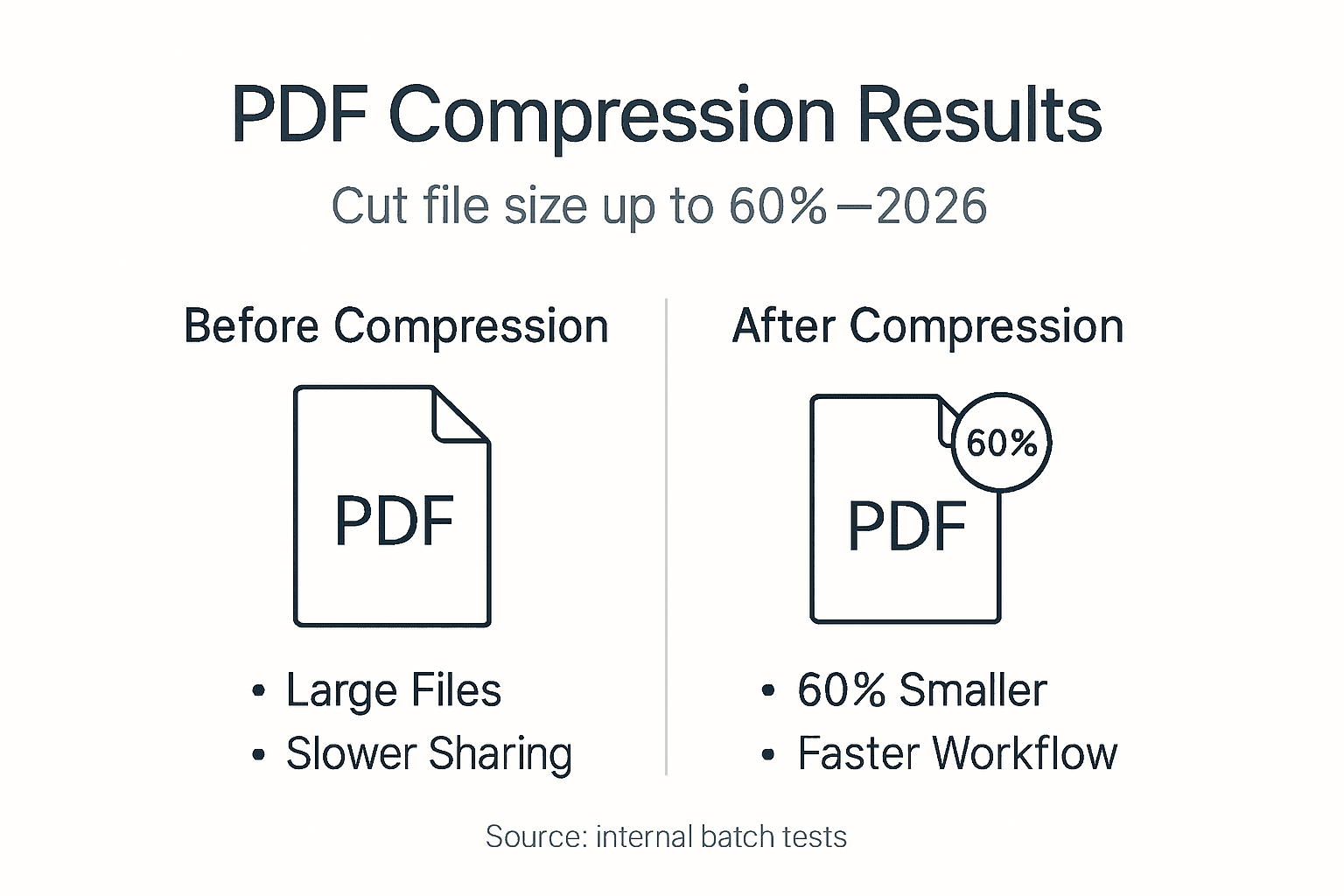
Balancing compression ratios preserves document professionalism. Over compressed PDFs with pixelated images or blurry text damage your organization’s credibility. Test compression on representative samples to find the sweet spot between size reduction and quality retention.
Expected benefits include:
- Faster email transmission and download times for shared documents
- Reduced cloud storage costs as compressed files consume less space
- Improved workflow throughput when processing high volumes
- Enhanced collaboration through quicker document access
Quantify compression results by tracking average file size reduction percentages and time saved per document. These metrics justify software investment and guide optimization efforts.
Pro Tip: Monitor storage savings monthly to demonstrate ROI; a 50% average reduction on 10,000 PDFs translates to substantial cost avoidance over time.
Safety considerations for pdf compression
Security practices protect sensitive information during compression workflows, particularly in regulated industries. Data breaches through compression tools damage reputation and trigger compliance penalties.
Prefer offline PDF compression for security in enterprise settings because online tools upload documents to external servers where you lose control. Healthcare, finance, and legal sectors mandate local processing to satisfy data privacy regulations.
Validate software authenticity before installation by checking digital signatures and downloading only from official sources. Counterfeit compression tools install malware disguised as legitimate utilities.
Critical security practices:
- Use desktop compression applications rather than web based services for confidential documents
- Enable encryption features during compression to protect sensitive content
- Apply password protection before sharing compressed files externally
- Audit compression tool access logs to detect unauthorized usage
- Update software promptly when vendors release security patches
Corporate and legal data privacy policies often specify retention requirements and handling procedures. Ensure your compression workflow complies with these mandates. Some regulations prohibit degrading document quality below certain thresholds.
Encryption and password protection features vary by tool. Premium software offers AES 256 bit encryption and granular permission controls. Free tools typically lack these enterprise security capabilities.
“Security during PDF compression is critical: local software is preferred over online tools in enterprise settings due to data privacy regulations and risk mitigation.”
Regularly audit your PDF compression workflows for security vulnerabilities. As threats evolve, update your security posture accordingly. Include compression tools in your broader cybersecurity assessments.
Advanced integration with adobe and workflow automation
Adobe integration and automation elevate PDF compression from a manual task to a seamless workflow component. These capabilities multiply productivity gains in document intensive environments.
Mapsoft PDF Hub’s Adobe integration through APIs enables batch compression automation within Adobe platforms, eliminating repetitive manual steps. You can trigger compression based on document events like upload, approval, or archival.
Acrobat plug-ins create customized compression workflows tailored to your organization’s specific needs. These integrations allow one click compression with predefined settings directly from Acrobat’s interface.
Advanced automation features:
- Automatic metadata management during compression preserves document tracking information
- Document analysis identifies optimal compression settings based on content type
- Workflow triggers compress files automatically when specific conditions occur
- Integration with document management systems routes compressed PDFs to appropriate repositories
- Batch processing schedules compress files during off peak hours to avoid system slowdowns
Mapsoft PDF Hub for Adobe automation supports enterprise scale operations where thousands of PDFs require consistent processing. API access lets developers build custom integrations matching your exact workflow requirements.
Combining compression with other Adobe editing capabilities creates efficient end to end PDF handling. Merge, split, watermark, and compress documents in coordinated sequences without manual intervention between steps.
Customize workflows to align with enterprise document management policies. Different document types can follow distinct compression paths based on sensitivity, retention requirements, or distribution channels.
Advanced Adobe Acrobat editing techniques complement compression workflows by optimizing document structure before compression, yielding better results.
Pro Tip: Map your current manual PDF workflow on paper, then identify repetitive compression tasks suitable for automation to prioritize integration efforts.
Optimize your PDF workflows with Mapsoft solutions
Mapsoft delivers enterprise grade PDF automation tools designed specifically for Adobe ecosystems. If you manage high volume document workflows, Mapsoft’s solutions reduce manual effort while maintaining quality and security.

Their batch processing PDFs capabilities handle thousands of files efficiently, applying consistent compression settings across your entire document library. This consistency ensures professional quality throughout your organization.
Adobe Acrobat plugins integrate seamlessly into your existing workflows, adding compression automation without disrupting established processes. Teams adopt these tools quickly because they work within familiar Adobe interfaces.
Mapsoft prioritizes enterprise security and compliance needs. Their solutions keep sensitive documents local, support encryption, and provide audit trails for regulatory requirements. Scalable architecture grows with your document volume without performance degradation.
Explore Mapsoft’s offerings to streamline PDF management with trusted, proven tools built for demanding enterprise environments.
Frequently asked questions about pdf compressor download
What factors should I check before downloading PDF compressor software?
Verify operating system compatibility with Windows 10/11 or recent macOS versions, confirm Adobe Acrobat integration if needed, evaluate licensing costs for your team size, and assess batch processing capabilities matching your document volume. Check vendor reputation and security certifications to ensure software authenticity.
How do I ensure compression doesn’t degrade PDF quality?
Test compression on sample documents representing your typical content types before processing important files. Start with moderate compression settings and compare output quality against originals. Avoid maximum compression presets that sacrifice readability for size reduction.
Are online PDF compressors safe for business documents?
Online compressors upload files to external servers, creating data privacy risks unsuitable for confidential business documents. Regulated industries require local processing to maintain compliance. Use desktop compression tools for sensitive corporate information.
Can batch compression really save time?
Yes, batch compression reduces processing time by up to 50% compared to compressing files individually. Configure automation to process multiple documents simultaneously during off peak hours, freeing your team for higher value tasks.
What Adobe integrations enhance PDF compression workflows?
Acrobat plug-ins enable one click compression from within Adobe’s interface using predefined settings. API integrations like Mapsoft PDF Hub automate compression based on document events such as upload or approval. These integrations eliminate manual steps and ensure consistent quality across all compressed files.