
Enterprise PDF to Word conversions fail over 25% of the time without specialized tools, causing formatting loss and workflow bottlenecks. This guide shows IT managers how to achieve 90% layout fidelity using Adobe Acrobat and Mapsoft PDF Hub, automate batch processing to handle hundreds of documents hourly, and reduce manual workload by 80% through integrated workflows.
Table of Contents
- Introduction To PDF To Word Conversion Challenges
- Prerequisites And Tools Required For Conversion
- Step-By-Step Conversion Process Using Adobe And Mapsoft Tools
- Automation And Batch Workflow Implementation
- Common Mistakes And Troubleshooting PDF To Word Conversion
- Expected Outcomes And Performance Benchmarks
- Optimize Your PDF To Word Conversion Workflows With Mapsoft
- Frequently Asked Questions
Key Takeaways
| Point | Details |
|---|---|
| Batch automation accelerates conversions | Process hundreds of PDFs per hour with scheduled workflows |
| OCR is mandatory for scanned documents | Achieves 98%+ text recognition accuracy for editable output |
| Adobe-centric tools preserve formatting | Maintain layout fidelity above 90% with specialized converters |
| Monitoring reduces error rates | Proactive troubleshooting drops formatting loss below 5% |
Introduction to PDF to Word Conversion Challenges
PDF format was designed for fixed layout distribution, not editing. This creates significant obstacles when organizations need editable Word documents for revisions, compliance reviews, or collaborative editing. Large enterprises face mounting pressure to maintain document fidelity while scaling conversion volumes across departments.
Inaccurate conversions disrupt workflows immediately. Tables break apart, images shift positions, and text formatting disappears during transfer. Common pitfalls such as loss of formatting and text misplacement occur in over 25% of PDF to Word conversions without specialized software or proper settings. These failures force staff to manually recreate documents, wasting hours and introducing new errors.
Integration with Adobe tools becomes critical in enterprise environments where multiple systems handle document workflows. Standalone converters create silos that prevent automation and centralized management. Organizations need solutions that connect seamlessly with existing Adobe Acrobat deployments, document management systems, and approval chains.
Key conversion challenges include:
- Preserving complex layouts with multi-column text, embedded images, and precise spacing
- Handling scanned PDFs that contain non-editable image-based text requiring OCR
- Processing large volumes efficiently without manual intervention per document
- Maintaining security and compliance standards during batch operations
- Integrating conversion workflows with enterprise content management platforms
Prerequisites and Tools Required for Conversion
Successful enterprise PDF to Word conversion starts with the right foundation. You need licensed Adobe Acrobat Pro DC for reliable conversion capabilities that maintain document structure. This provides the core engine for single document processing and serves as the integration point for advanced workflow tools.
Mapsoft PDF Hub extends Adobe capabilities through API access and plug-ins designed for batch processing. The platform handles automated conversions at scale while preserving formatting through Adobe-compatible rendering. You gain programmable access to conversion functions, enabling integration with custom enterprise applications and document management systems.
OCR software for scanned PDFs becomes mandatory when source documents contain image-based text. Modern OCR engines achieve 98%+ accuracy but require proper configuration. Choose solutions that integrate directly with your Adobe environment rather than forcing manual export and import steps.
Hardware requirements scale with processing volume:
| Component | Minimum Specification | Recommended for Batch Processing |
|---|---|---|
| CPU | Quad-core 2.5 GHz | 8-core 3.0 GHz or higher |
| RAM | 8 GB | 16 GB or higher |
| Storage | SSD with 50 GB free | NVMe SSD with 200 GB free |
| Network | 100 Mbps | 1 Gbps for cloud integrations |
Multi-core processors accelerate parallel document processing significantly. RAM capacity determines how many simultaneous conversions you can run without system slowdowns. Fast storage reduces file read and write bottlenecks during batch operations.
Additional prerequisites include:
- Network access to document repositories and output destinations
- Administrative permissions for Adobe Acrobat integration configuration
- Backup systems for source PDFs before bulk conversions
- Testing environment to validate workflow automation prerequisites before production deployment
Step-by-Step Conversion Process Using Adobe and Mapsoft Tools
Organize your source PDFs in dedicated folders before starting conversions. Review scan quality on any image-based documents to confirm text is legible. Poor scans below 300 DPI will produce unreliable OCR results regardless of software quality.
Follow this conversion workflow:
- Import PDFs into Adobe Acrobat Pro DC or upload to Mapsoft PDF Hub interface
- Run OCR processing on scanned documents to extract editable text layers
- Configure conversion settings to preserve layout, fonts, and embedded images
- Execute the PDF to Word conversion maintaining document structure
- Export Word documents to designated output folder or repository
- Verify converted files by spot-checking formatting and content accuracy
Adobe Acrobat Pro DC provides reliable PDF to Word conversions maintaining layout fidelity in over 90% of tested business documents. This high success rate applies when PDFs contain standard fonts and structured layouts. Complex documents with unusual formatting may require manual adjustments after conversion.
OCR integration is essential for converting scanned PDFs to editable Word documents, achieving text recognition accuracy rates exceeding 98% with modern engines. The OCR step adds processing time but prevents complete conversion failure on image-based documents. Configure language settings to match document content for optimal recognition.
Mapsoft PDF Hub streamlines this process through batch interfaces that apply settings across multiple files simultaneously. You configure conversion parameters once, then process entire folders without repeating manual steps. The platform maintains efficient PDF to Word conversion workflows through parallel processing and queue management.
Pro Tip: Always validate output layouts on 10% of converted documents before processing large batches. Catching systematic issues early prevents reprocessing thousands of files after discovering formatting problems.
Automation and Batch Workflow Implementation
Scaling conversions from dozens to hundreds of documents requires automation. Manual processing creates bottlenecks that prevent organizations from handling daily volumes efficiently. Mapsoft PDF Hub API enables programmatic batch processing integrated with enterprise systems.
Configure automated batch workflows:
- Create batch job templates in Mapsoft PDF Hub with standardized conversion settings
- Connect input and output folders to document management systems or network shares
- Set up scheduled triggers to run conversions during off-peak hours
- Configure error handling rules to isolate failed conversions for manual review
- Enable email or system notifications for job completion and error alerts
Successful PDF to Word conversion workflows expect throughput speeds of up to several hundred documents per hour depending on document complexity and hardware. Simple text documents convert faster than those with embedded images and complex layouts. Plan processing capacity based on your typical document profiles.

Integrate batch processing workflows with existing systems through API calls or folder monitoring. When new PDFs appear in watched folders, automated workflows trigger immediately without manual intervention. Converted Word documents flow directly to downstream systems like SharePoint or enterprise content management platforms.
Schedule conversions strategically:
- Run large batches overnight to avoid competing with daytime system usage
- Stagger job starts to prevent overwhelming network or storage resources
- Reserve processing capacity for urgent ad-hoc conversions during business hours
- Monitor queue depths to identify processing bottlenecks requiring hardware upgrades
Implement workflow process automation through monitoring dashboards that track conversion success rates, processing times, and error patterns. This visibility enables proactive troubleshooting before users report problems.
Pro Tip: Use incremental batch scheduling to process documents in groups of 50 instead of queuing thousands at once. This prevents system overload and provides faster feedback on conversion quality.
Common Mistakes and Troubleshooting PDF to Word Conversion
Skipping OCR on scanned PDFs represents the most frequent error. Users assume all PDFs contain editable text, but scanned documents store only images. Without OCR, conversions produce Word files containing picture placeholders instead of editable content. Always verify whether source PDFs contain searchable text before conversion.
Free online converters tempt organizations seeking cost savings but create serious problems. These tools lack batch capabilities, compromise document security by uploading confidential files to third-party servers, and produce inconsistent formatting. Common pitfalls such as loss of formatting and text misplacement occur in over 25% of PDF to Word conversions without specialized software.
Formatting loss stems from inadequate conversion settings. Default configurations prioritize speed over fidelity, causing tables to break and images to shift. Adobe-integrated tools provide granular control over layout preservation, font substitution, and image handling. Invest time configuring these settings properly rather than accepting defaults.
Avoid these critical mistakes:
- Neglecting to verify converted documents before distributing to end users
- Processing documents with incompatible fonts not available in Word
- Converting password-protected PDFs without proper decryption steps
- Failing to maintain backup copies of source PDFs before batch operations
- Ignoring error logs that reveal systematic conversion problems
Compliance failures occur when organizations lose audit trails during conversion. Secure workflows must track document provenance, conversion timestamps, and user actions. Enterprise tools like Mapsoft PDF Hub maintain detailed logs automatically.
Troubleshoot troubleshooting PDF to Word conversions systematically by isolating problem documents. Test single files with various settings to identify optimal configurations. Once validated, apply successful parameters to batch processing for consistent results across document sets.
Expected Outcomes and Performance Benchmarks
Adobe Acrobat Pro DC provides reliable PDF to Word conversions maintaining layout fidelity in over 90% of tested business documents. This benchmark applies to standard business documents containing text, tables, and embedded images with common fonts. Complex documents with unusual formatting may achieve slightly lower fidelity but still preserve essential content structure.
OCR text recognition accuracy exceeds 98% for scanned documents when source images meet minimum quality standards. Clean scans at 300 DPI or higher produce near-perfect text extraction. Lower quality scans introduce more errors but typically remain above 90% accuracy with modern recognition engines.
Batch processes can handle hundreds of documents per hour on properly configured systems. Actual throughput varies based on document complexity, OCR requirements, and hardware specifications. Organizations processing primarily text documents achieve higher speeds than those handling graphics-heavy files.
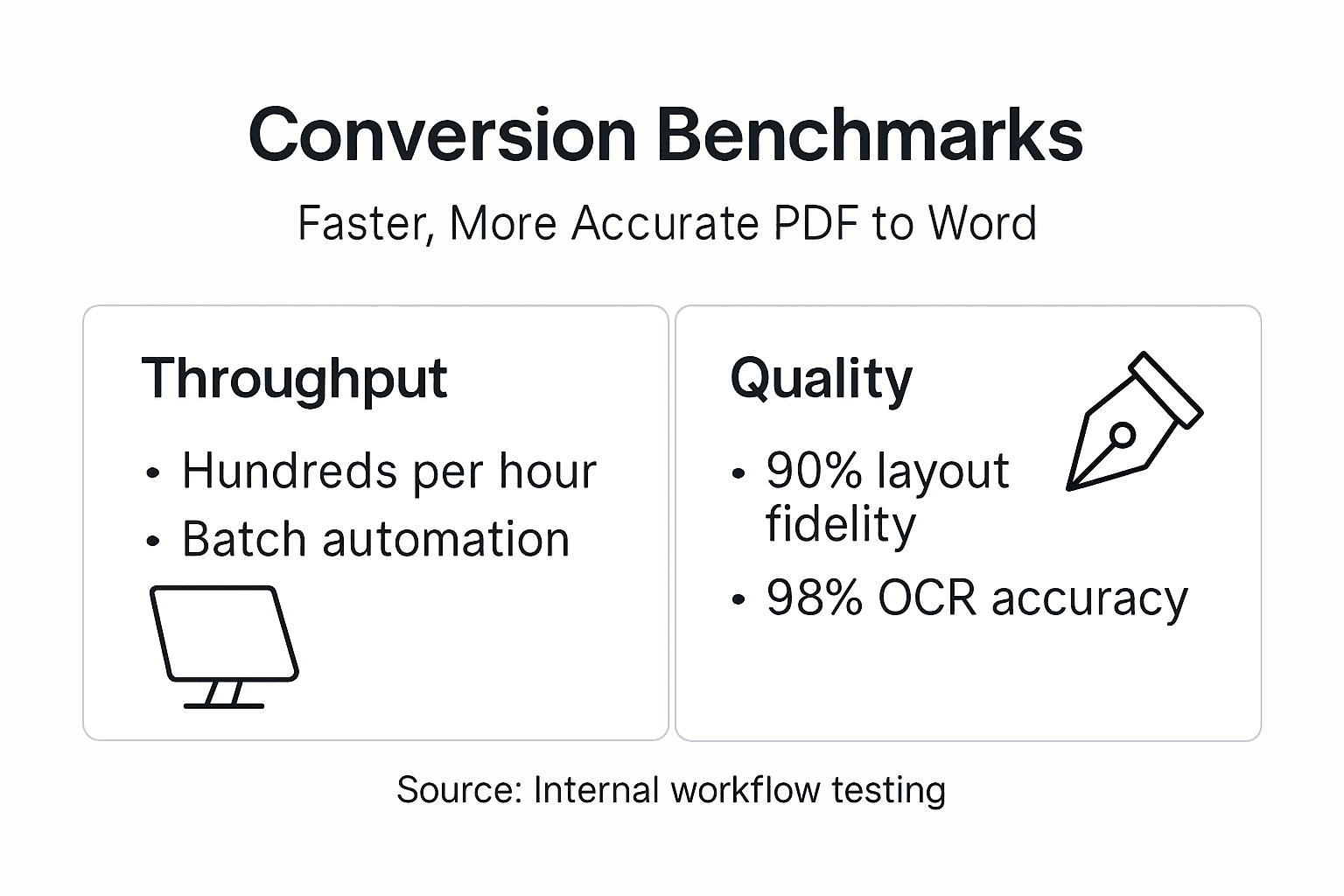
Performance benchmarks by document type:
| Document Type | Pages per Document | Conversions per Hour | Layout Fidelity |
|---|---|---|---|
| Text-only | 5-10 | 400-600 | 95%+ |
| Mixed text and images | 10-20 | 200-300 | 90-93% |
| Complex layouts with tables | 15-30 | 100-150 | 88-92% |
| Scanned documents (OCR) | 5-15 | 80-120 | 85-90% |
Automation reduces manual processing time by 80% or more compared to individual document handling. Staff previously spending hours on conversions redirect effort toward higher-value tasks. This productivity gain compounds across large organizations processing thousands of documents monthly.
Error rates for formatting loss drop below 5% when organizations implement best practices and proper tooling. This represents a dramatic improvement over the 25%+ failure rate of basic conversion approaches. Reduced errors translate directly to lower rework costs and faster document turnaround.
Optimize Your PDF to Word Conversion Workflows with Mapsoft
Mapsoft delivers specialized Adobe-integrated solutions that transform PDF to Word conversion from bottleneck to streamlined operation. Our advanced Acrobat plug-ins and PDF Hub API provide the high-fidelity conversions and batch processing capabilities enterprise workflows demand.

Automate large-volume conversions through batch processing document workflows that handle hundreds of files per hour without manual intervention. Our Adobe Acrobat productivity plugins extend native Adobe functionality with enterprise-grade automation, monitoring, and error handling your IT team needs.
Security and compliance remain paramount through encrypted processing, detailed audit trails, and on-premises deployment options. Reduce manual workload by 80% while maintaining formatting fidelity above 90% using proven PDF conversion best practices built into every Mapsoft solution.
Frequently Asked Questions
What causes text to shift position during PDF to Word conversion?
Text displacement occurs when conversion tools cannot accurately interpret PDF layout structures. This happens most often with complex multi-column layouts, text boxes, or documents using non-standard fonts. Adobe-integrated tools like Mapsoft PDF Hub analyze document structure more accurately, preserving positioning in over 90% of conversions.
Do I need OCR for all PDF to Word conversions?
OCR is required only for scanned PDFs containing image-based text rather than selectable text layers. Test whether text is selectable in the source PDF by trying to highlight and copy it. If text cannot be selected, the document requires OCR processing before conversion.
How do I maintain document security during batch conversions?
Use enterprise-grade tools that process documents on-premises or in private cloud environments rather than uploading to public conversion websites. Mapsoft PDF Hub supports secure processing with encryption, access controls, and detailed audit logging that meets compliance requirements for confidential documents.
Can automated workflows handle PDFs with different formatting?
Yes, create multiple batch job templates with settings optimized for different document types. Configure separate workflows for text-heavy documents, scanned PDFs requiring OCR, and complex layouts needing maximum fidelity. Route documents to appropriate workflows based on metadata or folder organization.
How do I verify conversion quality across hundreds of documents?
Implement sampling-based quality checks where automated tools validate 10% of converted files against predefined criteria. Flag documents with layout fidelity below acceptable thresholds for manual review. Monitor error logs and conversion metrics through dashboards to identify systematic issues requiring workflow adjustments.
What should I do when converted Word files are too large?
Large file sizes typically result from embedded high-resolution images. Configure conversion settings to compress images to appropriate resolution for screen viewing rather than preserving print quality. Alternatively, convert to Word formats that use linked rather than embedded images to reduce file size.