
Protecting confidential reports and sensitive proposals often means more than just locking office doors. With rising compliance expectations across United States, Germany, and beyond, finding a trustworthy way to encrypt PDFs is now a daily necessity for IT teams and document control specialists. This guide shows you how to harness free tools that use military-grade encryption to keep corporate documents secure without costly licenses or complicated setups.
Table of Contents
- Step 1: Prepare PDF Files for Encryption
- Step 2: Select and Access a Free Encryption Tool
- Step 3: Configure Encryption Settings and Passwords
- Step 4: Apply Encryption and Download Protected PDF
- Step 5: Verify Encryption and Test Document Security
Quick Summary
| Key Point | Explanation |
|---|---|
| 1. Organize documents before encryption | Select and gather all PDF files needing security into one folder for easier management and processing. |
| 2. Choose a reputable encryption tool | Research and select a free encryption tool that offers robust security features and user-friendly functionality. |
| 3. Set strong encryption and passwords | Implement complex passwords and choose advanced encryption standards to enhance document security against unauthorized access. |
| 4. Verify the encrypted PDF’s security | After encryption, test the document on multiple devices to ensure password protection and limitation of edits or prints. |
| 5. Backup original files securely | Always keep an unencrypted backup of your PDF files in a safe location to prevent data loss during the encryption process. |
Step 1: Prepare PDF Files for Encryption
Before encrypting your PDF documents, you’ll need to carefully select and organize the files you want to secure. Proper preparation ensures smooth encryption and maximum protection for your sensitive information.
Start by identifying the specific PDF documents that require encryption. This might include financial reports, legal contracts, confidential business proposals, or personal documents with sensitive data. Gather these files into a single, organized folder on your computer. Securing PDF files requires strategic file management and intentional selection.
Consider these key preparation steps:
- Review each PDF file for sensitive content
- Remove unnecessary pages or metadata
- Verify the file size and compatibility
- Ensure you have appropriate permissions to modify the document
When preparing your PDFs, pay special attention to metadata. Remove any hidden information that could potentially expose confidential details about the document’s origin or previous edits. Modern PDF tools often include built-in metadata cleaning features that can help streamline this process.
Double-check that all files are complete and in their final version before encryption. Encrypting draft documents can lead to complications if subsequent edits are required.
Pro tip: Create a backup of your original PDF files before starting the encryption process to prevent accidental data loss.
Step 2: Select and Access a Free Encryption Tool
Finding the right free PDF encryption tool can save you time and protect your sensitive documents without breaking the bank. With numerous options available, you’ll want to carefully evaluate tools that balance robust security features with user-friendly functionality.
Start by researching reputable free PDF encryption tools that offer comprehensive security options. Look for software that supports multiple encryption standards and provides password protection methods to ensure your documents remain confidential.
Key considerations when selecting a free encryption tool include:
- Cross-platform compatibility
- Support for standard encryption algorithms
- User interface ease of use
- Additional security features
- File size and performance limitations
Prioritize tools that offer military-grade encryption standards like AES-256, which provides robust protection against unauthorized access. Many free tools offer this level of security, allowing you to safeguard your documents effectively.
Be cautious of completely free tools and always verify the reputation of the software provider. Some free tools might compromise your document’s security or include unwanted additional software during installation.
Free encryption tools can provide robust security, but always verify the credibility of the software source.
Recommended free encryption tools often include open-source solutions and browser-based platforms that require no installation. These options can be particularly convenient for quick document protection.
Pro tip: Always download encryption tools from official websites and verify digital signatures to prevent potential security risks.
Step 3: Configure Encryption Settings and Passwords
Configuring robust encryption settings is critical to ensuring your PDF documents remain secure and protected from unauthorized access. This step involves carefully selecting and implementing strong security measures that will safeguard your sensitive information.
When setting up encryption, focus on creating a comprehensive password protection strategy that goes beyond basic security measures. Your password should be complex, unique, and impossible for others to guess.
Consider these key password configuration guidelines:
- Use a minimum of 12 characters
- Combine uppercase and lowercase letters
- Include numbers and special symbols
- Avoid personal information or common patterns
- Use different passwords for different documents
Encryption level selection is equally important. Most free tools offer multiple security options, including:
- Open password (prevents document opening)
- Permissions password (restricts editing and printing)
- Advanced encryption standards like AES-256
Strong passwords are your first line of defense against unauthorized document access.
Be strategic about setting different passwords for opening versus modifying the document. This multilayered approach provides an additional security buffer, ensuring that even if someone discovers the viewing password, they cannot alter the document’s contents.
Here’s a comparison of encryption password types and their impacts for PDF security:
| Password Type | Purpose | Security Impact |
|---|---|---|
| Open Password | Prevents opening file | Blocks unauthorized viewing |
| Permissions Password | Restricts editing and print | Controls document alterations |
| Distinct Passwords | Unique for each action | Adds multilayered protection |
Ensure you store your passwords securely, preferably using a reputable password manager that employs advanced encryption techniques.
Pro tip: Create a secure backup of your password in an encrypted, offline location to prevent permanent document lockout.
Step 4: Apply Encryption and Download Protected PDF
The final stage of securing your PDF involves applying encryption and safely downloading your protected document. This critical process transforms your sensitive file into a fortress of digital security, preventing unauthorized access and potential data breaches.

Utilize online encryption tools that offer instant browser-based encryption to streamline the process. These tools typically provide a straightforward workflow that allows you to encrypt your document without complicated software installations.
Follow these essential steps for applying encryption:
- Upload your PDF file to the encryption platform
- Select your preferred encryption level
- Enter a strong, unique password
- Review security settings
- Download the encrypted PDF
Encryption best practices require careful attention to detail. Most free encryption tools offer multiple protection levels, allowing you to choose between:
- Preventing document opening
- Restricting editing capabilities
- Limiting printing permissions
- Applying advanced encryption standards
Remember that the strength of your encryption depends on the complexity of your chosen password.
Verify your encrypted PDF immediately after downloading. Open the file in a different browser or device to confirm that the password works and no data has been compromised during the encryption process.
Pro tip: Always keep an unencrypted backup of your original PDF in a secure, offline location as a precautionary measure.
Step 5: Verify Encryption and Test Document Security
The final checkpoint in your PDF encryption process involves thoroughly testing and confirming your document’s security measures. This critical step ensures that your sensitive information remains protected against unauthorized access.
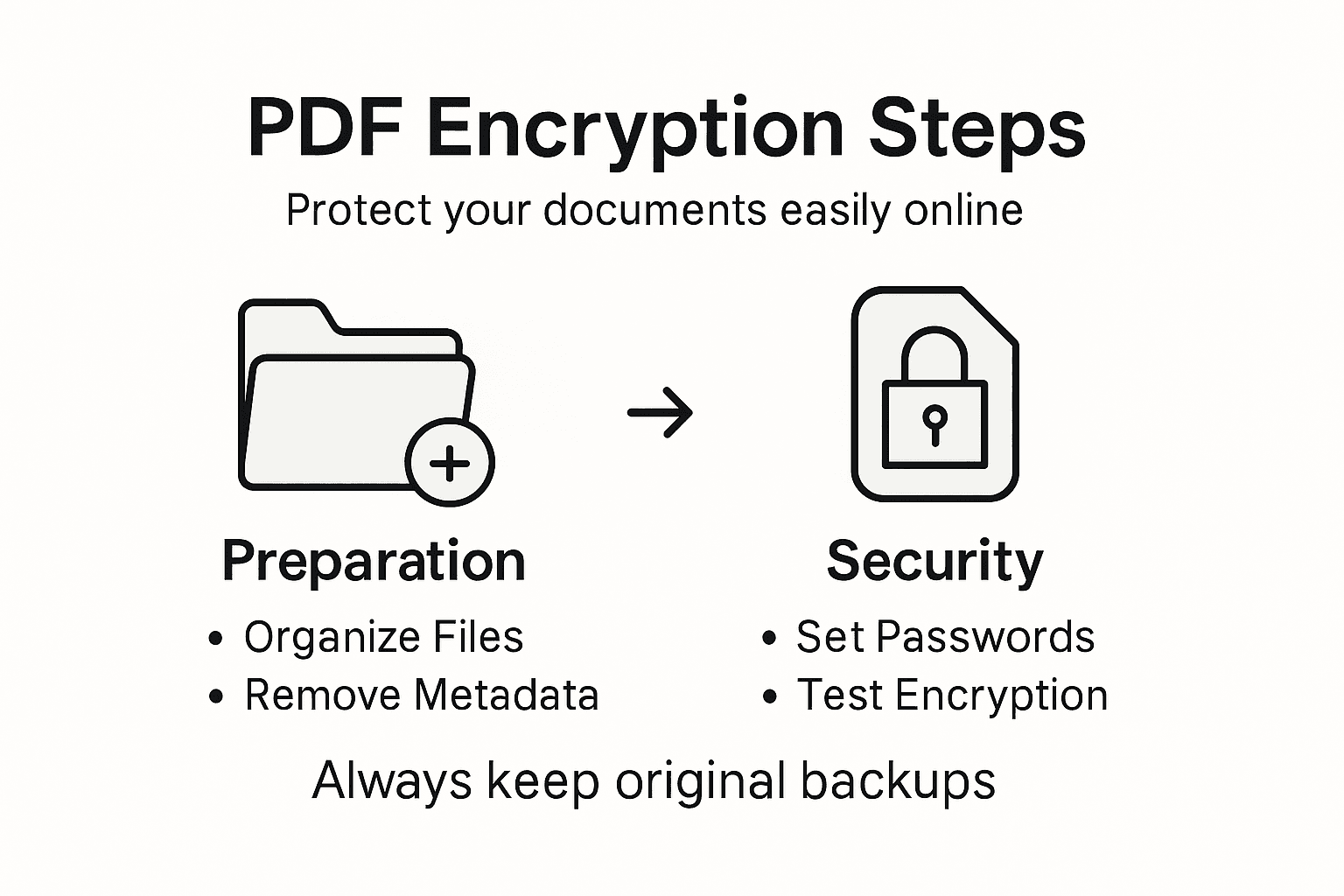
Verify your encrypted PDF’s security by understanding document protection principles across multiple devices and platforms. Comprehensive testing involves more than simply checking if the password works.
Test your encrypted PDF’s security using these comprehensive verification steps:
- Open the file on different devices
- Attempt access without the password
- Check encryption level settings
- Verify permission restrictions
- Test printing and editing capabilities
Key security verification techniques include:
- Using multiple PDF reader applications
- Checking metadata protection
- Confirming consistent encryption across platforms
- Validating permission restrictions
Security is not a one-time task but an ongoing commitment to protecting your digital documents.
Pay special attention to permission-based security features. Some encryption tools allow granular control over document interactions, such as preventing printing, copying, or editing. Verify that these restrictions function correctly across different platforms.
Below is a quick reference for testing encrypted PDF security across devices and applications:
| Test Method | What to Check | Expected Result |
|---|---|---|
| Multiple Devices | Password required on all | Consistent access protection |
| Different Readers | Editing/printing restrictions | Permissions always enforced |
| Metadata Inspection | Hidden info removal confirmed | No sensitive data visible |
Pro tip: Create test documents with varying sensitivity levels to practice and refine your encryption strategy.
Enhance Your PDF Security and Workflow with Mapsoft Solutions
Encrypting PDF files for secure online sharing is just the first step in protecting your sensitive information. The article highlights challenges like managing strong password protection, applying advanced encryption standards, and verifying document security across devices. If you want to move beyond basic free tools and gain greater control over your PDF encryption and handling processes, explore our tailored solutions.

Discover how Mapsoft.com offers powerful Adobe Acrobat® plugins and web-based tools that help you not only password protect and encrypt PDFs but also automate batch workflows, manage metadata securely, and optimize document preservation. Visit our Digital Preservation category to see how our services strengthen your PDF security strategy. Take control of your document security today at Mapsoft.com and unlock enterprise-grade PDF encryption and workflow optimization.
Learn more about robust PDF protection and workflow enhancements on our Uncategorized page where new features and insights are regularly updated.
Frequently Asked Questions
How do I prepare my PDF files for encryption?
To prepare your PDF files for encryption, start by selecting and organizing the documents you wish to secure. Review each file for sensitive content, remove unnecessary pages and metadata, and ensure that you have the necessary permissions to modify the documents.
What features should I look for in a free PDF encryption tool?
When selecting a free PDF encryption tool, focus on key features such as cross-platform compatibility, strong encryption standards like AES-256, and an easy-to-use interface. Ensure that the tool offers user-friendly options for setting up passwords and managing permissions.
How can I create a strong password for my encrypted PDF?
To create a strong password for your encrypted PDF, use at least 12 characters that combine uppercase and lowercase letters, numbers, and special symbols. Avoid using personal information or common patterns to ensure better security against unauthorized access.
What steps should I take to apply encryption and download my PDF?
To apply encryption, upload your PDF to the encryption tool, select the desired security level, and set a strong password. After confirming your security settings, download the encrypted PDF to secure your document before sharing it online.
How can I verify that my PDF is properly encrypted?
To verify your PDF’s encryption, open the file on different devices and check that the password is required for access. Additionally, attempt to use the document without the password to ensure that unauthorized access is blocked and confirm that permissions are enforced correctly.